How To Fix a 502 Bad Gateway Error


When you’re trying to visit a website and suddenly see a message saying “502 Bad Gateway,” it can be frustrating. This error means the site you’re trying to reach isn’t working properly at that moment. It can be confusing because the problem might be with your device, the website’s server, or even something in between.
This guide will help you understand what a 502 error really is, why it happens, and how to fix it. Whether you’re just browsing the internet or you own a website, you’ll find simple steps to solve the problem. Let’s break it down so anyone can follow along.
What is a 502 Bad Gateway Error?
A 502 Bad Gateway Error shows up when one server on the internet gets a bad response from another server. This can happen for many reasons, but the result is that the website won’t load.
Imagine you’re trying to reach a store, but the main gatekeeper can’t reach the store’s door to open it for you. That’s what’s happening with a 502 error — one server can’t get through to another to fetch the webpage you want.
Why it happens and why it matters (UX, SEO, trust issues)
502 errors can annoy users. If a website doesn’t load, visitors might leave and not come back. This hurts the website’s reputation and trust.
It also affects search engines. If search engines notice that your website is often unavailable, they might lower your rankings. That means fewer people will find your site.
Understanding the 502 Error
HTTP status codes explained
HTTP status codes are messages from the server about what’s happening with your request. For example, “200” means OK, the page loaded fine. “404” means the page wasn’t found. A “502” means something went wrong between servers.
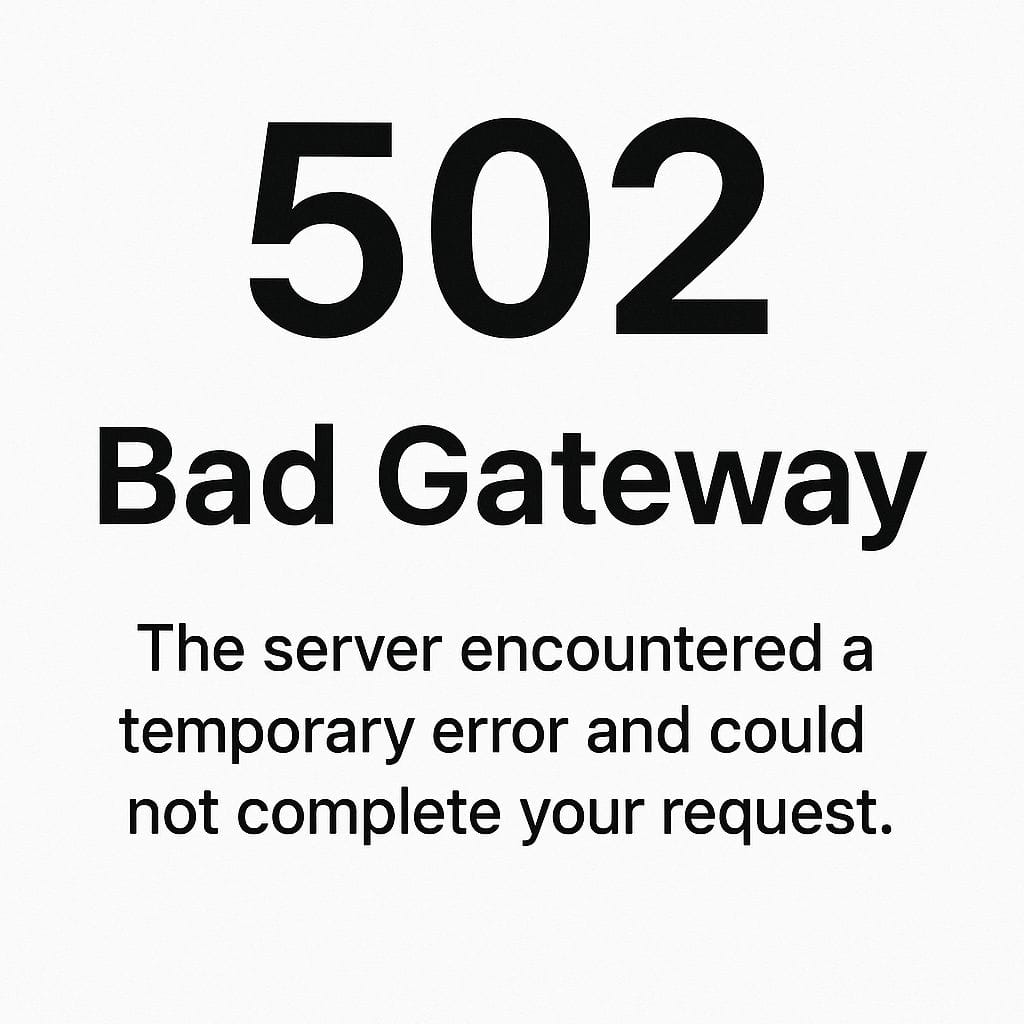
These codes help website owners figure out problems quickly. Knowing what each code means is like understanding road signs for websites.
What does “Bad Gateway” mean?
“Bad Gateway” means that one server expected information from another, but didn’t get it or got a bad response. Think of it like trying to get a message through a middleman who messes it up.
This doesn’t always mean the website is down forever. Often, it’s a temporary problem, but it still needs attention.
Difference between 502, 503, and 504 errors
A 502 error means a bad response between servers. A 503 error means the server is not available because it’s overloaded or down for maintenance. A 504 error means the server took too long to respond.
These errors are similar but happen for different reasons. Knowing the difference helps fix them the right way.
Common Causes of a 502 Bad Gateway Error
Server Overload
When a server has too many people trying to use it at once, it might get overloaded and stop responding. This can cause a 502 error.
This usually happens during big sales, viral events, or attacks. Upgrading server capacity or using load balancing can help avoid it.
Server-to-server communication failures
Sometimes, servers need to talk to each other to show a webpage. If one server doesn’t respond correctly, a 502 error appears.
This is often the case with websites that use APIs or microservices. Fixing it may involve checking if the other server is online and working.
Faulty CDN (Cloudflare) configurations
CDNs help websites load faster by using different servers around the world. But if they’re set up wrong or if the main server is down, it can trigger a 502 error.
Many sites use Cloudflare. If there’s a configuration mistake there, it needs to be corrected in the settings.
DNS changes not yet propagated
When a website changes hosting or DNS settings, it can take time for the internet to catch up. During that period, visitors might see a 502 error.
This usually fixes itself after a few hours, but owners can speed it up by checking DNS settings and flushing the cache.
Corrupt browser cache or cookies
Sometimes, the problem is on the user’s side. A browser might be showing a saved version of a broken page.
Clearing cache and cookies can remove old data and allow the browser to load the fresh page.
Fixes for Website Visitors
- Refresh the page Often, a 502 error goes away after a moment. Try refreshing the page by clicking the reload button or pressing F5. It could just be a temporary issue, and reloading might solve it.
- Try another browser or device If the page still doesn’t load, try opening it in another browser or on your phone. This helps you know if the problem is with your current browser. If it works elsewhere, your regular browser may need to be cleared or updated.
- Clear your cache and cookies Clearing your browser’s cache and cookies gets rid of old saved data that might be causing errors. Go into your browser settings and find the option to clear browsing data. Restart the browser and try again.
- Restart your modem/router Sometimes internet connection problems can cause a 502 error. Restarting your modem or router can refresh your connection. Unplug it for a minute, then plug it back in. Wait for it to connect and then try the site again.
- Use a VPN to check regional blocks A website might be blocked or experiencing problems in your area. Using a VPN changes your location and might help you access the site. This is a good way to test if the issue is regional.
Fixes for Website Owners or Developers
Check server logs and error messages
Look at your server’s error logs to find clues about what caused the 502 error. These logs show what the server was doing when it failed.
Fixing the issue often starts with understanding what went wrong.
Restart web server (Apache, NGINX)
Sometimes restarting the server clears temporary issues. This can be done through your hosting panel or using command line.
A fresh restart often solves minor glitches.
Examine firewall settings or proxies
Firewalls or proxy servers might block some connections by mistake. Check these settings to make sure they aren’t the cause.
You might need to whitelist certain IPs or services.
Disable plugins/themes (WordPress-specific)
If you use WordPress, a plugin or theme might be causing the problem. Try disabling them one by one to find the culprit.
Use recovery mode or access your site through FTP if the admin panel is down.
Look for coding or deployment issues
Errors in your website’s code or a bad deployment can break connections between servers.
Roll back to a previous version or check for bugs in recent updates.
Investigate CDN and DNS settings
Check that your CDN (like Cloudflare) is properly connected to your origin server. Also make sure your DNS records are up to date.
Misconfigured settings here are common causes of 502 errors.
Fixes Specific to Cloudflare Users
Check Cloudflare’s status page Cloudflare may be having issues on their end. Visit their status page to see if there are any outages. If there is a problem, it may resolve on its own soon.
Bypass Cloudflare temporarily You can pause Cloudflare to see if the problem is coming from them. This routes traffic straight to your origin server. If your site loads fine afterward, Cloudflare is the issue.
Review origin server availability Make sure your actual server is online and working. If it’s down, Cloudflare can’t fetch your site. You may need to contact your hosting provider or check server logs.
Fixes Based on Server Type
NGINX
Check upstream server errors In NGINX, a 502 error often means it couldn’t reach the upstream server. Check the configuration and make sure that server is online. Look into the error logs for more details.
Apache
Review .htaccess and mod_proxy settings In Apache, the .htaccess file or mod_proxy settings might be misconfigured. Fixing or removing faulty rules can help. Always back up the file before making changes.
PHP-FPM
Restart and check error logs PHP-FPM is used to handle PHP requests. If it crashes or gets stuck, you may see a 502 error. Restart PHP-FPM and review its error logs for signs of trouble.
How to Prevent Future 502 Errors
Use server monitoring tools
Tools like UptimeRobot or Pingdom can alert you if your site goes down. That way, you can fix it fast before users notice.
Monitoring helps catch problems early.
Optimize backend code and database queries
Poorly written code or slow database queries can put too much stress on your server. This leads to errors like 502.
Regularly test and improve your code and database for speed.
Regular server health checks
Check your server’s CPU, memory, and disk space often. Low resources can cause it to crash or slow down.
Hosting panels often have tools to help with this.
CDN configuration best practices
Make sure your CDN is set up correctly and always points to a healthy origin server.
Follow your CDN provider’s setup guide to avoid common mistakes.
Final Thoughts
A 502 Bad Gateway Error can be annoying, but most of the time, it’s easy to fix with the right steps. Whether you’re a casual user or a website owner, there’s a solution.
Start with simple steps like refreshing the page or checking your server. Use tools to catch problems early, and you’ll keep your website running smoothly.
For more help, check your hosting provider’s support pages or forums. You’re not alone—this error happens to everyone now and then.
Interesting Reads:
How to Fix a 403 Forbidden Error on Your Site?
Smart WordPress Plugins to Reduce Your Bounce Rate
Top 10 TextNow Alternatives and Competitors for Free Calling and Texting

Shashank is a seasoned digital marketing and WordPress expert who specializes in SEO, software tools reviews, and cutting-edge strategies for boosting online presence. With a passion for simplifying complex topics, Goutham crafts engaging blog posts that help readers optimize their websites, improve search engine rankings, and stay ahead in the ever-evolving digital landscape.