

Videos are a powerful way to engage your audience and convey information effectively. If you’re sharing tutorials, product demos, or just some interesting content, embedding a YouTube video into your WordPress webpage can significantly enhance your site’s interactivity. WordPress makes this process incredibly easy, offering several methods to seamlessly integrate YouTube videos into your posts, pages, or even sidebars. In this article, we’ll learn different techniques to embed a YouTube video into your WordPress website, ensuring that your content shines.

Quick Links
Methods to Embed a YouTube Video on a WordPress Webpage
Method 1: Using the Block Editor (Gutenberg)
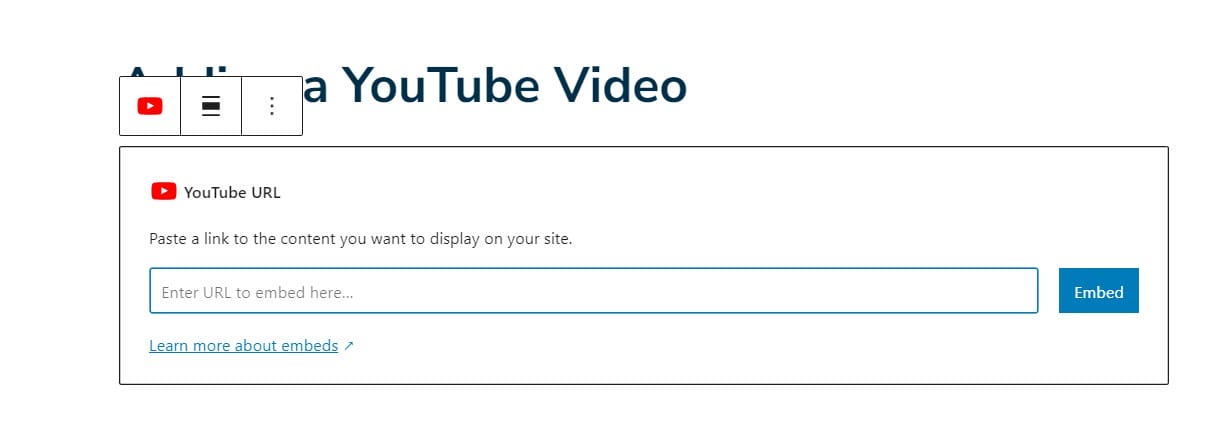
- Copy the YouTube Video URL:
- Go to the YouTube video you want to embed.
- Copy the URL from the address bar.
- Add a YouTube Block:
- In your WordPress dashboard, open the page or post where you want to embed the video.
- Click the + button to add a new block.
- Search for the YouTube block and select it.
- Paste the Video URL:
- Paste the YouTube video URL into the YouTube block.
- The video will automatically embed, and you’ll see a preview within the editor.
- Publish or Update the Page:
- Once you’re satisfied with the placement, click Publish or Update to save your changes.
Method 2: Manually Embedding Using the Classic Editor
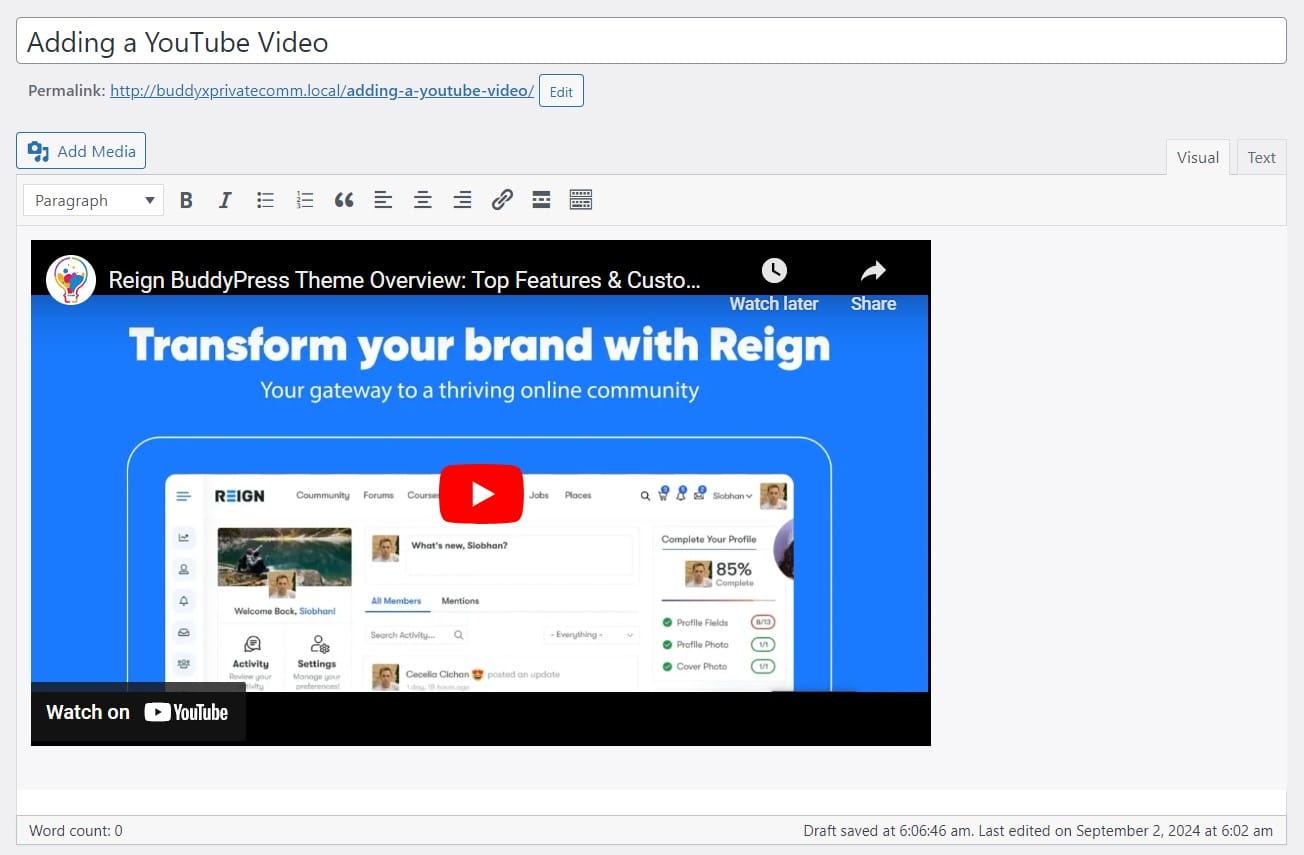
- Copy the YouTube Video URL:
- As before, go to the YouTube video and copy the URL.
- Paste the URL Directly:
- In your WordPress dashboard, open the page or post where you want to embed the video.
- Simply paste the YouTube URL into the content area where you want the video to appear.
- WordPress will automatically convert the URL into an embedded video.
- Publish or Update the Page:
- Click Publish or Update to save your changes.
Method 3: Using a Widget (for Sidebar or Footer)
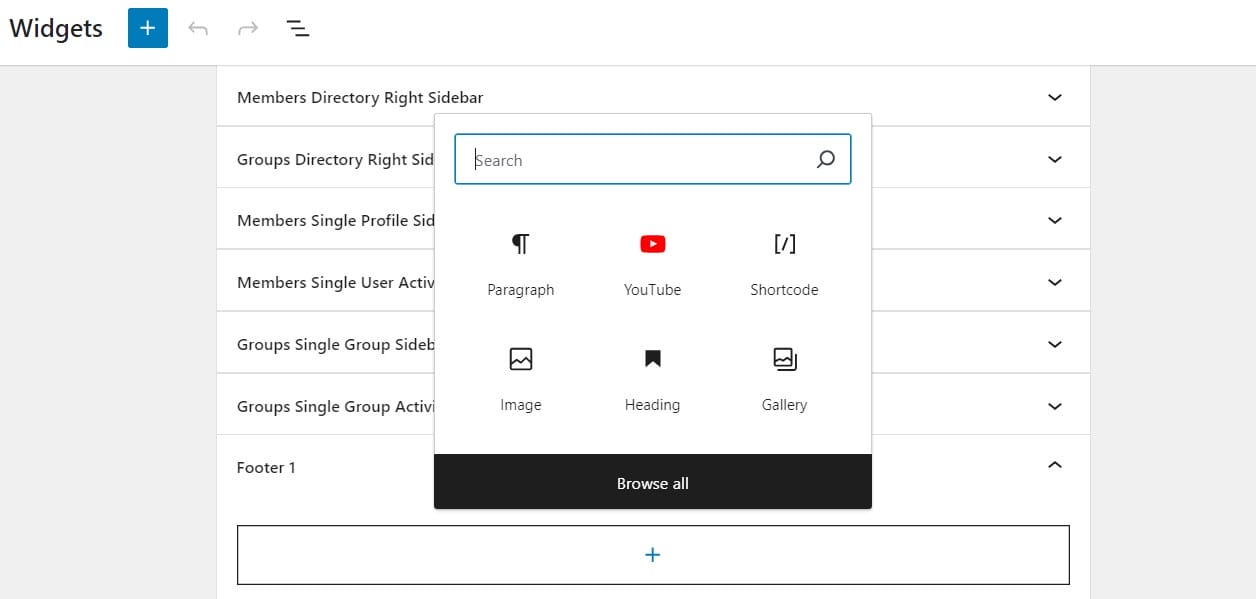
- Copy the YouTube Video URL:
- Copy the URL of the video from YouTube.
- Add a Video Widget:
- Go to Appearance >> Widgets in your WordPress dashboard.
- Drag the Video widget to your desired widget area (like the sidebar or footer).
- Add the Video:
- In the widget settings, click Add Video and select Insert from the URL.
- Paste the YouTube video URL.
- Click Add to Widget.
- Save the Widget:
- Click Save to apply the widget to your site.
Method 4: Using the YouTube Embed Code
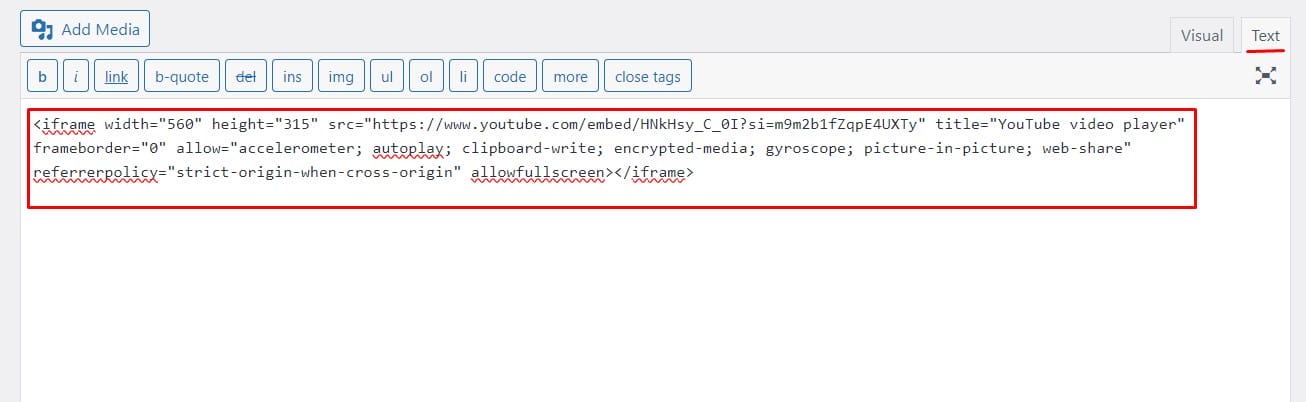
- Get the Embed Code from YouTube:
- Go to the YouTube video you want to embed.
- Click Share below the video.
- Select Embed.
- Copy the embed code provided.
- Add the Embed Code to Your Post/Page:
- In your WordPress dashboard, open the page or post where you want to embed the video.
- Switch to the Text or HTML tab in the editor.
- Paste the embed code where you want the video to appear.
- Publish or Update the Page:
- Click Publish or Update to save your changes.
Integrating YouTube videos into your WordPress site is a simple yet effective way to boost engagement and provide value to your audience. By following any of the methods outlined above whether using the block editor, classic editor, widgets, or embed code you can easily enhance your site’s content with dynamic video elements. This not only keeps your visitors interested but also encourages them to spend more time exploring what you have to offer. With just a few clicks, you can transform your WordPress site into a multimedia-rich platform that stands out.
Interesting Reads:
What Is The Best Tool To Scan WordPress Site
How To Change The Background Color Of Your Site Header In WordPress

