

Expanding your WooCommerce store to serve international customers is one of the smartest ways to grow your online business. Today’s shoppers expect a seamless experience in their own language—from browsing products to completing checkout. They also prefer when product details, reviews, and even shipping policies are fully localized, as this reduces uncertainty and builds confidence. That’s where WooCommerce Multilingual comes in.
With the help of WPML and its extensions, this plugin makes it possible to translate your products, categories, and even your checkout process into multiple languages, ensuring every part of the shopping journey feels familiar and trustworthy to your customers.

Quick Links
Why Translating Your WooCommerce Store Matters
Running a store in only one language means you’re leaving money on the table. Studies show that
Over 70% of consumers prefer to shop on websites in their native language, and more than half are willing to pay extra if information is provided in their preferred language.
By translating your WooCommerce store, you can reach a broader audience across the globe, improve customer trust and satisfaction, boost conversion rates by reducing confusion during checkout, and stand out from competitors who only sell in one language. The good news? WooCommerce Multilingual makes this process much simpler than trying to manage translations manually.
What You Need to Get Started
- WooCommerce Multilingual (the core plugin for multilingual features).
- WPML (WordPress Multilingual Plugin, the backbone for translations).
- WPML String Translation (for translating text strings across your site).
- WooCommerce (your eCommerce framework).
Tip: If you only want multi-currency (without full translations), you can install WooCommerce Multilingual from the plugin directory and use its currency features without WPML.
Preparing Your Store for Translation
Before you dive into translations, make sure your store is ready. This includes installing the right plugins, reviewing your theme’s translation readiness, and deciding which content (products, attributes, URLs) you want to localize.
Quick Guide: Install & Configure WooCommerce Multilingual
Step 1: Get the Plugin Installed
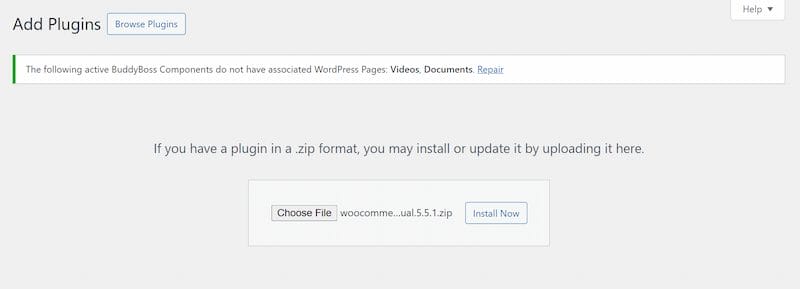
To start, add the WooCommerce Multilingual & Multicurrency plugin:
- Download the plugin from the official WordPress plugin directory.
- In your WordPress dashboard, go to Plugins → Add New → Upload Plugin.
- Upload the ZIP file, click Install Now, then Activate.
Step 2: Set Up Your Language Options
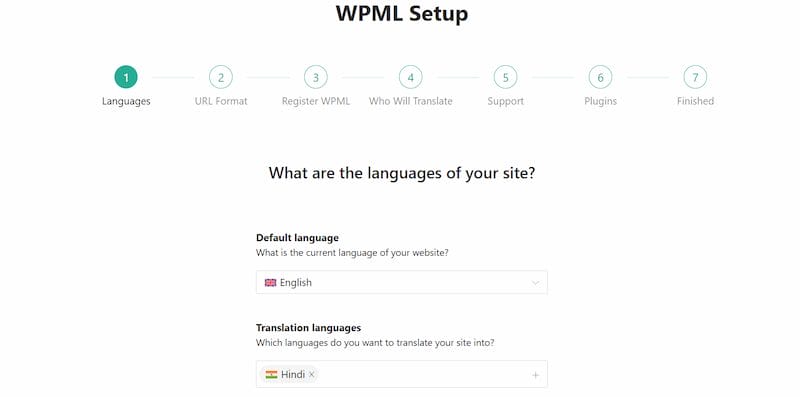
After activation, a new WooCommerce Multilingual section appears:
- Choose your default store language.
- Add one or more additional languages.
- Select manual or automatic translations.
Step 3: Localize Your Products
Translate product content so it’s ready for global shoppers:
- Go to WooCommerce → WooCommerce Multilingual → Products.
- Select the product to translate.
- Translate titles, long/short descriptions, attributes, and variations.
- Click Save.
Step 4: Translate Categories and Tags
Keep catalog navigation consistent across languages:
- Open WooCommerce Multilingual → Categories.
- Add translations for each category and tag.
Step 5: Adapt the Checkout Experience
Make checkout fully multilingual:
- Go to WooCommerce Multilingual → String Translation.
- Translate billing, shipping, and the Place Order button text.
- Translate system messages (cart notices, shipping methods, payment instructions).
Step 6: Add a Language Switcher
Give shoppers an easy way to switch languages:
- Enable the language switcher in the plugin settings.
- Place it in the menu, footer, or a sidebar widget for visibility.
Step 7: Review and Test Everything
Verify the setup before you go live:
- Switch between languages to confirm translations display correctly.
- Place a test order to ensure checkout, emails, and notices are localized.
Translating Emails and Notifications
Don’t overlook customer communication. Order confirmations, shipping updates, and promotional emails should be multilingual too.
Use WPML String Translation to localize WooCommerce email templates and dynamic strings so customers receive consistent communication in their chosen language.
Translating Customer Reviews and User-Generated Content
Customer reviews are one of the most persuasive elements of any online store. However, if they’re only available in one language, you may lose credibility with international shoppers.
With WooCommerce Multilingual, you can also manage and display reviews in multiple languages.
- Automatic Language Display: Reviews are shown in the language your customer selects, whenever translations are available.
- Manual Review Translation: Use WPML String Translation to translate customer-generated content such as reviews, testimonials, and custom product Q&A sections.
- Encouraging Multilingual Reviews: You can even allow customers to submit reviews in their preferred language, making your store feel truly global and inclusive.
Translating user-generated content like reviews ensures international buyers can understand and trust feedback from other shoppers—boosting your store’s credibility worldwide.
Testing Your Translations
After adding translations, always test. Switch languages, add products to cart, and complete checkout like a real customer.
This helps you catch untranslated text, layout issues, or currency mismatches before they impact sales.
Also Read: How to Create and Send PDF Invoices & Packing Slips in WooCommerce
Pro Tips for a Seamless Multilingual Store
- Use automatic translation wisely: AI saves time; still review important product copy.
- Test checkout in every language: Verify buttons, labels, and payment instructions.
- Leverage WPML’s Advanced Translation Editor: Edit side-by-side with context.
- Focus on SEO per language: Customize meta titles and descriptions per locale.
- Track analytics by language: Segment performance to find quick wins.
Common Challenges (and How to Solve Them)
- Untranslated checkout buttons: Translate with WPML String Translation.
- Slow store performance: Use caching, optimized media, and quality hosting.
- Duplicate content issues: Ensure it
hreflangis set—WPML handles this automatically.

Build a Truly Multilingual WooCommerce Store
Creating a multilingual WooCommerce store may sound complex, but with WooCommerce Multilingual, it’s straightforward.
From products and categories to checkout and URLs, you can deliver a fully localized experience that builds trust and lifts conversions. Add multi-currency support, and your store is ready for global growth.
Need expert help? Wbcom Designs can set up or customize your WooCommerce Multilingual store for a smooth, high-converting global experience.
Interesting Reads
How to Use Advanced Product Fields to Add Custom Product Options in WooCommerce
Best Business Process Management Software in 2025
How to Automatically Convert Product Prices to Local Currency in WooCommerce

