

Managing orders and coupons is the backbone of running a successful WooCommerce store. Whether you’re moving to a new website, setting up a staging environment, or merging multiple stores, one of the biggest challenges is ensuring that all orders and coupons transfer smoothly without losing critical data. Manual migration is not only time-consuming but also risky—missing even a single coupon code or customer order could affect sales and customer trust. That’s why many store owners look for reliable ways to transfer WooCommerce orders and coupons efficiently and securely.
Thankfully, with the Order Export & Order Import plugin for WooCommerce (free plugin on WordPress), you can automate and simplify this entire process. This plugin is designed to help store owners export and import orders, coupons, and subscriptions effortlessly, even in bulk.

Quick Links
Why You Need to Transfer WooCommerce Orders and Coupons
Before we dive into the “how-to,” let’s quickly highlight why transferring orders and coupons is essential:
- Store Migration: When moving your WooCommerce store to a new domain or hosting provider, you need a reliable way to migrate customer orders and discount codes.
- Staging Environments: Developers often test changes on a staging site and then need to replicate those updates on the live store.
- Multiple Stores Management: Running more than one WooCommerce store may require syncing orders and coupons across sites.
- Data Backup & Security: Exporting orders and coupons ensures you always have a backup file to restore in case of errors or downtime.
Without the right tool, these tasks can take hours—or even days. That’s where the Order Import Export plugin comes in.
Key Features of the Order Import Export Plugin
The free version of the plugin offers powerful migration capabilities:
- Export & import WooCommerce orders and coupons.
- Supports multiple migration methods:
- Quick Import/Export
- Pre-saved Templates
- Advanced Import/Export
- Batch processing to handle large volumes of orders and coupons.
- Access to detailed history and debug logs.
- CSV file support with UTF-8 encoding.
- Ability to download sample CSVs for orders and coupons.
With these features, you can easily transfer WooCommerce orders and coupons of any size without technical complexity.
Pre-Requisites Before Migration
Before starting, make sure a few basic requirements are in place. Confirm that the mbstring extension is enabled on your server, and always save your CSV files in UTF-8 format to avoid compatibility issues.
It’s also helpful to download the sample CSV files for both orders and coupons to use as references during the process. Once you’ve checked these prerequisites, you’ll be ready to set up the plugin without any interruptions.
Getting Started with the Plugin Setup
Before you can begin transferring orders and coupons, install and activate the Order / Coupon / Subscription Export Import Plugin for WooCommerce. This prepares your WooCommerce store for a smooth, error-free migration.
Step 1: Install and Activate the Plugin
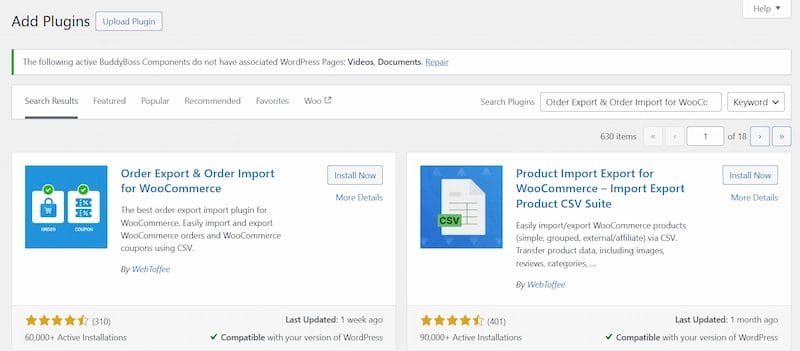
- Go to your WordPress dashboard → Plugins → Add New.
- Search for Order Export & Order Import Plugin for WooCommerce.
- Click Install Now, then Activate.
- After activation, you’ll see a new menu called WebToffee Import/Export (Basic) in your admin sidebar.
Step 2: Access Plugin Settings
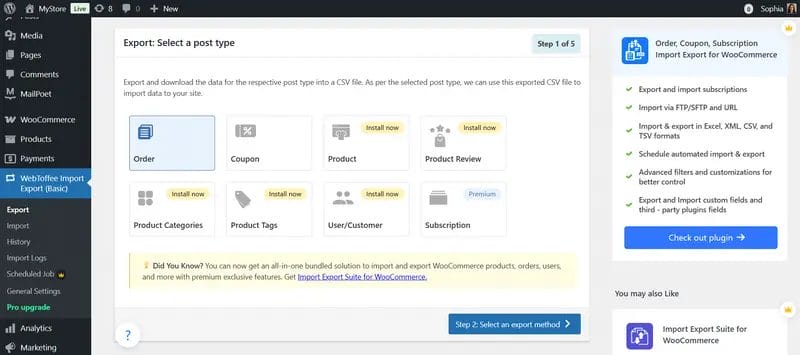
You can access the plugin settings in two ways:
- From WebToffee Import/Export (Basic) in the WordPress sidebar.
- Or via Plugins → Installed Plugins → Order Import Export Plugin → Settings.
Inside, you’ll find five key sub-menus:
- Export
- Import
- History
- Logs
- General Settings
Each of these menus plays a role in migrating your WooCommerce data.
Step 3: Export WooCommerce Orders
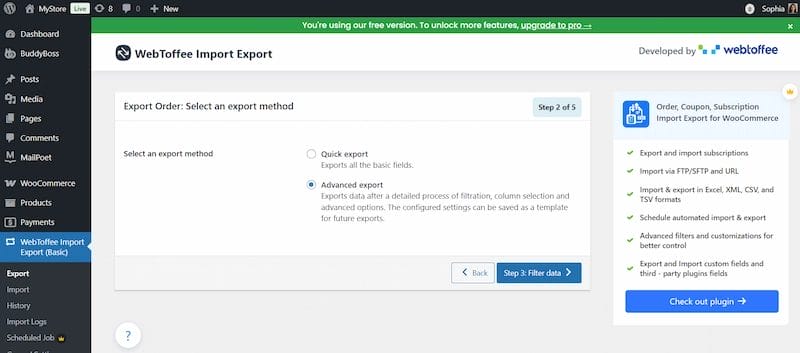
- Go to WebToffee Import/Export (Basic) → Export.
- Select Order as the post type.
- Choose an export method:
- Quick Export
- Pre-saved Template
- Advanced Export
- Apply filters if you want to export only specific orders (e.g., by date range, status, or customer).
- Map and reorder the export columns to match your preferred format.
- Configure advanced options for batch export if you have large volumes.
- Generate and download the CSV file.
This CSV file now contains all the WooCommerce order details you’ll import into your new store.
Step 4: Export WooCommerce Coupons
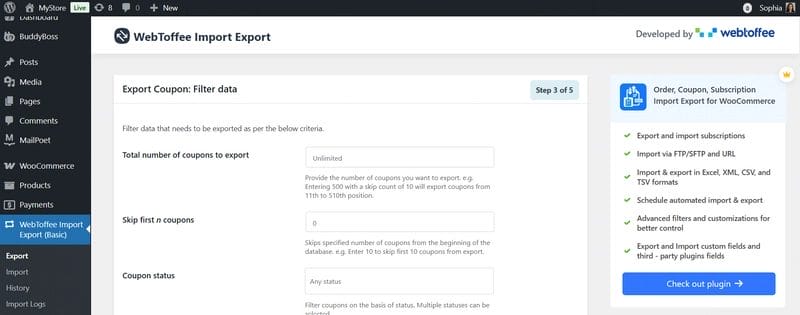
Exporting coupons follows a similar process:
- Navigate to Export → Post Type: Coupon.
- Select the export method (Quick, Template, or Advanced).
- Apply filters if needed (e.g., by discount type, expiry date, or coupon code).
- Choose the columns to include, such as coupon code, description, usage limits, and expiry.
- Generate the CSV file and save it.
Now you have a CSV file containing all your store’s coupon codes.
Step 5: Import WooCommerce Orders
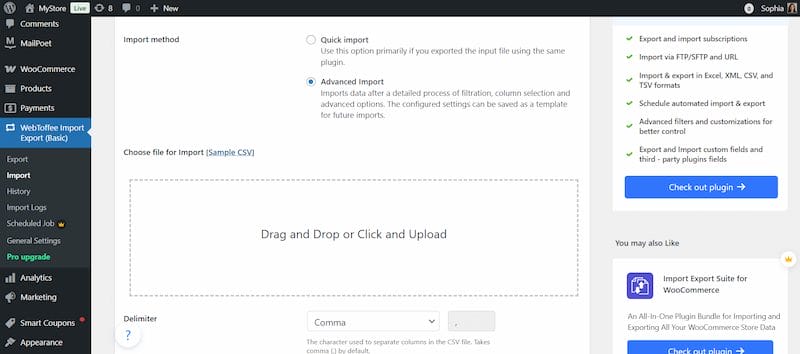
Once you have the order CSV file:
- Go to WebToffee Import/Export (Basic) → Import.
- Select Order as the post type.
- Choose an import method:
- Quick Import (for simple imports)
- Pre-saved Template (if you already configured a template)
- Advanced Import (for more control over data mapping)
- Upload your CSV file.
- Map import columns to match WooCommerce order fields (ID, customer info, product details, payment method, etc.).
- Use advanced batch import if dealing with a large dataset.
- Run the import and wait for the confirmation message.
Step 6: Import WooCommerce Coupons
To bring in coupons:
- Go to Import → Post Type: Coupon.
- Upload the coupon CSV file you previously exported.
- Map the coupon fields (code, type, restrictions, limits, expiration, etc.).
- Start the import process.
- Once complete, your coupons will appear under WooCommerce → Coupons.
Step 7: Verify Imported Data
After importing, always confirm that the data was transferred correctly:
- Check WooCommerce → Orders to see if all orders are present.
- Review WooCommerce → Coupons to confirm coupon codes and restrictions.
- Test a coupon at checkout to ensure it applies correctly.
Additional Features: History, Logs, and General Settings
The plugin also provides three additional features to improve usability. The History tab lets you view every import or export action, repeat past processes, or download previously exported files. The Logs tab records detailed information for troubleshooting and debugging so that you can quickly resolve any issues.
Finally, the General Settings area allows you to configure options such as default batch sizes, preferred import/export methods, execution time limits, and log storage. Together, these features ensure that you maintain full control and traceability throughout your migration.
Also Read: How to Build a Dropshipping Store with WooCommerce
Best Practices for Smooth WooCommerce Data Transfer
- Always back up your store before starting the migration.
- Use the sample CSVs to avoid formatting issues.
- Test with a small batch of orders/coupons before migrating everything.
- Double-check field mapping during import.
- Use batch processing for large datasets to prevent server timeouts.
- Save your import/export templates for faster future migrations.
Troubleshooting Common Issues
Even with a powerful plugin, you may occasionally face migration issues. If imports fail, check whether your CSV file is formatted correctly and encoded in UTF-8. For timeout errors, reduce the batch size in the General Settings. If orders or coupons don’t appear after import, revisit the mapping step to ensure fields align properly. Logs in the plugin can also help you identify the cause of the problem quickly.
Advanced Use Cases
Beyond simple migrations, this plugin can also support advanced workflows. For example, you can use pre-saved templates for recurring data transfers, making it easier to synchronize multiple stores. You can also filter orders and coupons to export only specific datasets, such as seasonal discounts or completed orders from a certain timeframe. This makes the tool flexible for both developers and store managers.

Simplify Data Migration for Your WooCommerce Store
Migrating orders and coupons doesn’t have to be stressful. With the Order Import Export for WooCommerce plugin, you can transfer WooCommerce orders and coupons with just a few clicks—saving time, reducing errors, and ensuring business continuity.
Whether you’re moving to a new store, syncing data between sites, or simply creating backups, this plugin gives you the tools you need to manage WooCommerce data efficiently.
👉 Looking to enhance your WooCommerce store even further? Explore our Custom WooCommerce Development Services to unlock tailored solutions for your business.
Interesting Reads
How to Change Coupon Display and Design with Smart Coupons for WooCommerce
How to Create and Send PDF Invoices & Packing Slips in WooCommerce

