

Managing a WooCommerce store involves juggling many different elements, but order management is at the heart of it all. One of the common frustrations WooCommerce store owners face is random order numbers that don’t follow a logical sequence. This can confuse reporting, accounting, and customer support. It can even create issues when integrating with external accounting tools or customer service software that expect continuous numbering.
Thankfully, there’s a solution — the WooCommerce Sequential Order Numbers Pro plugin, which allows you to replace these irregular numbers with a neat, professional sequence.

Quick Links
Why Sequential Order Numbers Matter in WooCommerce
By default, WooCommerce generates order numbers based on the post ID in WordPress. That’s why you often see gaps, skips, or inconsistencies in order numbers. For example, your orders might look like this: 12, 14, 18, 21. Not only is this messy, but it can also:
- Make accounting more complex
- Confuse customers checking their order confirmations
- Create unnecessary challenges when reconciling reports
Switching to Sequential Order Numbers fixes these issues by assigning clean, consecutive numbers such as 1000, 1001, 1002. You can also customize these with prefixes, suffixes, and date stamps for better tracking.
Introducing WooCommerce Sequential Order Numbers Pro
The WooCommerce Sequential Order Numbers Pro plugin gives you complete control over your order numbers. Instead of random IDs, it lets you:
- Generate sequential order numbers for new purchases
- Set a custom starting number
- Add a prefix or suffix (e.g., WT-01000-UK)
- Use date or time patterns in order numbers
- Pad numbers with leading zeroes for a professional look (e.g., 00001)
- Exclude free orders from the main sequence and assign them their own numbering system
Whether you’re just launching your store or already have existing orders, the plugin adapts smoothly to your setup.
Key Features of Sequential Order Numbers Pro
- Sequential numbering: Ensures order numbers follow a strict, logical order.
- Custom starting point: Choose where numbering begins (e.g., start at 5000 for a professional impression).
- Prefixes and suffixes: Add company initials, country codes, or custom text.
- Date and time tags: Insert
{YYYY},{MM},{DD},{HH},{N}, or{S}to dynamically display dates and times in order IDs. - Length control: Pad numbers with leading zeroes for consistent formatting.
- Free order management: Skip free orders from the main sequence and assign custom identifiers like FREE-1, FREE-2, etc.
- Compatibility: Works with both new and existing stores, including WooCommerce Cart and Checkout blocks (as of WooCommerce 8.3).
Step-by-Step Guide: Configuring Sequential Order Numbers in WooCommerce
Step 1: Install the Plugin
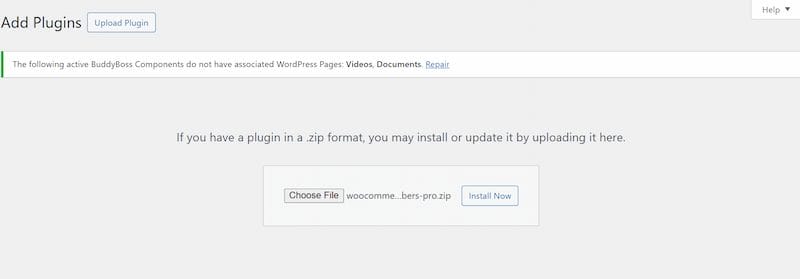
- Purchase and download the plugin from WooCommerce Sequential Order Numbers Pro.
- In your WordPress dashboard, go to Plugins > Add New > Upload.
- Upload the
.zipfile, click Install Now, and then select Activate.
Once activated, the plugin will automatically start generating sequential order numbers.
Step 2: Access the Settings

- Go to WooCommerce > Settings > General.
- Scroll down to the Order Numbers section.
- Here, you’ll find all the customization options available.
Step 3: Configure Your Starting Number
Set the starting number for your orders.
Example: If your highest current order is 245, you can set the next order to begin at 500. Future orders will follow 501, 502, 503, etc.
You can also define minimum order length by adding leading zeroes. For instance, setting 00001 results in numbers like 00001, 00002, 00003.
Step 4: Add Prefixes and Suffixes
- Enter a prefix to add text at the beginning of order numbers (e.g.,
WT-). - Enter a suffix to add text at the end of order numbers (e.g.,
-UK). - Use patterns for dynamic values:
{YYYY}– Full year (2025){MM}– Month with leading zeroes (09){DD}– Day of the month (02){HH}– Hour (24-hour format){N}– Minutes{S}– Seconds
Example format: WT-{YYYY}{MM}{DD}-UK → WT-20250902-UK
Step 5: Handle Free Orders Separately
- Enable Skip Free Orders if you don’t want free orders affecting your main sequence.
- Assign a Free Order Identifier (e.g.,
FREE-).
Example: Free orders will look like FREE-1, FREE-2, while paid orders continue as 1001, 1002, 1003.
Step 6: Save and Test

- Save your changes.
- Place a test order to confirm the settings are applied correctly.
- Check the order details in WooCommerce > Orders to verify the new numbering format.
Real-World Examples of Sequential Order Numbers
For example, a fashion retailer might use a prefix like FT-{YYYY}- for seasonal tracking, resulting in order numbers such as FT-2025-0100. An electronics store could add warehouse codes as suffixes, producing formats like 0500-NY. Similarly, a subscription business might include the month and year in its order numbers, such as SUB-{MM}{YY}-1001. By customizing order numbers in these ways, you not only improve organization but also reinforce your branding.
Also Read: How to Change Coupon Display and Design with Smart Coupons for WooCommerce
Best Practices for Using Sequential Order Numbers
- Choose a logical start point: Starting at 1000 or 5000 looks more professional than beginning at 1.
- Use prefixes wisely: Keep them short and relevant, like brand initials or location codes.
- Test before going live: Always place a few test orders to confirm formatting.
- Separate free orders: Helps with accounting and reporting.
- Leverage date/time tags: Useful for high-volume stores to avoid confusion.
Common Questions About Sequential Order Numbers
Q: Will this change my existing order numbers?
No, existing orders remain unchanged. Only new orders follow the sequential format.
Q: Can I reset the order numbers later?
You can update the starting point, but it won’t affect previous orders.
Q: Is it compatible with WooCommerce Blocks?
Yes, the plugin works with Cart and Checkout blocks as of WooCommerce 8.3.
Q: Do prefixes and suffixes affect exports or invoices?
Yes, custom numbers are used consistently across order details, emails, and exports.
Advanced Customization Tips
Beyond the basics, you can take order number customization further to fit your business workflows. For example, you can use regional coding by adding country codes to suffixes, which helps you quickly differentiate international orders such as 1500-US or 1501-UK.
Businesses with multiple divisions may apply departmental prefixes to indicate which branch processed the order. Seasonal campaigns can also be tracked easily by inserting promotional codes into prefixes, while high-volume stores can add time stamps like {HH}{N}{S} to prevent any confusion when hundreds of orders come in daily.
These extra layers of customization turn your order numbers into an information-rich system that not only saves time but also improves reporting accuracy.
Troubleshooting Sequential Order Numbers
- Order numbers not updating: Double-check that the plugin is activated and that your settings are saved.
- Prefix not showing: Ensure that you didn’t leave trailing spaces in the prefix field.
- Conflicts with other plugins: Some invoicing or order export plugins might override order IDs. Disable them temporarily to test.
- Free order confusion: If you skipped free orders but still see them in sequence, make sure you added a custom identifier under the Free Order Identifier option.
If problems persist, clearing the cache or checking for theme/plugin conflicts usually resolves the issue.
How Sequential Order Numbers Improve Customer Experience
Customers also benefit from clear, sequential order numbers. Instead of receiving a confusing order confirmation like #1857 or #2459, they’ll get something professional like WT-1005-UK. This improves trust and makes it easier for them to reference their orders when contacting support. For subscription or repeat buyers, sequential numbering creates a sense of consistency that encourages confidence in your brand.
Is Sequential Order Numbers Pro the Right Plugin for My Store?
If you’re wondering whether Sequential Order Numbers Pro is the right fit for your business, the answer depends on how important order management and professionalism are to you. Stores that deal with frequent orders, multiple sales channels, or international customers benefit most from structured order IDs. Even small stores can gain credibility and simplify reporting with organized numbers. If you want consistency across invoices, emails, and customer communications, this plugin is a smart investment.

Why Sequential Order Numbers Are Worth It
Configuring Sequential Order Numbers in WooCommerce is a simple but powerful upgrade for your store. With the WooCommerce Sequential Order Numbers Pro plugin, you can streamline order management, improve customer experience, and make your accounting much cleaner.
Instead of dealing with confusing gaps or skipped numbers, you’ll have full control over how your order IDs appear — from prefixes and suffixes to custom start points and free order handling.
If you’re ready to professionalize your WooCommerce store and make order tracking effortless, now is the perfect time to set it up.
👉 Need help customizing your WooCommerce setup beyond order numbers? Explore our custom WooCommerce development services.
Interesting Reads
15 Best Learning Management System Software in 2025
How to Set Up WooCommerce Product Bundles for Higher Conversions

