

Sixty-five percent of professional photographers surveyed in 2024 already use AI Tools to Streamline Photo Workflow, turning automation from novelty to norm (WiFiTalents survey). Clients now expect same-day previews, and we’d all rather stay behind the lens than babysit sliders. Offloading repetitive edits to algorithms keeps you in creative control and saves hours.
This guide walks you through every post-shoot step—from the first pass to the final polish—and shows how ten AI Tools to Streamline Photo Workflow can cut your editing time by up to 50 percent. You’ll see timed benchmarks, clear lines where human judgment still matters, and tips for chaining multiple apps into one seamless workflow.

Quick Links
Cull first, cull fast.- AI Tools to Streamline Photo Workflow
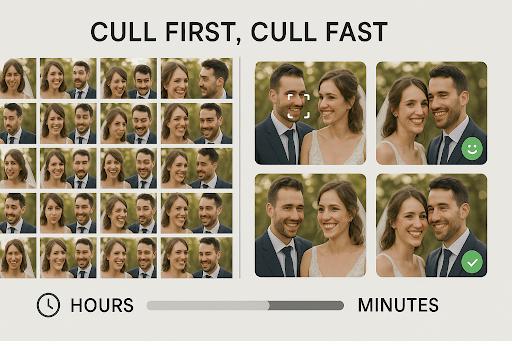
A wedding shoot can leave you with 2,000 RAW files and a deadline that shrinks by the hour. Manual culling saps energy, so let AI handle the repetitive cuts while you keep final say.
Aftershoot does the grunt work. Import your folder, set the lenient-to-strict slider, and the app flags closed eyes, duplicates, and soft frames. Photographers in a 2024 Aftershoot case study said a three- to four-hour sort dropped to under 30 minutes for a full wedding set. The software also groups near-identical bursts, so you judge moments instead of every near-miss.
Prefer a more hands-on review? Narrative Select overlays AI hints such as focus peaking, eye-state icons, and blink warnings without deleting anything. Its Face and Scene scores help you skip 20–30 percent of images per project while still picking the hero frame yourself.
Match the tool to your workflow:
- Need a quick first pass? Let Aftershoot pre-sort, then sanity-check the selects.
- Want granular control without zoom fatigue? Start in Narrative Select and cherry-pick using the on-screen cues.
Either route cuts the bottleneck from hours to minutes, freeing your focus for the creative edits coming next.
Make every frame match: bulk editing at warp speed- AI Tools to Streamline Photo Workflow
Culling is done, and now the real grind begins: giving hundreds of keepers a consistent polish. Instead of wearing yourself out, let AI move the sliders while you stay in charge (see the Best AI Tools for Photo Editing).
Imagen handles the first pass. Feed it a few thousand of your past edits, and it applies your signature look to an entire catalogue in about ten minutes for a 1,500-image wedding (Shotkit, 2024). The edits arrive as standard Lightroom adjustments, so you can tweak any outlier without starting from scratch.
If you already work in Adobe, Lightroom’s newest AI tools complete the job. One click selects the subject, another isolates the sky, and you can sync those masks across a gallery with no extra brushing (Adobe Help, 2025). Need cleaner high-ISO frames? On an RTX 3060 PC, the Denoise AI cleans a 24-MP RAW in 22–24 seconds (Fstoppers, 2024).
Together, the pair works like this: Imagen sets the baseline, then Lightroom’s AI masks and Denoise refine faces, skies, and dark receptions in seconds. You finish the bulk stage with a cohesive, print-ready set, plus enough energy for the hero shots still to come.
For photographers exploring AI-generated backdrops or detailed upscaling within the same workflow, image-generation tools like Leonardo help bridge editing and creative production by turning concepts or low-res captures into high-quality assets ready for compositing.
Raise the ceiling: creative and quality boosters- AI Tools to Streamline Photo Workflow
Generate and upscale with Leonardo.ai

Leonardo.ai does more than speed up edits. It lets you create photo-real assets on demand and enlarge small files for print. The community has produced more than one billion images since the 2024 launch, and the Universal Upscaler accepts files up to 20 MB (about 4 K resolution) for 4- to 8× enlargement without visible artefacts (Leonardo.ai documentation, 2025).
Type a prompt such as “golden-hour beach with gentle surf,” and Leonardo returns multiple high-resolution backgrounds in seconds. Photographers use the feature to build mood boards, drop realistic skies into composites, or pitch concepts before a client shoots.
If you need additional pixels, upload a phone capture or a tight crop. The Upscaler boosts resolution and detail so you can sell 30-inch prints without a reshoot. All tools run in the browser, so there is no exporting between apps.
Also Read: 15 Best Absence Management Software
Photoshop generative fill: composites in seconds
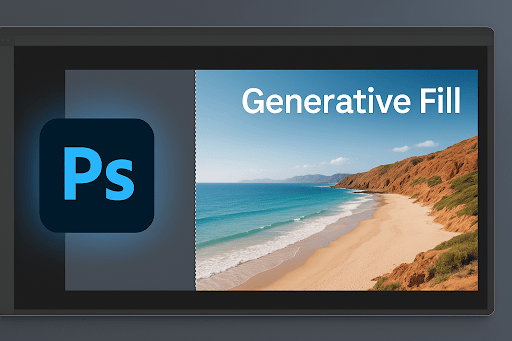
Adobe’s Generative Fill can add, remove, or extend scene elements in 2–5 seconds on a modern GPU, according to a PetaPixel test from July 23, 2024. Select the empty space beside your subject, type “extend the boardwalk at sunset,” and the tool paints believable planks, horizon, and glows on a new layer ready for fine-tuning. Reviewers say it often saves a reshoot and shortens client approvals because distractions disappear with one prompt.
Luminar Neo: AI Tools to Streamline Photo Workflow
Skylum’s Sky AI finds the horizon, swaps clouds, and mirrors the new sky in water reflections automatically. In practice, a flat landscape gains a dramatic sunset in under ten seconds, and sliders let you dial realism before syncing the look across the set. Portrait Enhancer offers single-slider skin smoothing, eye brightening, and teeth whitening for a quick refinement without a lengthy Photoshop session.
Topaz Photo AI: last-mile noise, sharpness, and upscaling
Topaz bundles DeNoise, Sharpen, and Gigapixel into one Autopilot pass. A 2024 Fstoppers review found the app cleans a 24-MP RAW in about thirty seconds and upscales images up to 600 per cent (6×) while preserving detail. Run it at the tail end of your edit to convert near-misses into print-worthy keepers, especially for large canvases or high-ISO reception shots.
Together, these three tools push your work beyond basic colour adjustments: Photoshop for complex composites, Luminar for fast cosmetic flair, and Topaz for final sharpness and size. Pick the one that solves today’s challenge, and watch your deliverables climb a tier in minutes, not hours.
Also Read: Top Social Media Analytics Platforms to Measure Engagement & ROI
Polish faces, swap backgrounds: portrait and cut-out specialists

Portrait touch-ups and clean backdrops help products and people look their best. Two AI helpers manage the pixels while you stay the art director.
PortraitPro maps facial features automatically, then lets you adjust skin, eyes, and lighting with sliders. A 2023 Fstoppers test showed tasks that once took 10 minutes per image dropped to about 20 seconds, and a batch of 169 portraits was exported in 53 minutes, the fastest of three auto-retouch apps reviewed. Because edits land on a smart layer, you can dial strength up or down and apply the same preset across an entire team gallery.
For backgrounds, Remove.bg (or the mobile-first PhotoRoom) separates the subject from the scene in about 2.5 seconds per file and preserves tricky edges, such as hair and pet fur, according to the company’s 2024 benchmark. Download a transparent PNG, drop in white for e-commerce, or add a branded gradient for LinkedIn, then move on.
Together, these tools clear the final hurdles: smooth faces, distraction-free backdrops, and a ready hand-off to your next production step, all in minutes, not hours.

Conclusion on AI Tools to Streamline Photo Workflow
AI is transforming photography workflows from tedious to streamlined. By integrating tools like Aftershoot, Imagen, Lightroom AI, and Leonardo, photographers can reclaim hours once lost to repetitive tasks—without sacrificing creative control. The key is balance: let automation handle the mechanical work while you focus on storytelling, lighting, and emotion. With the right mix of human touch and machine precision, your turnaround time shrinks and your creative ceiling expands.
FAQ
- Is AI editing suitable for beginners?
Yes. Most AI tools are designed with intuitive interfaces that require little technical experience. Many include presets and tutorials to help you get started quickly. - Can AI completely replace manual editing?
Not yet—and it shouldn’t. AI is best used to handle repetitive, time-consuming adjustments. Final creative touches still rely on your artistic vision. - Which AI tools are best for fast batch editing?
Imagen and Lightroom AI are top choices for consistent colour correction and exposure matching across large sets. - Do these tools work with RAW files?
Yes, all major AI photo-editing platforms (like Aftershoot, Topaz, and Lightroom) support RAW formats, maintaining image quality throughout the workflow. - Will AI editing affect my artistic style?
Only if you let it, by training AI tools on your past edits, can you preserve and even enhance your personal editing signature.
Interesting Reads:
Paid Memberships Pro Review: Everything You Need to Know Before Buying
Top Local SEO Tools for Small Businesses: Stand Out in Your City
20 Best Datacenter Proxies for Web Scraping, SEO & Privacy

