

Still relying on the default Windows screenshot tools? It might be time for a change. With so many feature-rich, free screenshot tools available today, sticking with the basics could mean missing out on faster, easier, and more polished captures. If you’ve ever wanted more from your screenshot experience—like quick annotations, advanced editing, or seamless sharing—it’s worth trying out some new tools that come with built-in enhancements and specialized features.
This blog explores some of the best free tools for screenshot capturing on Windows. We’ll break down how each one addresses common user needs, such as speed, usability, editing, and sharing. Let’s dive in and find the tool that best matches your workflow.

Quick Links
What Windows Users Really want in a Screenshot Tool
Most users are looking for screenshot tools that are quick, simple, and efficient. The ability to use keyboard shortcuts and an intuitive interface makes a big difference when you’re in a hurry. Users also expect the tool to capture everything from full screens to custom regions or individual windows without lag.
Editing capabilities are another top priority. Adding arrows, blurring sensitive data, and inserting text directly on screenshots is crucial for productivity. And once the screenshot is ready, being able to copy it to the clipboard, save it locally, or share it online instantly rounds out the experience. For those who work with screenshots daily, customization options like hotkeys and workflow automation can be the cherry on top.
List of 5 Screenshot Tools for Windows
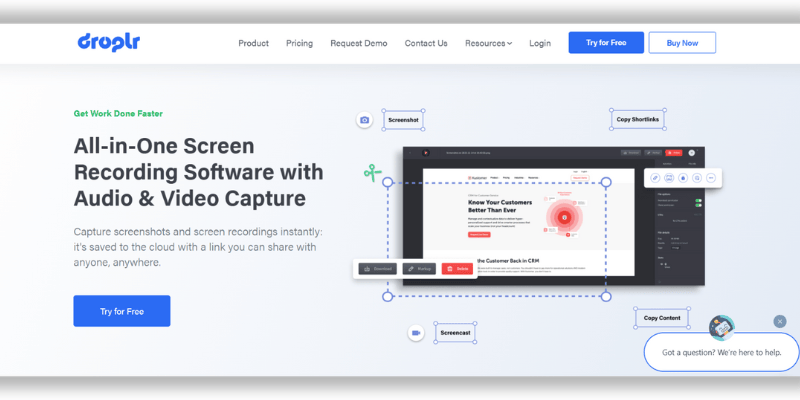
Droplr is a cloud-based tool for screenshots and screen recordings, offering instant sharing and integrations with platforms like Slack and Google Docs. It’s free for a trial period, but after that, users need to subscribe to a paid plan starting at $6/month. Key features include file uploads, annotations, privacy controls, and cloud storage. While it’s ideal for team collaboration, a paid subscription is necessary to access its full capabilities after the trial.
PicPick – All-in-One Design and Capture Tool
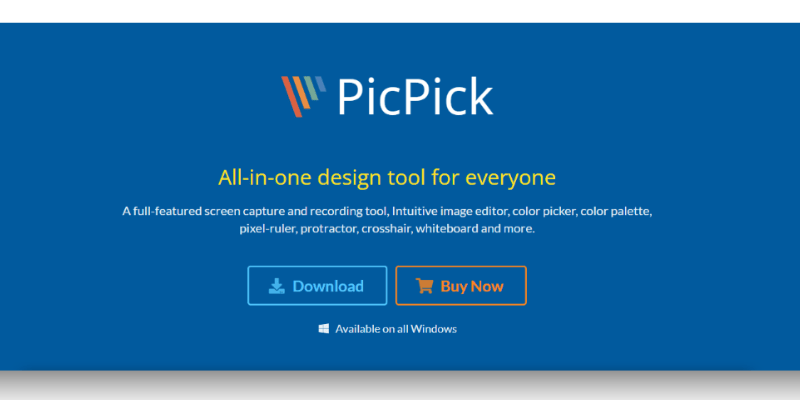
PicPick is a versatile screenshot tool tailored for users who want more than just basic screen capture. It’s especially popular among designers, content creators, and professionals who frequently annotate and refine their screenshots.
With PicPick, you can capture the full screen, an active window, a scrolling window, or any selected region. What sets it apart is its built-in image editor, which feels similar to a lightweight Photoshop alternative. It offers a wide range of editing tools including text, arrows, shapes, blur, pixelate, and even a color picker and protractor.
Lightshot – Fast and User-Friendly
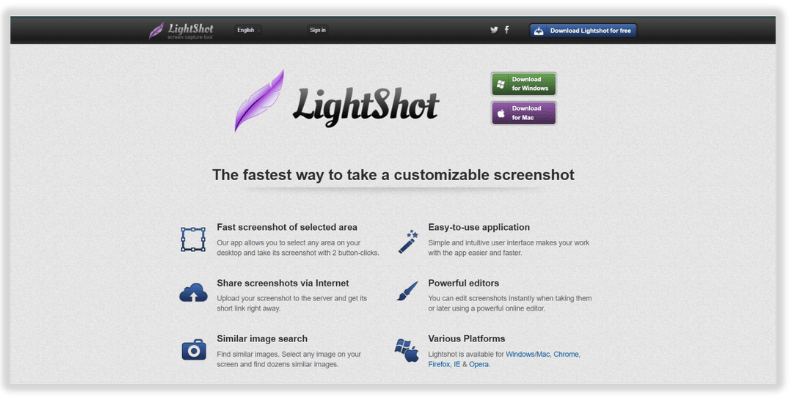
Lightshot offers a simple and fast way to grab screenshots without overcomplicating the process. It’s ideal for users who just want to take, edit, and share screenshots quickly.
You can select any area of the screen, preview the selection live, and apply basic edits like adding arrows or highlighting. Once the screenshot is ready, you can upload it instantly and receive a shareable link.
Its availability as both a desktop app and browser extension makes Lightshot a flexible tool for students, remote workers, and anyone needing instant sharing functionality.
Snagit – Professional-Grade Screenshot and Recording Tool
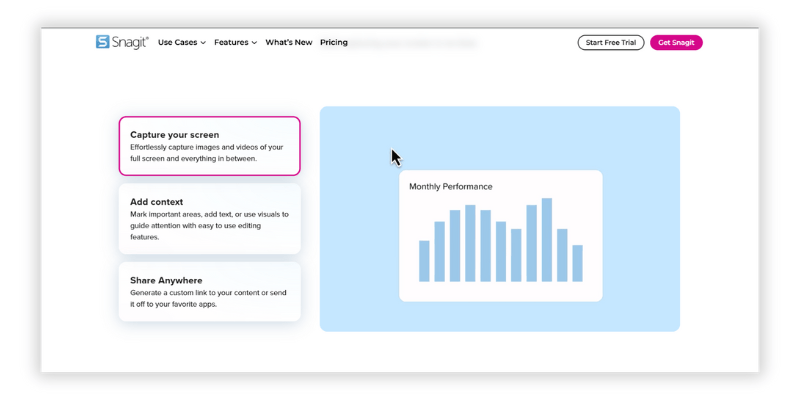
Snagit is a powerful, polished screenshot tool designed for professionals who need more than just basic screen capture. Whether you’re creating tutorials, documenting processes, or collaborating with teams, Snagit offers a well-rounded set of tools for both image and video capture.
It allows you to capture entire screens, specific regions, scrolling windows, or even record screen activity with audio. The built-in editor is especially robust, letting you add annotations, highlights, callouts, numbered steps, and more. You can also create GIFs, extract text from images with OCR, and trim screen recordings with ease.
FastStone
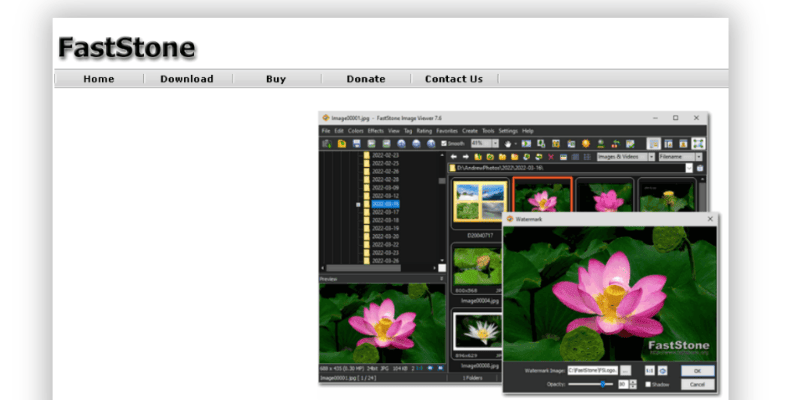
FastStone Image Viewer is one of those tools that feels too good to be free—and that’s because, technically, it kind of isn’t. While it’s free for personal and educational use, if you plan to use it in a business or commercial setting, you’re expected to buy a license. That said, many users never hit that paywall because the software doesn’t lock you out or bombard you with upgrade nags. It’s fully functional and incredibly generous for non-commercial users. However, if you want to add shadows or perform other advanced image effects, FastStone won’t quite cut it. For those features, you’ll need to turn to external tools like GIMP (which is free) or Adobe Photoshop.
So, Which Tool Should You Choose?
The best tool depends on your needs. ShareX is perfect if you want full customization and automation. Greenshot is excellent for those needing a light, functional tool with Microsoft Office integration. ScreenRec is ideal for fast sharing and screen recording with no cost or complexity. Lightshot stands out for quick captures and instant sharing, while Snip & Sketch is a great built-in option for light users.

Ready to Upgrade Your Screenshot Game?
Windows users have no shortage of high-quality, free screenshot tools. From powerful, feature-packed utilities like ShareX to minimal, user-friendly options like Lightshot, there’s something for everyone.
These tools go beyond the basics to meet real user expectations—speed, ease of use, editing features, and simple sharing. If you’re tired of limited functionality or outdated methods, trying out one of these tools could completely change how you capture and use screenshots.
Give a few of them a try and see which one fits your workflow best. With these free tools for screenshot, getting the perfect shot is just a few clicks away.
Interesting Reads
Tools You Need to Sell Digital Products in a Niche Market
10 Essential Local SEO & Listing Management Tools 2025
How to Build a Memorable Social Media Presence with AI Tools

