

If you’ve ever run into bugs or problems while building or managing a WordPress site, you know how frustrating it can be. Whether it’s a white screen, slow loading, or plugin conflicts, fixing things without the right tools can feel impossible. Luckily, there are some really helpful debugging tools made for WordPress that can make your life a lot easier.
Here, we’ll go over the 10 best WordPress debugging tools, why they matter, how to pick the right one for your needs, and how to install and use them properly.

Quick Links
Why Debugging Tools Matter for WordPress Users
Debugging tools help you find out what’s going wrong with your site. Instead of guessing, you can see clear messages, logs, or details about errors, slow plugins, and broken code. This saves time and avoids making things worse by trying random fixes.
When you’re working with themes, plugins, or custom code, bugs are going to happen. These tools help you find the exact issue fast. Whether you’re a developer or just managing your own site, debugging tools are important for keeping everything running smoothly.
Without them, small problems can become big ones. They can cause your site to crash or behave in strange ways. Having the right debugging tool in place can help you fix things quickly and avoid downtime or unhappy visitors.
10 Best WordPress Debugging Tools
1. Query Monitor

Query Monitor is one of the most useful tools for finding out why your WordPress site is running slowly or throwing errors. It gives you a breakdown of all the database queries (the commands that fetch data from your site), and tells you how long each one takes. This helps you find the exact plugin, theme, or bit of code that’s slowing things down.
It also shows you PHP errors, HTTP requests, hooks, scripts, and other stuff that can cause problems. You don’t need to dig into server files or write code to see what’s going wrong — Query Monitor shows it in your WordPress dashboard in a clear way.
This tool is best for people who build websites or do custom work with themes and plugins. But even if you’re not a developer, it can still help you figure out if a plugin is causing trouble.
2. Debug Bar
Debug Bar adds a helpful menu right in your admin bar at the top of your WordPress dashboard. When you click on it, it shows you useful information like how many database queries are being run, how long things take to load, and any errors that might be happening in the background.
It’s a lightweight tool that doesn’t make your site slow, and it’s easy to use even if you don’t know much about code. You can also install add-ons to show even more info, like memory use or rewrite rules.
This tool is great if you want quick access to what’s happening behind the scenes without needing a lot of setup or technical know-how. It keeps things simple but gives you powerful insights.
3. Log Deprecated Notices
As WordPress grows and changes, older functions and code sometimes stop being supported. These outdated features are called “deprecated.” Using them won’t always break your site right away, but they can cause problems down the line.
This plugin helps you find and fix those old pieces of code. It shows a list of deprecated functions that are still being used in your themes or plugins. That way, you or your developer can update them before they become a problem.
It’s especially helpful for developers or people who maintain older websites. If you’re not sure why something keeps breaking, checking for deprecated notices might reveal the answer.
4. WP Debugging
WP Debugging is a super easy way to turn on WordPress’s built-in debugging mode. Normally, to do this, you’d have to edit your site’s code, which can be risky if you don’t know what you’re doing. This plugin saves you the trouble by handling it for you.
Once you install and activate it, it enables helpful settings like WP_DEBUG, SCRIPT_DEBUG, and others that help you see what’s wrong with your site. Errors will show up in logs, and you’ll get better messages about what’s going wrong.
It’s perfect for beginners who want to find bugs without digging through files or writing code. You can turn it off easily when you’re done, so your site goes back to normal.
5. New Relic (with plugin)
New Relic isn’t just for WordPress — it’s a performance monitoring tool that works on your server. But when paired with a plugin, it can help track what’s slowing your WordPress site down at a very detailed level.
It shows how long each plugin or theme takes to load, what your server is doing behind the scenes, and where resources are being wasted. This tool is especially good for big websites, online stores, or sites with lots of visitors.
You’ll need a New Relic account to use it fully, which might not be ideal for everyone. But if you’re running a business site or working with clients, this tool gives insights you can’t get from WordPress plugins alone.
6. Health Check & Troubleshooting
This tool is like a health report for your WordPress site. It checks if everything is working correctly — plugins, themes, server settings, and more. It can find things like outdated PHP versions or plugin conflicts that cause bugs.
One of its best features is the “Troubleshooting Mode.” When turned on, it disables all plugins and switches to the default theme just for you, so you can safely test your site without affecting what visitors see.
This is a must-have tool for anyone running a site, whether you’re a beginner or an expert. It’s safe, easy to use, and helps you find problems without risking your live website.
7. Error Log Monitor
Error Log Monitor keeps an eye on your error logs — these are the files where your site records any issues it runs into. Usually, you’d have to access your hosting panel or server to view them, but this plugin brings them right into your WordPress dashboard.
When something breaks, you’ll see a clear message showing what went wrong and where. That’s super helpful for fixing broken pages, bad plugins, or failed updates.
It even adds a small widget to your dashboard so you can check the latest errors at a glance. This is a great tool for catching and fixing bugs early before they cause bigger problems.
8. Simple History
Simple History lets you see exactly what’s been happening on your WordPress site. It logs actions like plugin installs, user logins, post edits, and changes made to settings. This can help you find the cause of a problem — especially when something breaks and you don’t know why.
If you’re working with a team, it also helps you keep track of who did what and when. That way, you can go back and undo mistakes or figure out what triggered a bug.
It doesn’t fix the bugs for you, but it gives you important clues. It’s perfect for site owners who want to keep a close eye on changes without digging through code.
9. Developer (by Automattic)
This plugin was created by the same folks who help run WordPress.com. It’s made to help theme and plugin developers do their job better. When you install it, it asks what kind of work you’re doing — like building themes, debugging plugins, or managing a site.
Based on your choice, it suggests tools and settings that match your needs. It helps set up your environment for better testing and development.
This is a great tool if you build or manage sites regularly. It doesn’t do the debugging itself, but it makes sure you have everything ready to do it properly.
10. Debug This
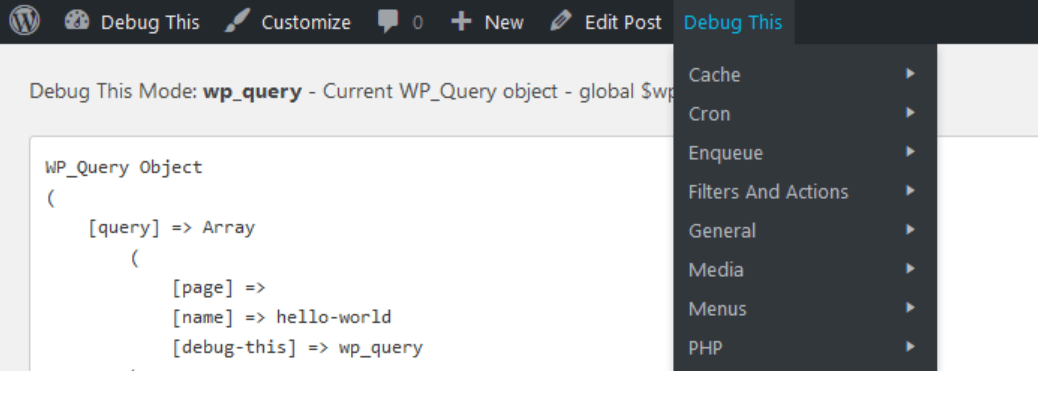
Debug This adds a simple way to view detailed information about your WordPress site on any page. After installing it, you can get info about things like queries, templates, current user info, and more — just by clicking a link in the admin bar.
It’s helpful for spotting which template file is being used, checking server info, and troubleshooting things like plugin errors or unexpected behavior on specific pages.
This tool is light and easy to use, and it gives you instant feedback without needing to open developer tools or dig through settings. Great for theme developers and anyone who needs quick answers.
Benefits of Using Debugging Tools
Debugging tools can save you hours of guesswork. Instead of looking through random files, you get direct insight into the problem. They often highlight the line of code or plugin that’s causing trouble.
These tools also help you avoid breaking your site further. You can spot issues early and fix them before they affect users. Some even help with speed improvements by showing what slows your site down.
If you work with clients or run a business site, fast problem-solving is key. These tools help you fix issues quickly, avoid long downtimes, and improve your site’s performance and security.
How to Choose the Right Plugin for Your Needs
Not all plugins are right for every user. If you’re just managing your own site and don’t code much, tools like WP Debugging or Health Check are easy to use. They don’t require deep knowledge but still give good results.
If you’re a developer or working on custom themes and plugins, you may want tools like Query Monitor or Developer by Automattic. These show more technical details and help with performance testing too.
Also, think about what kind of problems you’re trying to solve. Are you fixing slow speed? Look for tools that show database and query info. Are you hunting for broken functions? Use tools that show errors and logs.
Installation and Setup Tips
Most of these debugging tools can be found in the WordPress plugin directory. Just go to your WordPress dashboard, click on “Plugins,” then “Add New,” and search for the plugin name.
After installing, make sure to activate the plugin. Some might need extra settings to work. For example, WP Debugging may ask you to turn on debugging mode in your wp-config.php file. It’s usually just a matter of switching false to true for the WP_DEBUG setting.
Always remember to turn off debugging tools on live sites when you’re done testing. Leaving them active can expose error messages or slow down your site for visitors. Use them during development or troubleshooting, then deactivate when you’re finished.
Final Thoughts
No one likes running into bugs, but they’re part of building and managing a website. The good news is that with the right debugging tools, finding and fixing issues doesn’t have to be stressful or time-consuming.
Whether you’re a beginner or a pro, there’s a tool on this list that can help you out. Use them to keep your WordPress site smooth, fast, and problem-free.
Interesting Reads:

