

BuddyPress is a powerful plugin for WordPress that transforms your website into a social network, complete with user profiles, activity streams, and groups. One common customization that site admins often want to implement is login redirect users to a specific page. This can be done using BuddyPress Redirect which is a simple, easy to use plugin. Let’s Learn how to easily set up login redirects in BuddyPress.

Quick Links
BuddyPress Redirect
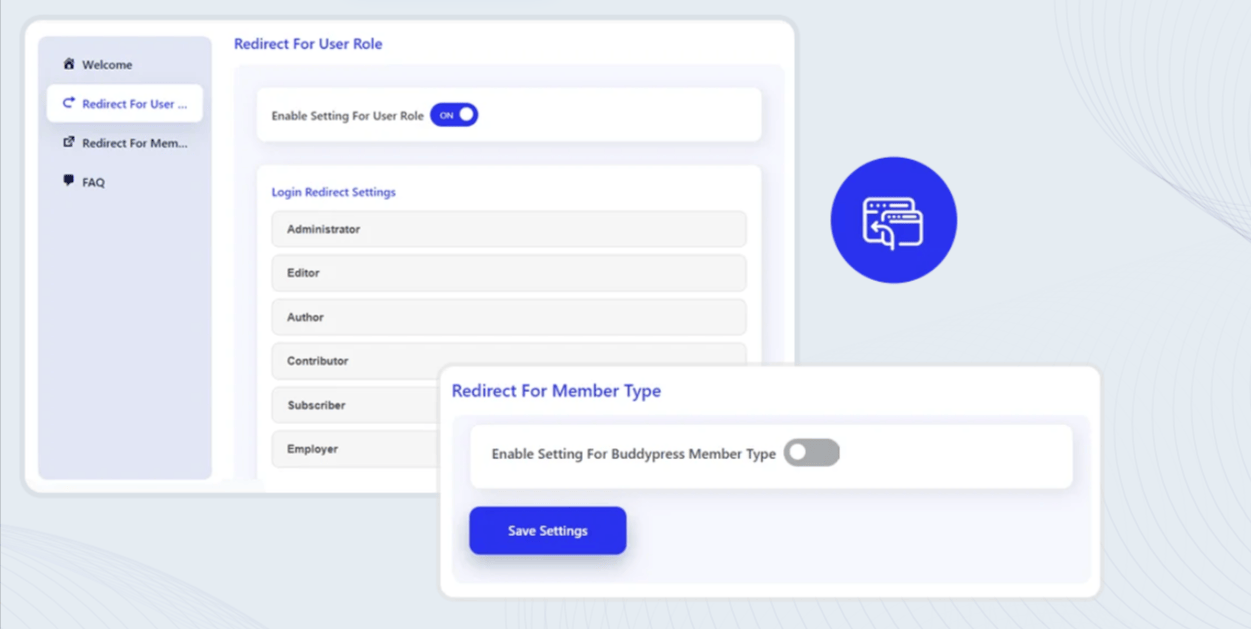
BuddyPress Redirect is a powerful plugin developed by wbcomdesigns. It offers site owners the flexibility to control where their users are redirected after logging in to their BuddyPress social network website. It redirect users to different locations according to the user role after login to your BuddyPress social network website.
BuddyPress Redirect plugin gives an option to site owners to decide where their users should be redirected after the login.
Key Features of Buddypress Redirect
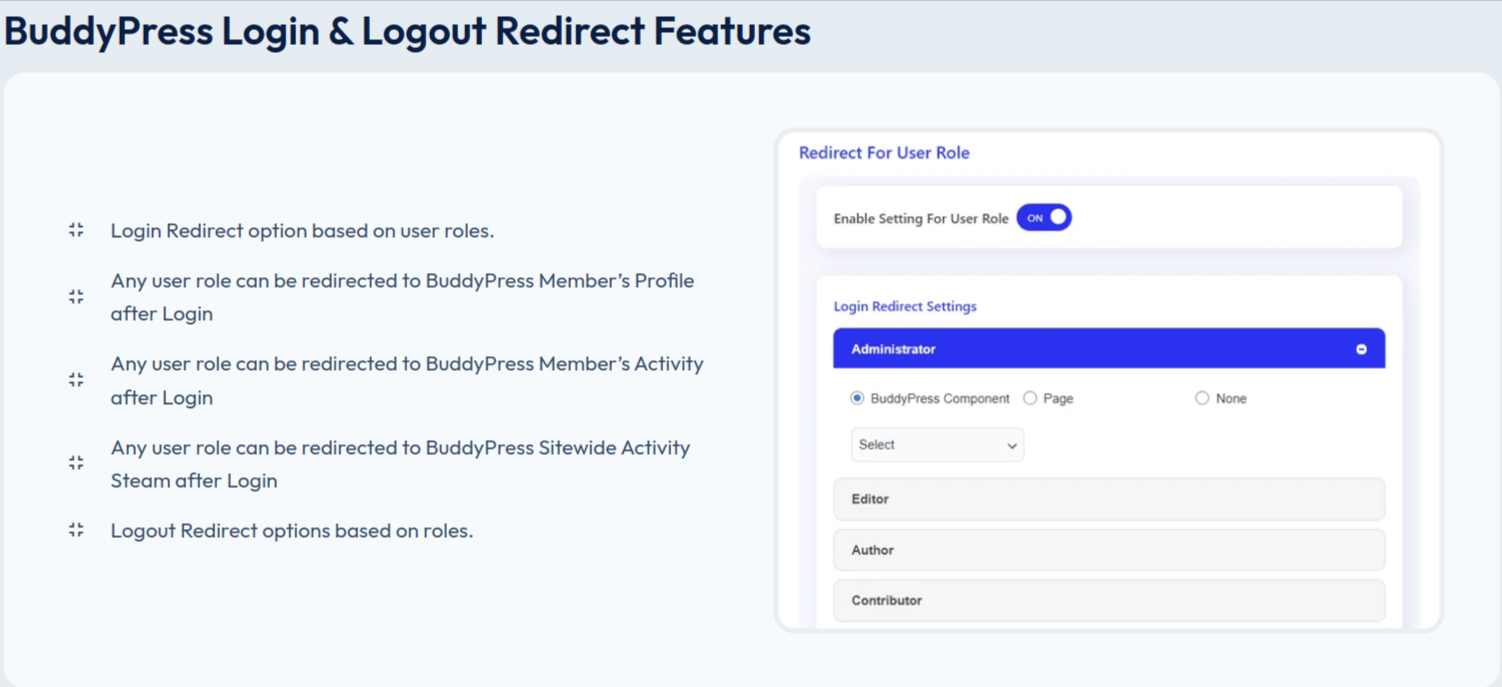
1. Login and logout Redirect Based on User Roles
BuddyPress allows you to set up different logout and login redirect rules based on user roles. This means you can specify where users should be redirected after logging in or logging out based on whether they are administrators, subscribers, contributors, etc.
2. Redirect to BuddyPress Member’s Profile
You can configure BuddyPress to redirect any user role to the member’s profile page immediately after they log in. This ensures that users land on their profile dashboard or a personalized profile view after they log in.
3. Redirect to BuddyPress Member’s Activity
Another option is to redirect users to their activity stream within BuddyPress. This can be useful to encourage users to engage with community updates or to view their recent activities upon logging in.
4. Redirect to BuddyPress Sitewide Activity Stream
For a community-focused site, you can set up a global login redirect where all users, regardless of role, are directed to the sitewide activity stream. This helps in showcasing recent site-wide updates and interactions.
5. Custom URL Redirection
Apart from BuddyPress-specific redirects, you can also specify a custom URL where any user role should be redirected after logging in. This flexibility allows for integrating BuddyPress with other parts of your website seamlessly.
6. Member Type Specific Redirects:
BuddyPress also supports redirects based on member types or groups within your community. For example, you could redirect premium members to a special section of your site, while regular members are directed to a standard activity stream.
How does Login Redirect Enhance User Experience

1. Personalized Experience: By directing users to their profile or relevant activity stream upon login, you create a personalized user experience tailored to their role or engagement level within your community.
2. Community Engagement: Redirecting users to the sitewide activity stream encourages them to stay updated with community interactions, fostering engagement and participation.
3. Administrative Flexibility: Admins can manage redirects based on user roles and member types, ensuring that each user group experiences the site in a way that meets their needs and expectations.
4. Seamless Integration: The ability to set custom URLs for redirects allows BuddyPress to integrate smoothly with other parts of your WordPress site, enhancing overall usability and navigation.
Installation
To install the BuddyPress Redirect. Follow the steps given below
1. Make a free purchase of the plugin from wbcomdesigns.
2. Login to the WordPress Dashboard.
3. On the Dashboard of your website, scroll down the left-hand sidebar and click on Plugins.
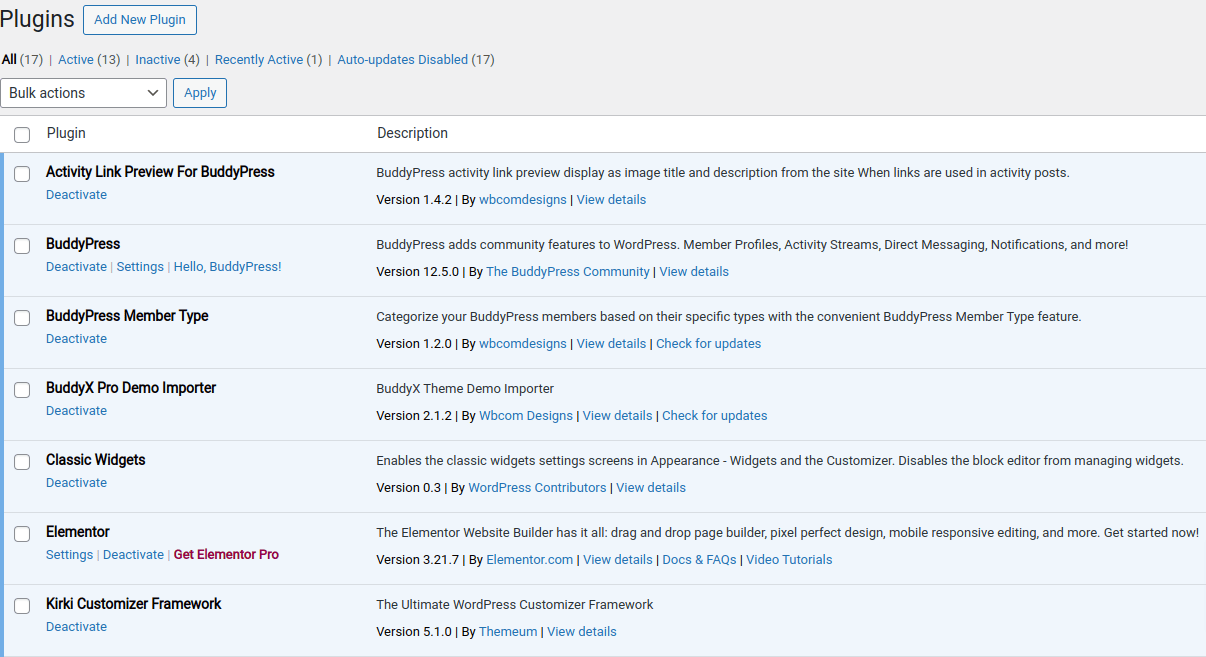
4. From the Installed Plugins page, click on Add New at the top of the page. Alternatively, click on Add New from the drop-down menu under Plugins on the sidebar.
5. On the Add Plugins page, you can see upload button on the left-hand side, at the top of the page.
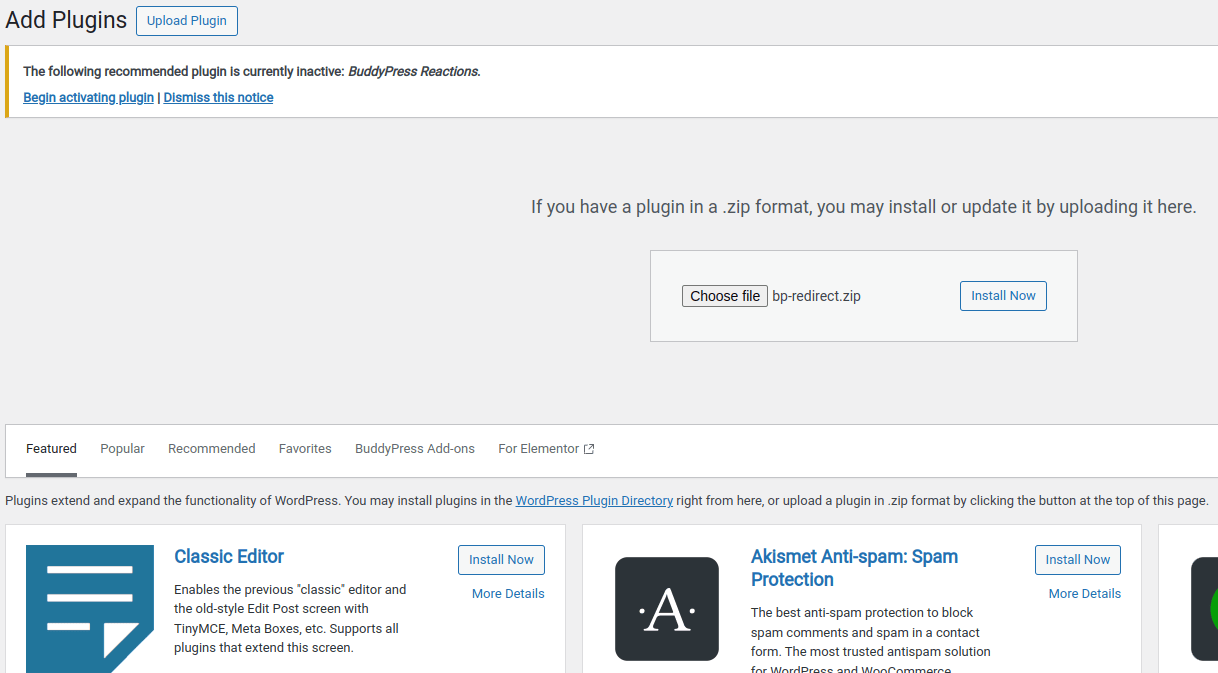
6. After click upload button, you can upload plugin zip & install.
7. The plugin is now installed and unpacked into your website. The last thing to do now is click Activate Plugin.

How to Login Redirect Using BuddyPress Redirect.
To set up a login redirect, follow these steps:
1. Navigate to the Dashboard: Go to your WordPress dashboard.
2. Access BP Redirects Settings: Navigate to WB Plugins >> BP Redirects >> Global Redirection.
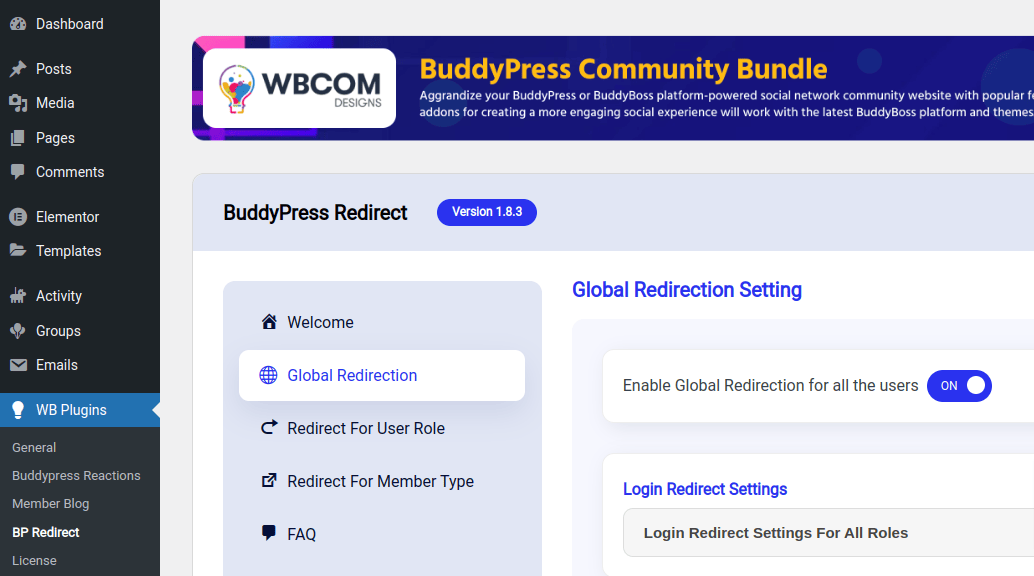
3. Configure Login Redirect Settings:
-
- Under Login Redirect Settings, select the BuddyPress component you want to redirect users to after they login.
- You can also select a page to redirect the user to.

This will ensure that all users are redirected to the specified page when they login.
Enhancing User Engagement through Customized Login and Logout Redirects in BuddyPress
Customizing login and logout redirects in BuddyPress is essential for creating a cohesive and engaging user experience. These features empower site admins to tailor the user journey, from login to logout, based on user roles, member types, and community engagement goals. By leveraging these redirect options effectively, you can enhance user satisfaction and encourage active participation within your BuddyPress community.
Interesting Reads:
7 Best AI Tools for Online Learning

