How to Change Coupon Display and Design with Smart Coupons for WooCommerce


Coupons are one of the most effective ways to boost sales, encourage repeat purchases, and build customer loyalty. They not only attract first-time buyers with welcome discounts but also motivate returning customers with personalized offers. In WooCommerce, the default coupon system is fairly basic—it allows you to create discounts, but it doesn’t offer much flexibility in terms of design, display, or advanced rules. This limitation can make your promotions look generic and less appealing to shoppers.
That’s where Smart Coupons for WooCommerce by WebToffee comes in. This powerful plugin takes your store’s discount strategy to the next level by giving you complete control over how coupons look, when they apply, and who can use them, ensuring your campaigns are not only effective but also visually engaging and customer-friendly.
Why Coupon Customization Matters in WooCommerce
Shoppers today are highly motivated by discounts, but they also expect transparency and personalization. A plain text coupon code like WELCOME10 might work, but a well-designed, targeted coupon that automatically applies at checkout or visually communicates its value will almost always perform better.
Here’s why customizing your coupon design and display is important:
- Brand Consistency – Well-styled coupons reflect your brand identity and create trust.
- Better Engagement – Visually appealing coupons are more likely to be noticed and used.
- Reduced Confusion – Clear display rules prevent customers from missing out on offers.
- Higher Conversions – Auto-apply and conditional coupons reduce checkout abandonment.
Smart Coupons for WooCommerce enables you to implement all of this without requiring any code modifications.
Getting Started with Smart Coupons for WooCommerce
Before diving into design and styling, let’s first set up the plugin.
Step 1: Install & Activate the Plugin
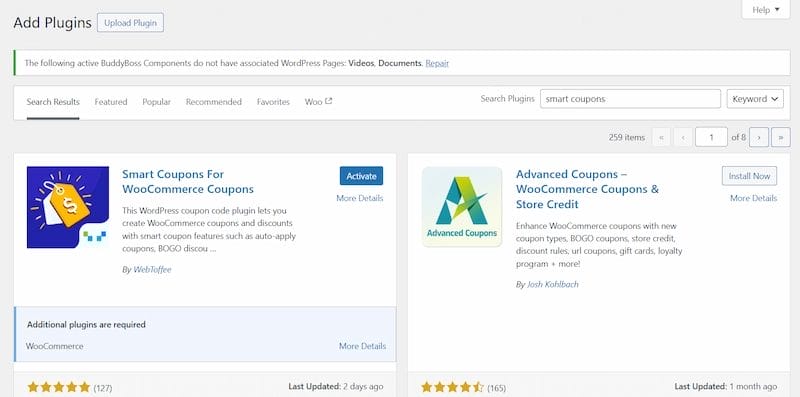
- From your WordPress dashboard, go to Plugins → Add New.
- Search for Smart Coupons for WooCommerce – WebToffee.
- Click Install Now and then Activate.
Once activated, you’ll see a new Smart Coupons menu in your WooCommerce dashboard.
Step 2: Create Your First Coupon
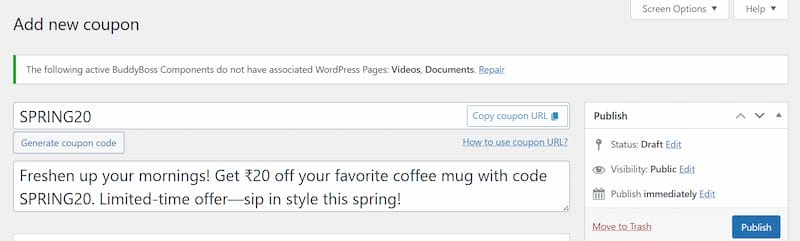
- Navigate to Smart Coupons → Add Coupon.
- Enter a Coupon Code (e.g., SPRING20).
- Add a short Description (e.g., “20% off Spring Collection”).
- Choose a Discount Type – percentage, fixed cart discount, or fixed product discount.
- Set the Coupon Value.
- Configure optional settings like free shipping, auto-apply, and validity dates.
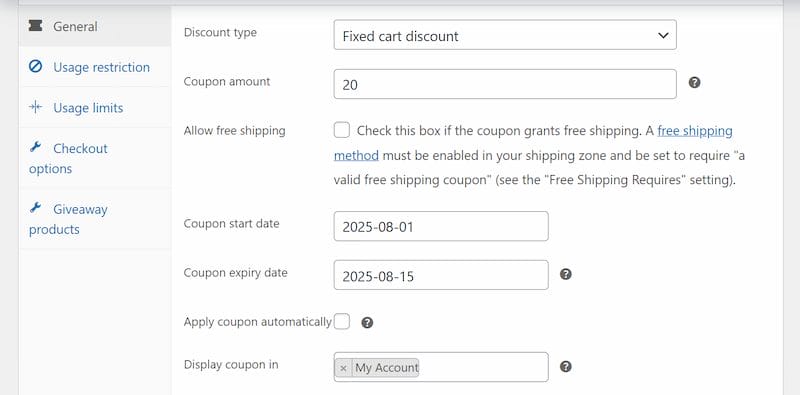
At this stage, you have a functional coupon, but we’ll now enhance its display and styling.
Customizing Coupon Display Options
The real magic of Smart Coupons lies in how flexible it is with coupon visibility, restrictions, and application logic.
1. Usage Restrictions
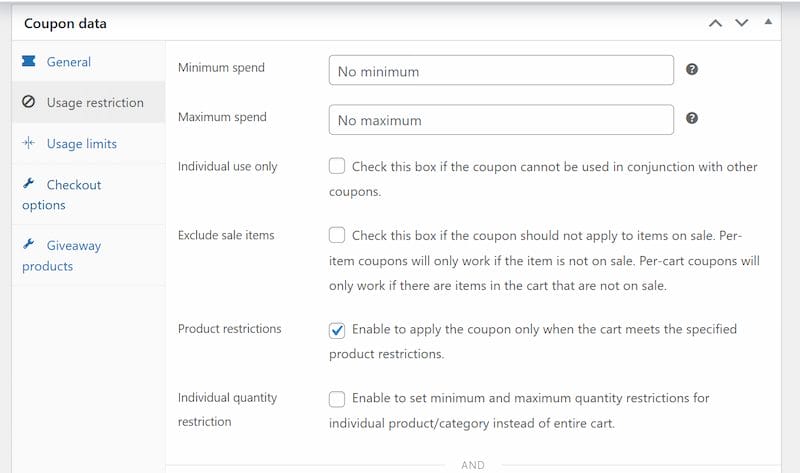
From the Usage Restriction tab, you can:
- Limit coupons to specific products or categories.
- Set minimum or maximum spend requirements.
- Restrict usage for certain customer roles.
This helps ensure that coupons appear only when they’re relevant, improving customer experience.
2. Usage Limits
In the Usage Limits tab, you can:
- Limit the total number of times a coupon can be used.
- Restrict how many times a single customer can redeem it.
This adds urgency and exclusivity to your promotions.
3. Checkout Display Options
Coupons can be restricted by:
- Payment Methods (e.g., only valid for PayPal orders).
- Shipping Methods (e.g., free shipping only for standard delivery).
- Billing or Shipping Country restrictions.
This makes coupons appear at the right time, targeting specific regions or customer behaviors.
4. Auto-Apply Coupons
Instead of requiring customers to type in codes, you can configure coupons to auto-apply at checkout. This significantly improves conversion rates since customers don’t have to remember or search for codes.
5. URL Coupons

Want to share coupons via email or social media? Smart Coupons for WooCommerce lets you create unique coupon URLs like:
https://yourstore.com/cart/?wt_coupon=SUMMER30When customers click this link, the coupon is automatically applied to their cart. It’s a seamless way to drive engagement.
Designing the Look and Feel of Coupons
Beyond rules and restrictions, you’ll want your coupons to look attractive and match your store branding. Smart Coupons gives you flexibility to enhance design in the following ways:
1. Coupon Categories
Organize coupons into categories like “Holiday Deals,” “Loyalty Discounts,” or “BOGO Offers.” Each category can be styled separately for clarity.
2. Personalized Coupon Messages
In the Pro version, you can customize the message customers see when they apply a coupon. Instead of WooCommerce’s plain text confirmation, you can add friendly, branded messages like:
- “🎉 Great choice! You just saved 20% on your cart.”
- “Thanks for shopping with us! Free shipping has been applied.”
3. BOGO (Buy One Get One) Display
When running BOGO offers, the plugin clearly highlights the free item in the cart, making it easy for customers to see their reward.
4. Giveaways & Free Products
Smart Coupons also lets you automatically add giveaway products to a cart when a coupon is applied. This not only boosts sales but also creates a memorable customer experience.
Advanced Styling & Display Features (Pro Version)
While the free version offers robust features, upgrading to Smart Coupons Pro unlocks advanced customization options:
- Customizable Coupon Banners – Display special discount banners across your site.
- Advanced Scheduling – Make coupons active on certain days or hours.
- Nth Order Discounts – Reward customers after a set number of purchases.
- Abandoned Cart Discounts – Send personalized discounts to recover lost sales.
- Gift Cards & Store Credit – Allow customers to buy and gift store credit.
- Hide Coupon Field – Remove coupon input fields when auto-apply is active.
- Bulk Coupon Creation – Generate and email thousands of coupons for campaigns.
With these options, you can create highly personalized and visually appealing discount strategies.
Best Practices for Coupon Styling & Display
To maximize results, keep these tips in mind:
- Keep it Simple – Don’t overwhelm customers with too many coupon options.
- Highlight Value Clearly – Use bold fonts, emojis, or banners to emphasize discounts.
- Use Auto-Apply Strategically – Great for seasonal sales, but avoid overusing to maintain exclusivity.
- Test Across Devices – Ensure coupons display well on both desktop and mobile.
- Monitor Analytics – Track coupon usage to refine your strategies.
How Smart Coupons Improve Customer Retention
Discounts aren’t just about one-time sales—they can also drive long-term loyalty. Smart Coupons supports retention strategies in several ways. For instance, you can set up next-order discounts that encourage customers to return for another purchase, or create exclusive role-based coupons that reward VIPs and wholesale buyers.
The plugin also makes it easy to run BOGO offers that spark excitement and repeat orders, while features like store credit and gift cards ensure that customers have a reason to shop with you again in the future. By weaving these coupon options into your overall retention strategy, you create multiple touchpoints that keep shoppers engaged and coming back to your store.
Real-World Use Cases for Smart Coupons
Here are some practical ways businesses use Smart Coupons for WooCommerce to improve results:
- Seasonal Sales – Automatically apply 20% off during Black Friday.
- Welcome Discounts – Give new users 10% off their first order.
- Cart Recovery – Email an abandoned cart coupon to re-engage shoppers.
- Tiered Discounts – Offer higher discounts for bigger purchases (e.g., 10% off $50+, 20% off $100+).
- Regional Offers – Apply special coupons only for customers from specific countries.
These use cases show how flexible the plugin can be for different marketing campaigns.
Improving Store Performance with Smart Coupons
Changing the way coupons look and behave can dramatically improve your WooCommerce store’s performance. With Smart Coupons for WooCommerce, you can go beyond standard discounts to create beautifully styled, highly targeted, and customer-friendly promotions.
Whether you want to run seasonal sales, launch BOGO offers, or reward loyal customers, this plugin equips you with all the tools you need to design coupons that engage and convert.
Pro tip: Keep your campaigns consistent with your brand voice and visuals to build trust and recognition over time.
👉 Ready to take your WooCommerce store to the next level? Explore our Custom WooCommerce Development Services and let Wbcom Designs help you build tailored solutions that maximize your sales.
Interesting Reads
How to Use Advanced Product Fields to Add Custom Product Options in WooCommerce

Shashank is a seasoned digital marketing and WordPress expert who specializes in SEO, software tools reviews, and cutting-edge strategies for boosting online presence. With a passion for simplifying complex topics, Goutham crafts engaging blog posts that help readers optimize their websites, improve search engine rankings, and stay ahead in the ever-evolving digital landscape.