

The website header is the first point of interaction for users visiting your site. It primarily serves as a navigation tool, helping visitors easily move between different pages. Additionally, the header is an excellent space for branding, adding call-to-action (CTA) buttons, and displaying essential information.
Most WordPress themes come with a default global design for the header. But, if you want to customize your header, you typically have to modify the core theme files a task that can be complex and time-consuming, especially for non-technical users.

Quick Links
What’s the simpler solution?
Elementor, a popular page builder plugin, simplifies the process of designing your website with its drag-and-drop features. Using Elementor, you can easily create and customize your header without touching any code.
In this guide, we’ll walk you through the steps to edit your WordPress header using Elementor.
How to Edit Your WordPress Header with Elementor
To begin customizing your header, ensure you have both the Elementor Free and Elementor Pro plugins installed on your WordPress site.
Let’s start with a basic header that includes a website logo and a navigation menu. The design is quite standard, so let’s enhance it by adding a button, a top header with a search form, social media icons, and our office address.
Follow these 5 steps to achieve the desired look:
Step 1: Add a Button
- First, add a new column to the bottom side of your navigation menu in Elementor. Locate the Button widget in the Elementor gallery, then drag and drop it into the new column.

- In the content area, you can configure the button’s type, text, link, alignment, and size. You also have the option to add an icon and control its spacing. If needed, you can assign a Button ID for adding custom code.
- For styling, go to the Style section, where you can adjust the button’s design elements, such as size, typography, text color, background, border, shadow, and padding.

Step 2: Add and Customize the Search Form
- Next, we’ll add more to the header by creating three more columns. Drag and drop the Search Form widget into the third column.

- In the content area, you can select the search form skin (Classic, Minimal, or Full Screen), set the placeholder text, and configure the button settings. The Style section allows you to customize the input field’s style, button text and background color, icon size, and overall width.
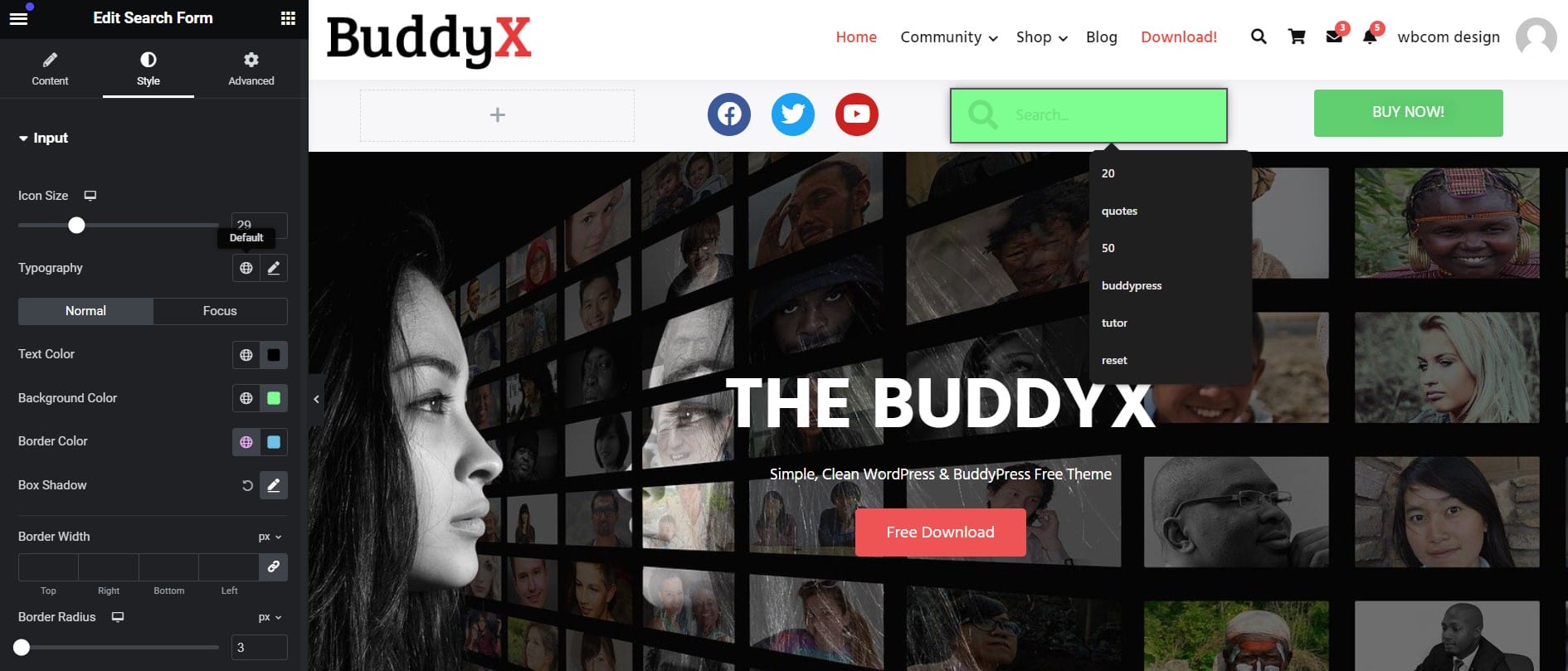
Step 3: Add and Customize Social Icons
- To include your social media links in the header, add the Social Icons widget to the second column.

- You can easily add social icons by clicking the + ADD ITEM button. You can also choose the icon shape (rounded, square, or circle) and set the alignment. For each icon, you can add a link and define the icon’s color.

- In the Style section, you can further customize the icons by adjusting their color, size, padding, spacing, border type, and even adding hover animations.

Step 4: Add a Map Icon

- To display your office location, add an Inner Section to the left column of the top header. Drag and drop the Icon widget into one of the columns, select the Map Icon, and align it as needed. Customize the icon’s color, size, and rotation in the Style section.
Step 5: Add and Customize a Heading

- Finally, add a Heading widget next to the map icon to display your office address. In the content area, you can enter the address text, insert a link, and set the heading size and alignment.
- In the Style section, you can further customize the heading by adjusting the text color, typography, text stroke, text-shadow, and blend mode.
Final Preview of Your Custom Header

After following these steps, your customized header should be visually appealing and functional.
If you want to create a custom header from scratch, Elementor’s Theme Builder or pre-made header templates provide additional options.
- Navigate to Template >> Theme Builder >> Header.
- Click on the “Add New” button or “Add New Header” button.
- Choose the Template Type as “Header” and name your template.
- Click “Create Template” to save it.
- On the next page, select a header block from the Elementor Library and install it on your site.
Customizing your WordPress header can significantly enhance the look and functionality of your website. While editing core theme files may seem daunting, using Elementor provides a user-friendly and code-free solution. Using the steps outlined in this blog post, you can easily add buttons, search forms, social icons, and other elements to your header, creating a more engaging and personalized experience for your visitors. Enhancing an existing header or building one from scratch, Elementor’s intuitive interface and powerful widgets make the process straightforward and accessible, even for beginners.
Interesting Reads:
Can Users Install Applications On WordPress

