

Web accessibility has become more than just a buzzword—it’s a crucial part of web design that ensures everyone, regardless of their ability, can access and interact with your content. It’s about making the web more inclusive and providing equal access to all users, including those with visual, auditory, and motor impairments. As digital experiences continue to evolve, the demand for accessible websites grows, and with it, the need to comply with guidelines like the Web Content Accessibility Guidelines (WCAG) and the Americans with Disabilities Act (ADA).
The increasing focus on inclusivity has led to a more pressing need for web designers to prioritize accessibility when creating websites. Elementor, the popular WordPress page builder, has responded to this demand by introducing powerful Elementor Accessibility Tools that simplify the process for designers. With these new features, Elementor Accessibility Tools empower web creators to build more inclusive websites while ensuring compliance with accessibility standards, making it easier than ever to enhance your site’s usability for everyone.

Quick Links
What’s New in Elementor’s Accessibility Update
Elementor’s recent accessibility update is a significant milestone for the platform, introducing several powerful tools that help designers create more accessible websites without sacrificing design flexibility. These features were rolled out in Elementor version 3.7, signaling the platform’s commitment to providing inclusive solutions to all its users.
The standout feature in this update is automatic ARIA labels. ARIA labels (Accessible Rich Internet Applications) are critical for improving accessibility for users relying on screen readers. With Elementor’s automatic ARIA labeling, widgets like buttons, images, and forms now come with labels that help users with visual impairments navigate and interact with your content more effectively.
Additionally, Elementor now includes HTML5 landmarks, a feature that makes it easier for screen readers to identify sections of your page, such as headers, footers, and main content. This feature helps screen reader users quickly jump to specific sections of a page, greatly enhancing their browsing experience.
Other updates include improved keyboard navigation and focus management. These improvements ensure users can seamlessly navigate your page using only a keyboard, which is essential for individuals with motor impairments. Moreover, focus management highlights the active element on the page, allowing users to identify which element they’re interacting with, making the website more intuitive and accessible for everyone.
These updates align perfectly with Elementor’s broader roadmap of making web design more accessible, helping designers create websites that cater to a wider, more diverse audience while adhering to accessibility standards.
Why This Update Matters for Web Creators
Elementor’s new accessibility features are not just nice-to-haves—they are essential tools for web creators looking to meet global accessibility laws and provide a better user experience. Websites that fail to meet accessibility standards are at risk of facing legal consequences, especially with the increasing enforcement of accessibility regulations such as the ADA and WCAG. By using Elementor’s built-in tools, designers can ensure their websites comply with these laws, reducing the risk of legal issues.
But the benefits go beyond legal compliance. Accessibility features also enhance the SEO and user experience of a website. Accessible websites tend to perform better in search engine rankings because search engines prioritize user-friendly, well-structured content. With features like improved keyboard navigation and ARIA labels, your website becomes more navigable for both users and search engines, leading to higher rankings and increased visibility.
This update also expands the reach of Elementor-built websites, which is especially important for sectors like public services, education, and e-commerce. These industries often have a large and diverse user base, and ensuring accessibility allows businesses to serve a broader audience, including those with disabilities. By making your website accessible, you’re not only improving the user experience for all visitors but also contributing to a more inclusive internet.
Also Read: Smart WordPress Plugins to Reduce Your Bounce Rate
How to Use the New Accessibility Features in Elementor
Getting started with Elementor’s new accessibility tools is straightforward, even if you’re not a web design expert. Here’s a step-by-step guide to help you activate and use these new features effectively.
Step 1: Activate Accessibility Settings.
To enable the new accessibility features, head over to the Elementor settings in your WordPress dashboard. Under the “Advanced” tab, you’ll find an option to enable the accessibility features. Once activated, you can start using these tools throughout your Elementor interface.
Step 2: Utilize Automatic ARIA Labels.
With automatic ARIA labels now integrated into Elementor, you don’t have to manually add labels to each widget. For elements like buttons, forms, and images, Elementor automatically generates ARIA labels. However, you can still modify these labels by editing the widget’s settings to provide more specific descriptions.
Step 3: Implement HTML5 Landmark.
To take advantage of HTML5 landmarks, make sure you’re using the standard Elementor sections like the header, footer, and main content area. These sections are automatically recognized as landmarks, ensuring that screen readers can easily identify different sections of the page.
Step 4: Improve Keyboard Navigation
Elementor’s new update automatically manages tab navigation, but it’s a good practice to double-check the tab order in your page’s structure. You can adjust the tab sequence for widgets to ensure smooth keyboard navigation, especially for users who rely on the keyboard to navigate your site.
Step 5: Focus Management
Ensure that focus states are visible and that the focus is correctly managed when users interact with page elements. This step ensures users know which element they’re currently focused on, improving their navigation experience.
Best Practices for Web Accessibility with Elementor + WordPress
While Elementor accessibility tools simplify the process, there are additional best practices you should follow to ensure your website is fully accessible and compliant with WCAG standards.
One of the most important practices is to use semantic HTML. Ensure that your content is structured with proper heading tags (H1, H2, etc.) and HTML5 landmarks (such as <header>, <footer>, <nav>, and <main>). This structure makes it easier for screen readers and other assistive technologies to interpret your content accurately.
Adding alt text to all images is another essential practice. Alt text provides descriptions for images, allowing visually impaired users to understand the content. Elementor allows you to easily add alt text in the widget settings, ensuring your images are accessible.
Regular testing is crucial. Tools like Lighthouse, WAVE, and screen readers like NVDA or VoiceOver can help you identify accessibility issues on your site. Running accessibility audits will help you spot any problems and fix them before they affect your users.
To further enhance your site’s accessibility, consider using plugins like Ally Accessibility, WP Accessibility Helper, or Accessibility by UserWay. These plugins provide additional accessibility features, including accessibility audits and fixes, which can help you comply with accessibility standards.
Also Read: Best WordPress Anti-Spam Plugins
Make Your Site More Accessible with Ally
One of the easiest ways to ensure your website is fully accessible is by installing the Ally Accessibility widget. This plugin complements Elementor’s built-in accessibility tools, providing additional features to make your site more compliant with WCAG and ADA guidelines.
Why Install Ally?
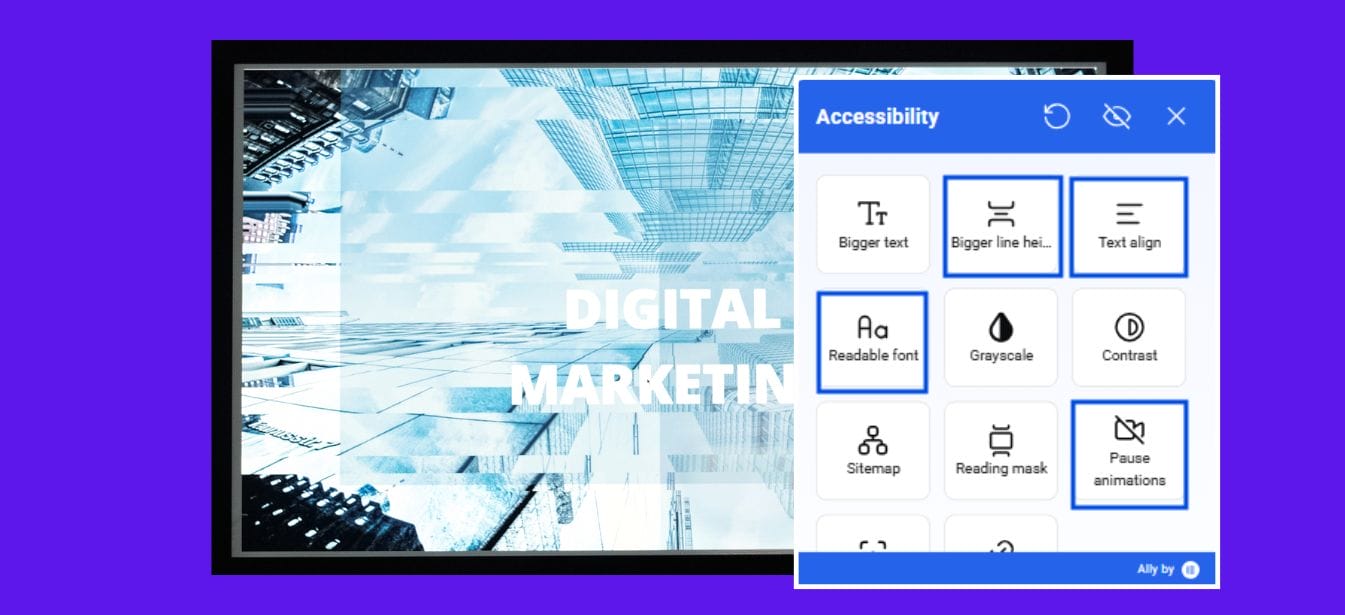
Ally offers a seamless, one-click solution to make your site more accessible. It automatically provides an accessibility toolbar that allows users to customize the site’s appearance and navigation based on their preferences. Whether it’s adjusting font sizes, changing contrast, or enabling keyboard navigation, Ally makes your site more flexible for users with disabilities.
Key Features of the Ally Accessibility Widget
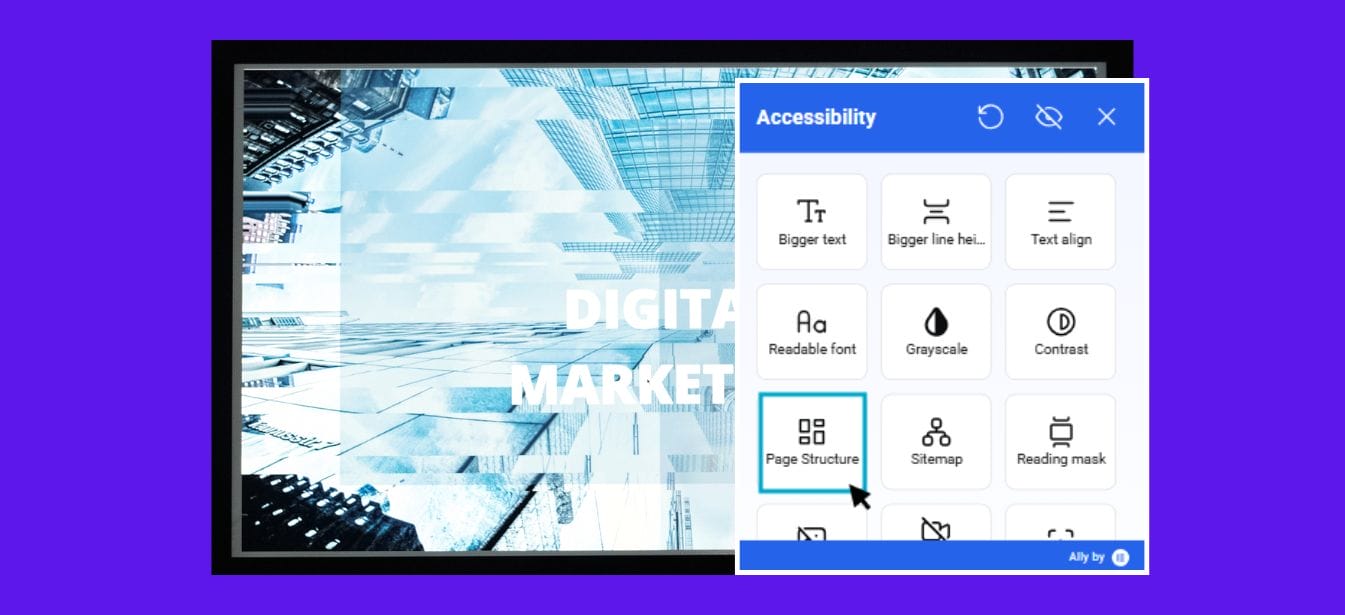
Accessibility Toolbar
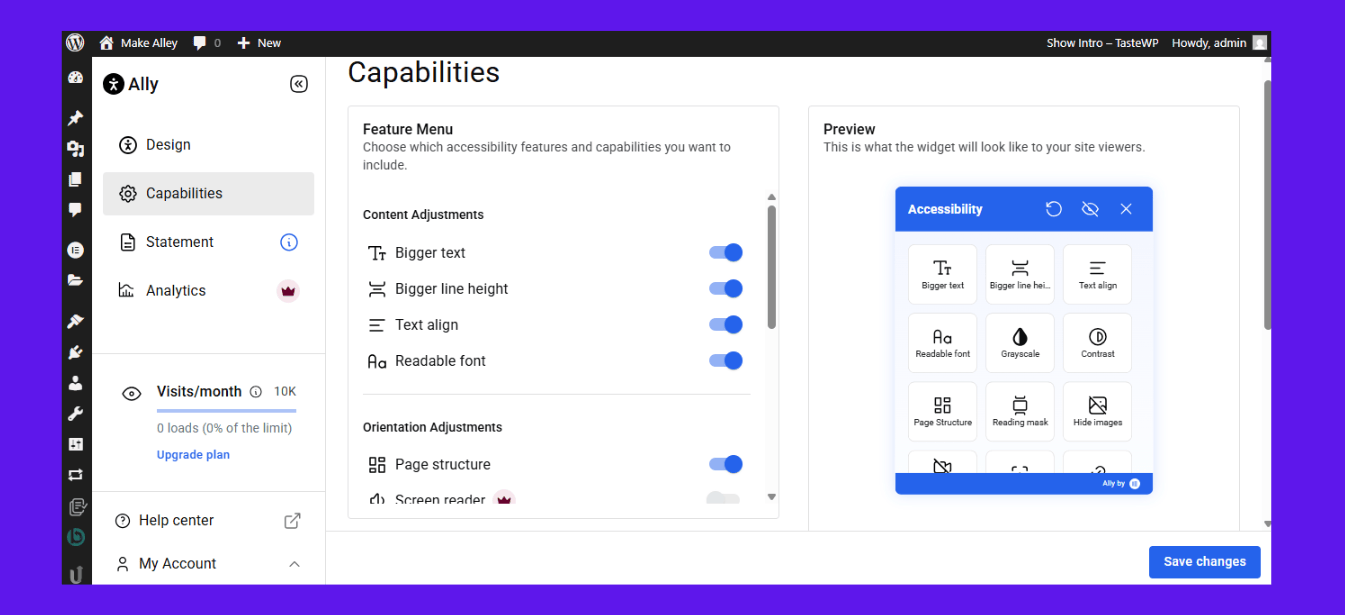
The Ally Accessibility widget provides an accessibility toolbar that offers essential customization options, including:
- Text size – Increase or decrease text size to improve readability.
- Line height – Adjust line height for better legibility.
- Color contrast – Modify the color contrast to meet accessibility standards and enhance visibility.
Keyboard Navigation Support
With Ally, users can navigate your site using only the keyboard. This is ideal for individuals with motor impairments or anyone who prefers keyboard navigation over a mouse.
Screen Reader Support
Ally ensures that all content is fully accessible to visually impaired users by integrating screen reader support. This allows screen readers to interpret and announce images, links, text, and forms.
Focus Management
Ally’s focus management feature ensures a smooth user experience by directing the focus to key elements like forms or pop-ups, helping users keep track of their navigation.
Content Highlighting
The content highlighting feature highlights important sections of the page, making it easier for users to navigate and interact with crucial content.
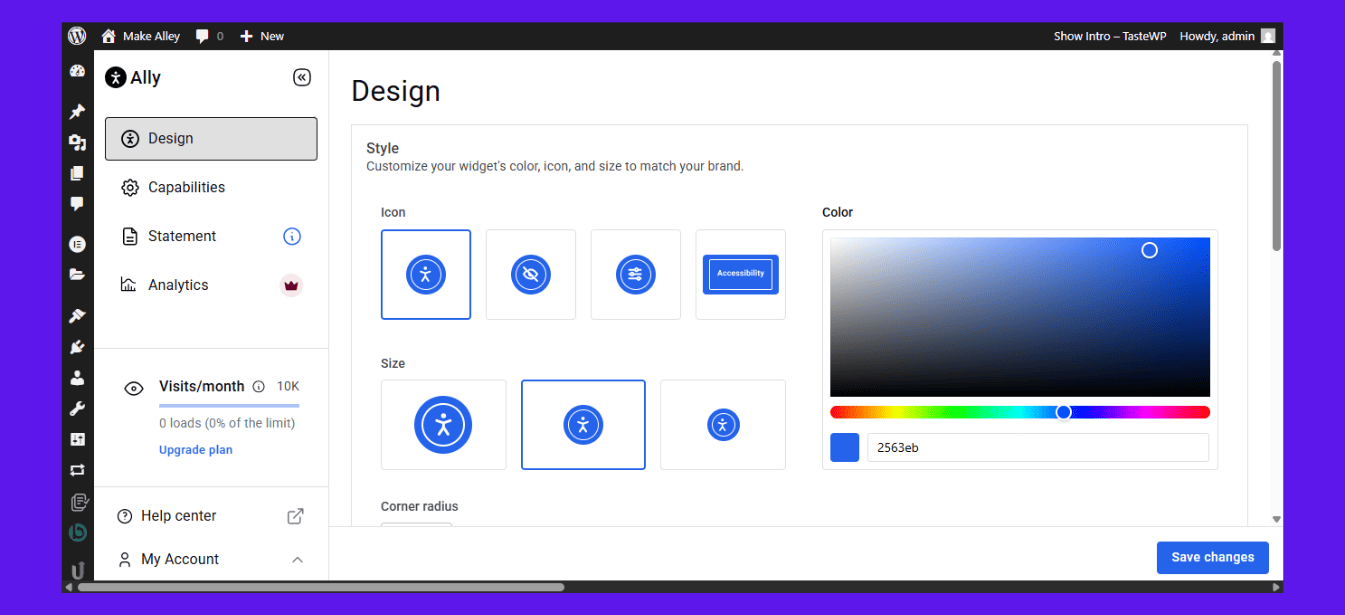
Customizable Widget Design
The widget design of Ally is fully customizable to match your website’s branding and visual identity. This ensures that accessibility improvements are not only functional but also align seamlessly with your site’s design.
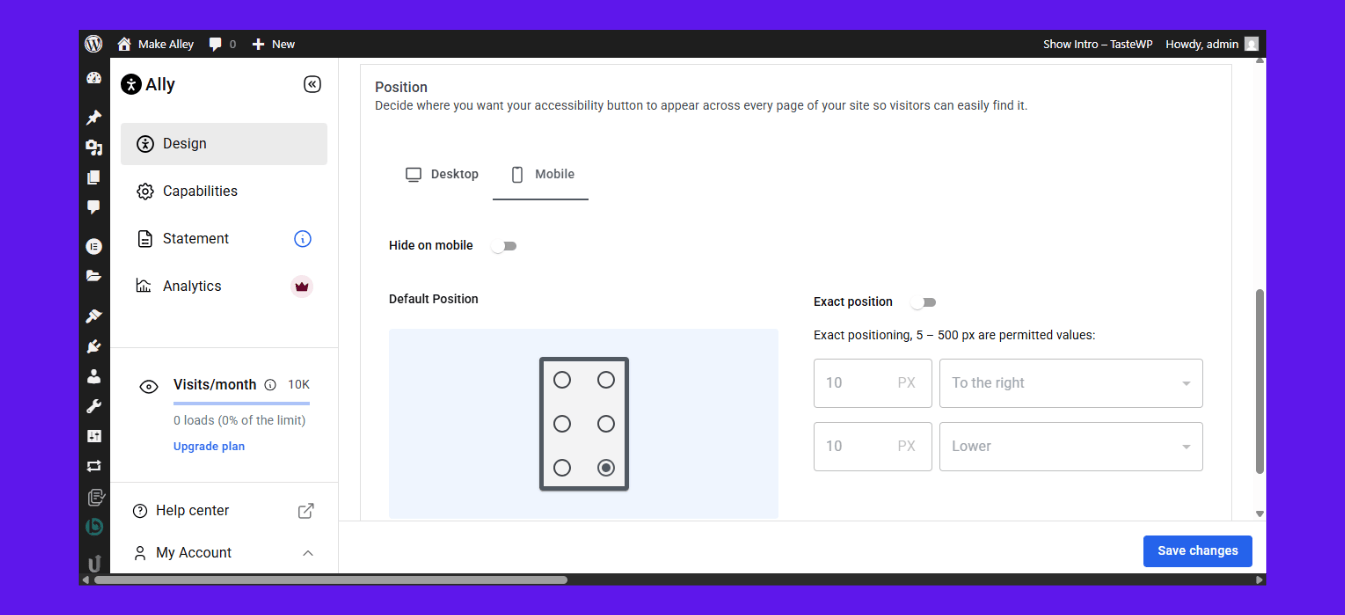
Device-Specific Controls
Ally enables device-specific controls, meaning you can tailor accessibility features based on the device being used, whether it’s mobile, tablet, or desktop. This ensures a consistent and optimized experience across all platforms.
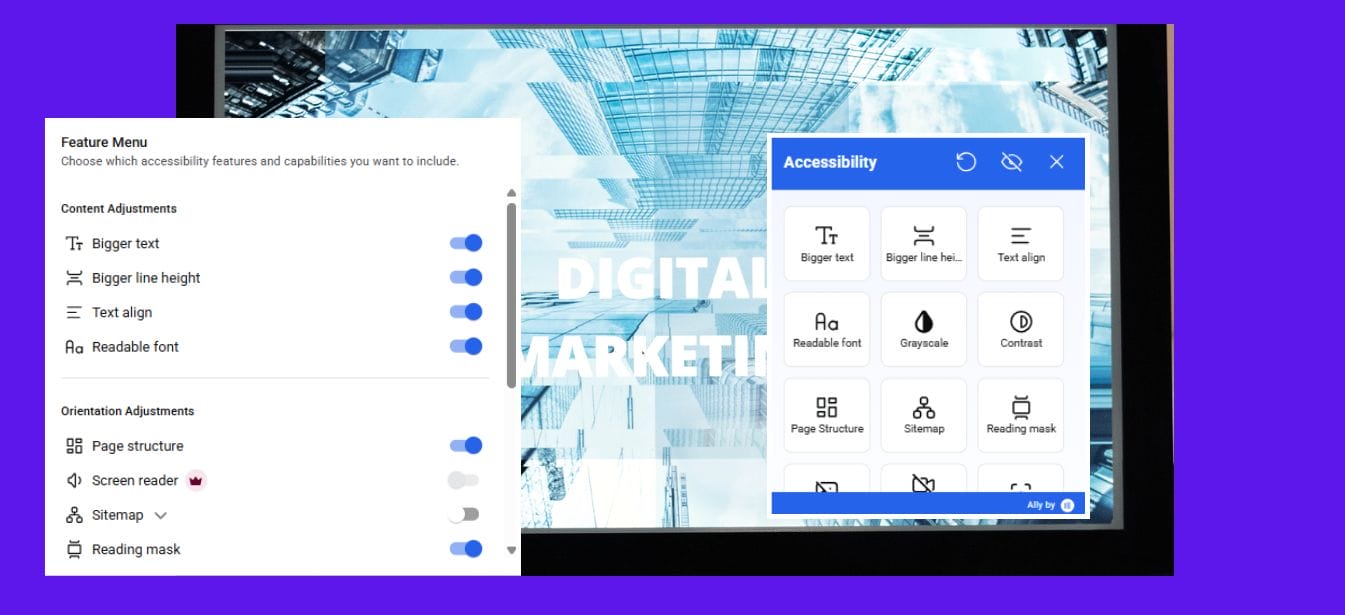
Feature Selection
Ally allows you to select and activate specific features based on your website’s needs. You can turn on or off certain options, like text resizing or contrast adjustments, to provide a more personalized experience for your users.
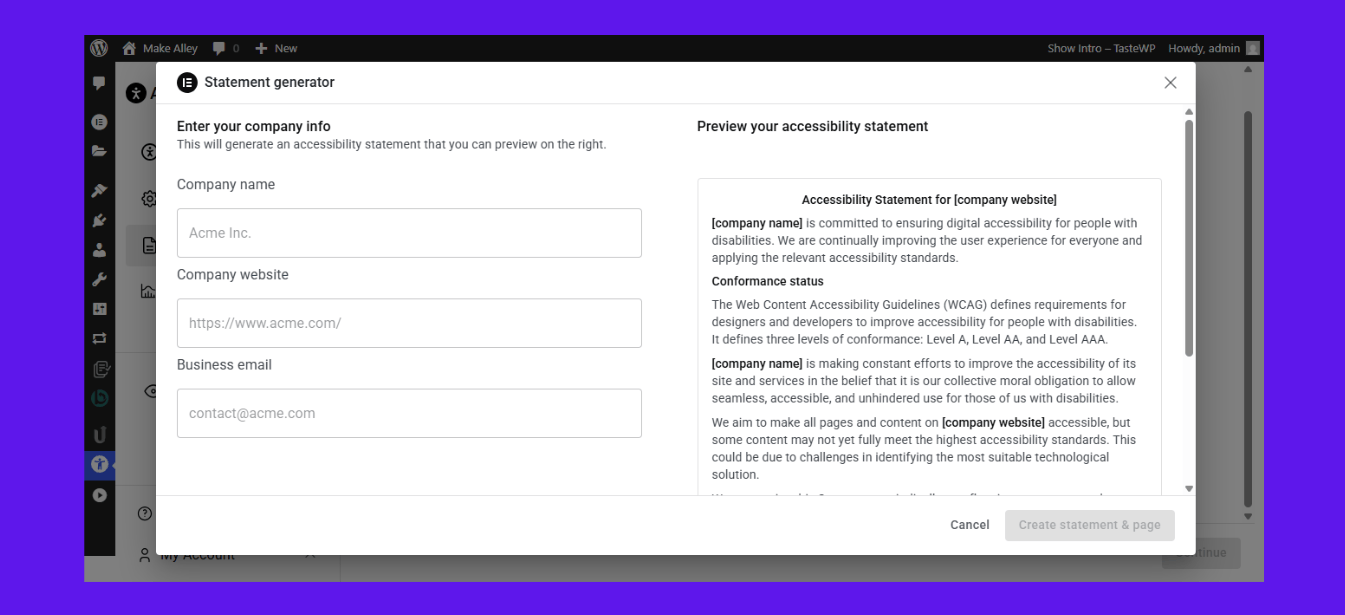
Accessibility Statement Generator
With the accessibility statement generator, Ally helps you create and display a statement about your website’s accessibility efforts. This is particularly useful for legal compliance and informing users about your website’s commitment to accessibility.
Smart Accessibility
Ally’s smart accessibility feature automatically detects and adjusts elements of the website based on the needs of users. It provides dynamic accessibility enhancements without the need for manual intervention.
For End Users (Visitors):
Enhanced Usability
The widget improves the overall usability of your website, making it easier to navigate, interact with, and consume content. With Ally’s usability features, users can enjoy a more intuitive experience.
Distraction-Free Options
Ally provides distraction-free options that reduce clutter, helping users focus on the content without unnecessary distractions. This is especially helpful for users with attention-related difficulties.
Navigation Improvements
Ally enhances navigation by adding improved structure and focus management, making it easier for users to find and interact with key elements on the page.
By integrating these features, the Ally Accessibility widget not only ensures compliance with accessibility standards but also makes your website more user-friendly and inclusive for everyone.
How Wbcom Designs Supports Accessible WordPress Development
At Wbcom Designs, we prioritize accessibility in every project. We’ve designed our BuddyX and Reign themes with accessibility in mind, ensuring that our themes are easy to navigate for all users. These themes are compatible with screen readers, keyboard navigation, and other assistive technologies.
Additionally, we offer custom accessibility audits and development services to ensure that your WordPress website is fully compliant with accessibility guidelines. Our expert team can help you optimize your site, implement best practices, and resolve any accessibility issues.

Final Thoughts
New Elementor accessibility tools are a huge step forward in making web design more inclusive. The introduction of features like ARIA labels, HTML5 landmarks, and improved keyboard navigation makes it easier for designers to create accessible websites that comply with global regulations. By integrating tools like Ally Accessibility, Elementor is providing a comprehensive solution to help designers build websites that everyone can enjoy.
If you’re a WordPress site owner, now is the perfect time to revisit your designs and ensure they meet accessibility standards. With Elementor’s new accessibility features, you can create more inclusive websites without the need for complex coding or third-party solutions. If you need help, Wbcom Designs is here to assist you in creating accessible, user-friendly websites that cater to all audiences.
Interesting Reads:
Best WordPress User Activity Plugins
Best WordPress Powerful Debugging Tools
10 Best PDF & Document Management Plugins

