How to Fix ‘ERR_CACHE_MISS’ in Chrome (9 Methods)


The ERR_CACHE_MISS error shows up in Google Chrome when something goes wrong with the browser’s cache system. It usually happens when a website asks for information to be sent again, but Chrome can’t retrieve it properly from the stored cache. This message can appear when you try to submit a form or reload a page.
This error happens for a few reasons. It could be because the browser’s cache is damaged or outdated. Sometimes, browser settings, developer tools, or certain extensions mess things up. Problems with internet connection or firewalls can also trigger it.
Fixing the error is important because it can stop you from opening or using websites properly. It might interrupt work, delay searches, or block pages entirely. Once it’s fixed, you can return to normal browsing without interruptions.
What Causes the ERR_CACHE_MISS Error in Chrome?
One common reason for this error is that the cached files stored by Chrome are old or broken. When Chrome tries to use these files, they don’t load properly, causing the error to pop up.
Another possible reason is when you’re using Chrome’s developer tools. If you’re testing or debugging a webpage, the tools may interfere with how pages are loaded or refreshed, which might lead to this error.
Wrong browser settings can also be the culprit. If Chrome has incorrect configurations or is told not to store data properly, it can cause problems loading pages.
Sometimes, extensions or even firewall software can block page requests or change how data is stored. Bad internet connections or DNS issues also play a role in causing the error.
Method 1: Refresh the Page
The first and easiest thing to try is refreshing the page. You can click the refresh button or press F5 on your keyboard. This tells Chrome to reload the page.
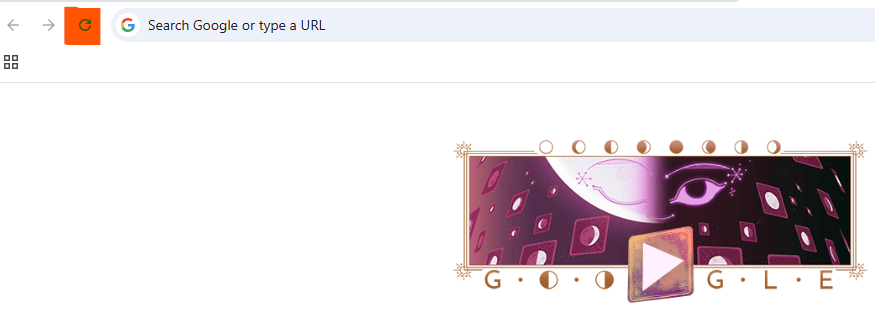
If that doesn’t work, try a hard refresh by pressing Ctrl+F5. This forces Chrome to reload the page from the server, ignoring the cached data.
This method works when the error is caused by a small hiccup in loading the page. If the page loads properly after a refresh, there’s no need to try anything else.
Method 2: Clear Browser Cache and Cookies
Clearing cache and cookies removes stored website data that might be causing the error. On Chrome, click the three-dot menu, go to “More tools,” then “Clear browsing data.”
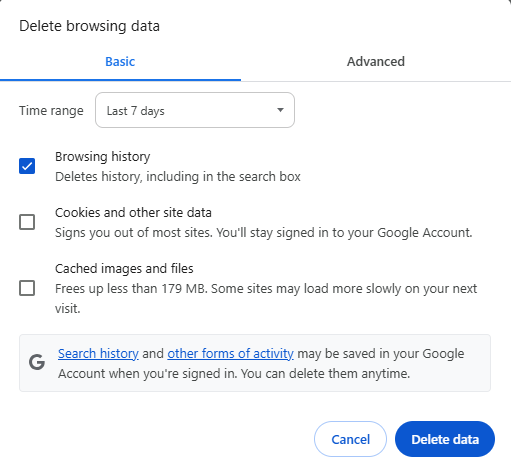
Choose “All time” as the time range, check “Cookies and other site data” and “Cached images and files,” then click “Clear data.” On Android, go to settings in Chrome, then tap “Privacy and security” > “Clear browsing data.”
Doing this gives Chrome a fresh start. If old or broken files were the issue, this step usually fixes it.
Method 3: Disable Chrome Extensions
Sometimes, a Chrome extension messes with how pages load. To find out if that’s the case, click the three-dot menu, go to “Extensions,” and disable them one at a time.
After turning off each one, refresh the page to see if the error goes away. This helps you figure out which extension is causing the problem.
Once you find the one that’s responsible, you can remove it or keep it disabled to avoid future errors.
Method 4: Reset Chrome Settings to Default
Resetting Chrome returns all settings to their original state. This can fix deeper issues that simple fixes don’t solve. To reset, go to settings, scroll down to “Reset and clean up,” and choose “Restore settings to their original defaults.”
This won’t delete bookmarks or passwords, but it will remove extensions, clear cache, and reset homepage and search engine settings. It’s a clean way to fix bigger problems.
Method 5: Update Google Chrome
Using an old version of Chrome can cause all sorts of problems, including this error. Updating the browser ensures you’re using the latest fixes and improvements.
To update, go to the three-dot menu > “Help” > “About Google Chrome.” Chrome will check for updates and install them automatically.
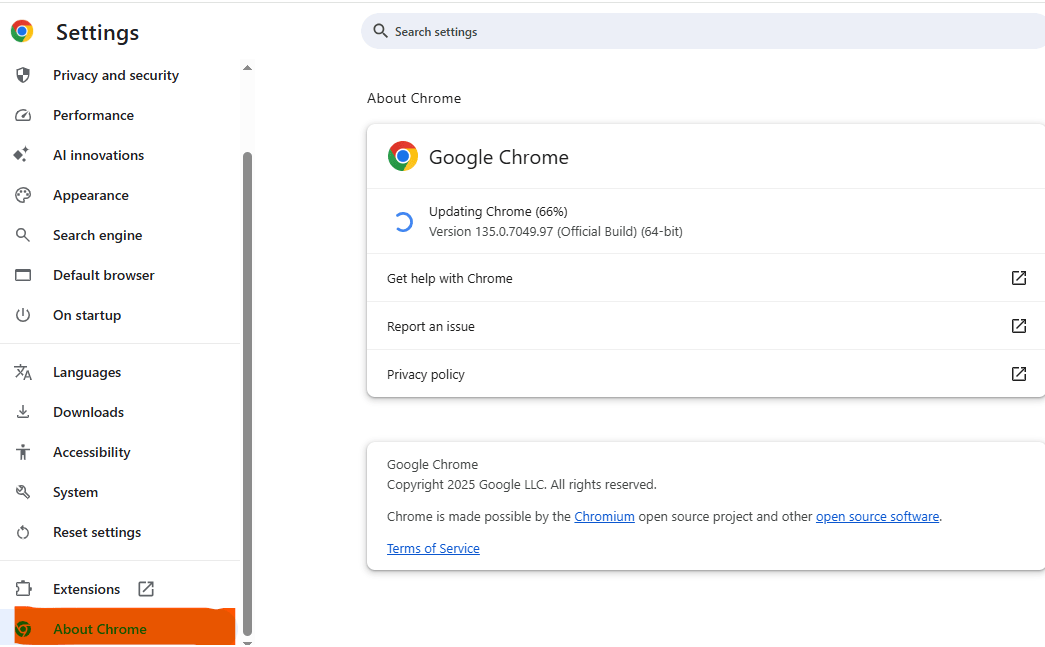
After updating, restart the browser and try the page again.
Method 6: Use Incognito Mode
Incognito mode runs Chrome without using the cache or stored cookies. It’s useful to check if the problem is linked to cached data.
Open a new incognito window by pressing Ctrl+Shift+N (or Command+Shift+N on Mac) and visit the page again. If it loads, the error is likely tied to cached data or extensions.
Method 7: Disable Cache in Chrome Developer Tools
For more advanced users, you can try disabling the cache manually through Developer Tools. Press F12 to open the tools, go to the “Network” tab, and check the “Disable cache” box.
Make sure to keep the Developer Tools window open while reloading the page. This tells Chrome to ignore the cache and load everything fresh from the server.
Method 8: Check Network Settings or Proxy
Wrong network or proxy settings can cause loading issues. Sometimes, your system or browser is told to use the wrong DNS or proxy, which blocks pages.
To fix this, reset your network settings. On Windows, go to settings > “Network & Internet” > “Status” > “Network reset.” On Mac, open “System Settings” > “Network” > and remove or edit proxies.
Method 9: Reinstall Chrome
If nothing else works, reinstalling Chrome might be the answer. First, back up your bookmarks and passwords by syncing with your Google account.
Then uninstall Chrome from your device. Download the latest version from Google’s website and install it again. This ensures everything is clean and working.
Bonus Tips to Prevent ERR_CACHE_MISS in the Future
To avoid this error in the future, make sure you’re always using the latest version of Chrome. Updates fix many known problems.
Clear your cache every few weeks to keep old files from piling up. This keeps your browser running smoothly.
Avoid installing too many extensions. Only keep the ones you really need. This reduces the chances of a bad one causing trouble.
Lastly, if you use developer tools often, make sure you close them when you’re done to prevent strange behavior on regular websites.
Final Thoughts
The ERR_CACHE_MISS error is frustrating, but not hard to fix. You’ve now seen 9 ways to solve it, from refreshing the page to reinstalling Chrome.
Try the easy steps first, like clearing cache or using incognito mode. If those don’t work, go step-by-step through the other fixes.
Bookmark this guide so you can come back if the problem shows up again. And feel free to share it with anyone else who’s dealing with this issue.
Interesting Reads:
How To Fix a 502 Bad Gateway Error?

Shashank is a seasoned digital marketing and WordPress expert who specializes in SEO, software tools reviews, and cutting-edge strategies for boosting online presence. With a passion for simplifying complex topics, Goutham crafts engaging blog posts that help readers optimize their websites, improve search engine rankings, and stay ahead in the ever-evolving digital landscape.