How To Access Archive Pages In WordPress


Accessing archive pages in WordPress is essential for organizing and displaying older content, like blog posts or custom post types. Archive pages automatically categorize and display posts by date, category, tag, or author, making it easier for visitors to explore your content. In this guide, we’ll walk you through the steps to access and customize these archive pages, ensuring your visitors can easily navigate your site’s past content while maintaining a seamless user experience. Whether you’re a beginner or a seasoned WordPress user, understanding archive pages is crucial for effective site management.
How to Access Archive Pages in WordPress
1. Category Archive Pages
Category archives display all posts assigned to a specific category.
How to Access:
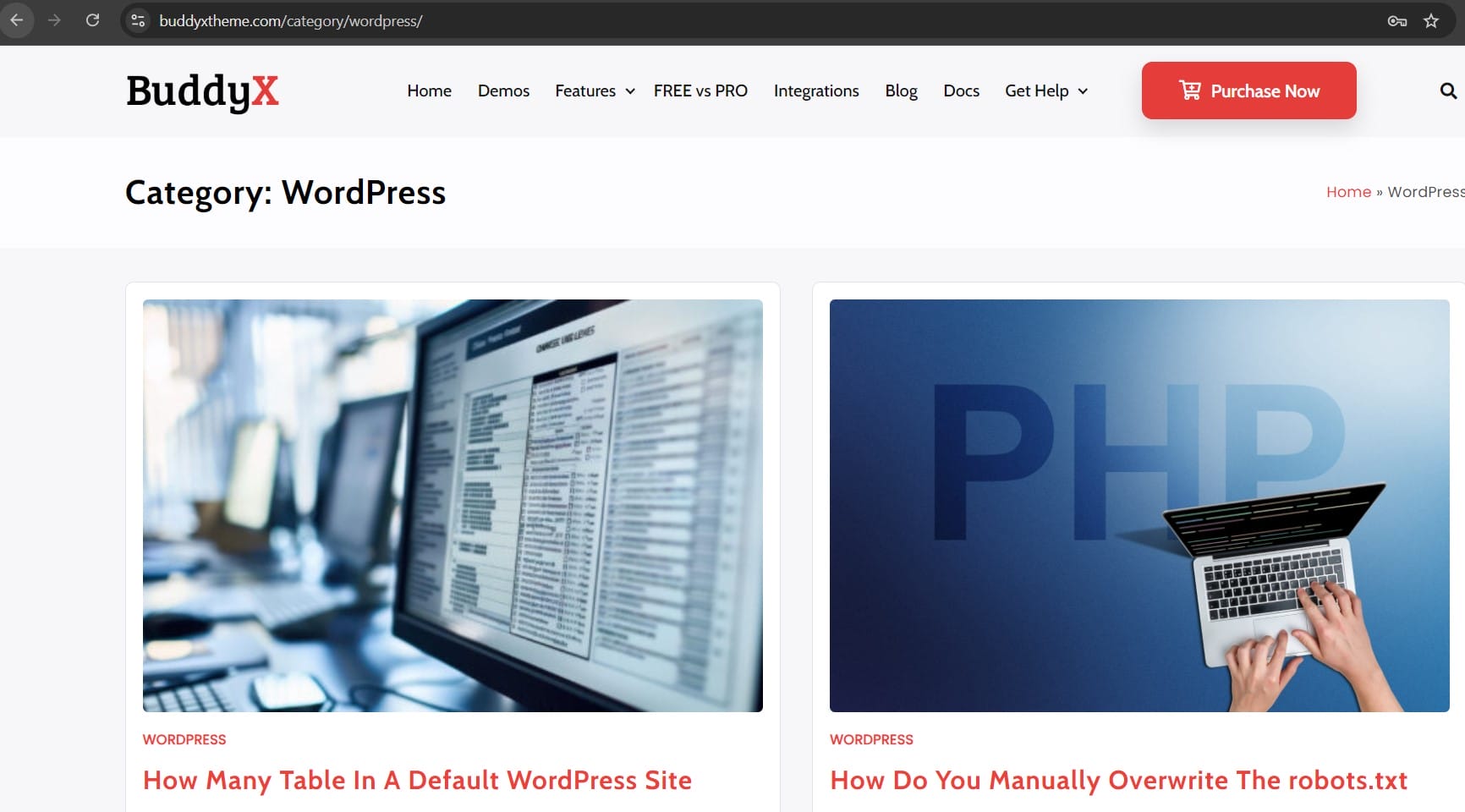
- URL Structure:
- Replace yourdomain.com with your website’s domain.
- Replace category-name with the slug of the category you want to view.
Example:
- If you have a category named “WordPress” with a slug “wordpress”, the URL would be:
Using WordPress Navigation:
- Go to your site’s menu (often in the header or sidebar) and click on a category link. The category archive page will load, displaying all posts in that category.
2. Tag Archive Pages
Tag archives display all posts assigned to a specific tag.
How to Access:
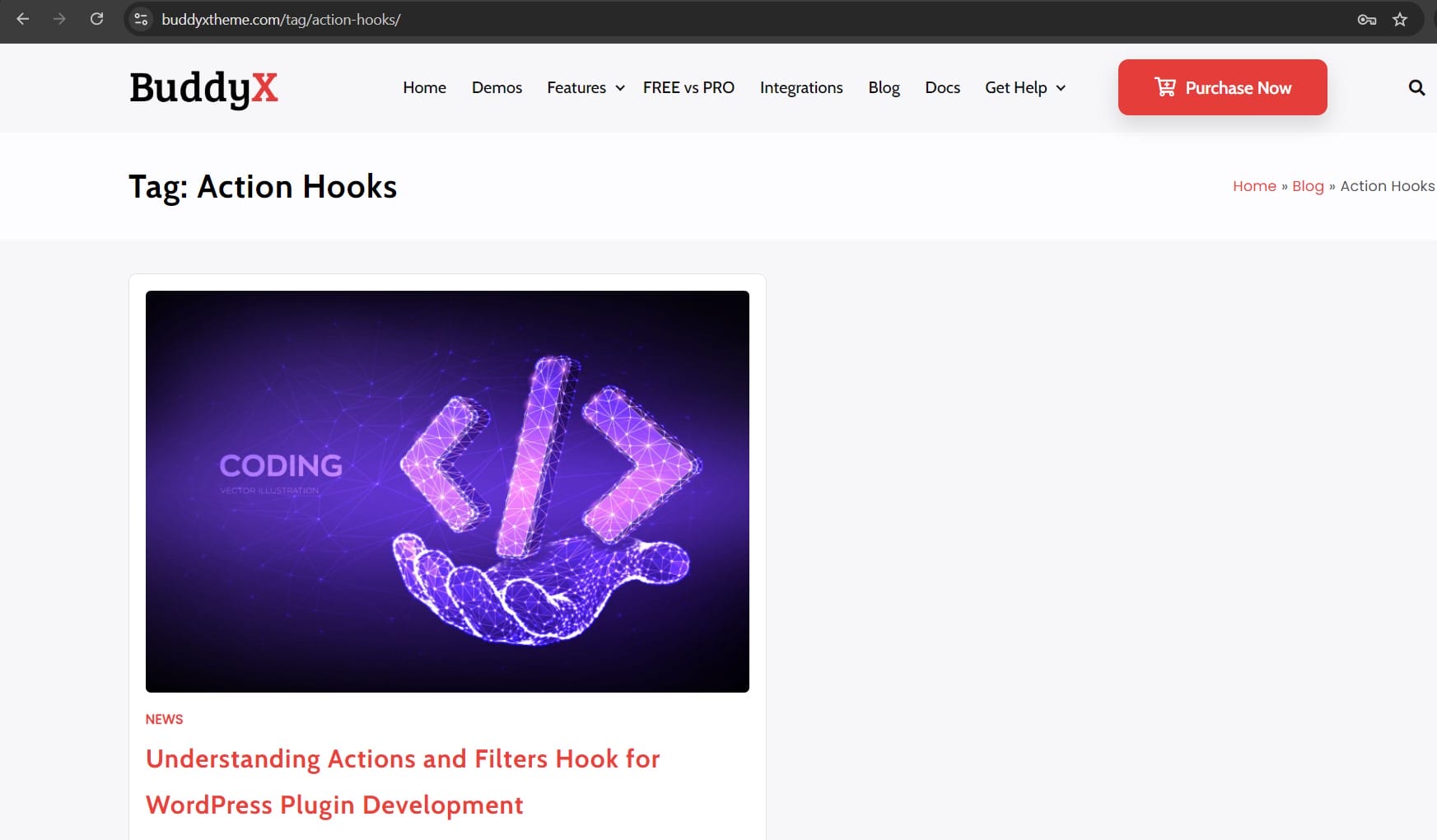
- URL Structure:
- Replace yourdomain.com with your website’s domain.
- Replace tag-name with the slug of the tag you want to view.
Example:
- If you have a tag named “Tutorials” with a slug “tutorials”, the URL would be:
Using WordPress Navigation:
- Tags are usually found in the post’s metadata or in tag clouds. Clicking on a tag will take you to its archive page.
3. Date-Based Archive Pages
Date-based archives display all posts published within a specific year, month, or day.
How to Access:
- Yearly Archive:
http://yourdomain.com/2024/ - Monthly Archive:
http://yourdomain.com/2024/08/ - Daily Archive:
Using WordPress Navigation:
- Date-based archives can be accessed by navigating through the calendar widget (if available) or by clicking on post dates in the metadata.
4. Author Archive Pages
Author archives display all posts published by a specific author.
How to Access:
- URL Structure:
- Replace yourdomain.com with your website’s domain.
- Replace author-name with the slug of the author’s username.
Example:
- If the author’s username is “johnsmith”, the URL would be:
Using WordPress Navigation:
- Author archives can be accessed by clicking on the author’s name in the post metadata.
5. Custom Post Type Archive Pages
Custom post type archives display all posts of a specific custom post type.
How to Access:

- URL Structure:
http://yourdomain.com/post-type-name/- Replace yourdomain.com with your website’s domain.
- Replace post-type-name with the slug of the custom post type.
Example:
- If you have a custom post type named “Portfolio” with a slug “portfolio”, the URL would be:
http://yourdomain.com/portfolio/
Using WordPress Navigation:
- These archives can often be found in the main navigation menu or custom links set up by the theme or plugins.
6. Search Engine and Sitemap
Sometimes, the easiest way to find an archive page is through a search engine or the website’s sitemap.
Using Search Engines:
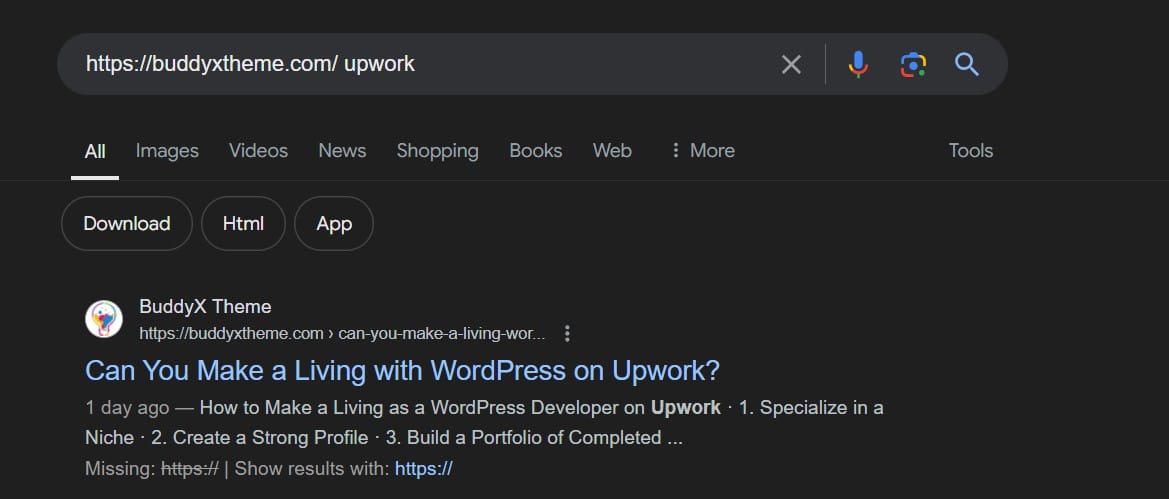
- Enter site:yourdomain.com category-name into Google to find category archives or similar for other types of archives.
Using a Sitemap:
- Access your website’s sitemap (if available) to find direct links to archive pages. The sitemap is usually found at http://yourdomain.com/sitemap.xml.
Accessing and Customizing Archive Pages in WordPress
WordPress automatically creates archive pages to organize and display posts by category, tag, date, author, and custom post types. You can access these archives directly via the URL structure, the site’s navigation menu, or the widgets and links provided in your theme. Understanding how to navigate these archives is essential for site administrators and visitors, as it helps organize and retrieve content effectively.
Interesting Reads:
Do Plugins Have Shortcodes In WordPress