How to Customize the BuddyPress Top Login Bar

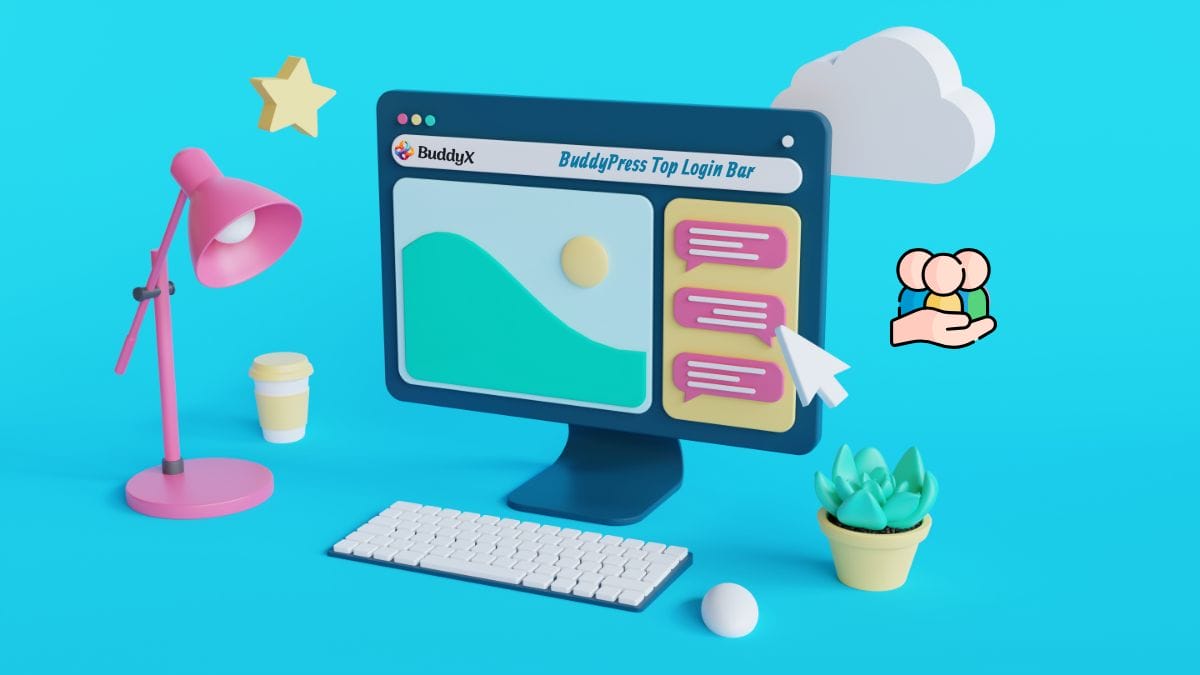
The BuddyPress top login bar enhances user navigation by providing quick access to login, registration, and other essential links. In this guide, we’ll explore how you can configure and manage the BuddyPress top login bar settings to fit your website’s design and functionality.
1. Accessing the BuddyPress Top Login Bar Settings
Navigate to the login bar settings under your WordPress admin panel:
- Go to Appearance > Customize.
- Select the Top Login Bar section.

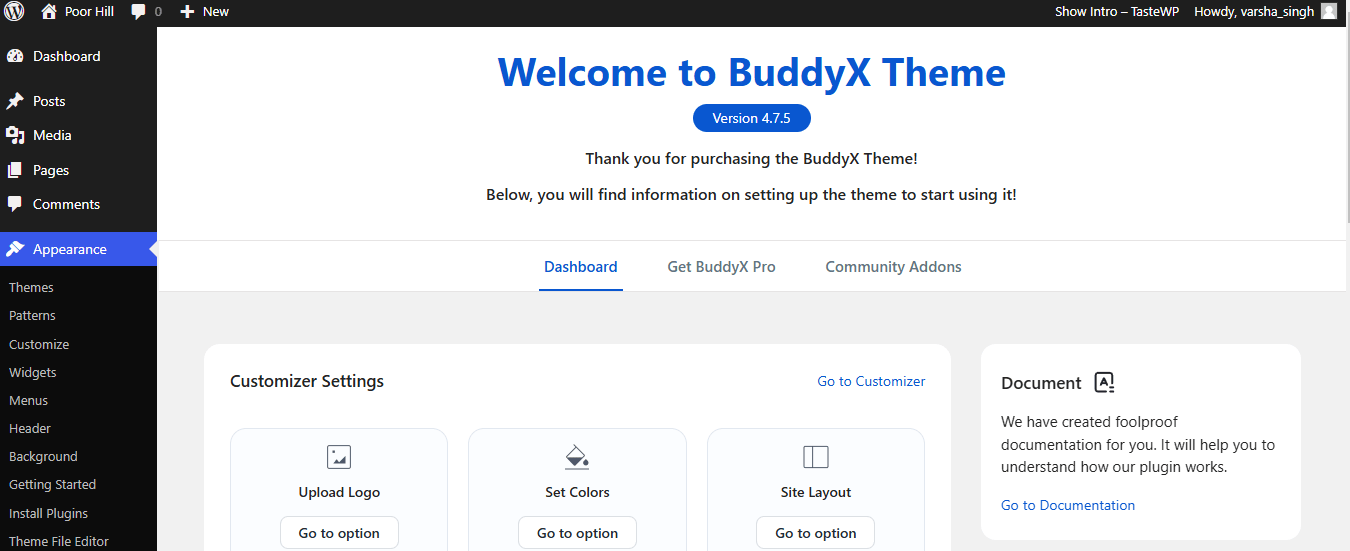
These settings are available if you have a BuddyPress-compatible theme like BuddyX Pro activated.
2. Key Features and Settings

Enable the Login Bar
- Toggle the option to activate the top login bar.
- Once enabled, the login bar appears at the top of your website, providing easy access to user account options.
Enable Welcome Text
- Switch on this feature to display a custom welcome message for logged-in users.
- You can customize the text to greet users or display helpful tips.
3. Managing Login and Registration Links
Login Link
- Set a custom URL for the login page.
- Use this to redirect users to a specific login page instead of the default WordPress page.
Registration Link
- Enable and set the registration link to direct new users to the sign-up page.
- Customize the text for better user engagement (e.g., “Join Now” or “Register Here”).
4. Adding Social Links to the Top Login Bar
Social links can enhance your website’s interactivity by letting users connect with your social profiles directly from the login bar.
- Enable Social Links: Toggle the option to display social links.
- Add Social Link: Use the Add New button to add a new social media link.
- Title: Name of the social platform (e.g., Facebook, Twitter).
- Icon: Choose a relevant icon from the library.
- URL: Enter the full URL of your social media page.
5. Custom Styling Options
Enhance the look of the login bar to match your website’s design.
- Background Color: Set a background color for the bar.
- Text Color: Customize the text color for better visibility.
- Font Style: Choose a font style and size for the bar’s content.
6. Adding Custom Links
The BuddyPress top login bar allows the addition of custom links for quick navigation:
- Click Add Link.
- Provide:
- Link Text: The name of the link.
- URL: The destination address.
- Target: Choose whether the link opens in a new tab or on the same page.
Conclusion
Customizing the BuddyPress top login bar is an excellent way to improve user navigation and interaction on your website. By enabling the right options and tailoring the content to your audience, you can create a seamless browsing experience for your users. Dive into the settings today and make your site’s top login bar both functional and visually appealing.
Interesting Reads:
10 Best AI Tools for Software Documentation in 2024
Top 10 AI Detection Tools of 2024 for Educators, Writers, and Journalists
5 Best Authentic BuddyPress-Compatible Themes for Your Community Website

Shashank is a seasoned digital marketing and WordPress expert who specializes in SEO, software tools reviews, and cutting-edge strategies for boosting online presence. With a passion for simplifying complex topics, Goutham crafts engaging blog posts that help readers optimize their websites, improve search engine rankings, and stay ahead in the ever-evolving digital landscape.