
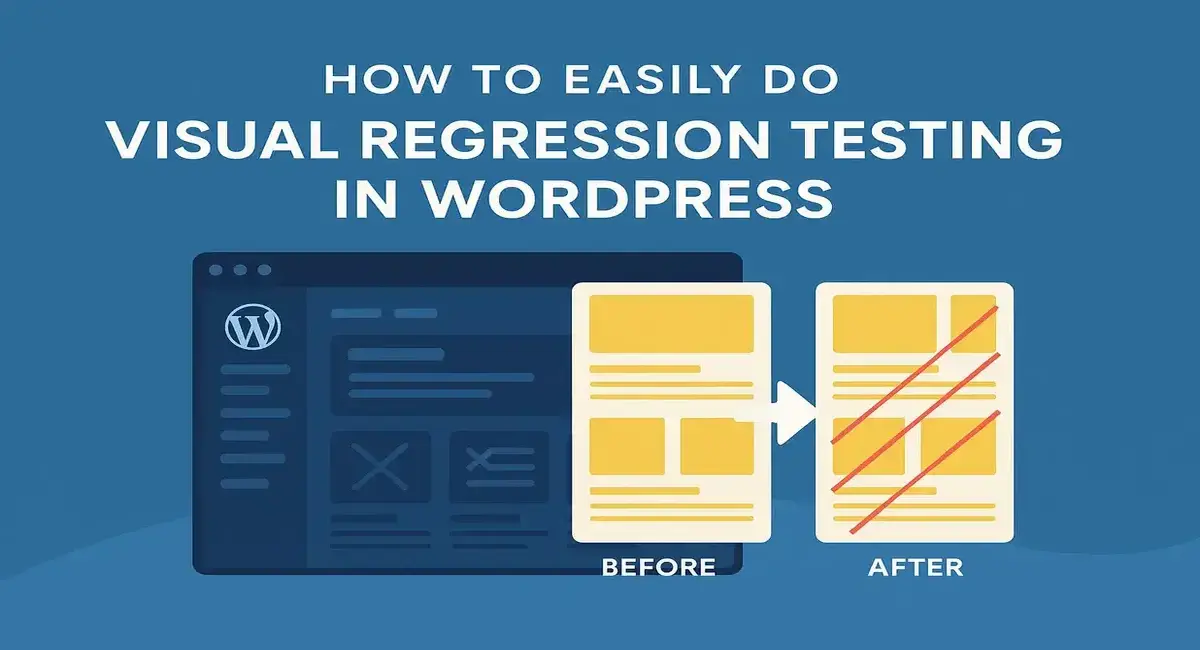
Have you ever updated a plugin or theme on your WordPress site, only to find out later that your homepage layout broke, or a button disappeared? That’s exactly what visual regression testing helps you avoid. In simple terms, it compares how your website looked before a change with how it looks after, spotting even the tiniest differences in layout, spacing, or styling.
This kind of testing is especially important for WordPress users, where regular updates to themes, plugins, or custom CSS can unexpectedly change your design. In this guide, we’ll walk you through how to easily do visual regression testing in WordPress using beginner-friendly tools - no coding expertise needed.
WordPress Content Update PlanWhat Is Visual Regression Testing?
Visual regression testing is a way to automatically check for unexpected changes in how your website looks. Imagine taking a screenshot of your homepage before updating a plugin or making a design tweak - then taking another screenshot afterward. Visual regression tools compare these two images pixel by pixel and highlight anything that changed, whether it’s a button that moved, a font that shifted, or a section that disappeared.
In WordPress, visual changes can easily happen after theme updates, CSS edits, or even installing a new plugin. While everything might seem fine at first glance, small design breaks can slip through and hurt your user experience. That’s where visual regression testing comes in - it acts like a safety net to catch layout issues before your visitors see them.
Why Do You Need Visual Regression Testing in WordPress?
Visual regression testing may sound like a developer thing, but it’s incredibly useful for all kinds of WordPress users:
-
Prevent Broken Designs After Updates: Updates are essential, but even a small change can break layouts or remove styling. Visual testing helps you catch these before they go live.
-
Quality Assurance for Agencies and Developers: If you build or manage multiple client sites, this kind of testing ensures every deployment keeps the design intact.
-
Peace of Mind for Non-Technical Users: Not comfortable poking around CSS? Visual testing tools give you confidence that your site still looks great after every update - without digging into code.
Bottom line: If you want to prevent layout issues in WordPress, this is one of the easiest ways to do it.
How to Easily Do Visual Regression Testing in WordPress
If you want a straightforward, beginner-friendly way to perform visual regression testing in WordPress, the free plugin VRTs for WordPress is one of the best options available. It’s designed specifically for WordPress users and lets you visually compare how your website looks before and after any change - directly from your dashboard.
Here’s a detailed guide to using VRTs for WordPress step by step:
Step 1: Install the Plugin
Start by installing the VRTs for WordPress plugin from the WordPress Plugin Repository:

-
Go to your WordPress dashboard.
-
Navigate to Plugins > Add New.
-
Search for “VRTs for WordPress”.
-
Click Install Now, then Activate.
Once activated, you’ll find a new “VRTs” section in your WordPress admin sidebar.
Step 2: Set Up and Configure
After activation:
-
Go to VRTs > Settings.
-
Define the pages or URLs you want to monitor. Start with critical pages like:
-
Homepage
-
Blog archive
-
Product or service pages
-
Contact page
-
You can add multiple URLs to the test list.
-
Choose the screen size or viewport. VRTs supports different device widths (desktop, tablet, mobile), so you can catch layout issues on various devices.
Step 3: Capture a Baseline Snapshot
Before making any changes (like updating a plugin or theme), you’ll want to capture the “before” version of your pages.
-
Go to VRTs > Snapshots.
-
Click Take Snapshot.
-
The plugin will take screenshots of the selected pages and store them as your baseline.
These images serve as your visual “reference point” for future comparisons.
Step 4: Make a Change (e.g., Update a Plugin)
Now, perform the change you want to test - such as:
-
Updating a theme
-
Installing or deactivating a plugin
-
Editing custom CSS
-
Changing a page layout
Once the change is complete, it’s time to run a visual test and see if anything shifted on your site.
Step 5: Run a Visual Comparison Test
-
Go back to VRTs > Snapshots.
-
Click Take Snapshot again to capture the updated version of your site.
-
The plugin will now compare the new screenshots against the baseline.
Any visual differences will be highlighted side-by-side. You’ll see exactly what changed, down to the pixel. If nothing changed, the plugin will confirm that your site looks exactly the same.
Step 6: Review and Act
If the visual regression test shows no changes, great! You can be confident your update didn’t affect the layout.
If it highlights differences:
-
Review the affected areas.
-
If the changes are expected (like a new banner), accept them and update your baseline.
-
If the changes are accidental (e.g., broken spacing or missing elements), you can roll back the update or fix the issue before pushing live.
Why VRTs for WordPress Is a Great Choice
- Beginner-friendly: You don’t need coding skills or a technical background to use it.
- Integrated in WordPress: No third-party dashboards or setups - everything happens inside your site.
- Free: It’s completely free to use with no premium tier, making it perfect for freelancers, bloggers, and small businesses.
- Granular control: Test specific pages and screen sizes that matter most to your site.
Pro Tip: Use VRTs on a staging site before deploying to production. That way, you can catch and fix visual bugs before they ever go live.
By using VRTs for WordPress, you can automate design QA without relying on developers or expensive tools. It’s the easiest way to prevent layout issues in WordPress and maintain a consistent, professional look - no matter how many updates you make.
Other Tools for Visual Regression Testing
While VRTs for WordPress is perfect for WordPress users looking for a simple, built-in solution, there are other visual regression testing tools that offer more advanced features or cloud-based capabilities. Here’s a quick rundown of some popular alternatives:
1. WP Boom

WP Boom is a cloud-based visual regression testing tool specifically built for WordPress sites.
-
How it works: You enter your site URL, and WP Boom captures snapshots of your pages before and after changes. It then highlights visual differences.
-
Pros: Easy to use, no plugin installation, great UI for comparisons.
-
Cons: Limited free plan; advanced features require a subscription.
Best for: Beginners and agencies that want quick comparisons with minimal setup.
2. BackstopJS
BackstopJS is an open-source visual regression testing framework ideal for developers.
-
How it works: It runs locally or in CI/CD workflows and compares screenshots at different screen sizes.
-
Pros: Fully customizable, supports headless browsers, responsive testing.
-
Cons: Requires Node.js, terminal commands, and configuration.
Best for: Developers and teams using Git and automated testing pipelines.
3. Percy by BrowserStack

Percy is a powerful visual testing platform with deep integration into GitHub, GitLab, and CI/CD pipelines.
-
How it works: Percy captures screenshots during your deployment process and flags UI changes.
-
Pros: Great for teams, automated with code changes, excellent UI diff viewer.
-
Cons: Requires some dev knowledge to integrate.
Best for: Development teams looking for continuous visual testing at scale.
4. Chromatic
Chromatic is mainly used with Storybook, but it offers excellent visual regression testing for UI components.
-
How it works: It takes snapshots of components and flags visual changes in pull requests.
-
Pros: Tight integration with Storybook, great for design systems.
-
Cons: Not ideal for full-page WordPress testing.
Best for: Developers building UI libraries or custom WordPress themes.
5. Visual Testing with Playwright or Cypress

If you already use Playwright or Cypress for end-to-end testing, you can integrate visual regression testing with screenshot comparisons.
-
How it works: These tools capture page states during test runs and compare images.
-
Pros: Seamless test automation, flexible workflows.
-
Cons: Requires advanced test setup.
Best for: Advanced WordPress developers using custom testing suites.
Dealing with Common Visual Regression Testing Issues
Even with the best tools, visual regression testing in WordPress can sometimes produce confusing or false results. One common issue is false positives - differences that aren’t actually layout problems, but things like dynamic content (e.g., rotating banners, timestamps, or ads) changing between snapshots. These can trigger alerts even when your design is working perfectly.
Another challenge is screen resolution mismatches - if your test environment differs from your baseline, minor pixel shifts can appear as major changes. Using consistent viewports and testing in staging environments can help. Also, plugin conflicts may affect how your pages load or render. If your tool isn’t capturing pages correctly, try disabling unnecessary plugins temporarily or clearing the cache before running a snapshot.
Final Thoughts
Visual regression testing might sound technical, but with the right tools - like VRTs for WordPress - it’s incredibly easy to implement, even for non-developers. Whether you’re updating a plugin, tweaking your theme, or launching a new feature, these tools help you catch design issues before your visitors do.
By using visual regression testing in WordPress, you’re not just protecting your site’s look - you’re ensuring a consistent, professional user experience. Start small by testing key pages after updates, and over time, make it a regular part of your workflow. It’s one of the smartest, simplest ways to prevent layout issues in WordPress and keep your site looking polished with every change.
Interesting Reads:
The Complete Small Business Owners Guide to AI