

Gravatars play an important role in personalizing your WordPress site by displaying unique avatars for users across the platform. It can be for blog comments, author bios, or user profiles, Gravatars help to give a face to the name. But, when your Gravatar isn’t updating or displaying as expected, it can be frustrating and affect the appearance and user experience of your site. If you’ve encountered issues with changing your Gravatar on WordPress, you’re not alone. In this article, we’ll troubleshoot and resolve Gravatar issues, ensuring that your avatar is displayed correctly across your WordPress site.

Quick Links
How to Fix Gravatar Issues in WordPress
If your Gravatar is not updating or not working on your WordPress site, this can be frustrating. Gravatar is widely used in WordPress to display user avatars, so when it doesn’t update, it can affect the appearance of your site.
1. Clear Your Browser Cache
Sometimes, the issue is simply that your browser is displaying an old version of your Gravatar due to cached data.
Solution:
- Clear your browser’s cache and cookies.
- Refresh the WordPress page where the Gravatar is supposed to appear.
2. Clear WordPress Cache
If your site uses a caching plugin, it might be serving an old version of your site that still shows the outdated Gravatar.
Solution:
- Clear your WordPress cache through the caching plugin settings.
- If you use a Content Delivery Network (CDN), clear the CDN cache also.
3. Check Gravatar Email Association
Ensure that the email address associated with your WordPress account matches the email you’ve used for Gravatar.
- Go to your WordPress dashboard and navigate to Users >> Profile.
- Confirm that the email address listed there is the same one you’ve used to set up your Gravatar.
If it’s different, update your WordPress profile with the email address associated with your Gravatar account.
4. Update Your Gravatar Image
If you recently changed your Gravatar image and it’s not reflecting on your WordPress site, the update might not have been processed correctly.
- Log in to your Gravatar account at Gravatar’s site.
- Re-upload your image or try selecting a different image temporarily.
- Save the changes and then switch back to the desired image.
This can trigger the update process and might solve the issue.
5. Check WordPress Discussion Settings
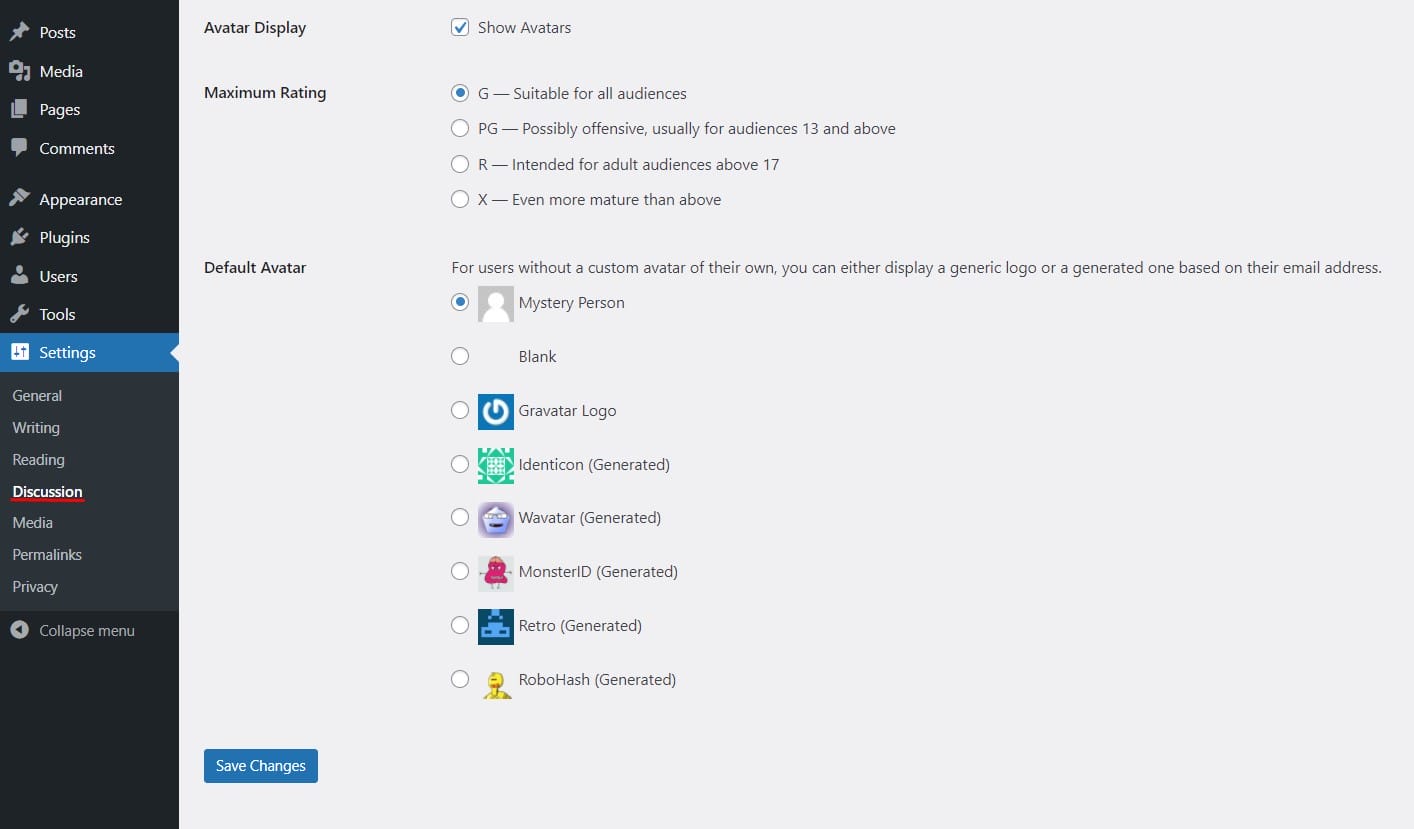
Ensure that your WordPress settings are configured to use Gravatar:
- Go to Settings >> Discussion in your WordPress dashboard.
- Under the Avatars section, make sure that the option to display avatars is enabled.
- Choose the appropriate rating for your avatar (G, PG, R, etc.), and make sure the Gravatar Logo is selected under Default Avatar.
6. Deactivate Conflicting Plugins
Sometimes, a plugin might interfere with how Gravatar works on your site. To troubleshoot:
- Deactivate all your plugins temporarily to see if the Gravatar updates.
- If it works, reactivate the plugins one by one to identify which plugin is causing the issue.
7. Check Theme Compatibility
Your WordPress theme might also be causing issues with Gravatar.
- Switch to a default WordPress theme like Twenty Twenty-One to see if the Gravatar updates.
- If it does, the issue is likely with your theme. You may need to contact the theme developer for support.
8. Force Gravatar Refresh
If none of the above methods work, you can try to force WordPress to refresh the Gravatar by updating your profile:
- Go to Users >> Profile in your WordPress dashboard.
- Make a minor change to your profile (like adding a space in the bio section).
- Save the changes, which might prompt WordPress to update the Gravatar.
Getting Your Gravatar to Work
Gravatar issues in WordPress can stem from various factors, including caching, plugin conflicts, or email mismatches. Applying the steps taught in this article, you should be able to troubleshoot and resolve the problem, ensuring that your Gravatar displays correctly across your WordPress site.
Interesting Reads:
Can You Undelete A WordPress Category

