

Creating responsive tables in WordPress is crucial for ensuring your content is accessible and easy to read on all devices, from desktop computers to smartphones. Whether you’re showcasing data, comparing features, or listing items, a responsive table automatically adjusts its layout based on the screen size, providing an optimal viewing experience for your audience. Let’s learn to create responsive tables in WordPress.

Quick Links
How to Create Responsive Tables in WordPress
Method 1: Using CSS (No Plugin Required)
If you have some knowledge of CSS, you can create responsive tables without a plugin. Here’s how:
Step 1: Create Your Table
You can create a table using the WordPress Block Editor. When adding a table, structure it properly with <thead> and <tbody> tags.
<table>
  <thead>
    <tr>
      <th>Header 1</th>
      <th>Header 2</th>
      <th>Header 3</th>
    </tr>
   </thead>
   <tbody>
     <tr>
        <td>Data 1</td>
        <td>Data 2</td>
        <td>Data 3</td>
      </tr>
        <!-- More rows as needed -->
    </tbody>
</table>
Step 2: Add Custom CSS
Go to Appearance >> Customize >> Additional CSS in your WordPress dashboard and add the following CSS code:
@media screen and (max-width: 600px) {
  table {
    width: 100%;
    display: block;
    overflow-x: auto;
    white-space: nowrap;
  }
  th, td {
      display: block;
      text-align: left;
  }
}
This CSS will make your table responsive by allowing horizontal scrolling on smaller screens, ensuring all content remains readable.
Method 2: Using a Plugin
If you prefer not to code, using a plugin is an easier way to create responsive tables. Here are two popular plugins you can use:
- Ninja Tables
- TablePress
Using Ninja Tables

1. Install and Activate the Plugin:
- Go to Plugins >> Add New and search for Ninja Tables. Install and activate it.
2. Create a New Table:
- Navigate to Ninja Tables >> Add New Table.
- Enter a name for your table and click Create Table.
3. Add Data:
- Use the table editor to input your data. You can add columns and rows as needed.
4. Configure Responsive Settings:
- In the table settings, you can specify responsive breakpoints and other styling options.
5. Insert the Table:
- After saving your table, copy the shortcode provided and paste it into the post or page where you want the table.
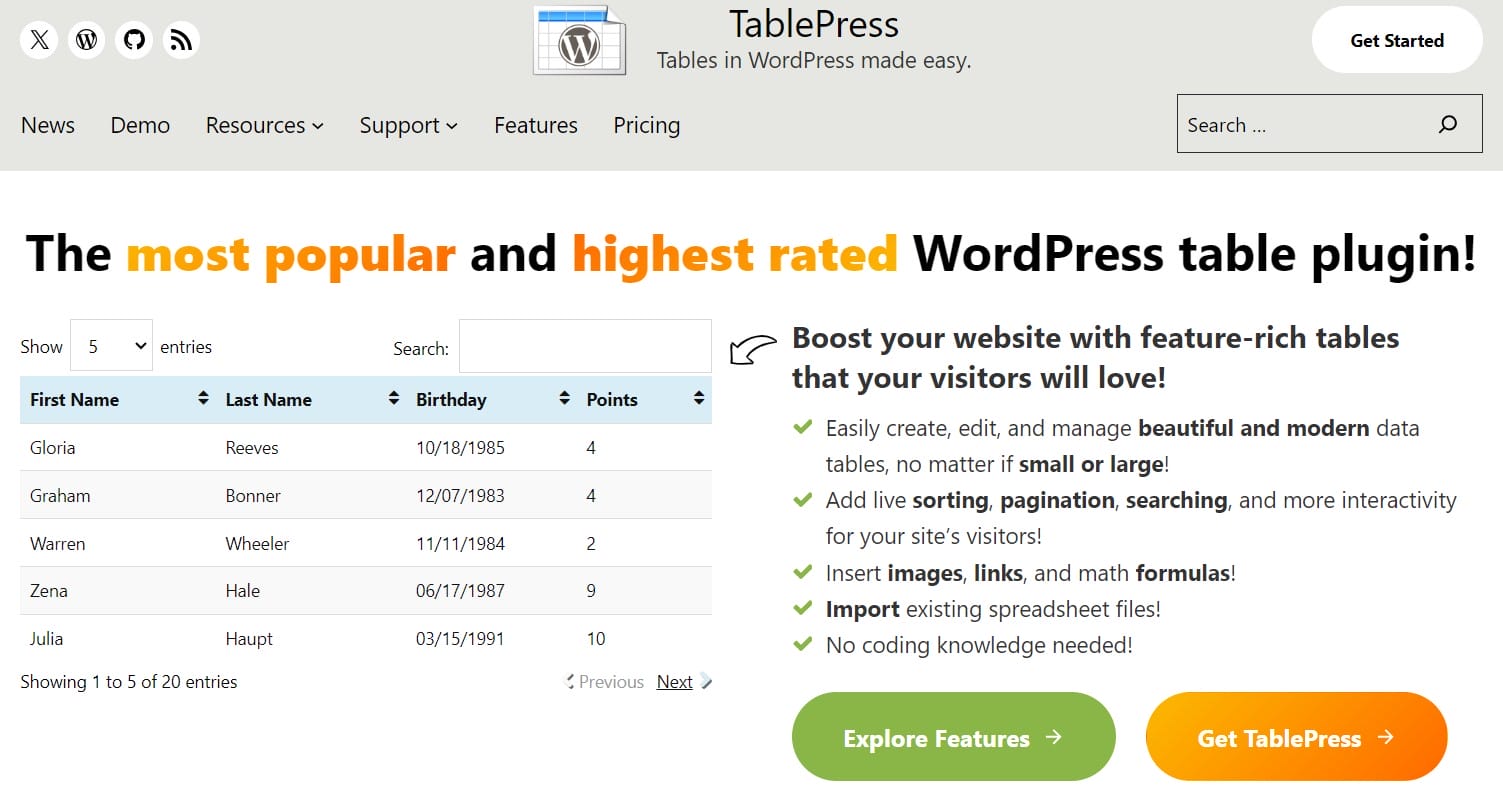
Using TablePress
1. Install and Activate the Plugin:
- Go to Plugins >> Add New and search for TablePress.
- Install and activate it.
2. Create a New Table:
- Navigate to TablePress >> Add New Table.
- Enter the number of rows and columns and click Add Table.
3. Input Data:
- Fill in your table data in the provided fields.
4. Add Shortcode:
- After saving the table, you’ll receive a shortcode. Insert this shortcode into your post or page.
5. Make It Responsive:
- To make your TablePress tables responsive, you may need to add custom CSS similar to the one provided above or use the TablePress extension that enables responsive tables.
Creating responsive tables in WordPress can be achieved through coding with CSS or by using user-friendly plugins like Ninja Tables or TablePress. Both methods ensure that your tables are accessible and look great on all devices, enhancing the overall user experience on your site. Choose the method that best fits your comfort level with coding and your specific needs for table functionality.
Interesting Reads:

