How to Use a Product Table in WooCommerce for Faster Purchases


Managing a WooCommerce store effectively starts with ensuring that customers can shop quickly and effortlessly. Customers today expect convenience, and if they can’t quickly find and purchase products, they are more likely to abandon their cart. This is where adding a Product Table in WooCommerce can be a game-changer.
By displaying products in a structured table layout, shoppers can browse, filter, and order multiple products in just a few clicks—making the buying process faster and more user-friendly. In fact, presenting products in this way helps customers save time, boosts their overall satisfaction, and encourages them to add more items to their cart. Store owners also benefit by reducing friction in the buying journey and increasing conversions.
Why Add a Product Table in WooCommerce?
WooCommerce’s default shop layout is fine for many stores, but it’s not ideal for wholesale buyers, restaurants, or shops with large catalogs. Customers often need a faster way to browse, compare, and order products. A WooCommerce product table solves this by showing items in a compact table format where shoppers can search instantly, compare options, and add multiple products or variations to the cart in just a few clicks.
Introducing WooCommerce Product Table Plugin
The WooCommerce Product Table plugin by Barn2 is one of the most popular and powerful tools to create dynamic product tables. It is widely used in wholesale stores, online restaurants, and B2B shops where speed and efficiency are top priorities.
With this plugin, you can:
- Display hundreds or even thousands of products in a clean table layout.
- Include essential data like images, prices, SKU, stock status, categories, attributes, and even custom fields.
- Allow customers to add products directly to the cart without leaving the table.
- Provide instant search, filtering, and sorting options.
Key Features of WooCommerce Product Table
1. Fast One-Page Ordering
With the fast one-page ordering feature, customers can add multiple products and variations to their cart without navigating away from the main product list. This is particularly beneficial for wholesale buyers, bulk purchasers, and restaurants where quick decisions are essential.
2. Flexible Table Creation
The plugin provides a powerful table builder that lets you create product tables exactly as you need them. You can place these tables on shop pages, category pages, or even on dedicated landing pages designed for promotions. With smooth loading and scalability, the tables can handle thousands of products while maintaining speed and performance.
3. Easy Setup and Customization
You don’t need to be a developer to use this plugin. Its intuitive interface allows store owners to set up professional-looking product tables with just a few clicks. Pre-designed templates, drag-and-drop elements, and flexible customization options make it ideal for both small stores and enterprises that want to present their products in a polished way.
4. Instant Search, Sort & Filter Options
Customers can instantly locate the products they want with built-in search and filtering tools. Whether they need to sort by SKU, price, or category, or refine their results with custom filters, this functionality makes product discovery effortless. These features enhance usability and keep shoppers engaged.
5. Quick ‘Add to Cart’ Buttons
Adding items to the cart is faster than ever with direct add-to-cart buttons embedded in the table. Customers can select multiple products and variations in one go, cutting down the number of steps it takes to complete a purchase. This simplicity encourages impulse buying and higher-order values.
6. Customizable Product Listings
The product table gives you full control over what customers see. You can display or hide products based on categories, tags, or IDs, and even highlight featured products to boost visibility. By customizing the information shown, you can tailor the shopping experience to your audience’s needs.
7. Control Product Table Data
From images and attributes to videos, SKUs, and stock status, the plugin allows you to display a wide range of data within the table. Custom fields are supported, making it easy to add unique product details. You can also merge columns for a cleaner layout, such as placing a short description directly under the product name.
Also Read: How to Use Advanced Product Fields to Add Custom Product Options in WooCommerce
8. Optimized for Large Stores
For stores with extensive catalogs, performance is crucial. The plugin uses lazy loading (AJAX) to handle hundreds or even thousands of products smoothly. This ensures customers can browse without delays, even when dealing with large inventories.
9. Dozens of Integrations
The product table is tested with a wide variety of WooCommerce extensions, including Product Add-Ons, Dynamic Pricing, and Quick View. Its compatibility with most themes and plugins makes it a versatile solution for both B2B and B2C businesses that rely on additional WooCommerce functionality.
10. Mobile-Friendly and Responsive
Since many shoppers use mobile devices, the product tables are fully responsive. Columns automatically adjust to fit smaller screens, and you can customize widths to ensure clarity. Whether customers are shopping on a desktop, tablet, or phone, they will enjoy a smooth and consistent experience.
Step-by-Step Guide: How to Use WooCommerce Product Table
Follow this simple guide to set up and customize a WooCommerce Product Table for your store. Each step ensures a faster, user-friendly shopping experience for your customers.
Step 1: Install and Activate the Plugin
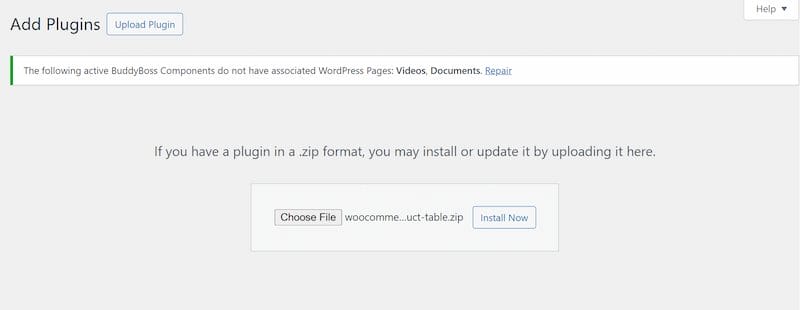
- Purchase and download the WooCommerce Product Table plugin from Barn2.
- Log in to your WordPress dashboard.
- Go to Plugins > Add New and upload the plugin ZIP file.
- Install and activate it.
Step 2: Configure Basic Settings
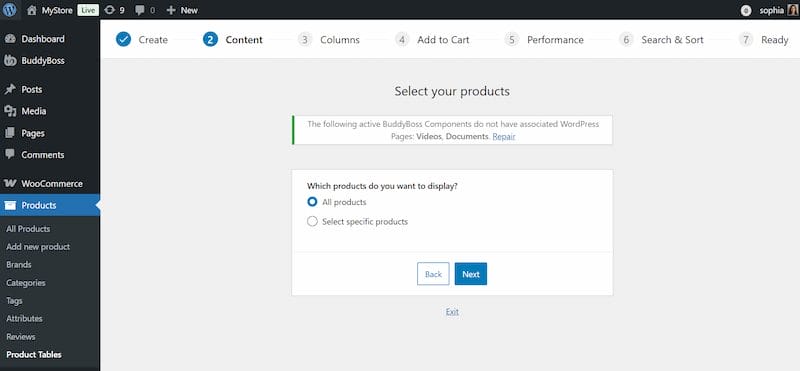
- Once activated, head to WooCommerce > Settings > Products > Product Tables.
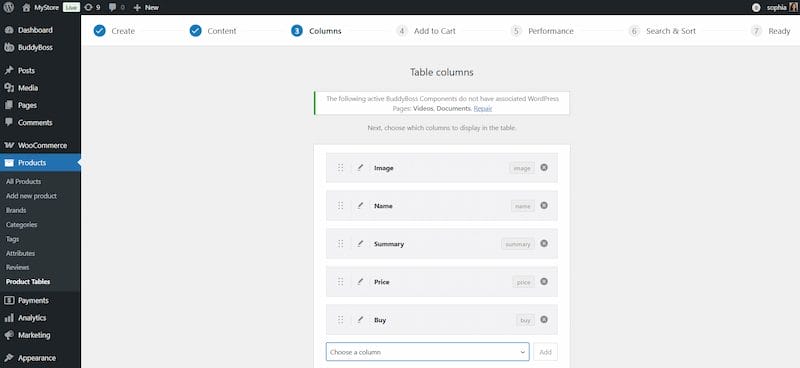
- Adjust table defaults such as:
-
- Columns to display (e.g., product name, price, SKU, add-to-cart).
- Number of products per page.
- Default sort order.
Step 3: Create a Product Table
- Use the shortcode
[product_table]to display a table on any page. - Customize it by adding parameters, for example:
[product_table category="t-shirts" columns="image,name,price,add-to-cart"] - Alternatively, use the visual table builder to design tables without code.
Step 4: Add Instant Search and Filters
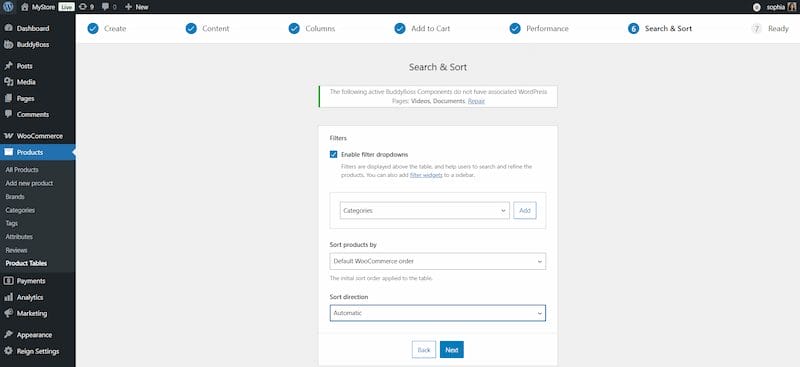
- Enable filter dropdowns for categories, tags, or attributes.
- Allow users to sort by SKU, price, stock, or date.
- Make it easy for shoppers to find exactly what they want.
Step 5: Enable Quick Add-to-Cart
- Add multi-select checkboxes so users can add several products at once.
- Allow product variations to be selected within the table.
- Ensure cart buttons are visible for a seamless shopping experience.
Step 6: Customize Appearance
- Adjust column widths and order.
- Change or rename column headings.
- Apply responsive design settings for mobile optimization.
Step 7: Publish and Test

- Publish the page containing your product table.
- Test the functionality by browsing, filtering, and adding products.
- Make adjustments based on customer feedback.
Best Use Cases for WooCommerce Product Tables
Not every store needs a product table, but for some industries, it can significantly improve the shopping journey. Here are the most common scenarios:
- Wholesale Stores – Wholesale customers often order in bulk and need quick access to product SKUs, prices, and stock.
- Online Restaurants – Customers can easily browse menu items and add multiple dishes to their order.
- B2B Shops – Business buyers can find products quickly using filters and order large quantities in one go.
- Large Catalog Stores – Stores with hundreds of products can make navigation easier with sorting and filtering.
- Product Comparison – Display technical attributes and specifications in a side-by-side format.
Pro Tips to Get the Most Out of WooCommerce Product Table
- Use Smart Filters – Add category, price range, and attribute filters to make shopping faster.
- Highlight Popular Products – Place best-sellers or new arrivals at the top of your product table.
- Enable Lazy Loading – If you have thousands of products, lazy loading ensures fast performance.
- Optimize for Mobile – Test your tables on different screen sizes to ensure usability.
- Track User Behavior – Use Google Analytics or heatmaps to see how shoppers interact with product tables.
Why Product Tables Improve Conversions
A product table not only improves the shopping experience but also helps boost conversions and average order value. When customers can instantly find what they need, add multiple products at once, and avoid unnecessary clicks, they are more likely to complete their purchase without hesitation. This streamlined process reduces cart abandonment, encourages larger orders, and creates a smoother path to checkout that feels effortless for the shopper.
Enhance Shopping with a WooCommerce Product Table
Adding a Product Table in WooCommerce is one of the easiest ways to improve the customer shopping experience, especially for wholesale buyers, restaurants, and large online stores. With the WooCommerce Product Table plugin, you get flexibility, speed, and a professional solution that works out of the box. It not only enhances convenience but also boosts sales, supports bulk orders, and helps your store stand out by offering a faster, more efficient shopping experience.
👉 Ready to optimize your store further? Explore our Custom WooCommerce Development Services and let experts help you build a tailored solution for your business.
Interesting Reads
15 Best CRM Systems Tools in 2025

Shashank is a seasoned digital marketing and WordPress expert who specializes in SEO, software tools reviews, and cutting-edge strategies for boosting online presence. With a passion for simplifying complex topics, Goutham crafts engaging blog posts that help readers optimize their websites, improve search engine rankings, and stay ahead in the ever-evolving digital landscape.