

When running an online store, the customer experience is everything. If shoppers struggle to find the right size, style, or color, they’re likely to abandon the purchase. By default, WooCommerce displays product variations using boring dropdown menus. For example, customers may need to select Color → Red or Size → Medium from text-based dropdowns, which often feels clunky and uninspiring. A simple fix is to add swatches in WooCommerce—visual color chips, images, or label buttons—so shoppers can choose what they see with a tap instead of reading through dropdowns.
The good news? You can transform these dropdowns into beautiful swatches—color blocks, images, and labels—using the WooCommerce Variation Swatches plugin. With this feature, your customers can quickly visualize product variations, making shopping easier and more enjoyable.

Quick Links
Why Use Swatches in WooCommerce for a Better Shopping Experience?
1. Improved User Experience – Instead of relying on text-based dropdowns, shoppers can immediately view what each variation looks like. For example, a red shirt or a leather texture can be displayed as a swatch, which eliminates confusion and creates a more engaging shopping experience. This not only makes navigation smoother but also reduces hesitation since customers can visually connect with the product.
2. Faster Purchase Decisions – By providing swatches, you help customers make quicker decisions. Rather than scrolling through lists of colors, sizes, or styles, users can instantly identify their preferred option at a glance. This reduces decision fatigue and streamlines the buying journey, leading to higher conversion rates and fewer abandoned carts.
3. Mobile-Friendly Shopping – On small screens, dropdown menus can be difficult to use and sometimes frustrating. Swatches, however, are touch-friendly and easy to tap, making product selection seamless for mobile shoppers. Since mobile commerce continues to grow, offering swatches can significantly improve usability and boost sales from smartphone and tablet users.
4. Professional Look – Adding swatches gives your WooCommerce store a polished, modern appearance that matches the shopping experience of top eCommerce giants. The visual appeal helps build trust with customers and gives them confidence in your brand’s quality. A sleek presentation can make your products look more desirable and your store more competitive.
5. Reduced Returns – When customers clearly see the color, size, or texture before making a purchase, they are less likely to order the wrong variation. This accuracy reduces return requests, saving you time and money while keeping customers satisfied. A clear preview of product options increases buyer confidence and ensures they receive exactly what they expected.
Preparing Your Store for Swatches
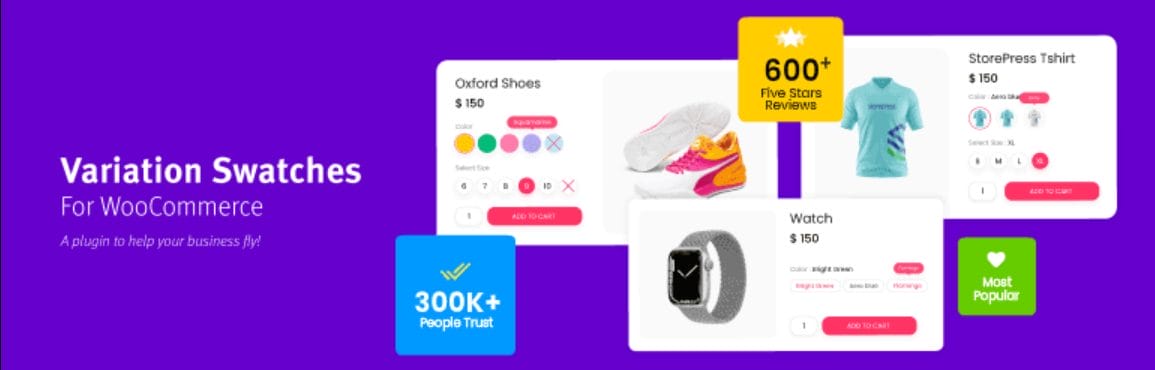
Before you begin installing the plugin, it’s important to understand that swatches work best when your product catalog is organized with attributes ready. Make sure you have planned which attributes you want to convert into swatches.
Step 1: Install the WooCommerce Variation Swatches Plugin
The Variation Swatches for WooCommerce plugin by Emran Ahmed is one of the most popular and reliable solutions. You can install it in three ways:
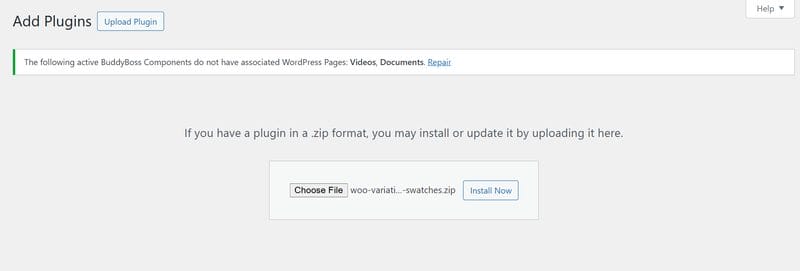
- Download the plugin ZIP file.
- From the WordPress dashboard, go to Plugins → Add New → Upload Plugin.
- Choose the ZIP file and click Install Now.
- Activate the plugin after installation.
Step 2: Upgrade to the Pro Version (Optional but Recommended)
The free version is enough for basic swatches, but the Pro version unlocks advanced features such as:
- Dual/Multi-Color swatches
- Tooltips with images and text
- Swatches on shop/archive pages
- Advanced styling options (round, square, custom sizes)
- Additional variation images
Step 3: Configure Product Attributes
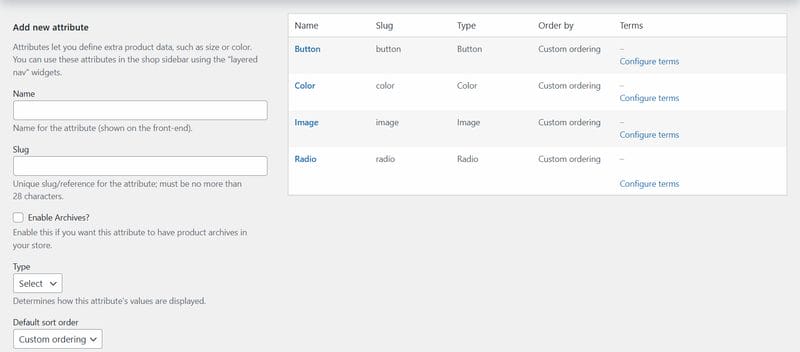
Installing the plugin doesn’t automatically enable swatches. You first need to configure attributes:
- From the WordPress dashboard, go to Products → Attributes.
- Create or edit an attribute (e.g., Color, Size, Fabric).
- Under Type, choose one of the following:
- Color – Ideal for product colors (e.g., red, blue, green).
- Image – Useful for fabrics, textures, or style patterns.
- Button/Label – Best for sizes (S, M, L) or text-based variations.
Step 4: Add Attribute Terms (Colors, Images, Labels)
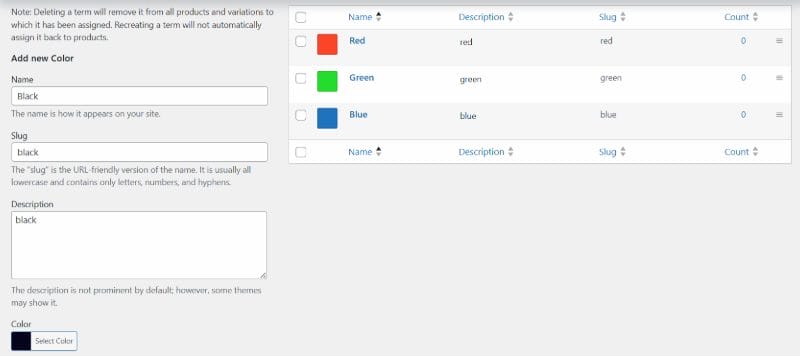
After creating the attributes, define the actual terms:
- Go to Products → Attributes.
- Find your attribute (e.g., Color) and click Configure Terms.
- Add each term (e.g., Red, Green, Blue).
- For Color swatches – Select a color using the color picker.
- For Image swatches – Upload the corresponding image (e.g., fabric texture).
- For Label swatches – Enter the text (e.g., Small, Medium, Large).
Step 5: Apply Attributes to Variable Products
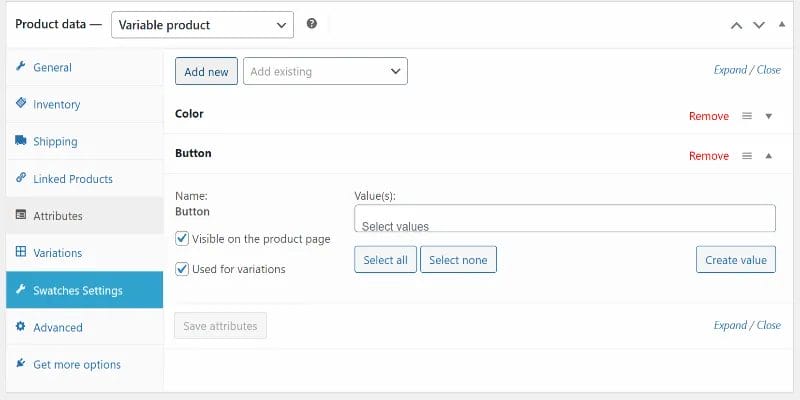
Once your attributes and terms are created, link them to products:
- Edit a variable product in WooCommerce.
- In Product Data, select Variable Product.
- Go to the Attributes tab.
- Choose your created attribute (e.g., Color) from the dropdown.
- Click Add → Select terms → Check Used for variations → Save.
- Go to the Variations tab.
- Create variations from all attributes.
- Assign prices, images, and stock for each variation.
Step 6: Enable Color Swatches
Add color swatches to make product colors clickable:
- Navigate to Products → Attributes → Configure Terms under “Color.”
- Add each color variation (e.g., Red, Blue, Green).
- Assign prices and images under Product → Variations.
Step 7: Enable Image Swatches
Ideal for fabrics, patterns, or product designs:
- Go to Products → Attributes → Configure Terms under “Fabric/Pattern.”
- Upload an image that represents each variation.
- Assign corresponding product data in the Variations tab.
Step 8: Enable Label (Button) Swatches
Use labels or buttons for attributes like sizes:
- Create an attribute called Size.
- Set the type to Button/Label.
- Add values like Small, Medium, Large.
Step 9: Advanced Features (Pro Version)
- Multi/Dual Color Swatches
- Image Tooltips
- Swatches on Shop Pages
- Additional Variation Images
- Custom Styling for Shapes and Sizes
Step 10: Testing and Troubleshooting
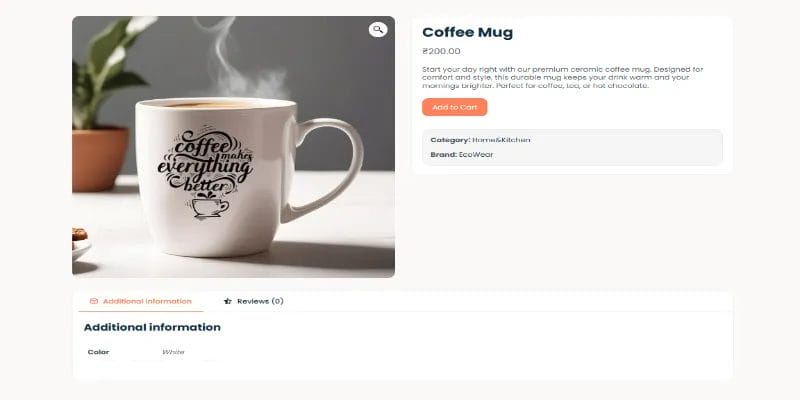
- Test on desktop and mobile.
- Check compatibility with your theme and page builder.
- Optimize images for speed.
- Ensure prices and stock updates are correct.
Tip: If swatches don’t appear, clear your caching plugin, regenerate CSS in your theme options, and confirm the attribute “Type” matches your intended swatch style.
Best Practices for Using Swatches
- High-Quality Visuals – Always use clear and optimized images.
- Consistency – Uniform shape and size create a polished look.
- Accessibility – Add labels or tooltips for clarity.
- Limit Overload – Avoid overwhelming users with too many options.
- Analytics – Track how users interact with swatches.
Recommended Plugins to Complement Swatches
- WooCommerce Additional Variation Images Gallery
- Dokan Multivendor + Swatches
- Printful Integration
SEO Benefits of Using Swatches
Swatches don’t just help users—they can also improve SEO and conversions. By offering an engaging and interactive way to browse through product variations, swatches encourage customers to spend more time on your store. This naturally improves engagement metrics.
They also increase click-through rates on archive or shop pages since customers can preview variations without leaving the page. Finally, swatches help lower bounce rates because shoppers quickly find their preferred options, making them less likely to abandon your site.
Also Read: How to Build a Dropshipping Store with WooCommerce
Swatches in Marketing Campaigns
Swatches in WooCommerce can also play a powerful role in your marketing campaigns. By visually displaying product options, you can highlight limited edition colors more effectively, showcase trending patterns directly on shop pages, and even combine them with scarcity tactics such as low stock labels. This approach makes promotions more eye-catching and persuasive, encouraging customers to make quicker purchasing decisions.

Why Swatches Improve WooCommerce
Enhancing your WooCommerce store with color, image, and label swatches is one of the simplest ways to improve conversions and user experience. Instead of relying on dropdown menus, customers can now visualize product variations interactively.
This not only makes the selection process smoother, but also builds trust in your brand as customers clearly see what they are purchasing. Over time, such improvements can boost sales, increase repeat purchases, and set your store apart from competitors who still rely on outdated dropdowns.
Ready to take your store to the next level? Start by installing the Variation Swatches for WooCommerce plugin today. For a fully customized solution, partner with Wbcom Designs for expert WooCommerce development and take your store even further.
Interesting Reads
How to Create and Send PDF Invoices & Packing Slips in WooCommerce

