
Managing customer relationships and online sales data effectively is critical for any eCommerce business. With WooCommerce powering your online store and Salesforce managing your CRM needs, integrating the two can help streamline workflows, automate customer data entry, and keep your sales team aligned with customer activity.
This combination not only eliminates redundant manual tasks but also provides a 360-degree view of your customers, enabling personalized marketing campaigns, faster response times, and more accurate forecasting. By ensuring that sales data and customer interactions flow seamlessly between both platforms, businesses can boost efficiency, strengthen customer relationships, and scale their operations with confidence.

Quick Links
Why Salesforce Integration in WooCommerce Matters
WooCommerce is excellent for handling online orders, while Salesforce is one of the most powerful CRMs available. However, without integration, businesses face challenges like manual data entry, scattered customer information, and delays in communication. Integrating Salesforce with WooCommerce allows you to:
- Automatically create leads or contacts in Salesforce when a WooCommerce order is placed.
- Synchronize WooCommerce orders, customers, and products with Salesforce in real time.
- Reduce errors and time spent on manual updates.
- Gain deeper insights into customer behavior for better decision-making.
This connection ensures your sales, marketing, and customer service teams always have updated data at their fingertips.
Getting Started with WooCommerce Salesforce Integration
Before diving into the setup, make sure you have:
- A WooCommerce-powered WordPress website.
- A Salesforce account (with API access enabled if required).
- The WooCommerce Salesforce Plugin by CRM Perks is installed and activated.
Once everything is ready, you can begin the integration process.
Step 1: Connect Salesforce Account
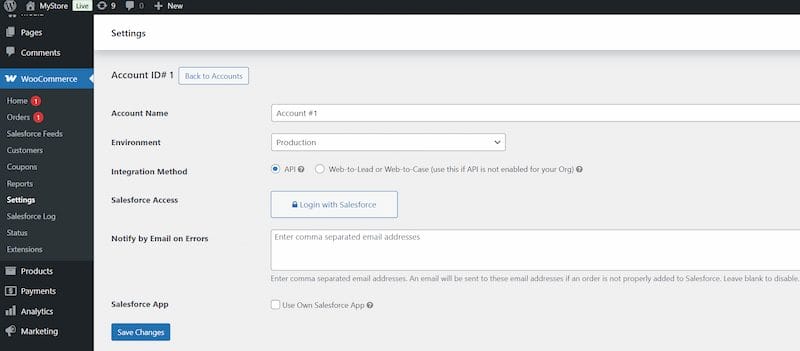
After activating the plugin, go to WooCommerce → Settings → Salesforce tab. Here, you’ll connect your Salesforce account using either:
- OAuth 2.0: Recommended for secure API access.
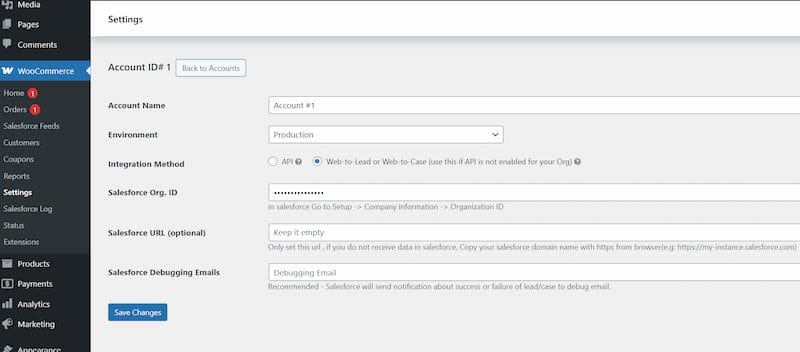
- Salesforce Organization ID: An alternative method if your Salesforce plan doesn’t allow API access.
The plugin also allows you to connect multiple Salesforce accounts, making it useful for agencies or businesses operating with different Salesforce instances.
Step 2: Create Salesforce Feeds
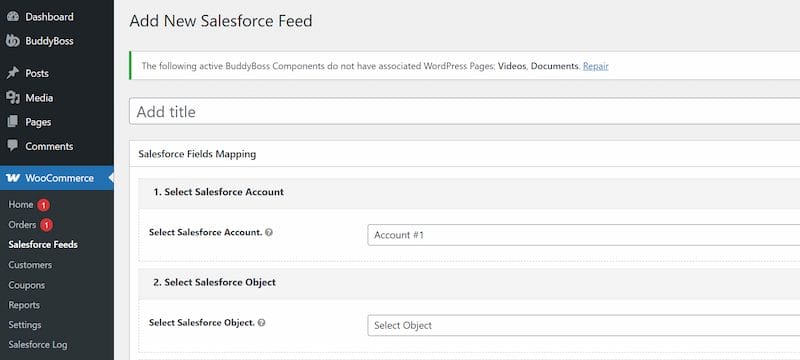
Feeds are rules that tell WooCommerce which data should be sent to Salesforce. To create one:
- Go to WooCommerce → Salesforce Feeds.
- Click Add New Feed.
- Choose the Salesforce Object you want to create or update (Lead, Contact, Account, Case, or even a Custom Object).
- Define when WooCommerce order data should be sent (for example, when the order status changes to Processing).
This step ensures the plugin knows how to handle customer and order data automatically.
Step 3: Map Fields Between WooCommerce and Salesforce
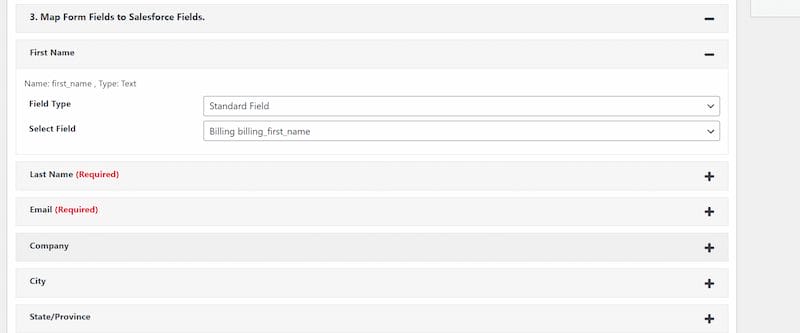
Field mapping is where you decide how WooCommerce data is stored in Salesforce. For example:
- WooCommerce Customer Name → Salesforce Contact Name
- WooCommerce Order Email → Salesforce Email
- WooCommerce Order Total → Salesforce Opportunity Amount
This mapping guarantees that customer and order details always land in the correct place inside Salesforce.
Step 4: Apply Conditional Logic (Optional)
You don’t have to sync every single order to Salesforce. The plugin lets you set rules so that only specific data is transferred. For instance, you might choose to send only completed orders, or orders over a certain value (such as $100). This approach keeps your Salesforce database lean and focused on the data that matters most.
Step 5: Enable Automatic Sync
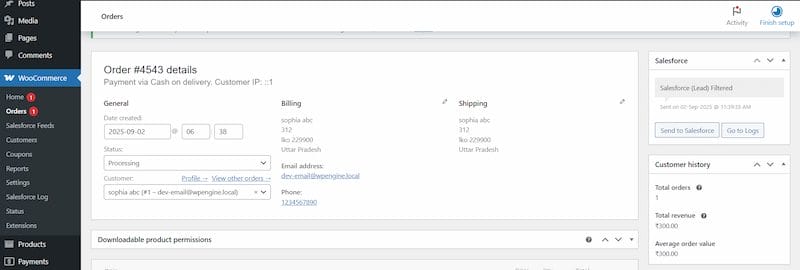
For convenience, you can switch on automatic synchronization so WooCommerce updates are pushed to Salesforce in real time. If you prefer more control, you also have the option to trigger manual syncs whenever needed.
Step 6: Test the Integration
Before going live, it’s important to test. Use the Send Test Entry feature to send a sample WooCommerce order to Salesforce. Then, head over to WooCommerce → Salesforce Logs to confirm whether the data was successfully sent.
The logs also allow you to:
- See detailed information about each data transfer.
- Identify and fix issues quickly.
- Resend failed entries with a single click.
Advanced Features of WooCommerce Salesforce Plugin
1. Primary Key Support
Instead of creating duplicate records, you can set a Primary Key field to update existing Salesforce objects. For example, updating an existing Contact instead of creating a new one every time.
2. Full Synchronization
With the Pro version, you can achieve two-way sync:
- Updates or deletions in WooCommerce are reflected in Salesforce.
- You can import products from Salesforce back into WooCommerce.
3. Error Reporting
If any data transfer fails, the plugin can send detailed error reports to your email so you can fix issues instantly.
4. Send Historical Data
Export all old WooCommerce orders and customers to Salesforce in just one click. This feature is especially helpful if you’re migrating to Salesforce CRM for the first time.
5. Filter Orders
Not every order needs to be sent to Salesforce. With filters, you can limit integrations based on criteria like:
- Order amount
- Customer location
- Specific products purchased
6. Notes and Object Assignments
You can send WooCommerce order details as Salesforce Notes, or assign related objects (like linking a Contact to an Account automatically).
Best Practices for Salesforce Integration in WooCommerce
- Start with testing feeds: Always test before automating large-scale syncs.
- Use filters wisely: Avoid clutter in Salesforce by only syncing important orders.
- Regularly check logs: Monitoring logs ensures smooth functioning.
- Update plugin regularly: Keeping the plugin updated guarantees compatibility and security.
- Train your team: Make sure your sales team knows how to leverage the integrated data.
Benefits of Integrating Salesforce with WooCommerce
- A single source of truth for customer data.
- Automated workflows that reduce manual effort.
- Faster sales and marketing alignment.
- Improved customer service through real-time updates.
- More accurate reporting and forecasting.
Ultimately, the integration makes your eCommerce operations smoother and more profitable.
Common Challenges and How to Overcome Them
While integrating Salesforce with WooCommerce is powerful, some users encounter hurdles such as API errors, incorrect field mapping, or duplicate records. The best way to overcome these challenges is by double-checking your API permissions, testing field mappings on sample data before going live, and enabling error reporting to quickly identify issues. Using the Primary Key feature also ensures you don’t create unnecessary duplicates.
Future of WooCommerce and Salesforce Integration
As eCommerce and CRM technology evolve, integrations will become even more seamless. Expect to see AI-powered recommendations, predictive sales analytics, and deeper automation options between WooCommerce and Salesforce. Businesses that adopt these trends early will gain a competitive edge by offering more personalized customer journeys and faster response times.

Seamless Salesforce Integration for WooCommerce
Salesforce Integration in WooCommerce doesn’t have to be complicated. With the CRM Perks WooCommerce Salesforce Plugin, you can automate customer data syncing, streamline sales processes, and keep your CRM updated effortlessly. Whether you’re running a small online store or managing enterprise-level sales, this setup can save time and help you scale efficiently.
If you’re looking for professional assistance in setting up or customizing your integration, check out Wbcom Designs’ WooCommerce Development Services. Their experts can help tailor the integration to your business needs and ensure everything runs smoothly.
Interesting Reads
15 Best Meeting Minutes Tools in 2025
How to Use a Product Table in WooCommerce for Faster Purchases

