

The Gutenberg block editor has introduced a wealth of tools designed to enhance your content creation experience. Among these tools, the Group Block stands out as a fundamental feature that offers incredible flexibility and control over your content layout. The Group Block is your go-to solution for grouping and styling multiple blocks simultaneously. In this article, we’ll learn about the Group Block in detail, uncovering its features, uses, and benefits to help you make the most of this powerful tool in your WordPress toolkit.

Key Features of the Group Block:
-
Container for Other Blocks:
- The Group Block acts as a container that can hold other blocks, including text, images, buttons, and more. This enables you to manage multiple blocks together, making it easier to move, edit, or style them collectively.
-
Styling and Layout:
- You can apply styles and settings to the entire group. This includes background colors, padding, margins, and alignment. This feature allows you to create sections with consistent styling without having to individually adjust each block.
-
Nested Blocks:
- Within a Group Block, you can nest other blocks, including additional Group Blocks. This allows for complex layouts and design options, such as columns or sections with varied backgrounds and spacing.
-
Block Settings:
- The Group Block includes settings for adjusting its layout and appearance. You can control the alignment (full-width, wide, or regular), set background colors, add borders, and configure other visual aspects.
-
Responsive Design:
- The Group Block settings help ensure that your content is responsive. You can adjust how the group behaves on different screen sizes, making sure it looks good on both desktop and mobile devices.
How to Use the Group Block:
1. Adding a Group Block:
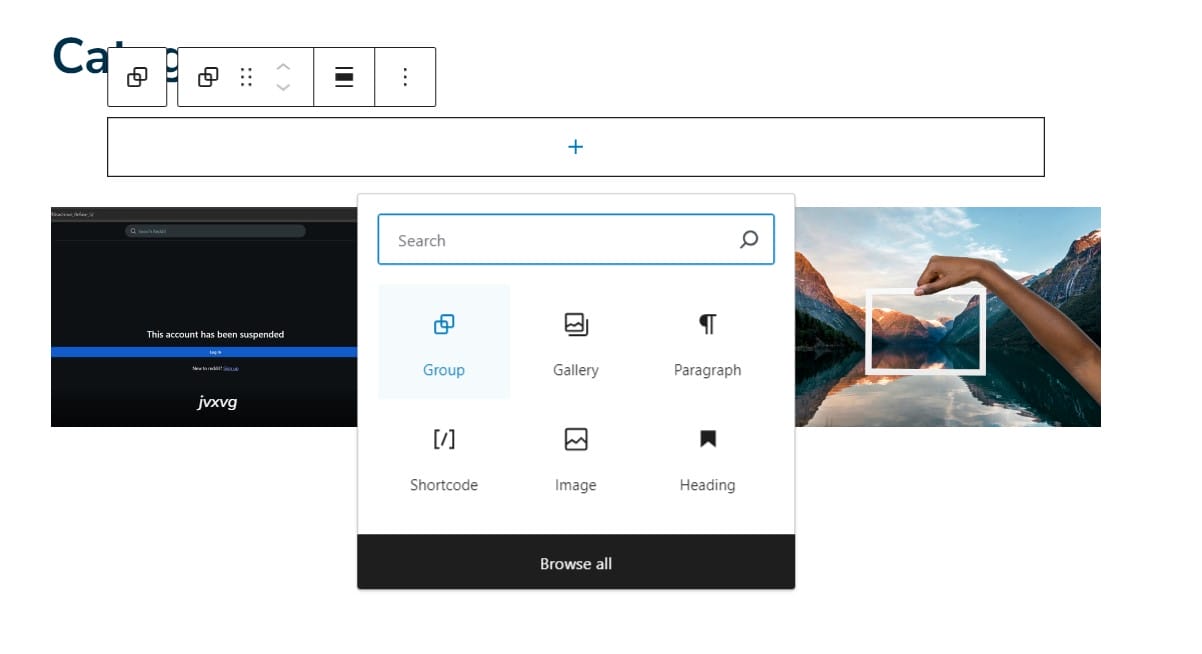
-
- In the Gutenberg editor, click on the “+” button to add a new block.
- Search for or select the Group block from the list of available blocks.
2. Adding Blocks to the Group:
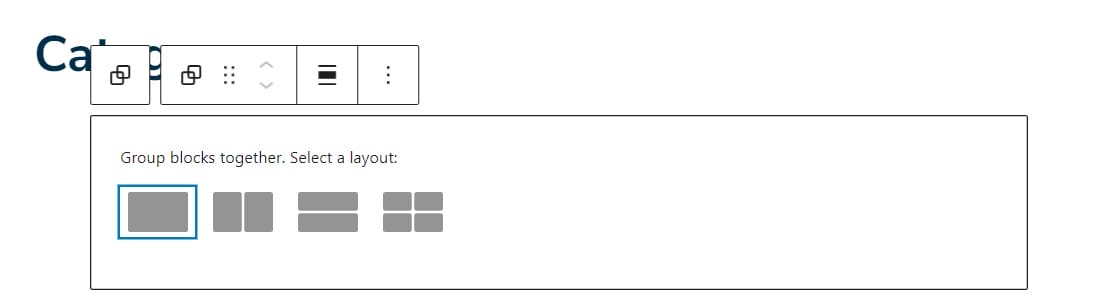
-
- Once the Group Block is added, you can click inside it and add other blocks just as you would in a regular post or page.
3. Configuring the Group Block:
-
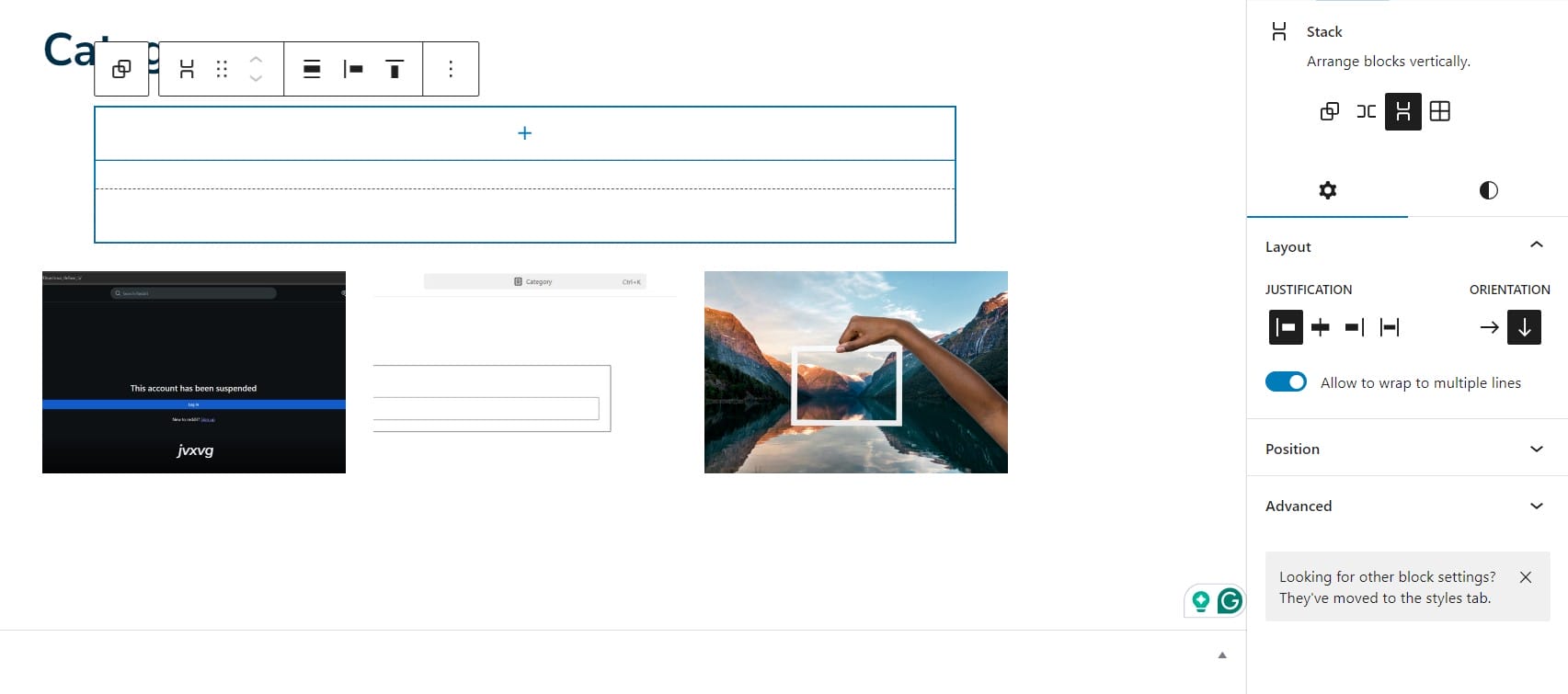
- Select the Group Block to reveal its settings in the right-hand sidebar.
- Customize the block’s settings, such as background color, padding, and alignment.
- Use the toolbar at the top of the editor to adjust block-level settings.
4. Moving and Editing:
-
- You can easily move the entire Group Block and its contained blocks around your page or post.
- To edit the content within the Group Block, click on the specific block you wish to modify.
Example Use Cases:
- Creating Sections: Use Group Blocks to create different sections on a page, such as a hero section with a background image, a content section with text and images, and a call-to-action section with buttons.
- Styling Content: Apply consistent styling to multiple blocks, such as setting a background color or adding padding, to make your content visually appealing.
- Building Complex Layouts: Combine multiple Group Blocks to build complex page layouts, such as multi-column designs or segmented content areas.
The Group Block in Gutenberg is a powerful tool for organizing and styling content in WordPress. By allowing you to group multiple blocks into a single container, it simplifies the process of managing and designing complex layouts. When you’re creating a detailed landing page or a well-structured blog post, the Group Block provides the flexibility and control needed to achieve a polished and professional result.

