
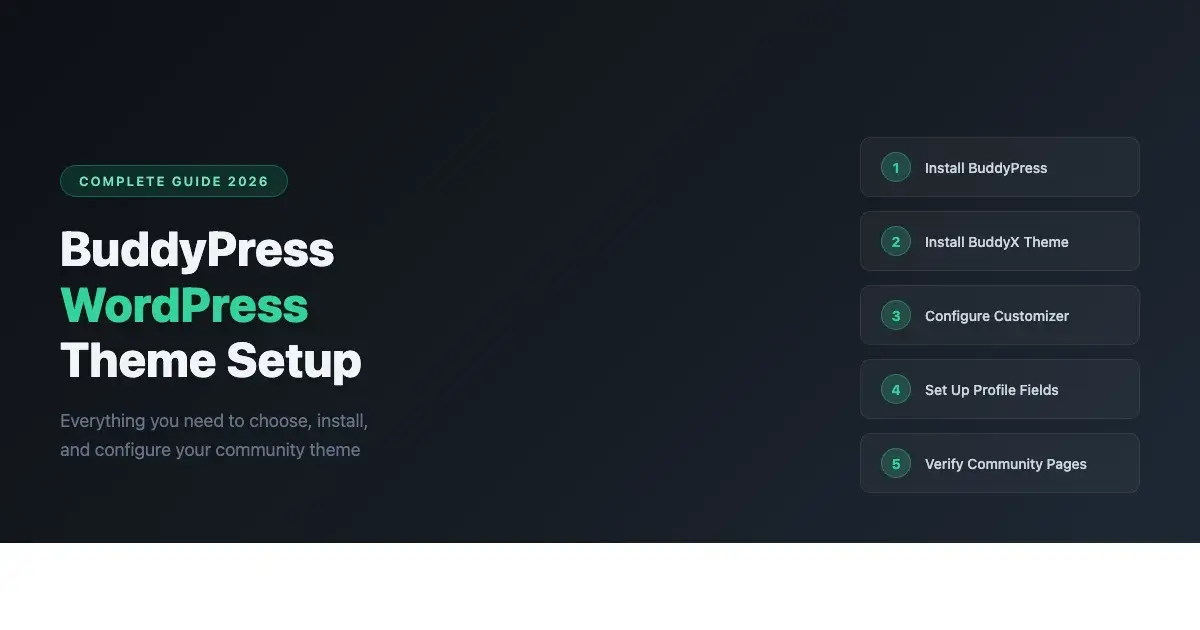
Installing BuddyPress is the easy part. Picking the right BuddyPress WordPress theme to go with it takes more thought. A bad pairing means broken profile pages, unstyled activity feeds, and member directories that look like raw HTML. This guide covers everything you need to know about choosing and setting up a BuddyPress WordPress theme in 2026, with BuddyX used as the practical example throughout.
What Makes a Theme Compatible with BuddyPress
BuddyPress extends WordPress with a set of community features: user profiles, activity streams, groups, private messaging, friend connections, and notifications. Each of these features generates its own set of pages that need to be styled by your BuddyPress WordPress theme.
A BuddyPress-compatible theme does one of two things. Either it ships with its own BuddyPress template files that override the defaults, or it has been tested to work cleanly with the template files BuddyPress provides. Themes that do neither will display BuddyPress pages using generic WordPress page templates, which almost always look wrong.
BuddyPress Template Hierarchy
When BuddyPress renders a page, it looks for templates in this order:
- Templates in your active theme’s buddypress/ subfolder
- Templates in your active child theme’s buddypress/ subfolder
- Templates bundled with the BuddyPress plugin itself
Themes built specifically for BuddyPress, like BuddyX, include a complete buddypress/ template directory. This gives them full control over how every community page looks. General-purpose themes that claim BuddyPress compatibility often do not include these templates and rely entirely on BuddyPress fallbacks, which work but sacrifice visual consistency with the rest of the site.
Key BuddyPress Components and How Themes Affect Them
Understanding which BuddyPress components your BuddyPress WordPress theme needs to handle helps you evaluate whether a theme is a good fit before you install it.
Activity Streams
The activity stream is the social feed at the heart of most BuddyPress communities. It displays status updates, new friendships, group activity, and plugin-generated activity items. A theme needs to style the activity loop, individual activity items, activity comments, and the activity filter tabs. Poorly designed themes often miss the filter tab styling or make activity comments hard to distinguish from top-level posts.
Extended Profiles (xProfile)
xProfile lets site admins create custom profile fields beyond the WordPress defaults. A theme needs to display these fields cleanly on the member profile page and provide a well-structured edit form. Themes that do not account for xProfile often render the fields as an unformatted list or break the profile edit layout on mobile.
Member and Group Directories
BuddyPress generates listing pages for members and groups. These directories need grid or list layout options, filter and search controls, and properly sized member avatars. A theme that does not style these pages will fall back to a plain list with minimal visual structure. Most visitors to a community site will hit the member directory early in their experience, so this page matters more than most.
Group Pages
Group pages include a group header with cover image support, group activity feed, group member list, and group settings for admin users. A well-designed BuddyPress theme styles the group header with a proper cover image zone and keeps the navigation tabs between group sub-pages visually consistent. Themes that treat group pages as generic pages will miss the group header entirely.
Notifications and Messages
Notification indicators and private messaging interfaces need to be accessible from any page on the site. Most BuddyPress-specific themes handle this by building notification and message counts into the header or a persistent nav bar. General-purpose themes usually do not, leaving users to find these features by navigating to their profile manually.
Setting Up BuddyX as Your BuddyPress WordPress Theme
BuddyX is one of the most actively maintained BuddyPress-specific themes available. This section walks through the setup process from installation to basic configuration.
Step 1: Install BuddyPress
Before installing BuddyX, make sure BuddyPress is already active. Go to Plugins, Add New Plugin, search for BuddyPress, install and activate it. On activation, BuddyPress will ask which components you want to enable. For a typical community site, enable these at minimum:
- Extended Profiles
- Account Settings
- Friend Connections
- Private Messaging
- Activity Streams
- Notifications
- Groups
Step 2: Install BuddyX
Go to Appearance, Themes, Add New Theme, and search for BuddyX. Install and activate the theme. BuddyX detects BuddyPress automatically and applies its BuddyPress template set. You should see a styled activity page and member directory immediately after activation without any additional configuration.
Step 3: Configure the Customizer
Open the WordPress Customizer from Appearance, Customize. BuddyX adds BuddyPress-specific customizer sections for:
- Header layout and navigation style
- Color scheme for primary, secondary, and accent colors
- Typography for body text and headings
- Member directory layout (grid vs. list)
- Group directory display options
- Sidebar position for community pages
Work through each section and make your choices. The live preview updates in real time, so you can see the effect on a community page while adjusting settings.
Step 4: Set Up Your Member Profile Fields
Go to Users, Profile Fields in your admin dashboard. This is where you configure the xProfile field groups that appear on member profiles. Add fields relevant to your community: location, website, bio, skills, or any custom data that makes sense for your membership type. BuddyX styles these fields cleanly on both the view and edit profile pages.
Step 5: Configure BuddyPress Pages
Go to Settings, BuddyPress, Pages. Verify that BuddyPress has created and assigned pages for each component. The activity feed, member directory, group directory, and registration page should all be listed here with a corresponding WordPress page assigned. If any are missing, create the page first, then assign it from this settings screen.
BuddyPress Theme Performance Considerations
Community sites typically load more dynamic content per page than standard blogs or business sites. A member profile page may load the member’s activity, their friend list, their group memberships, and their profile fields all in one request. A theme that loads poorly optimized CSS and JavaScript compounds this problem significantly and directly impacts your community’s user experience.
BuddyX is built with performance in mind. It loads minimal CSS on non-community pages and conditionally enqueues BuddyPress-specific stylesheets only when a BuddyPress template is active. This approach keeps load times reasonable on standard blog posts and pages while still rendering community pages correctly.
- Use a caching plugin configured to handle logged-in users correctly so members do not receive cached copies of other members’ profile pages
- Add a CDN for static assets including images, CSS, and JavaScript files
- Limit the number of activity items shown per page in BuddyPress settings to reduce database load
- Disable unused BuddyPress components to reduce database queries on every page load
Customizing Your BuddyPress Theme Without Breaking Updates
Making direct changes to a theme’s files is always a bad idea. When the theme updates, your changes get overwritten. The right approach is a child theme.
Creating a Child Theme for BuddyX
A child theme for BuddyX needs two files to function: style.css and functions.php. The style.css file must declare the child theme and its parent:
/*
Theme Name: BuddyX Child
Template: buddyx
*/
The functions.php file should enqueue the parent theme’s stylesheet:
add_action( 'wp_enqueue_scripts', function() {
    wp_enqueue_style(
        'parent-style',
        get_template_directory_uri() . '/style.css'
    );
});
Place both files in a new folder named buddyx-child inside wp-content/themes/. Activate the child theme from Appearance, Themes. All your custom CSS and template overrides now live in the child theme and persist through BuddyX updates.
BuddyX Free vs BuddyX Pro: What Changes for Your Community
The free version of BuddyX gives you a functional, well-styled BuddyPress site. The Pro version adds features that matter at a certain scale or level of polish. Here is where the two versions differ in practice:
| Feature Area | BuddyX Free | BuddyX Pro |
|---|---|---|
| Profile cover photos | Basic | Full with custom dimensions |
| Dark mode | No | Yes, toggle per user |
| Header layouts | 2 options | 6+ options |
| Member directory layouts | Grid only | Grid, list, card variants |
| WooCommerce integration | Basic | Full member pricing support |
| Support | Community forum | Priority ticket support |
| Demo data importer | No | One-click demo import |
Common Setup Problems and How to Fix Them
BuddyPress pages look unstyled after theme switch
Go to Settings, Permalinks and save without changes. This flushes the rewrite rules. BuddyPress registers custom URL patterns, and switching themes can sometimes cause these to fall out of sync with WordPress’s URL routing system.
Member profile tabs not appearing
Check that the BuddyPress components for Extended Profiles, Friend Connections, and Activity Streams are all enabled under Settings, BuddyPress, Components. Disabled components do not generate profile tabs. If the component is enabled and tabs are still missing, check whether a plugin conflict is registering a shortcode or script that overrides the profile nav output.
Group cover image not showing
Group cover images require the Group Cover Images option to be enabled in Settings, BuddyPress, Options. Check the maximum file size setting as well. Large uploads that exceed the WordPress media upload limit will fail silently in some server configurations.
Next Steps After Setting Up Your BuddyPress Theme
Once your theme is configured and BuddyPress is running, the work shifts to building and growing the community. A few practical next steps:
- Set up your registration page and test the sign-up flow from a private browser session
- Create a few seed groups to give new members something to join immediately
- Configure the activity stream to highlight the most important member actions on your site
- Set up email notifications so members receive alerts when they have new messages or activity
- Test the mobile experience on a real device, not just a browser resize
For a broader view of what goes into launching a BuddyPress-powered community, this walkthrough on building an online community website with WordPress covers the strategic decisions alongside the technical ones. If you are thinking about adding media sharing or a forum to your community stack, the complete BuddyPress stack post explains how BuddyX, WPMediaVerse, and Jetonomy fit together.
Frequently Asked Questions
Is BuddyPress still worth using in 2026?
Yes. BuddyPress is actively maintained and its development pace has picked up with the push toward block theme compatibility. For WordPress-native communities, it remains the most flexible and extensible option. The plugin ecosystem around it, including themes like BuddyX and add-ons from Wbcom Designs, is in good shape.
Can I run BuddyPress with a page builder theme?
You can, but with caveats. Page builder themes like Astra or GeneratePress handle BuddyPress pages through fallback templates. The BuddyPress component pages will render but may need significant CSS customization to match your site’s design. A purpose-built BuddyPress WordPress theme like BuddyX handles this integration natively without custom work.
How many members can BuddyPress handle?
BuddyPress itself scales to tens of thousands of members with proper server configuration. The limiting factors are usually hosting environment and database optimization rather than BuddyPress or theme code. At larger member counts, implementing object caching such as Redis or Memcached and running regular query optimization becomes increasingly important for site stability and fast page loads for all members.
Do I need a child theme if I am not changing any code?
If you are only using the Customizer for colors, fonts, and layout choices, you do not need a child theme. The Customizer stores those settings in the database, not in theme files. A child theme becomes necessary when you want to add custom CSS outside the Customizer or when you want to override specific template files. Most non-technical users can run BuddyX without ever creating a child theme.
Getting Started Summary
Choosing a BuddyPress WordPress theme comes down to one question: does the theme handle BuddyPress template files directly, or is it a general-purpose theme that works around them? For most community sites, a purpose-built theme like BuddyX gives you a cleaner starting point with less custom CSS work, better integration with BuddyPress features, and a direct upgrade path when you need more.
The free version of BuddyX is a capable foundation. When your community needs more visual control, header flexibility, or direct developer support, BuddyX Pro is the next step in the same ecosystem.