

Adding custom HTML to your WordPress website can significantly enhance its functionality and appearance, allowing for more personalized and dynamic content. Whether you’re embedding third-party tools, adding custom elements, or integrating widgets, knowing how to properly insert HTML code into your WordPress site ensures that you maintain both functionality and security. In this guide, we’ll explore the various methods to effectively copy and paste HTML code into your WordPress website.

Methods to Copy and Paste HTML Code into WordPress
1. Using the Block Editor (Gutenberg)
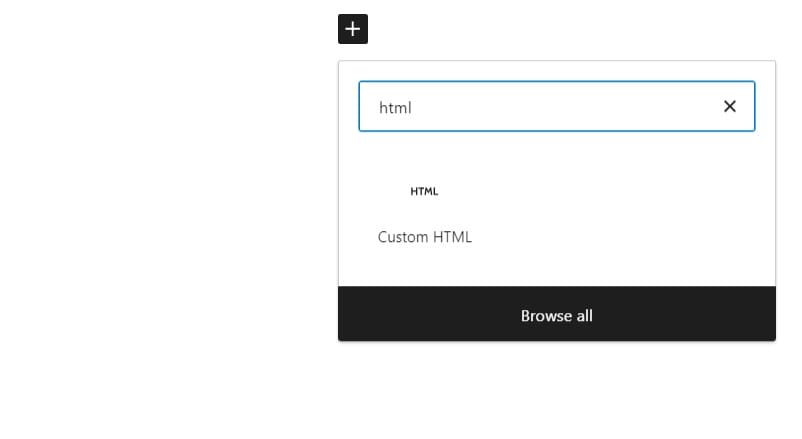
- Navigate to Your Post or Page: Go to the WordPress admin dashboard, and select the post or page where you want to add HTML.
- Add a Custom HTML Block: Click the + button to add a new block, then search for and select the Custom HTML block.
- Paste Your HTML Code: Insert your HTML code into the block. Click Preview to see how it will look, and Update or Publish to save changes.
2. Using the Classic Editor
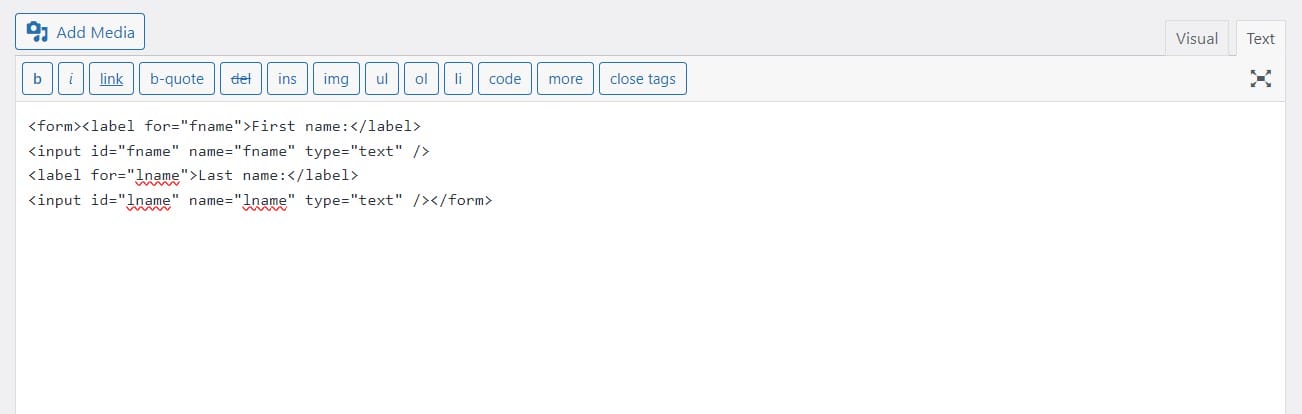
- Open the Post or Page Editor: In the WordPress admin dashboard, go to the post or page where you want to add HTML.
- Switch to Text Mode: In the editor, switch from Visual to Text mode. This allows you to paste raw HTML code directly.
- Paste Your HTML Code: Insert your HTML code where you want it to appear in the post or page.
- Switch Back to Visual Mode: Optionally, switch back to Visual mode to ensure everything looks correct before saving.
3. Using Widgets
- Go to Widgets: Navigate to Appearance > Widgets in the WordPress admin dashboard.
- Add a Custom HTML Widget: Drag the Custom HTML widget to your desired widget area (sidebar, footer, etc.).
- Paste Your HTML Code: Enter your HTML code into the widget’s content area and click Save to apply the changes.
4. Using Theme Customizer (for Custom HTML in Site-wide Elements)
- Access the Customizer: Go to Appearance > Customize in the WordPress admin dashboard.
- Select Additional CSS or Widgets: Depending on your theme, you may find a section for adding custom HTML in widgets or additional CSS.
- Paste Your HTML Code: Enter your HTML code as required and click Publish to apply the changes.
5. Using a Page Builder Plugin
- Open the Page Builder: If you’re using a page builder plugin like Elementor, WPBakery, or Beaver Builder, open the page or post you wish to edit.
- Add an HTML Element: Use the page builder’s options to add an HTML or Code widget/element.
- Paste Your HTML Code: Insert your HTML code into the designated area and preview or publish the changes.
Copying and pasting HTML code into your WordPress site can provide flexibility in customizing your content and integrating external tools. Whether you use the Block Editor, Classic Editor, Widgets, Theme Customizer, or a Page Builder plugin, each method offers a straightforward way to enhance your site. By choosing the appropriate method and ensuring your HTML code is properly inserted and tested, you can improve both the functionality and visual appeal of your WordPress site while maintaining best practices in site management.
Interesting Reads:
Best AI Tools for Server Management

