

WordPress offers a variety of features to enhance the writing and editing experience, one of which is Distraction-Free Writing mode. This mode is designed to help users focus by minimizing on-screen distractions, providing a clean and streamlined interface for content creation. While this can be beneficial for concentrated writing sessions, there may be times when you need access to the full range of editing tools and menus. Knowing how to turn off Distraction-Free mode allows you to switch back to the standard editor interface quickly, giving you the flexibility to work in the environment that best suits your needs.
It’s a small feature, but it trips people up more than you’d expect, mostly because the toggle is a single small icon with no text label, easy to hit by accident and just as easy to forget how to reverse. A common scenario: someone’s writing a post, brushes a keyboard shortcut or clicks near the top-right corner without meaning to, and suddenly the block toolbar, the sidebar, and half the interface they were using a second ago has vanished. The instinct is to assume something’s broken. Nothing is, it’s working exactly as designed, it’s just not the mode you wanted to be in.
Steps to Turn Off Distraction-Free Writing Mode
Step1) Log in to WordPress Admin
- Navigate to your WordPress admin dashboard by entering yourdomain.com/wp-admin in your browser.
Step2) Open the Post or Page Editor
- Go to the post or page where you want to edit the content.
- Click on Posts or Pages in the left-hand menu, then select the one you want to edit.
Step3) Disable Distraction-Free Writing Mode
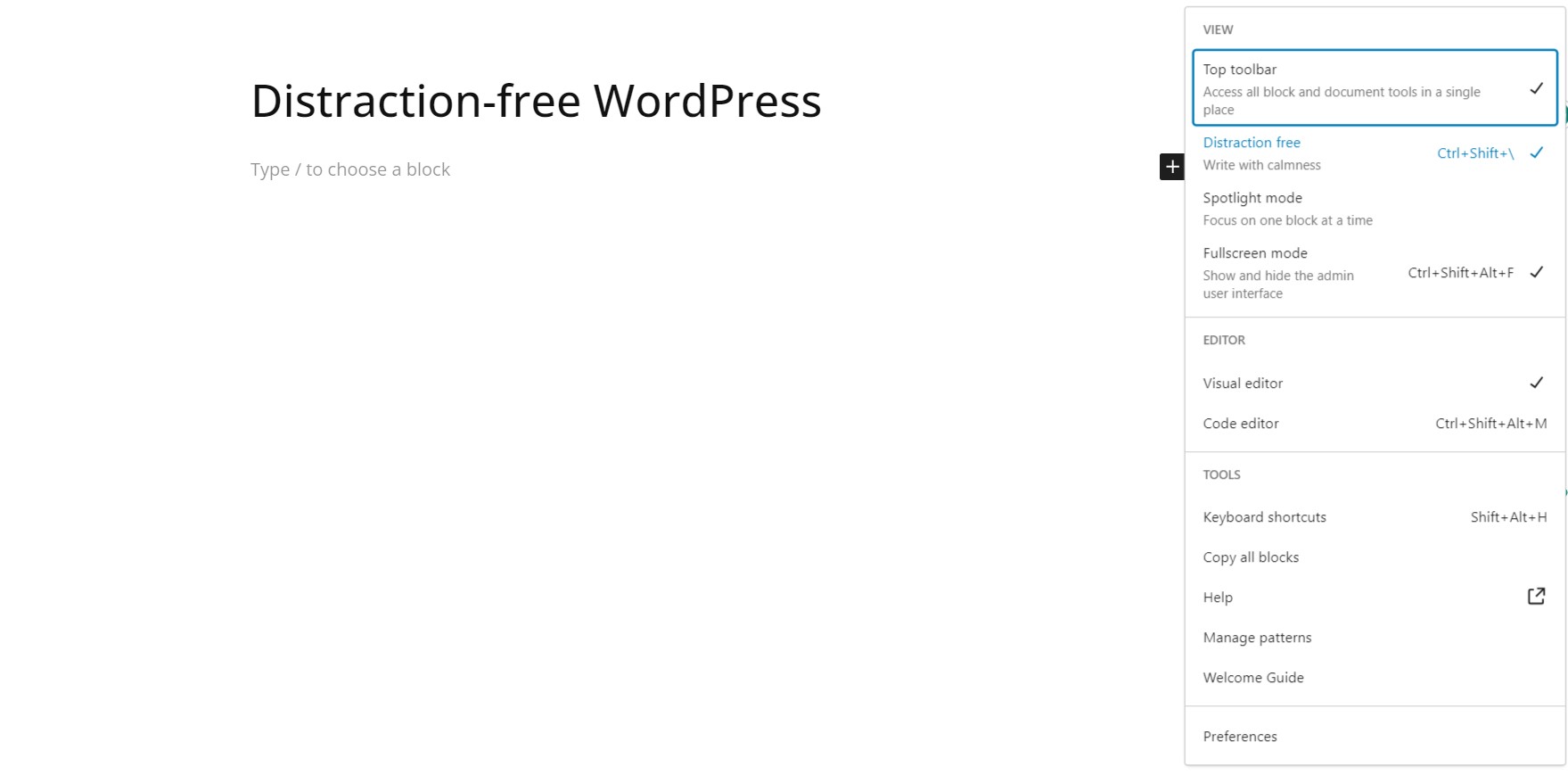
- In the editor, look for the small icon resembling a fullscreen or zen-like mode, usually located in the top-right corner of the editor.
- If the distraction-free mode is enabled, the icon will appear as an active button (highlighted or with a specific color).
- Click the icon to toggle off Distraction-Free Writing mode.
- You can also use the Keyboard shortcut “⇧ ⌘ \” for Mac and Ctrl+Shift+\ for Windows
Step4) Verify the Change
- Once you toggle the mode off, the editor will revert to its normal view with all the standard editing options visible.
Turning off Distraction-Free Writing mode in WordPress is a simple process that allows you to access the full range of editing tools and settings while writing or editing content. Following these steps, you can easily toggle between distraction-free and regular editing modes depending on your preference.
Why the Icon Is Easy to Trigger by Accident
The keyboard shortcut for toggling Distraction-Free Mode isn’t especially exotic, which is part of why it gets triggered unintentionally more often than most editor shortcuts. Anyone who’s in the habit of using keyboard shortcuts heavily for other software, and reaches for a similar combination out of muscle memory while working inside the WordPress editor, can flip this setting without realizing it, especially since the visual change (toolbar disappearing) doesn’t come with any confirmation message or notification explaining what just happened. That silent transition is arguably a small usability gap worth being aware of: WordPress doesn’t tell you which mode you just switched into, it just changes the interface, which is exactly why this remains a frequently searched troubleshooting question rather than something users intuitively figure out and remember on their own.
Where to Find the Toggle If You Can’t Locate It
The exact position and appearance of this control has shifted slightly across Gutenberg versions, which is a common source of confusion for anyone following an older tutorial or screenshot against a current WordPress install. In most recent versions, it lives inside the “Options” menu, the three-dot icon in the top-right toolbar, under a “View” submenu, alongside other display toggles like Top Toolbar and Spotlight Mode. If the icon described in the steps above isn’t visible directly in the toolbar on your version, check that Options menu first rather than assuming the feature has been removed, it hasn’t, it’s just been reorganized into a submenu in more recent releases.
Distraction-Free Mode vs. Fullscreen Mode: Not the Same Thing
This is worth clarifying because the two are easy to conflate and they behave differently. Fullscreen Mode hides the WordPress admin sidebar and header, giving the editor more vertical space, but keeps the block toolbar, block inserter, and settings sidebar fully visible and accessible. Distraction-Free Mode goes further: it also hides the top toolbar and block-level UI elements, showing them only when you hover or interact with a specific block, so the interface stays minimal until you actively need a control. You can have Fullscreen Mode on with Distraction-Free Mode off (more writing space, full toolbar visible), or both on together (maximum minimalism), or neither, a mix that gives you the standard windowed WordPress admin view with the full toolbar. Understanding these as two independent toggles rather than one setting clears up a lot of the “why does my editor look different than the tutorial” confusion.
Why This Mode Exists in the First Place
It’s worth understanding the actual design intent behind Distraction-Free Mode rather than treating it as an accidental inconvenience. Writing and editing are genuinely different cognitive tasks. Writing benefits from minimal visual noise, no toolbar icons competing for attention, no sidebar settings panel pulling focus away from the sentence you’re working on. Editing, adjusting block settings, rearranging content, fine-tuning formatting, benefits from having every control visible and reachable without extra clicks. WordPress built Distraction-Free Mode specifically for the writing phase, with the expectation that most users toggle it off once they move into layout and formatting work. Treating it as a mode you switch into deliberately for a first-draft writing session, then switch out of for editing and formatting, is closer to how it’s meant to be used than either leaving it permanently on or being surprised by it and immediately turning it off without understanding why it’s there.
How the UI Behaves While the Mode Is Active
A detail that trips people up: Distraction-Free Mode doesn’t permanently remove the toolbar, it hides it until you interact with a block. Click into a paragraph or select some text, and the relevant toolbar reappears contextually for that specific block, then fades away again once you click elsewhere or stop actively editing that block. This is the mode working as intended, not a bug, the toolbar isn’t gone, it’s just not persistently visible. If you’re used to always seeing the toolbar pinned at the top of the screen, this contextual show-and-hide behavior can feel unstable or glitchy at first, but it’s deliberate, and it’s the core mechanism behind how the mode achieves a cleaner writing surface without actually removing any functionality.
Does the Setting Persist Across Sessions?
Whether Distraction-Free Mode stays on the next time you open the editor, or resets to off, depends on your specific WordPress and browser setup, since this preference is generally stored per-browser rather than as a sitewide or account-level setting synced across devices. That means the same WordPress user logging in from a different browser or a different computer may see the mode in a different state than they left it on their usual device, which is a common source of “it turned itself back on” confusion. If you want a consistent experience across every device you use to edit, you’ll need to set your preference manually on each browser rather than expecting it to sync automatically.
Keyboard Shortcuts Worth Knowing Alongside This One
The Distraction-Free toggle isn’t the only editor shortcut worth having memorized if you’re doing regular content work in the block editor. A few others that pair naturally with writing-focused sessions: Ctrl+Shift+Alt+M (Cmd+Shift+Option+M on Mac) toggles the block-level top toolbar independently. Ctrl+/ opens the block inserter search from anywhere in the editor without needing to click the plus icon. And Ctrl+Shift+, (or the equivalent Mac combination) toggles the settings sidebar on and off, useful for reclaiming horizontal writing space temporarily without switching your whole distraction-free preference. Learning a handful of these together, rather than relying purely on mouse clicks through nested menus, meaningfully speeds up moving between writing and formatting phases of editing a post.
If You’re on the Classic Editor Instead
Everything above applies specifically to the block editor (Gutenberg), which has been the WordPress default since version 5.0. If your site still runs the Classic Editor plugin, either by choice or because of theme or plugin compatibility requirements, the equivalent feature is usually labeled “Distraction-Free Writing” and appears as a toggle near the top of the classic TinyMCE toolbar rather than the icon-based control described above. The underlying goal is the same, hide secondary interface chrome to focus on the text, but the exact click path differs enough between the two editors that following block-editor instructions on a Classic Editor site, or vice versa, is a common source of “I can’t find that button” confusion. Confirm which editor your site is actually running (checkable under Settings, or by which toolbar style you’re looking at) before troubleshooting further.
On the WordPress Mobile App
The WordPress mobile app has its own separate implementation of block editing, and its distraction-free behavior, where the toggle lives and how it’s labeled, doesn’t always match the desktop web editor exactly, since the app’s smaller screen already imposes more minimal chrome by necessity. If you’re editing primarily from a phone or tablet, it’s worth checking the app’s own settings or view options menu directly rather than assuming the desktop keyboard shortcuts and menu locations described above will carry over identically, mobile app UI conventions and update cycles run somewhat independently from the web editor’s.
Troubleshooting: Toggle Not Responding
If clicking the Distraction-Free toggle, or using the keyboard shortcut, doesn’t seem to change anything visible, a few things worth checking before assuming something’s broken. First, confirm you’re not confusing it with Fullscreen Mode, since toggling one while expecting the other’s effect can look like nothing happened. Second, a plugin conflict is a real possibility if another plugin is heavily customizing the block editor’s toolbar or interface, disabling other active plugins temporarily to isolate whether one is interfering is a standard troubleshooting step worth trying. Third, a stale browser cache occasionally causes editor UI elements to behave inconsistently after a WordPress core update, a hard refresh (clearing cache for that specific page) resolves this more often than you’d expect for what looks like a deeper bug.
Accessibility Considerations
Worth a mention for anyone editing content with a screen reader or relying heavily on keyboard navigation: the contextual show-and-hide behavior of Distraction-Free Mode can add friction for assistive technology users specifically, since a toolbar that only appears on hover or block focus isn’t necessarily announced the same way a persistently visible one is. If you or a contributor on your team relies on assistive technology for editing, it’s worth testing both modes directly to see which produces a more predictable, navigable experience, rather than assuming the visually cleaner mode is automatically the better choice for every user. Leaving Distraction-Free Mode off by default for accounts that rely on screen readers, and letting sighted users who prefer the minimal view opt into it themselves, is a reasonable default policy for a multi-author site with a mix of accessibility needs.
Frequently Asked Questions
Will turning off Distraction-Free Mode affect my published content?
No, this is purely an editor interface preference and has no effect whatsoever on how your content looks once published or how it’s stored in the database. It’s entirely a personal editing-experience setting, not a content or formatting setting.
Can I set Distraction-Free Mode as the default for all users on my site?
Since this is stored as a per-browser, per-user preference rather than a sitewide setting, there’s no native admin control to force it on or off for every user account by default. Each contributor sets their own preference individually the first time they toggle it, and it persists from there in their own browser.
Is there a way to disable the feature entirely so the icon doesn’t appear at all?
Removing the toggle itself from the interface isn’t a standard WordPress setting, it would require a custom code snippet or a plugin specifically built to modify the block editor’s toolbar options. For most users, simply leaving the mode toggled off, rather than removing the control entirely, is the simpler and more maintainable approach, especially since a core WordPress update could easily override or conflict with a custom removal down the line.
A Brief History of the Feature
Distraction-Free Mode isn’t a recent addition, it’s existed in some form since the early Gutenberg block editor releases, and the specific interaction model, hover-to-reveal toolbars, has been refined across several major WordPress versions since. Earlier implementations were rougher, occasionally hiding elements a user still needed access to without an obvious way to bring them back temporarily, which is part of why this remains a commonly searched troubleshooting topic even years after the feature’s initial release. More recent versions have smoothed out a lot of that friction, contextual toolbars appear more reliably and predictably now than they did in the first year or two after Gutenberg’s initial rollout, but the core design concept, minimize until interaction is needed, has stayed consistent throughout.
How This Compares to Distraction-Free Modes in Other Writing Tools
WordPress isn’t unique in offering this kind of interface minimalism, most modern writing and note-taking tools, Notion, Google Docs’ “Focus Mode,” various dedicated markdown editors, offer some version of the same idea: hide secondary chrome, keep the text itself as the primary visual focus. WordPress’s implementation sits somewhere in the middle of that spectrum, more minimal than Google Docs’ Focus Mode (which mostly just hides the surrounding page chrome while keeping the full toolbar visible), but less extreme than a dedicated zero-UI writing app that hides literally everything except a blinking cursor. If you’ve used any of those other tools and found their focus modes helpful for a first draft, WordPress’s version is aiming at the same underlying goal, just implemented within the constraints of also needing to support full block-based layout editing in the same interface once you’re ready to move past drafting.
Practical Tips for Using It Well, Rather Than Just Turning It Off
Since this post is specifically about turning the mode off, it’s worth a brief counterpoint: for a lot of writing-heavy workflows, the mode is genuinely useful once you understand how to work with it rather than around it. A practical pattern that works well for many contributors: draft the bulk of the content with Distraction-Free Mode on, focusing purely on getting words down without the visual pull of formatting controls, then toggle it off once you move into a dedicated editing pass, adding headings, images, pull quotes, and other block-level formatting. Treating the mode as a phase-specific tool, on for drafting, off for formatting, tends to produce a smoother overall writing session than either leaving it permanently on (which makes formatting more tedious) or permanently off (which can make an early draft feel more cluttered and harder to focus on than it needs to be).
Browser-Specific Notes
Since the preference is stored per-browser rather than synced through your WordPress account, it’s worth knowing this can produce a few browser-specific quirks. Private or incognito browsing sessions typically don’t retain the setting between sessions at all, since that mode doesn’t persist local storage the way a normal browsing session does, so if you’re editing from a private window, expect the mode to reset to its default state every time rather than remembering your last choice. Similarly, clearing your browser’s site data or cookies for your WordPress domain will reset this preference along with any other locally stored editor preferences, which is worth knowing before assuming a fresh install-level bug if the mode unexpectedly reverts to default after a routine browser cleanup.
Interesting Reads:
Boost Engagement With WB Polls for BuddyPress