

The eCommerce industry is booming, and dropshipping has quickly become one of the most popular ways to start an online business. Instead of investing in inventory upfront, you can partner with suppliers who ship products directly to your customers. This low-risk model allows entrepreneurs to launch quickly, test different product ideas, and scale without the burden of warehousing. Setting up a Dropshipping Store with WooCommerce makes this process even easier, giving you the tools to automate operations and grow efficiently.
 WooCommerce, the world’s most flexible eCommerce platform, makes this easier than ever with the WooCommerce Dropshipping plugin, which streamlines product imports, supplier management, and automated fulfillment.
Quick Links
Why Choose WooCommerce for Dropshipping?
WooCommerce is one of the most powerful eCommerce platforms because it’s cost‑effective with no hefty monthly fees like Shopify, flexible with thousands of themes and plugins, scalable for both small stores and large enterprises, and customizable with full control over design, checkout, and features.
When paired with the WooCommerce Dropshipping plugin, it becomes a complete solution for entrepreneurs who want to run an efficient and fully automated dropshipping business.
Getting Started with WooCommerce Dropshipping
Before diving into configurations, you’ll need to set up the plugin that powers your dropshipping workflow. This step ensures your store is equipped with the right tools to automate supplier communication and order fulfillment.
Step 1: Install the WooCommerce Dropshipping Plugin
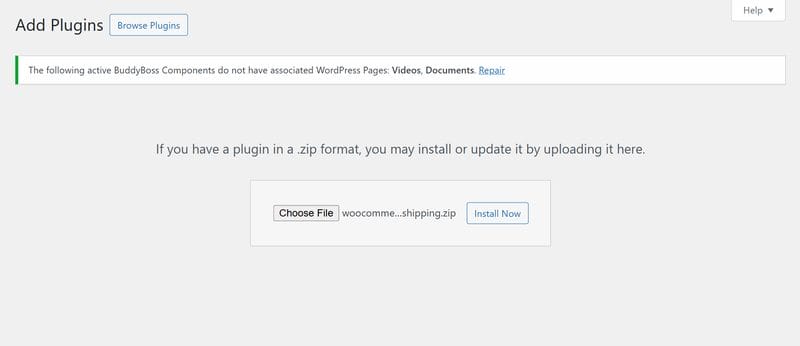
- Download the
.zipfile from your WooCommerce account. - Go to WordPress Admin > Plugins > Add New > Upload Plugin.
- Select the file, click Install Now, then Activate.
- Once activated, you’ll see a new Dropshipping section under WooCommerce settings.
Step 2: Configure the Plugin Settings
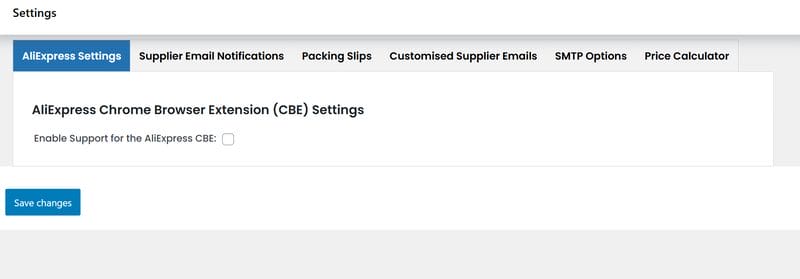
Navigate to WooCommerce > Settings > Dropshipping. You’ll find multiple sub‑menus to manage how your dropshipping store works.
1. AliExpress Settings
Set up the AliExpress workflow by installing the Chrome extension to import products directly. Generate your API key, link it with the extension, and start importing items.
Before publishing, refine each product by editing titles, descriptions, images, and pricing to match your brand and SEO goals.
2. Supplier Email Notifications
With WooCommerce Dropshipping, you can automatically send emails to suppliers whenever an order is placed. These emails can include detailed order information and packing slips, making the fulfillment process seamless.
Additionally, you have the option to send CSV files containing all order details, which helps suppliers manage bulk orders more efficiently and reduces the risk of errors.
Also Read: How to Edit WooCommerce Emails with MailPoet
3. Packing Slips
You can generate PDF documents for every order, customize the headers, footers, and customer details to match your branding, and enable blind dropshipping so suppliers ship products without revealing their identity.
4. Customized Supplier Emails
Brand your supplier emails with custom colors, fonts, and styles.
5. SMTP Options
Ensure order and supplier emails are delivered reliably.
6. Price Calculator
You can automatically apply markups to AliExpress products as they’re imported, ensuring consistent pricing across your catalog.
Choose between percentage-based markups for scalable margins or fixed-amount markups for straightforward pricing control.
Step 3: Import Products from AliExpress or Amazon
Using AliExpress
- Visit AliExpress with the Chrome Extension installed.
- Click Add Product to instantly sync it to your WooCommerce store.
- Edit product details like images, variations, and descriptions.
- Adjust pricing using your predefined markup rules.
Using Amazon Affiliate Support
- Add Amazon products to your WooCommerce store as affiliate products.
- Customers click “Buy Now” and are redirected to Amazon.
- Earn commissions on every sale.
Step 4: Work with Suppliers
WooCommerce Dropshipping creates a special Supplier user role. You can:
- Add new suppliers via WooCommerce > Products > Suppliers.
- Assign products to suppliers.
- Import supplier inventory via CSV.
- Give suppliers access to a dashboard to manage orders.
This automation ensures suppliers always know what to ship and when.
Step 5: Automate Order Fulfillment
When a customer places an order:
- The system groups products by supplier.
- Sends an automated email with the order details and packing slip.
- The supplier ships the product directly to the customer.
This saves you hours of manual work and makes your store run smoothly.
Step 6: Customize Packing Slips and Emails
- Create custom packing slips for each supplier.
- Add branding and customer details.
- Ensure professional packaging with blind dropshipping options.
Step 7: Track and Optimize
- Use the supplier dashboard or email notifications to track orders.
- Monitor inventory updates via CSV imports.
- Adjust margins with the built‑in price calculator.
- Keep track of Amazon affiliate sales via your Associates dashboard.
Best Practices for Running a Dropshipping Store with WooCommerce
It is always a good idea to test suppliers before relying on them fully so you can evaluate product quality and delivery times. Make sure to optimize product descriptions for SEO instead of copying AliExpress text to stand out in search results. Using professional product images, whether edited or retouched, helps establish trust with customers.
To avoid communication issues, enable SMTP email logging so suppliers always receive order notifications without fail. It is also important to keep an eye on AliExpress updates (as of Feb 2025, product imports may need a plugin update). Finally, always focus on customer experience, as working with faster shipping suppliers often leads to better reviews and higher customer satisfaction.
Also Read: How to Speed Up Sales with WooCommerce One Page Checkout
Common Challenges and How to Overcome Them
While setting up a dropshipping store with WooCommerce is straightforward, store owners may still face challenges such as long shipping times from overseas suppliers, fluctuating product prices, and communication issues with vendors.
To overcome these hurdles, consider partnering with reliable suppliers that offer ePacket or local warehouses for faster delivery, using the plugin’s price calculator to automatically adjust margins when costs change, and enabling proper SMTP settings to ensure all email communications reach suppliers and customers without delay. By proactively managing these challenges, you can deliver a smoother shopping experience and maintain customer trust.

Benefits of Using WooCommerce for Dropshipping
Setting up a Dropshipping Store with WooCommerce is easier than ever using the WooCommerce Dropshipping plugin. From automated supplier emails and packing slips to seamless AliExpress integration, this tool streamlines your business so you can focus on marketing, growth, and building strong relationships with your customers.
The plugin also reduces human errors, keeps your inventory updated in real time, and ensures suppliers never miss an order notification. By automating repetitive tasks, you free up valuable time to focus on scaling your store, exploring new product niches, and enhancing the overall shopping experience.
If you’re ready to take your WooCommerce dropshipping store to the next level with advanced customization and integrations, our team can help get Custom WooCommerce Development Services.
Interesting Reads
Top 10 Tableau Alternatives and Competitors
Top 11 Google Voice Alternatives and Competitors for VoIP Calling and Business Use

