

Email is one of the few places a WooCommerce store talks to a customer one-on-one, order confirmations, shipping updates, refund notices, all land directly in an inbox with the customer’s full attention, at least for a few seconds. WooCommerce sends these automatically, which is convenient, but the default templates are plain, generic, and don’t look like they came from your store at all. That gap between a polished storefront and a bland, unbranded email is easy to fix, and it costs nothing to do, which makes it one of the more overlooked quick wins available to a WooCommerce store owner.
MailPoet handles this with a drag-and-drop email editor built specifically for WordPress and WooCommerce. Restyling your WooCommerce transactional emails, layout, colors, fonts, images, is part of the free MailPoet plugin, so you don’t need a paid plan just to get order emails looking on-brand. Where MailPoet’s paid tiers (Business, Agency, and Creator) come in is automation: abandoned cart reminders, post-purchase follow-ups, and other triggered sequences that go beyond what WooCommerce sends by default.
Why Bother Editing WooCommerce’s Default Emails
Default WooCommerce emails do the job, technically, but they rarely create a memorable experience. Editing them turns a plain notification into an actual brand touchpoint: your logo, your colors, a layout that matches the rest of your store instead of looking like it was generated by a different, generic system entirely. MailPoet’s drag-and-drop editor makes that change without touching a line of code, which matters if you’re not the one who built the site’s theme.
Beyond appearance, a customized transactional email is real estate you’re currently wasting. Product recommendations, a coupon code for the next order, an upsell tied to what was just purchased, all of these fit naturally into an order confirmation or shipping notice, a moment when the customer is already paying attention. Done well, editing WooCommerce emails turns a routine notification into a small, repeatable opportunity for a second sale.
Why MailPoet Specifically
MailPoet stands out among email plugins because it’s built natively for WordPress and WooCommerce rather than bolted on as a general-purpose email tool. A few features worth knowing:
- Drag-and-drop email editor: design professional-looking emails visually, included in the free plugin.
- WooCommerce transactional email customization: a free feature that lets you restyle order confirmations, invoices, and shipping notifications to match your brand.
- Automation (paid plans): trigger emails for abandoned carts, first-purchase follow-ups, or product recommendations, available on the Business, Agency, and Creator tiers.
- Subscribers and lists: segment customers so you can send more targeted messages instead of one blast to everyone.
- Statistics: track open rates, click-through rates, and conversions to see what’s actually working.
You can edit WooCommerce emails for free with MailPoet, and add paid automation later once you’re ready for it, without needing to switch plugins or rebuild anything you’ve already set up.
Setting Up MailPoet to Edit WooCommerce Emails
1. Install and Activate MailPoet
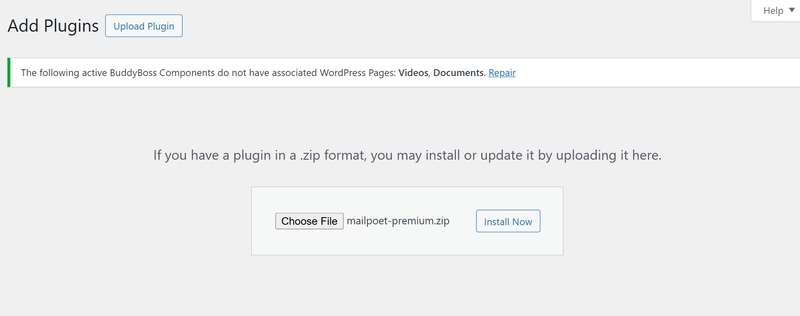
- Go to your WordPress dashboard.
- Navigate to Plugins → Add New.
- Search for MailPoet and install it.
- No license is required to customize your WooCommerce transactional emails, that’s included in the free plugin. If you want automations later, upgrade from MailPoet → Account & Licenses.
2. Connect MailPoet with WooCommerce

- After activation, go to MailPoet → Settings.
- Enable WooCommerce integration under the WooCommerce Features tab.
- This syncs your store’s orders and customers with MailPoet so the editor can pull in real order data.
3. Customize Your Email Templates

- Navigate to MailPoet → Emails → Add New.
- Choose WooCommerce Email as the type.
- Use the Email Editor to drag and drop elements: add your logo and brand colors, insert product images, coupon codes, or recommended items, and adjust fonts and button styles to match your website theme.
4. Personalize With Shortcodes
MailPoet includes built-in shortcodes that make WooCommerce emails dynamic instead of static text. A few worth knowing:
{customer_name}personalizes the greeting instead of a generic “Dear Customer.”{order_number}pulls in the actual order details automatically.{unsubscribe}adds a compliant unsubscribe link, which keeps your emails GDPR-friendly.
Small as they are, these shortcodes are what makes a templated email feel individually addressed rather than obviously mass-produced.
5. Automate Customer Journeys (Paid Plans)
Once you’ve upgraded to a Business, Agency, or Creator plan, MailPoet’s automation builder lets you set up sequences beyond the transactional emails WooCommerce sends by default: abandoned cart emails to recover lost sales automatically, post-purchase follow-ups to request reviews or upsell related products, and first-purchase sequences that welcome new customers with a short follow-up series rather than going silent after the initial order confirmation.
6. Test and Improve Deliverability
Before sending anything live, use MailPoet’s preview and test email options to check how a template actually renders, not just how it looks in the editor. Review your deliverability settings to reduce the odds of landing in spam, and once emails are going out for real, monitor performance under Statistics to see actual open and click rates rather than guessing at what’s working.
Best Practices for Editing WooCommerce Emails
- Stay on-brand: use your website’s existing design language so the email doesn’t feel like it came from a different company.
- Be clear and concise: keep order details easy to scan; a transactional email is not the place for dense paragraphs.
- Add calls to action: encourage customers to return and shop again, rather than treating the email as a dead end once the order info is delivered.
- Optimize for mobile: MailPoet templates are responsive by default, but always test on an actual phone before assuming it renders correctly everywhere.
- Analyze results: use MailPoet’s statistics to refine subject lines, layouts, and offers over time instead of setting a template once and never revisiting it.
Also Read: 10 Best Email Content Testers
Common Mistakes When Customizing WooCommerce Emails
The most common one is over-designing the order confirmation itself. This particular email has one job: confirm the order clearly and immediately. Heavy branding, large hero images, or a long list of upsells can bury the actual order details the customer opened the email to find. Keep the confirmation clean and save the more promotional content for follow-up emails where selling is actually the point.
The second is neglecting the plain-text fallback. Some email clients, and some recipients by preference, render plain text instead of HTML. A heavily designed template that has no sensible plain-text version can end up looking broken or confusing for a meaningful slice of your customers. MailPoet generates a fallback automatically, but it’s worth previewing it rather than assuming it looks fine by default.
The third is forgetting to test with a real order. Editing a template in isolation can look correct, but shortcodes and dynamic content only reveal problems, a missing product image, a broken price format, once they’re populated with real order data. Place a small test order before rolling a new template out to every customer, since catching a broken shortcode on a $0 test purchase costs nothing, while catching it after a hundred real customers have already received it costs real trust.
Measuring Whether the Redesign Actually Helped
Redesigning WooCommerce emails without tracking anything before and after is a missed opportunity to actually know whether it worked. Note your baseline open and click rates on the default templates before switching, even a rough manual check through your existing analytics or MailPoet’s own stats once connected, so you have something to compare against once the new templates are live.
Beyond open rates, watch for the metrics the redesign was actually meant to move: click-through on any product recommendations or upsell links you’ve added, and coupon redemption if you’re including discount codes in post-purchase emails. A redesign that looks better but produces no change in those numbers is worth revisiting, since visual polish alone doesn’t guarantee it’s actually driving the behavior you wanted.
Deliverability Basics Worth Understanding
A beautifully designed email that lands in spam accomplishes nothing. Beyond MailPoet’s own deliverability settings, make sure your domain has proper SPF, DKIM, and DMARC records configured, since most spam filters weight these heavily when deciding whether to trust mail from your domain. If you’re on shared hosting with a poor sending reputation, consider using a dedicated transactional email service through MailPoet’s sending options rather than relying entirely on your host’s default mail server, which can quietly hurt deliverability without any obvious symptom beyond declining open rates.
Watch your open and click rates in MailPoet’s statistics over the first few weeks after any template change. A sudden drop is often a deliverability issue rather than a content problem, and it’s worth ruling that out before assuming a redesigned template simply performed worse.
When Automation Is Worth the Upgrade
The free plan covers branding and customization, which is genuinely enough for many small stores. Automation becomes worth paying for once cart abandonment is a real, measurable revenue leak, if you’re seeing a meaningful number of started-but-not-completed checkouts each week, an automated recovery sequence usually pays for the subscription within the first few recovered orders. Post-purchase automation is worth adding once you have enough repeat-purchase potential in your catalog that a well-timed follow-up email could realistically drive a second order, which matters more for consumables and accessories than for genuinely one-time purchases.
A Reasonable Rollout Order If You’re Starting From Scratch
Don’t try to redesign every WooCommerce email type in one sitting. Start with the order confirmation, since it’s the highest-volume email your store sends and the one every customer sees regardless of anything else. Get the branding right there first: logo, colors, a clean layout that shows order details clearly.
Once that’s solid, move to the shipping notification, since it’s the second email most customers actually open and read, usually with real anticipation about their delivery. Refund and failed-payment emails come next, lower volume but worth getting the tone right on, since these are the moments where a poorly worded automated email can genuinely frustrate a customer who’s already having a bad experience with an order.
Save automation for after the branding work is done and stable. There’s little point setting up an abandoned cart sequence with polished visuals if the basic order confirmation a recovered customer eventually receives still looks like the plain WooCommerce default.
Building Stronger Customer Relationships With MailPoet
Editing WooCommerce emails with MailPoet isn’t just sending better-looking notifications, it’s building an actual relationship with every customer who checks out. From branding to automation, MailPoet makes it possible to design professional, personalized, high-converting emails directly inside WordPress, with a free plan that covers the branding work and paid plans available whenever you’re ready to add automation on top.
Take the time to set this up properly rather than leaving the default templates in place indefinitely. Every order confirmation is an opportunity, a chance to reinforce your brand, recommend a related product, or simply leave a better impression than a plain, generic notification would, and it’s one of the few pieces of a store’s setup that only needs to be done properly once to keep paying off on every order after.
MailPoet vs Other WooCommerce Email Options
MailPoet isn’t the only way to customize WooCommerce transactional emails, and it’s worth knowing where it sits relative to the alternatives before committing to it as your long-term solution. WooCommerce’s own email settings allow basic changes, a header image, a footer text, brand colors, without installing anything additional, but the customization ceiling is low: there’s no visual drag-and-drop editor, and adding dynamic content like product recommendations requires custom code.
Dedicated email marketing platforms like Klaviyo or Mailchimp offer more powerful automation and segmentation than MailPoet’s paid tiers, but they run as external services rather than living inside WordPress, which means your transactional email data lives on a third-party platform and typically costs more once your subscriber list grows past a few thousand contacts. MailPoet’s advantage is staying inside WordPress entirely: no separate login, no data leaving your site’s database, and a genuinely capable free tier for stores that don’t yet need enterprise-level automation.
For a store just starting to think seriously about email, MailPoet’s free tier is a reasonable default. Stores that outgrow it, high email volume, complex multi-step automation, deep CRM integration, are the ones where a dedicated platform starts to make more sense despite the added cost and complexity.
Keeping Templates Consistent Across Multiple Email Types
WooCommerce sends several distinct transactional emails, order confirmation, processing, completed, refunded, failed payment, and each one benefits from at least some individual attention rather than a single template applied uniformly across all of them. A failed payment email, for instance, should read differently in tone than an order confirmation: more helpful and reassuring, with a clear next step to retry payment, rather than celebratory language that doesn’t fit a payment failure.
That said, keep the core branding elements, logo placement, color palette, footer content, identical across every email type so a customer immediately recognizes any email from your store regardless of which specific notification it is. MailPoet’s template system makes it straightforward to build one base template and adjust the content block by block for each specific email type, rather than starting from scratch for every one.
Frequently Asked Questions
Does customizing WooCommerce emails with MailPoet require any coding knowledge?
No. The drag-and-drop editor is built for visual editing without touching code. Some advanced customization is possible with custom CSS if you want it, but it’s not required for standard branding changes.
Will editing my WooCommerce emails break existing order data or functionality?
No, as long as you’re using MailPoet’s WooCommerce Email type and its shortcodes correctly. The underlying order processing in WooCommerce stays untouched; MailPoet only changes how the resulting email looks and reads.
Can I use MailPoet alongside another email marketing plugin?
Technically yes, but running two plugins that both hook into WooCommerce’s transactional emails can cause conflicts or duplicate sends. If you’re switching to MailPoet, disable the other plugin’s WooCommerce email customization specifically to avoid overlap.
Is the free plan’s WooCommerce email customization actually free indefinitely, or a limited trial?
It’s a genuinely free, ongoing feature of the plugin, not a time-limited trial. The subscriber and sending limits on the free plan apply to newsletters and marketing sends, not to the ability to style your transactional emails.
What happens to my custom templates if I later cancel a paid MailPoet plan?
Your transactional email customization stays intact, since that’s a free-tier feature regardless of whether you’ve ever subscribed to a paid plan. What you lose access to is the automation sequences built on the paid tiers, abandoned cart and post-purchase flows stop running, though the templates themselves aren’t deleted.
Do I need a separate SMTP plugin alongside MailPoet for reliable delivery?
Not necessarily, but it can help. MailPoet includes its own sending infrastructure options, and pairing it with a dedicated SMTP or transactional email service (rather than relying on your host’s default PHP mail function) generally improves deliverability, particularly for stores sending a meaningful volume of order emails daily, since a single shared server handling both regular site traffic and outbound transactional mail can develop a worse sending reputation than a dedicated service built for exactly this purpose.
Take the time to optimize your WooCommerce emails today and turn every order confirmation into an opportunity for growth.