

When running an online store with WooCommerce, there may be times when you need to temporarily take certain parts of your store offline without disabling your entire WordPress site. This can be due to various reasons, such as going on vacation, restocking inventory, or dealing with logistical issues. Fortunately, there are plugins designed specifically to help you disable or hide your WooCommerce store or specific sections of it while keeping the rest of your site operational. In this article, we will explore three effective methods to achieve this.

3 Ways to Temporarily Disable WooCommerce
Before we delve into the specific methods, it’s important to note that there are different approaches depending on what part of your WooCommerce store you wish to disable. Here are three methods to consider:
Method 1: Temporarily Hide Your WooCommerce Store with WooCommerce Private Store
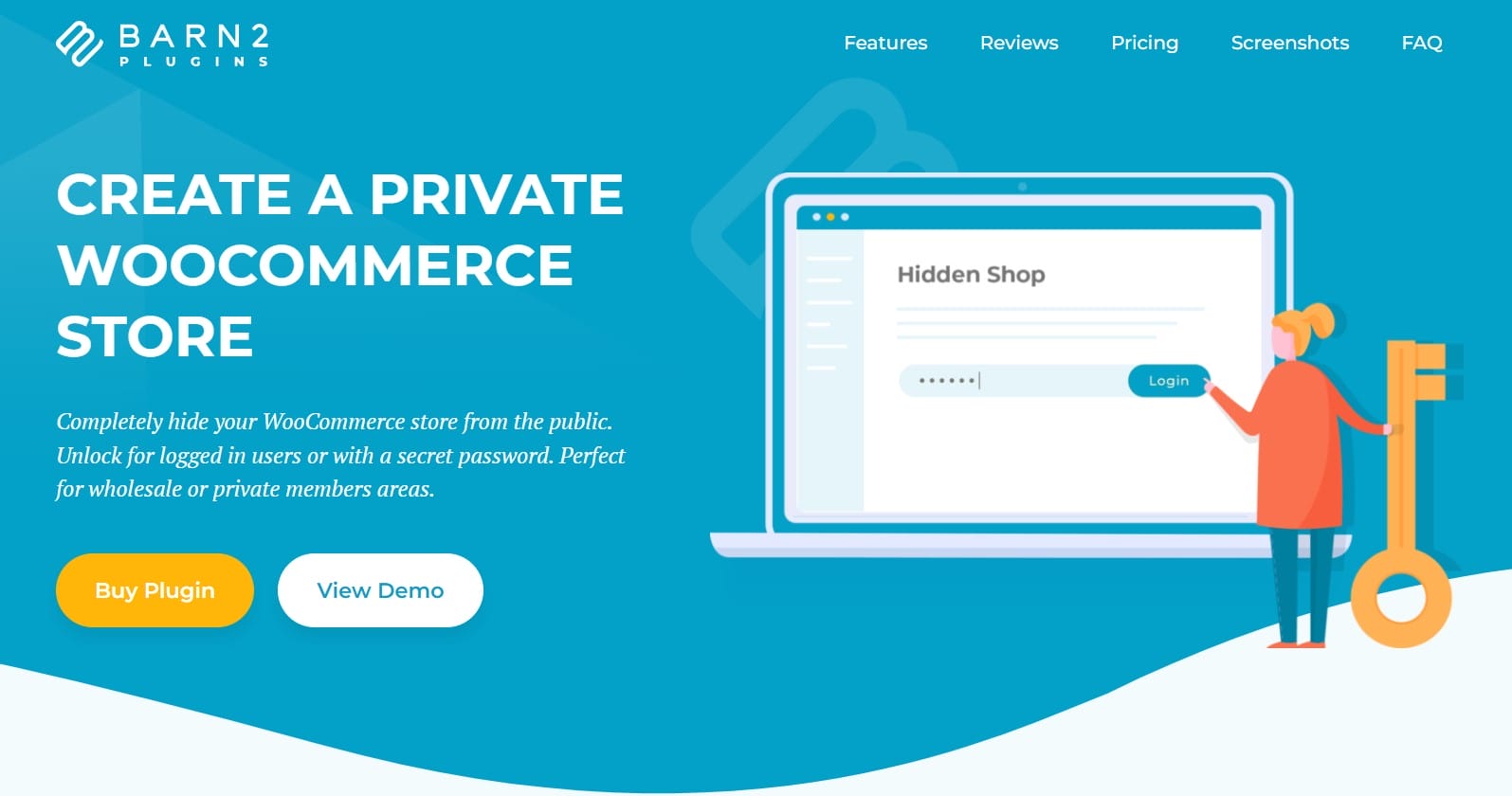
The WooCommerce Private Store plugin is a convenient tool for hiding your entire WooCommerce store from public view. This method is ideal for scenarios such as:
- Taking a vacation or going on leave.
- Running out of inventory or waiting for restocking.
- Being short-staffed and unable to process orders.
Once activated, the plugin will hide all WooCommerce-generated pages from your website, including product pages, categories, the checkout page, and more. However, you can still access these pages via a password or by logging in as an administrator. This allows you to temporarily disable your WooCommerce store without having to edit any site content or reconfigure your menus and widgets.
Method 2: Hide Specific Categories with WooCommerce Protected Categories
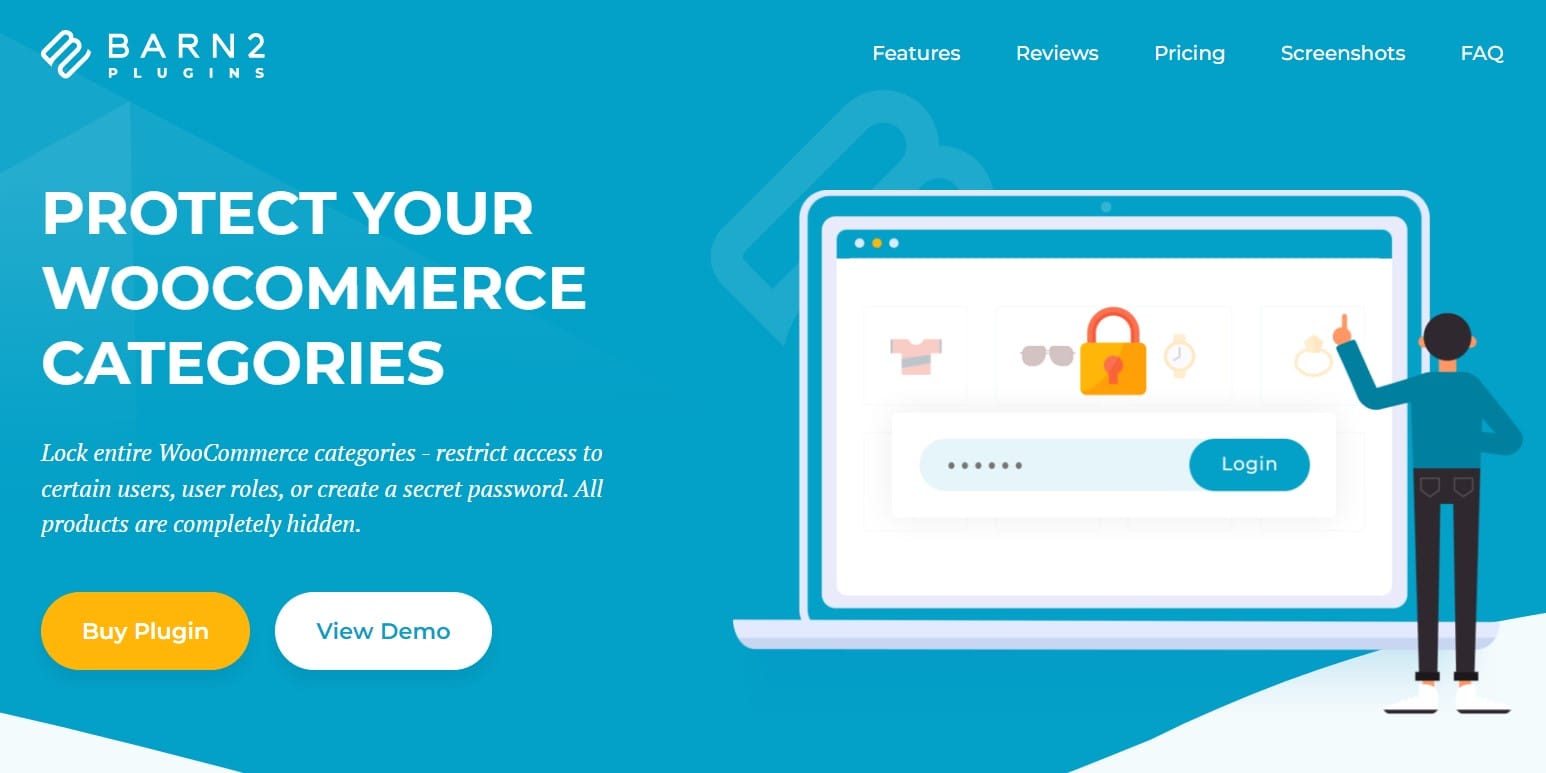
The WooCommerce Protected Categories plugin offers a more selective approach by allowing you to hide specific categories and their associated products from your store. This is particularly useful if:
- You are out of stock on certain categories but still want to sell other products.
- You are restocking certain products and need to temporarily disable those categories.
- You want to keep certain categories private and only available to specific users.
With this plugin, you can protect categories by making them password-protected, available only to certain user roles, or accessible only to specific users. This method allows you to maintain control over which parts of your store remain visible and functional.
Method 3: Disable Checkout for Specific Products
If you want to stop customers from placing orders without taking your entire store offline, you can disable the checkout process for specific products. While WooCommerce doesn’t natively support hiding prices or disabling checkout, you can achieve this with plugins or by editing your product settings:
- Hide the price to remove the “Add to Cart” button.
- Mark the product as out of stock to prevent orders.
Alternatively, consider displaying lead times and accepting backorders rather than completely disabling the checkout process. This way, customers are informed about the waiting period and can still place orders if they are willing to wait.
Choosing the Right Approach to Temporarily Disable WooCommerce
Temporarily disabling WooCommerce or specific parts of your online store is a practical solution for various scenarios, whether you’re taking a break, managing inventory, or dealing with logistical issues. By using plugins like WooCommerce Private Store, WooCommerce Protected Categories, or disabling checkout for specific products, you can keep your store partially or fully offline while maintaining control over what remains visible to your customers. Choose the method that best fits your needs to ensure your online store remains flexible and functional during temporary closures.
Interesting Reads:
Where Are Image Tables Stored In the WordPress Database
Should Business Continuity Plan Be Applied To A WordPress Site

