

When running an online store with WooCommerce, there may be times when you need to temporarily take certain parts of your store offline without disabling your entire WordPress site, going on vacation, restocking inventory, or dealing with logistical issues. Plugins designed specifically for this let you disable or hide your WooCommerce store, or specific sections of it, while keeping the rest of your site operational, so your blog, landing pages, and any non-commerce content stay live and reachable the entire time.
3 Ways to Temporarily Disable WooCommerce
Which method fits depends on what part of your store you want offline. Here are three to consider:
Method 1: Hide the Whole Store With WooCommerce Private Store

WooCommerce Private Store (Barn2) hides your entire store from public view. Good fit for:
- Taking a vacation or going on leave.
- Running out of inventory or waiting for restocking.
- Being short-staffed and unable to process orders.
Once activated, it hides all WooCommerce-generated pages, product pages, categories, checkout, from public view, while still letting you or a logged-in admin access them via password. No content edits or menu/widget reconfiguration needed.
Method 2: Hide Specific Categories With WooCommerce Protected Categories
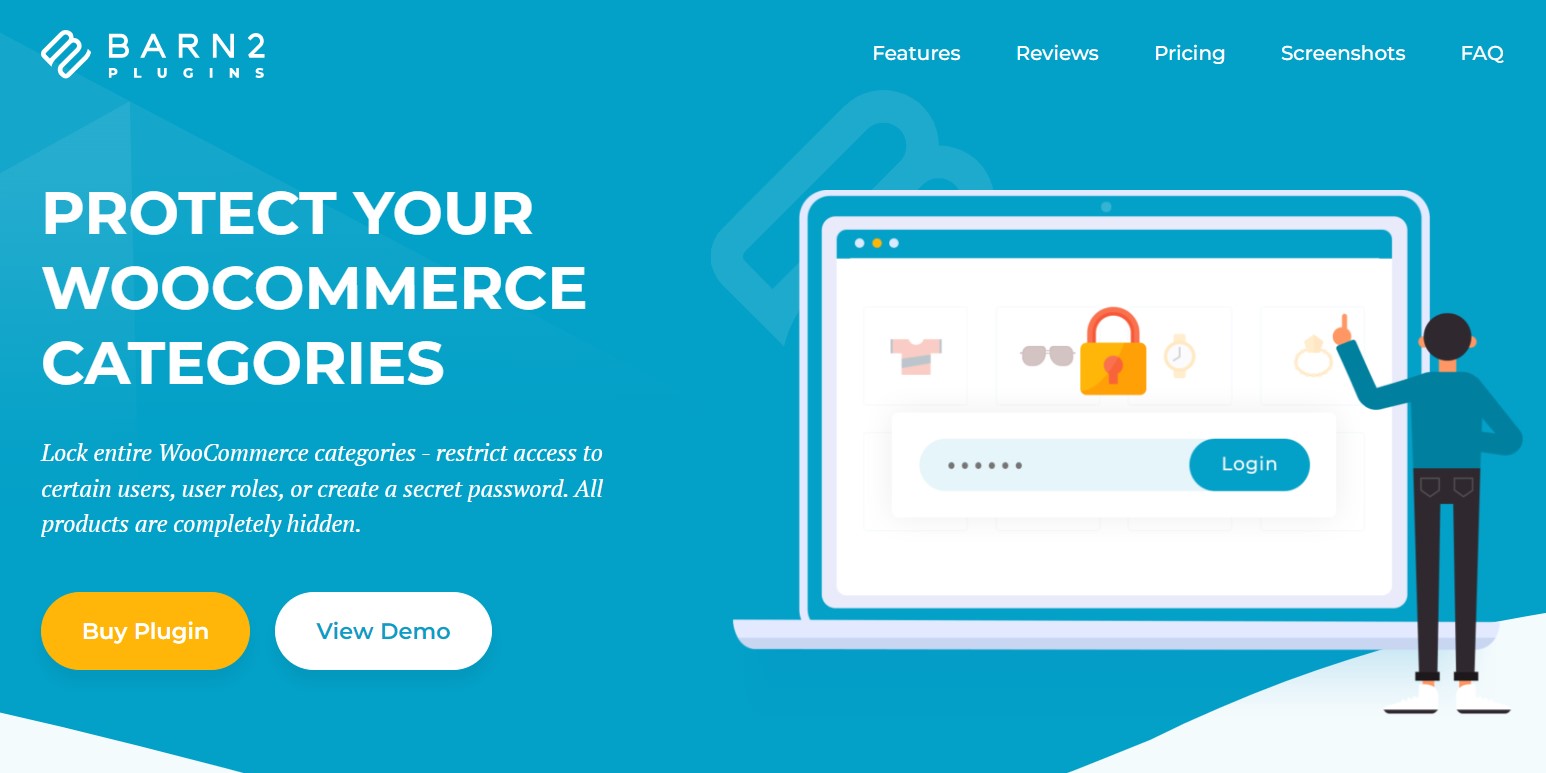
WooCommerce Protected Categories (also Barn2) hides specific categories and their products rather than the whole store. Useful if:
- You’re out of stock on certain categories but still selling elsewhere.
- You’re restocking specific products and need those categories offline temporarily.
- Certain categories should stay private, visible only to specific users or roles.
Categories can be password-protected, role-restricted, or limited to specific users, giving finer control than an all-or-nothing store lockdown.
Method 3: Disable Checkout for Specific Products
WooCommerce doesn’t natively support hiding prices or disabling checkout on individual products, but you can approximate it without a plugin:
- Remove the price to drop the “Add to Cart” button.
- Mark the product out of stock to block new orders.
An alternative worth considering: display a lead time and accept backorders instead of blocking checkout entirely. Customers who are willing to wait can still order, rather than bouncing off a sold-out page.
Choosing the Right Approach
Full store lockdown, category-level hiding, and per-product checkout blocking solve different versions of the same problem. Match the method to the actual scope of what needs to go offline rather than defaulting to taking the whole store down, since an overly broad lockdown blocks legitimate sales in parts of the store that had no reason to close in the first place.
A Simple Decision Framework
If you’re not sure which method applies to your situation, work through it in this order:
- Is the entire business closing temporarily (vacation, staffing gap, full inventory refresh)? Use Method 1, WooCommerce Private Store. It’s the fastest to set up and the least likely to leave a gap, since it locks down every WooCommerce-generated page in one action rather than requiring you to remember every affected category.
- Is only part of the catalog affected (one supplier’s products, a seasonal category, a line you’re discontinuing)? Use Method 2, WooCommerce Protected Categories, so the rest of the store keeps operating and generating revenue normally.
- Is it just a handful of individual products rather than a whole category? Method 3’s manual approach (remove price, mark out of stock) is enough, installing a full plugin for two or three products is more overhead than the problem calls for.
What Happens to SEO and Existing Traffic During a Lockdown
A meaningful concern with any store-wide lockdown is what search engines and existing links do while your store is hidden. WooCommerce Private Store returns a proper password-protection response rather than a 404 or an error, which is the correct behavior for search engines, Google generally treats password-protected content as temporarily unavailable rather than removed, and shouldn’t drop the pages from its index for a short lockdown window. That said, if you expect the closure to run more than a couple of weeks, it’s worth checking Google Search Console afterward to confirm your product pages get recrawled and reindexed properly once the store reopens, rather than assuming everything bounces back automatically without any lingering effect on rankings.
For category-level hiding with Protected Categories, the same logic applies at a smaller scale, only the hidden categories are affected, so the SEO impact (if any) is contained to those specific pages rather than the whole site.
Communicating the Closure to Customers
A locked-down store with no explanation looks broken rather than intentional, and a confused visitor who thinks the site crashed is far less likely to come back than one who sees a clear “we’re back on [date]” message. Both Barn2 plugins let you customize the message shown to visitors who hit the locked content, worth taking the time to write something specific (expected return date, a way to contact you for urgent orders, a link to your social media for updates) rather than leaving the plugin’s generic default text in place. If you’re running any paid ads or email campaigns during the closure window, pause or adjust them too, driving paid traffic to a locked storefront burns budget for no return.
Testing Before You Actually Need It
Don’t wait until the week you’re leaving for vacation to try a store lockdown plugin for the first time. Install and test it during a normal week, confirm the password screen displays correctly, confirm your own admin access still works as expected, and confirm the store reopens cleanly when you deactivate the restriction. It’s also worth checking how the lockdown interacts with any caching plugin or CDN you’re running, an aggressively cached page can sometimes continue serving a cached, unprotected version of a product page for a short window after you’ve activated the lockdown, until the cache clears or you purge it manually.
Handling In-Progress Orders During a Lockdown
Locking down the storefront doesn’t pause orders that were already placed before the closure went into effect, those still need fulfilling, refunding, or otherwise handled through your normal WooCommerce order management, the lockdown only affects new visitors trying to browse or purchase. If your closure is inventory or staffing related, plan explicitly for how existing pending orders get handled during the gap, whether that means fulfilling them as normal before you’re away, notifying customers of a delay, or processing refunds for anything that can’t be fulfilled in the closure window. This is easy to overlook when the main focus is on stopping new orders from coming in.
Staff Access During a Lockdown
If you have staff or contractors who need to keep working behind the scenes during a closure, updating inventory, preparing new listings, handling backend order management, confirm the lockdown method you choose distinguishes between “hidden from the public” and “inaccessible to everyone including logged-in staff.” Both Barn2 plugins are built around exactly this distinction, administrators and specified user roles retain full access while the public-facing storefront is locked, but if you’re using a more manual approach (a blanket maintenance-mode plugin, for instance), double-check its role-based access settings specifically, some blunt maintenance-mode tools lock out everyone except a single super-admin account by default, which can unexpectedly block a store manager or support staff member from doing their job during the closure.
Reopening Checklist
Deactivating the lockdown is the easy part, but a few things are worth confirming before you consider the reopening complete:
- Verify the storefront is actually publicly visible again from a logged-out browser session or incognito window, not just from your own admin-logged-in browser, which can behave differently depending on the plugin’s access rules.
- Resume any paused ad campaigns or product feeds you deliberately paused before the closure.
- Check stock levels and restock any products that were marked out of stock as part of a manual, plugin-free lockdown, so customers aren’t hitting a sold-out message on a product that’s actually back in stock.
- Clear your caching plugin or CDN cache to make sure visitors aren’t served a stale, still-locked version of a page from before you reopened.
- Send a “we’re back” notification to your email list or social channels if the closure was long enough that customers might have written the store off or gone elsewhere temporarily.
- Spot-check a handful of product pages directly, including at least one from each affected category if you used Protected Categories, rather than assuming the whole catalog reopened correctly just because the homepage looks normal again.
A Coming-Soon Alternative for New Stores
If your situation is the reverse, a store that hasn’t launched yet rather than one that’s temporarily closing, the same category of plugin (or WooCommerce’s own “Coming Soon” mode available under WooCommerce > Settings > Site visibility in current versions) handles that case more directly than repurposing a lockdown plugin meant for an already-live store. Coming Soon mode is specifically built around a pre-launch messaging flow, an email signup for launch notifications, a countdown, rather than the “we’ll be right back” framing that Private Store and Protected Categories are designed for. Using the wrong one, a returning-closure tool for a brand new pre-launch store, or vice versa, tends to produce a confusing message for visitors even if the underlying access-blocking mechanism technically works the same way either direction.
Free Alternatives Worth Knowing About
Both Barn2 plugins are paid, and worth it for a store that needs this functionality on an ongoing or recurring basis, but if you need a one-time lockdown and don’t want to commit to a paid tool, a couple of free options cover simpler versions of the same need. WordPress’s own built-in “Coming Soon” or maintenance mode (available through several free maintenance-mode plugins on WordPress.org, or WooCommerce’s own Site Visibility setting for a pre-launch store) can put the entire site, not just the WooCommerce parts, behind a simple message. That’s a blunter tool than a WooCommerce-specific lockdown, since it also blocks your blog, static pages, and anything else on the domain, but it’s free and takes a couple of minutes to activate for a short, all-hands-off closure. For category-level control without a paid plugin, a more manual approach, setting affected products to “Out of stock” in bulk through WooCommerce’s product list bulk-edit tool, and adding a banner notice through your theme’s widget areas, gets you most of the way there without any new plugin at all, though it lacks the clean password-gate experience of a dedicated tool.
Impact on Google Shopping and Product Feeds
If you’re running a Google Shopping feed, Meta catalog ads, or any other product feed integration, a store lockdown doesn’t automatically pause those feeds, they’ll keep syncing product data on their normal schedule unless you separately pause the campaigns or the feed itself. That mismatch, ads actively driving traffic to a locked or password-protected store, is one of the more expensive mistakes to make during a closure. Before locking down the storefront, check whatever ad platforms and product feed plugins you’re running and pause them explicitly as a separate step, don’t assume the storefront lockdown handles that side of things automatically.
Multisite and Multi-Vendor Marketplace Considerations
If your WooCommerce install is a multi-vendor marketplace (running on top of a plugin like Dokan or WC Vendors) rather than a single-seller store, a store-wide lockdown affects every vendor on the platform, not just your own listings. That’s rarely what you actually want, individual vendors on a marketplace usually need the ability to pause their own storefront independently rather than the whole marketplace going dark because one vendor is on vacation. Most marketplace plugins include their own vendor-level “store on vacation” or “store closed” toggle specifically for this reason, check your marketplace plugin’s vendor dashboard settings before reaching for a site-wide lockdown tool, which is the wrong tool for a single-vendor closure on a multi-vendor platform.
Legal and Policy Considerations
Locking down your storefront doesn’t pause your legal obligations around existing orders, returns, and customer communication, that responsibility continues regardless of whether the storefront itself is browsable. Depending on your jurisdiction and your own stated policies, customers may still be entitled to process a return or get a response to a support inquiry during your closure window, even if they can’t place new orders. If the closure is extended (weeks rather than days), it’s worth having a visible, working way for existing customers to reach you, an email address or a contact form that stays live even while the storefront itself is locked, so a locked store doesn’t accidentally also mean “unreachable for existing customer issues.”
Comparing the Two Barn2 Plugins Directly
Since both plugins come from the same developer and solve adjacent problems, it’s worth being clear about when each one is the right call rather than treating them as interchangeable:
- WooCommerce Private Store is the blunt instrument, one setting, whole store locked. Simplest to configure, fastest to activate and deactivate, and the right default choice any time the entire store needs to go offline together.
- WooCommerce Protected Categories is the precision tool, individual categories, individual user roles, individual password rules per category if needed. More setup involved, but the only sensible choice when part of the store needs to stay open for business while another part goes dark.
Some stores end up using both at different points in their lifecycle, Protected Categories for routine, ongoing category-level access control (a wholesale-only category, a seasonal line), and Private Store reserved specifically for full closures like vacations or major inventory transitions.
Quick Answers
Will locking down my store cancel existing subscriptions or recurring orders? No, WooCommerce Subscriptions and other recurring-order systems continue processing on their normal schedule regardless of storefront visibility, the lockdown only affects whether new visitors can browse and check out, not backend order processing.
Can I schedule the lockdown to start and end automatically? Both Barn2 plugins support setting specific access rules rather than requiring manual activation and deactivation, though for a simple date-bound closure, manually toggling it on the day and remembering to turn it back off is often simpler than configuring a scheduled rule, especially for a one-time event like a vacation.
Do these plugins work with any theme? Both are built to work with any properly coded WooCommerce theme, since they hook into WooCommerce’s own template and access-control system rather than requiring theme-specific integration. If you’re running a heavily customized or non-standard WooCommerce theme, it’s still worth testing before relying on it for a real closure, a quick dry run during a low-traffic period is cheap insurance against discovering a compatibility issue on the actual day you need it working.
Will a lockdown affect my WooCommerce REST API access? Depends on the plugin and how the API is being used. If you or a connected app rely on the REST API to sync inventory or orders during a closure, test that access specifically before relying on it, some front-end lockdown methods only affect the browsable storefront and leave the API untouched, while others (particularly a broad maintenance-mode plugin) can inadvertently block API requests too if they intercept requests at a level above WooCommerce’s own access controls.
Can customers still see my store in search results while it’s locked? The store’s existing search listings typically remain visible for a short closure since search engines don’t instantly deindex a page the moment it becomes temporarily inaccessible, but clicking through will show the password screen or locked message rather than the product itself, which is expected and correct behavior rather than something to try to work around, and it resolves itself automatically once the lockdown ends and the crawler revisits the page.
Interesting Reads:
Where Are Image Tables Stored In the WordPress Database
Should a Business Continuity Plan Be Applied to a WordPress Site