How to Edit WooCommerce Emails with MailPoet


Email communication plays a major role in building trust with your online customers. From order confirmations to shipping updates, WooCommerce automatically sends transactional emails. But here’s the catch: the default WooCommerce emails often look plain, generic, and not aligned with your brand. This lack of personalization can make your store feel less professional and reduce customer engagement over time.
This is where MailPoet Premium comes in. With its intuitive drag-and-drop email editor and seamless WooCommerce integration, you can edit WooCommerce emails effortlessly—making them visually appealing, on-brand, and customer-friendly. Instead of sending bland, one-size-fits-all templates, you can design polished messages that reflect your brand identity, highlight special offers, and even encourage repeat purchases.
By customizing your WooCommerce emails with MailPoet Premium, you not only improve the customer experience but also unlock new opportunities for building loyalty and increasing sales.
Why Edit WooCommerce Emails?
Default WooCommerce emails may serve their purpose, but they often fall short of creating a memorable customer experience. By taking the time to edit WooCommerce emails, you can turn plain notifications into powerful brand touchpoints. Adding your logo, brand colors, and a custom design helps strengthen your identity, while MailPoet’s intuitive drag-and-drop editor makes it easy to create clean, professional layouts that improve readability.
Beyond aesthetics, you can boost engagement by including product recommendations, coupon codes, or upsell opportunities directly in your emails. Plus, with MailPoet’s reliable sending service, your messages are more likely to land in inboxes rather than spam folders. In short, customizing WooCommerce emails transforms standard order updates into opportunities for stronger customer relationships and higher sales.
Why Choose MailPoet for WooCommerce Emails?
While there are many email editors, MailPoet Premium stands out because it is built specifically for WordPress and WooCommerce. Some key features include:
- Email Editor – Drag-and-drop editor to design professional emails.
- WooCommerce Features – Ready-to-use templates for order confirmations, invoices, and more.
- Automations – Trigger emails for abandoned carts, follow-ups, or product recommendations.
- Deliverability – Improve open rates with MailPoet’s trusted sending service.
- Subscribers & Lists – Segment customers and send targeted messages.
- Statistics – Track open rates, click-through rates, and conversions.
With MailPoet Premium, you not only edit WooCommerce emails but also optimize them for conversions.
Steps to Edit WooCommerce Emails with MailPoet Premium
1. Install and Activate MailPoet Premium
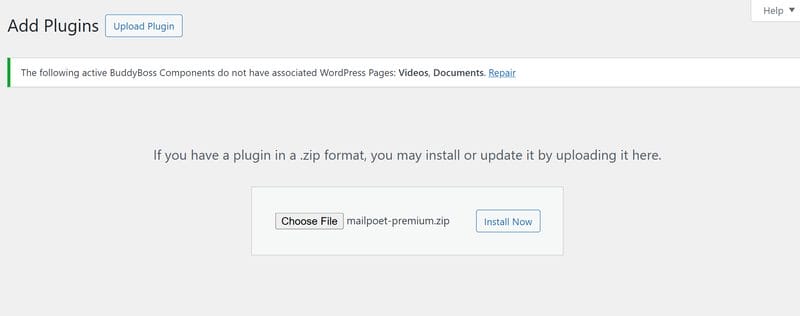
- Go to your WordPress dashboard.
- Navigate to Plugins → Add New.
- Search for MailPoet and install it.
- To unlock advanced WooCommerce features, activate your MailPoet Premium license (found under MailPoet → Account & Licenses).
2. Connect MailPoet with WooCommerce
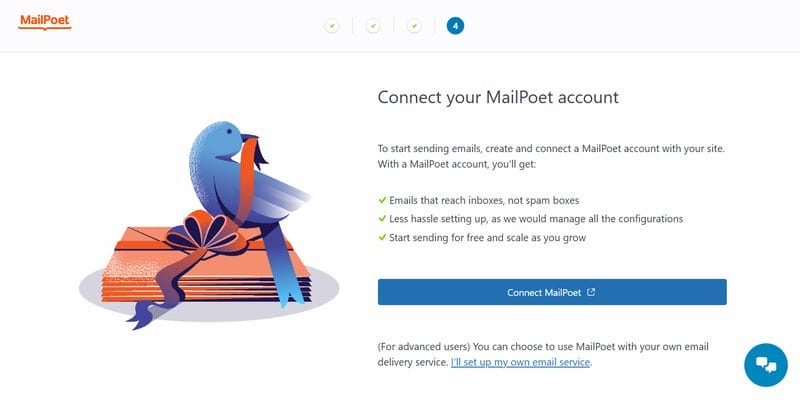
- After activation, go to MailPoet → Settings.
- Enable WooCommerce integration under the WooCommerce Features tab.
- This syncs your store orders and customers with MailPoet.
3. Customize Your Email Templates
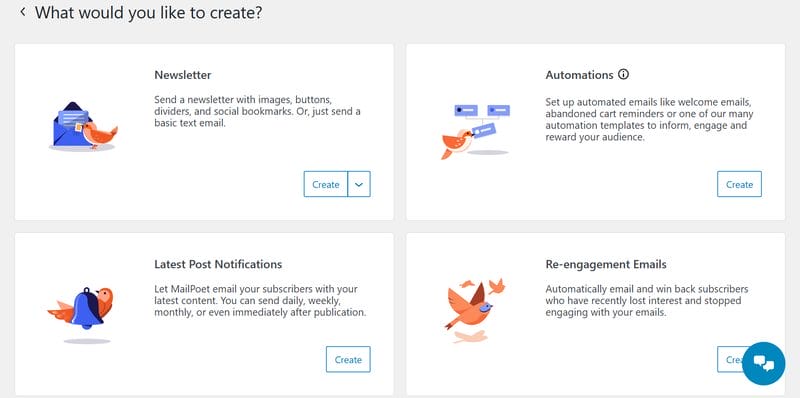
- Navigate to MailPoet → Emails → Add New.
- Choose WooCommerce Email as the type.
- Use the Email Editor to drag and drop elements:
- Add your logo and brand colors.
- Insert product images, coupon codes, or recommended items.
- Adjust fonts and button styles to match your website theme.
4. Personalize with Shortcodes
MailPoet provides built-in shortcodes to make your WooCommerce emails dynamic. For example:
{customer_name}– Personalize greetings.{order_number}– Display order details.{unsubscribe}– Add a compliant unsubscribe link.
This ensures your customers feel valued and keeps your emails GDPR-friendly.
5. Automate Customer Journeys
Using MailPoet’s Automations, you can set up:
- Abandoned Cart Emails – Recover lost sales automatically.
- Post-Purchase Follow-ups – Request reviews or upsell related products.
- Birthday Discounts – Delight customers with personalized offers.
6. Test and Improve Deliverability
Before sending live emails:
- Use MailPoet’s preview and test email options.
- Check deliverability settings to avoid spam folders.
- Monitor performance under Statistics for open and click rates.
Best Practices for Editing WooCommerce Emails
- Stay On-Brand – Use your website’s design style for consistency.
- Be Clear & Concise – Keep order details easy to scan.
- Add CTAs – Encourage customers to return and shop again.
- Optimize for Mobile – MailPoet templates are responsive, but always test.
- Analyze Results – Use MailPoet’s statistics to refine subject lines, layouts, and offers.
Also Read: 10 Best Email Content Testers in 2025
Enhance Your Store with Custom WooCommerce Development
Editing WooCommerce emails is just one step toward building a powerful online store. If you want deeper customization, integrations, or a fully optimized WooCommerce site, professional help can make a big difference. Beyond email templates, a tailored WooCommerce setup can improve site performance, streamline checkout flows, and integrate third-party tools that enhance customer experience.
You can also add unique features such as loyalty programs, subscription models, or advanced reporting dashboards that fit your business goals. Partnering with experts ensures your store not only looks professional but also runs smoothly, helping you scale efficiently and stay ahead of competitors.
Build Stronger Customer Relationships with MailPoet Premium
When you edit WooCommerce emails with MailPoet Premium, you’re not just sending notifications—you’re building customer relationships. From branding to automation, MailPoet makes it easy to design professional, personalized, and high-converting emails directly inside WordPress.
Take the time to optimize your WooCommerce emails today and turn every order confirmation into an opportunity for growth. Ready to take your store to the next level? Explore Wbcom Designs’ Custom WooCommerce Development Services and unlock the full potential of your online business.
Interesting Reads
How to Speed Up Sales with WooCommerce One Page Checkout
What You Need to Know About End-User Computing in 2025
10 Best Lightroom Alternatives and Competitors to Try in 2025

Shashank is a seasoned digital marketing and WordPress expert who specializes in SEO, software tools reviews, and cutting-edge strategies for boosting online presence. With a passion for simplifying complex topics, Goutham crafts engaging blog posts that help readers optimize their websites, improve search engine rankings, and stay ahead in the ever-evolving digital landscape.