

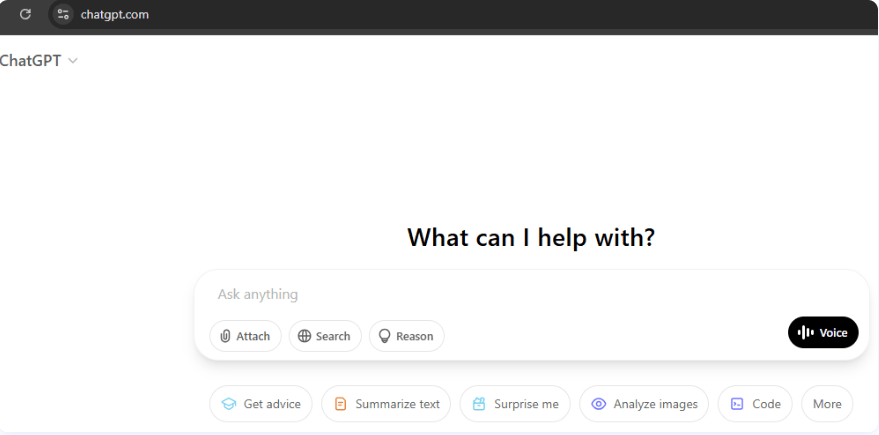
ChatGPT is a smart tool that lets websites chat with visitors using AI. It can answer questions, hold conversations, and even help people find what they need on your site—all by itself. It’s kind of like having a helpful assistant who never takes a break.
Many WordPress users are integrate ChatGPT to their websites because it makes things easier. Whether it’s for customer support, writing help, or just making a site more interactive, ChatGPT can take care of a lot of tasks for you.

Quick Links
Benefits of Integrating ChatGPT to WordPress
One of the biggest reasons people use ChatGPT on their site is for customer support. Instead of answering the same questions over and over, the chatbot can do it for you—anytime, day or night.
It can also help you create content. Need help writing a blog post or coming up with ideas? ChatGPT can help you get started with drafts, outlines, or even full paragraphs.
ChatGPT keeps people more engaged on your site. When visitors can interact with something, they tend to stay longer and come back more often. It gives them a reason to explore.
You can even personalize how the chatbot responds based on the person using it. This makes the experience feel more helpful and less generic.
Prerequisites Before Integration
Before you start, make sure you can log in to your WordPress site as an admin. You’ll need full access to make the changes.
You’ll also need an OpenAI account. This is where you get your API key—a little code that lets your website talk to ChatGPT.
Lastly, having some basic knowledge of how to install plugins or use a code editor will make things easier. Don’t worry, you don’t need to be a tech expert.
Method 1: Using a ChatGPT WordPress Plugin
The easiest way to add ChatGPT is by using a plugin. Some good ones include AI Engine and WP Chatbot with ChatGPT. These take care of most of the hard work for you.
To install a plugin, go to your WordPress dashboard, click on “Plugins,” then “Add New.” Search for the plugin you want and click “Install” and then “Activate.”
Once it’s installed, you’ll usually find a settings page where you can paste in your OpenAI API key. This connects your website to ChatGPT.
You can also change how the chatbot looks. Some plugins let you pick colors, position the chat window, or even change the welcome message.
Method 2: Manual Integration with OpenAI API
If you’re comfortable with a bit of coding, you can connect directly to the OpenAI API. You’ll need to add some code to your theme or use a code editor plugin.
Start by getting your API key from your OpenAI account. Then, write a script that sends messages from your site to the ChatGPT API and shows the response on your page.
Make sure to keep your API key safe. Never put it in public files or in places where others can see it.
You can also use CSS to change how your chatbot looks. For example, you can adjust the font, colors, and size so it matches your website style.
Use Cases for ChatGPT on WordPress
You can use ChatGPT to answer common questions. This works great on FAQ pages, so visitors get help fast without having to wait.
It’s also helpful for writing blog content. You can ask the bot to help you come up with ideas or write parts of your post, which saves a lot of time.
For customer service, ChatGPT can handle simple tasks like answering product questions or helping people find the right page.
You can even create smart forms or widgets that talk to users and guide them based on their answers.
Best Practices for ChatGPT Integration
It’s a good idea to check in on how people are using the chatbot. This can help you see what’s working and what’s not.
Watch your usage if you’re using a paid plan with OpenAI. Every message costs a bit of money, so setting limits can help keep things under control.
Make sure your chatbot follows privacy rules, especially if you’re in the EU or dealing with European visitors. You may need to add a privacy notice.
Always keep your plugin or custom code up to date. Updates fix bugs and keep things running smoothly.
Troubleshooting Common Issues
Sometimes plugins don’t play nicely with each other. If your chatbot isn’t working, try deactivating other plugins one by one to see if there’s a conflict.
If you see error messages from the API, double-check your API key. Make sure it’s active and entered correctly.
If the chatbot isn’t showing up the way you expected, it might be a theme or styling issue. Try adjusting your settings or checking for missing code.
Sometimes the bot can be slow to answer. This could be a problem with the API server or your internet speed. Try again later or check OpenAI’s status page.
Final Thoughts
To integrate ChatGPT to your WordPress site can make it more helpful, more engaging, and a lot easier to manage. It saves time and helps visitors get what they need faster.
If you’re new to this, start with a plugin. It’s the simplest and quickest way to get going, even if you’re not technical.
And when you’re ready, you can explore more advanced ways to use ChatGPT—like customizing the code or creating new features. There are lots of tutorials and tools out there to help you grow.
Interesting Reads:

