

Running a thriving WooCommerce store goes beyond simply listing products – it’s about showcasing them in ways that inspire customers to purchase more. That’s where WooCommerce Product Bundles come in. By packaging multiple products together, you can increase the average order value, improve customer satisfaction, and make shopping more convenient.
In fact, bundles allow you to tell a story around your products, positioning them as complete solutions rather than isolated items. They also create opportunities to highlight complementary goods that customers might not have discovered otherwise. With the right bundle strategy, you’re not just selling products—you’re crafting an experience that adds value and builds loyalty.

Quick Links
Why WooCommerce Product Bundles Matter
Shoppers love deals and convenience, and product bundling addresses both. By combining related products, you can:
- Increase revenue by encouraging customers to purchase complementary items.
- Simplify decision-making for shoppers who want quick solutions.
- Offer discounts on bulk purchases to move stock faster.
- Personalize the buying experience with flexible, configurable bundles.
Whether you’re selling tech gadgets with accessories, gift boxes, or subscription kits, well-designed product bundles create an irresistible offer that strengthens your sales and enhances customer satisfaction.
Preparing Your Store for Bundling
Before creating WooCommerce Product Bundles, make sure your store is updated, your product catalog is organized, and your inventory is accurate. A well-prepared store makes the bundling process smoother, ensures your customers get the best experience, and helps you take full advantage of the bundling features.
Getting Started with Product Bundles
Before diving into the setup process, it’s important to prepare your store and understand what this plugin can do for you. A proper installation ensures smooth configuration and fewer technical hiccups.
Step 1: Install and Activate the Plugin
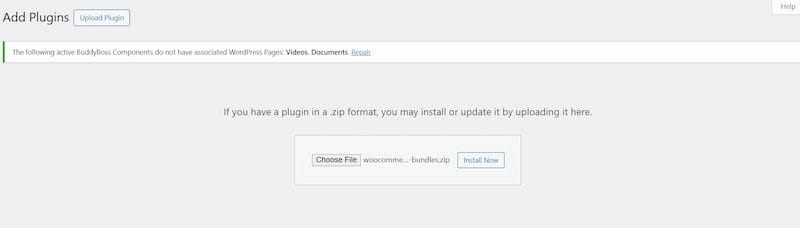
To get started, you’ll need to purchase and download the WooCommerce Product Bundles extension from the official marketplace.
- In your WordPress dashboard, navigate to Plugins → Add New → Upload Plugin.
- Upload the ZIP file you downloaded.
- Click Install Now, then Activate.
Once activated, you’ll be able to access bundle creation options directly from your WooCommerce product settings.
Step 2: Creating Your First Bundle
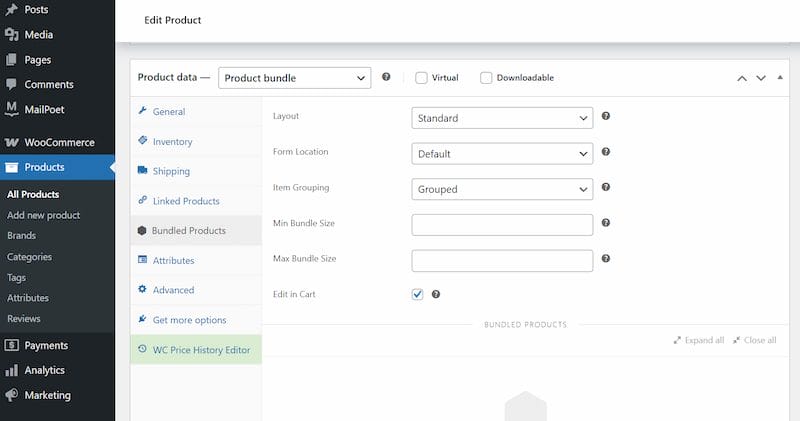
- Go to Products → Add New in your dashboard.
- In the Product Data panel, select Product Bundle as the product type.
- Head over to the Bundled Products tab.
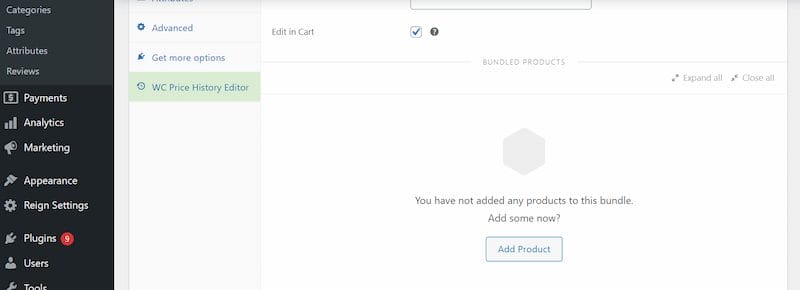
- Use the Add Product button and search for products you want to include.
- Repeat until your bundle is complete.
- Hit Publish to make the bundle live.
You can create both static bundles (pre-configured packages) or configurable bundles (where customers can choose quantities, variations, or optional items).
Step 3: Configure Bundle Options
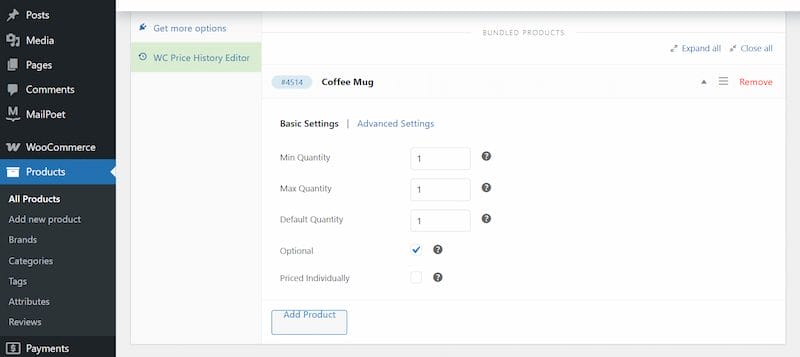
- Minimum and Maximum Quantity – Define how many of each product a customer can purchase.
- Optional Products – Allow customers to choose whether to include certain items.
- Filter Variations – Limit available variations of variable products.
- Override Titles and Descriptions – Customize product details within the bundle.
Step 4: Setting Up Pricing
The plugin gives you two main ways to handle pricing:
- Base Price – Assign a fixed price to the entire bundle, regardless of its contents.
- Individual Pricing – Keep the prices of each product within the bundle and optionally add discounts.
For example, if you sell a camera kit, you can either:
- Set a flat price for the full bundle.
- Keep individual prices but offer a 10% discount if purchased together.
Step 5: Product Bundles in the Cart
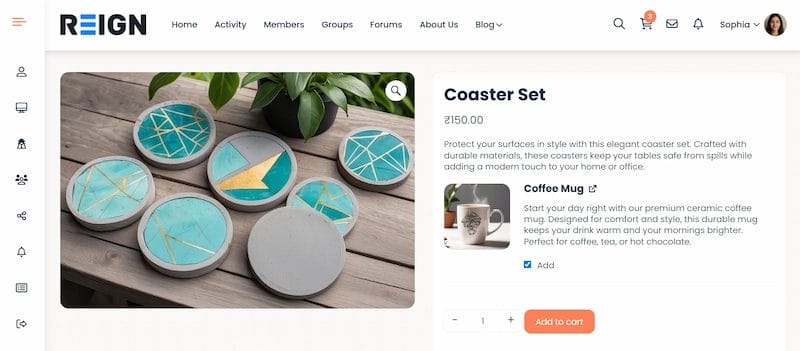
When a customer adds a bundle to the cart, WooCommerce displays:
- A parent line item (the bundle itself).
- Child items (the individual bundled products).
You can customize how bundles appear in the cart using the Item Grouping setting:
- Grouped – Show parent and child items together.
- Flat – Show child items with references to the bundle.
- None – Hide the parent item for a simplified look.
Step 6: Configure Shipping Options
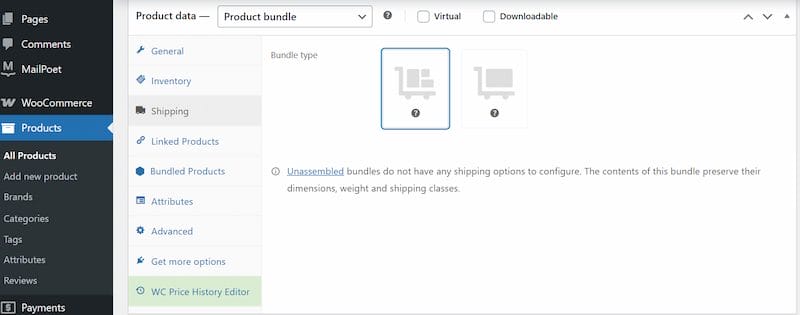
The plugin supports two shipping modes:
- Assembled Bundles – Shipped as one packaged product.
- Unassembled Bundles – Shipped as separate items.
You can also configure container weight, dimensions, individual shipping, and virtual bundles for digital products.
Step 7: Manage Inventory and Stock
- Stock levels of each product decrease automatically when a bundle is sold.
- If one product is out of stock, the bundle becomes unavailable.
- Assign dedicated SKUs, limit stock for bundles, and monitor availability in WooCommerce → Analytics → Bundles.
Step 8: Advanced Bundle Settings
- Price Visibility – Show or hide individual product prices.
- Layout Options – Display bundled products in different layouts.
- Form Location – Adjust bundle form placement.
- Cart Editing – Let customers edit bundles from the cart.
- Bundle-Sells – Offer related add-ons.
Step 9: Track Performance with Analytics
- Track sales and revenue from bundles.
- Identify top-performing bundles.
- Monitor stock availability and restocking needs.
Real-Life Examples of WooCommerce Product Bundles
Many successful online stores use WooCommerce Product Bundles to drive higher conversions. For instance, a fashion retailer might bundle a shirt, tie, and blazer together as a complete look, while a beauty brand could package skincare essentials into a ready-to-go kit. These strategies not only simplify the buying process but also encourage customers to spend more than they would on individual items.
Also Read: How to Use Advanced Product Fields to Add Custom Product Options in WooCommerce
Marketing Strategies for WooCommerce Product Bundles
Highlight bundles on your homepage, use social proof to showcase customer favorites, and promote them through email campaigns and seasonal sales. Well-marketed bundles not only attract more attention but also encourage repeat purchases.
Best Practices for Using WooCommerce Product Bundles
- Bundle high-margin products with popular ones to maximize profits.
- Offer seasonal or holiday bundles to attract deal hunters.
- Use discounts wisely without cutting too deep into profits.
- Promote bundles on product pages, checkout, and email campaigns.
- Test bundle configurations regularly using analytics.

Sell More with Smart Bundles
Setting up WooCommerce Product Bundles is one of the most effective ways to increase conversions and average order value. By offering smartly curated bundles, you not only enhance customer convenience but also give shoppers a compelling reason to spend more in your store.
If you’re ready to take your WooCommerce store to the next level with tailored product bundles, our team at Wbcom Designs is here to help. We specialize in building and customizing WooCommerce solutions that drive growth, streamline management, and boost customer satisfaction.
👉Ready to grow your store? Explore our Custom WooCommerce Development Services today and start maximizing your sales potential!
Interesting Reads
How to Show Price History for WooCommerce to Boost Sales

