
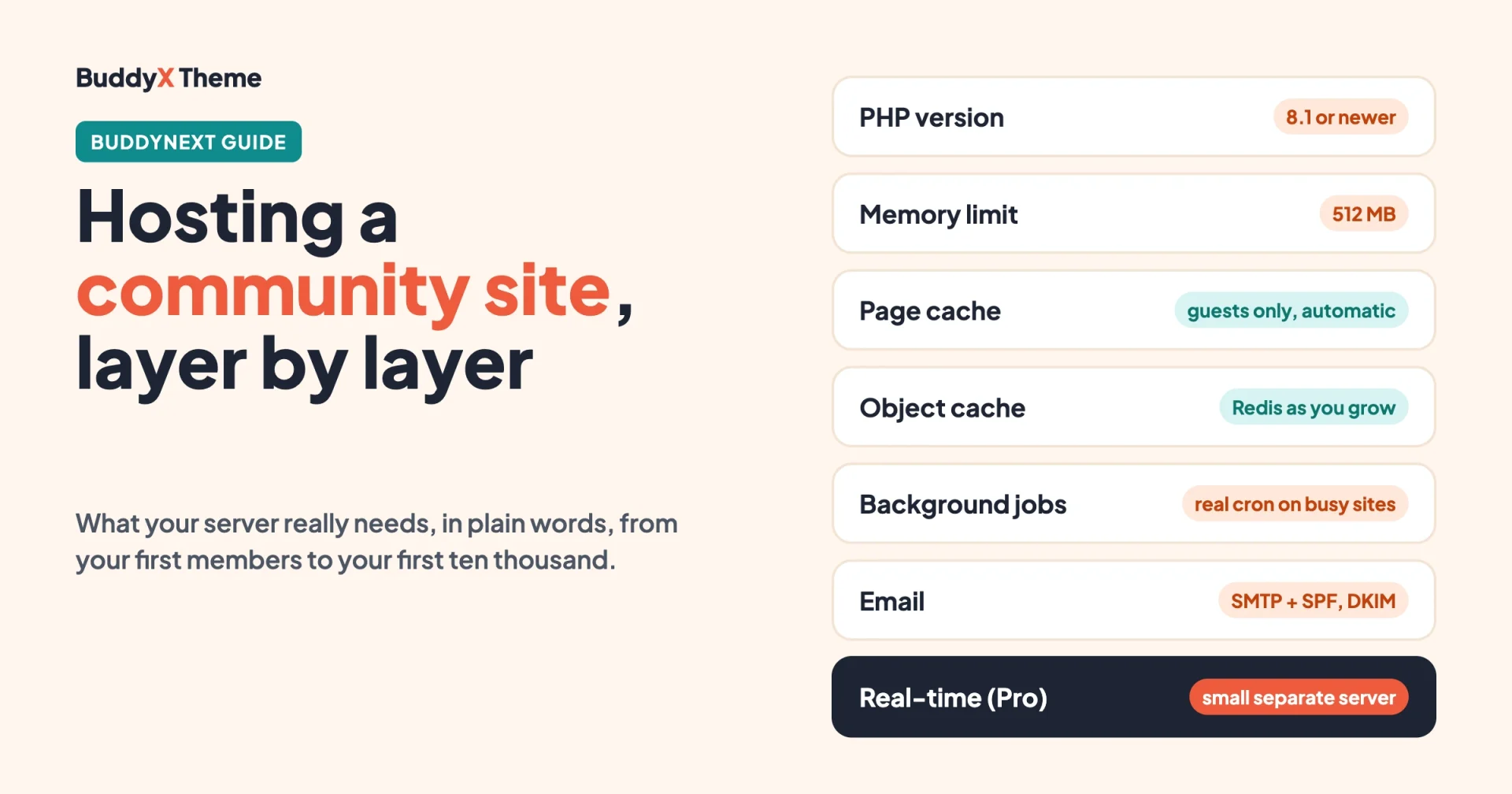
You have picked your theme, you have chosen a community plugin, and now one question is left: where do you put it all? Community site hosting is the part most community builders rush, and it is the part that decides whether your site feels quick on launch day and still feels quick when you have five thousand members.
This community site hosting guide is the one we would hand to any customer before launch. It is written for site owners first, so each section starts in plain words. The technical detail sits in tables and in a few clearly marked sections you can hand to your host or developer. It leads with BuddyNext, the community platform from Wbcom, and it works well with the BuddyX theme. If you are still running BuddyPress, almost everything here applies to you too, and there is a short section near the end for you.
A quick disclosure: Wbcom makes BuddyX and BuddyNext, and we also offer hosting setup and maintenance. We will point to that once, at the end. The advice in between is the same advice whether you host with us or anywhere else.
The two-minute checklist
If you read nothing else, read this. It covers what almost every community site needs on day one.
- PHP 8.1 or newer. BuddyNext supports PHP 8.1 to 8.5. Pick the newest your host offers.
- 512 MB of PHP memory. The small default of 128 MB can run out once you add the media and integration plugins.
- HTTPS everywhere. Needed for logins, browser features and real-time connections.
- Pretty permalinks. Anything except "Plain" in Settings, then Permalinks.
- A page cache for guests. BuddyNext keeps logged-in pages out of the cache for you.
- A persistent object cache (Redis) once you grow. You will feel the difference past a few thousand members.
- A real server cron on busy sites. It keeps emails and digests flowing on time.
- SMTP for email. Do not rely on the host's default mail function for community notifications.
- Backups and a staging site. Daily backups, and somewhere to test updates first.
Everything below explains the "why" behind these nine lines.
What BuddyNext asks of your server
The published minimums are short. Here they are in one table, with the platform's own recommendation next to each.
| Requirement | Minimum | Our advice |
|---|---|---|
| WordPress | 6.9 or newer | Keep it current |
| PHP | 8.1 or newer (8.1 to 8.5 supported) | Use the newest version your host offers |
| PHP memory limit | 128 MB runs, but can be exhausted | 512 MB recommended |
| Database | MySQL 5.7+ or MariaDB 10.3+ | A current, supported release of either |
| Permalinks | Pretty permalinks | Post name is fine |
BuddyNext also has a free and a Pro layer, plus optional companion plugins for messaging, media, events, courses and more. Each one you add uses a little more memory and a few more background jobs, so plan your server for the full set you intend to run, not just the free plugin.
Pick community site hosting by size
Owners often ask for one number: "what server do I need for 10,000 members?" Honest answer: it depends on how active those members are, how much media they upload and which plugins you run. A quiet community of 10,000 can run on less than a busy one of 2,000.
So treat the table below as starting suggestions, not benchmarks. They are where we would begin, based on how the platform behaves, and they are meant to be adjusted once you watch your own traffic. We have not published load-test results for them and we do not claim any. Start here, measure, then move up a tier when your site tells you to.
| Layer | Small (a few hundred members) | Growing (up to a few thousand) | Large (several thousand active) | Very large (tens of thousands) |
|---|---|---|---|---|
| Hosting type | Good managed WordPress plan or small VPS | Managed WordPress or a VPS | Dedicated VPS or managed plan built for busy sites | Dedicated or cloud servers, database on its own machine |
| PHP workers | 2 to 4 | 4 to 8 | 8 to 16 | 16 or more, more than one web server |
| CPU | 1 to 2 vCPU | 2 to 4 vCPU | 4 to 8 vCPU | 8 vCPU or more per web node |
| RAM | 2 GB | 4 GB | 8 GB | 16 GB or more |
| Disk | 20 GB SSD | 50 GB SSD | 100 GB SSD plus media offload | Media on object storage with a CDN |
| Database | Same server | Same server, tuned | Same server with spare RAM, or a managed database | Separate managed database |
| Object cache | Optional | Recommended | Redis | Redis, sized for the load |
| CDN | Optional | Recommended | Yes | Yes |
| Real-time server | Not needed (polling) | Optional | Separate small server | Separate server, shared Redis |
Two notes on reading this table. First, media is the big unknown. A community that lets members upload photos and video will fill a disk far faster than one that is mostly text, so the disk row is the one most likely to be wrong for you. Second, the line between tiers is soft. If your site feels slow and your host's graphs show the CPU or memory near the ceiling, that is your sign to move up, whatever your member count says.
Community site hosting, layer by layer
Think of your community site as a small restaurant. The server is the building, PHP is the kitchen, the database is the pantry, and the caches are the prepared dishes waiting under a heat lamp. Each layer below is one part of that restaurant.
PHP version and OPcache
PHP is the language WordPress runs on. Newer versions are faster and safer. BuddyNext needs PHP 8.1 and supports up to 8.5, so ask your host to set the newest version they offer and test on a staging copy first.
OPcache is a switch that keeps compiled PHP code in memory so it does not have to be rebuilt on every request. Good hosts turn it on by default. If you manage your own server, make sure it is on. It is one of the cheapest speed gains available.
Memory
Memory is how much room PHP gets to work on a single page load. A community page pulls in the feed, notifications, profiles and any companion plugins at once. BuddyNext recommends a 512 MB limit. With the free plugin, Pro and the media and integration plugins all active, the 128 MB default can run out in the middle of a request, and the page fails.
You can raise it in your host's control panel, in php.ini, or in wp-config.php with a line such as define( 'WP_MEMORY_LIMIT', '512M' );. BuddyNext adds a note to Site Health when your limit is below the recommendation, so you can check there.
Do not confuse this with server RAM. The memory limit is a ceiling for each request. Your server needs enough total RAM to run several requests at the same time, which brings us to workers.
CPU and PHP workers
A PHP worker is one cook in the kitchen. Each worker handles one page request at a time. If you have four workers and five members click at the same moment, the fifth waits. A community is busier than a blog because logged-in members cannot be served from a shared cached page, so every member click needs a worker.
This is why "CPU and workers" matter more for a community than for a brochure site. If a host sells you a plan with very few workers, your site will feel fine when quiet and stall when a few people are active together. It is one of the first questions to ask a host.
Disk and media storage
Disk is where your files live: uploads, images, video and backups. Use SSD or NVMe storage, never an old spinning disk. Then think about where the media will grow.
- Text-heavy community: disk use grows slowly. A modest plan lasts a long time.
- Photo-sharing community: plan for steady growth. Image optimisation helps a lot.
- Video community: do not store large video files on your web server. Use a video service or object storage with a CDN, so downloads do not compete with page requests.
Remember that backups also use space. If your host keeps backups on the same disk, count them in.
Database
Every post, comment, reaction and notification is a row in your database. BuddyNext works with MySQL 5.7 and up, or MariaDB 10.3 and up, and any current host meets that. What matters more than the version is that the database has enough memory and fast storage, because it does the most work as your community grows.
For most sites the database lives on the same server as WordPress, and that is fine until the very large tier. Past that point, moving it to its own managed service stops it from competing with PHP for memory.
Page cache: what BuddyNext does for you
A page cache saves a finished page and serves the same copy to the next visitor. That is perfect for pages that look the same for everyone, and wrong for a page built for one member, such as their feed or inbox.
BuddyNext handles this for you. Since version 1.2.2 it marks every page a logged-in member sees as not cacheable, using the standard WordPress signal plus no-store headers. There is no exclusion list to maintain. Guests still get cached copies of public pages such as Explore, open spaces and public profiles, which is where a page cache helps most. When a member publishes a post, BuddyNext also clears the cached pages that list it, so guests see new content without a manual purge.
The caching plugins we have tested with BuddyNext are:
- WP Super Cache
- W3 Total Cache
- WP Rocket, including the User Cache add-on and its Delay JavaScript option
- LiteSpeed Cache on OpenLiteSpeed
- Autoptimize, for script and style optimisation
We have not tested Cloudflare APO or hand-written Varnish rules. The simple rule is that any cache works if it either honours the WordPress "do not cache this page" signal or skips requests that carry the logged-in cookie. If yours does neither, turn off caching for logged-in users.
One habit to build: purge all caches after every BuddyNext update. An old cached page or a combined script file from the previous version can outlive the update.
Object cache and Redis
A page cache helps guests. An object cache helps everyone else. It remembers the small, expensive answers your site keeps asking for: unread notification counts, the member directory, the first page of the feed and rate-limit counters.
Without a persistent object cache, WordPress forgets those answers at the end of every request and asks the database again. For a small community this does not matter. For a large one it adds up fast. As a worked example from the BuddyNext documentation, 100,000 members whose browsers check for unread counts every 30 seconds would produce roughly 3,300 count queries per second from that one feature alone, all of which a persistent cache would answer from memory.
There is also a correctness reason. Limits such as comment flood control and sign-up throttling count actions across requests. Without a persistent cache there is nowhere to keep the count, so those limits are much weaker than the numbers in your settings suggest.
A persistent object cache is a recommendation, not a requirement. BuddyNext works without one. The gap just grows with your member count. Here are the choices, in the order we would consider them:
| Option | Good for |
|---|---|
| Redis Object Cache | The common choice. Needs a Redis server, which many managed hosts offer as a toggle. If your host offers Redis, take it. |
| Memcached | Equally fine where your host provides Memcached instead of Redis. |
| SQLite Object Cache | Small and mid-size sites on hosting with no Redis or Memcached. Slower than Redis, far better than nothing. |
| APCu | Single-server setups only. It is not shared between servers, so avoid it if you run more than one web node. |
To check whether you already have one, look in BuddyNext under Platform, then Tools, then Object cache. You can also open Site Health in WordPress and check the Caching section, or ask a developer to run wp eval 'var_dump( wp_using_ext_object_cache() );'. A result of true means a persistent cache is active.
Cron and background jobs
Some work happens behind the scenes: sending emails, building daily and weekly digests, publishing scheduled posts, cleaning up old data. BuddyNext runs this through Action Scheduler first and falls back to WordPress cron if Action Scheduler is not there. Emails are sent in the background, so a member who posts does not wait for a thousand notification emails to go out.
By default, WordPress cron runs when someone visits your site. That is fine for most sites. On a busy site, many owners switch it off and run a real server cron instead, which fires on a fixed clock. BuddyNext never turns WordPress cron off for you, because that would break backups and other plugins that depend on it. If you do turn it off, the Tools screen shows you the exact server cron line to add, and it warns you only when jobs are genuinely falling behind.
If you are not sure what any of this means, just ask your host: "Can you run a system cron for WordPress every five minutes?" Good hosts do it in minutes.
Email deliverability
A community lives on email: welcome messages, reply alerts, digests, password resets. If those land in spam, members stop coming back and you may never know why.
- Use SMTP or a mail service. Send through a proper mail provider instead of the default server mail function.
- Set up SPF, DKIM and DMARC. These three DNS records prove the emails really come from you. Your mail provider will give you the exact values to paste in.
- Send from your own domain. A branded address builds trust and improves delivery.
- Test before launch. Send yourself a notification to a few different mailbox providers and check the spam folder.
CDN
A content delivery network keeps copies of your images, styles and scripts on servers around the world, so files reach members faster and your own server does less work. For a small local community it is a nice extra. For a community with members in many countries, or a lot of media, it is close to essential. A CDN also pairs well with media offload for large files.
Real-time updates
Out of the box, the free BuddyNext plugin uses polling. The notification bell checks every 30 seconds while idle, and more often right after the member does something. The feed checks for new posts every minute. A short delay inside those windows is normal and expected, not a fault.
If you want updates to arrive the instant they happen, BuddyNext Pro offers a real-time WebSocket feature. It needs a server that speaks the Pusher protocol. The documentation recommends Sockudo for a new setup, and lists Soketi, Laravel Reverb, and the hosted services Pusher Channels and Ably as alternatives. If you do not want to run a server, a hosted option removes that job entirely.
If you run your own, the documented guidance is simple: a small VPS handles a normal community comfortably (one gigabyte of memory is enough for the average site), it must be served over HTTPS, and real deployments should use Redis for storage. If the real-time server ever goes down, the community falls back to polling, so nothing breaks. You can check the connection with the Test connection button in the Realtime settings.
Backups and staging
Backups are your undo button. Keep daily backups at minimum, store a copy away from the server itself, and do a test restore at least once so you know it works. A backup you have never restored is a hope, not a plan.
A staging site is a private copy of your community where you test updates, new plugins and theme changes before they reach members. For a community with active members, never test on the live site. Most managed hosts create a staging copy in one click.
Community site hosting: shared, managed or VPS?
This is the choice that confuses most owners, so here is the honest version.
| Type | Best for | Watch out for |
|---|---|---|
| Shared hosting | A test site, a very small private group, a first trial | Few PHP workers, no Redis, strict memory limits, noisy neighbours. Logged-in communities feel this quickly. |
| Managed WordPress hosting | Most owners from small to large. Updates, caching, backups and staging are handled for you. | Check worker counts and whether Redis is included or an extra cost. |
| VPS or cloud server | Teams with a developer or a maintenance partner. Full control over PHP, cron, Redis and real-time. | You are responsible for security, updates and backups unless someone manages it for you. |
If you are not technical and you expect real growth, managed WordPress hosting is usually the calmest path. If you have a developer, or you hire a maintenance team, a VPS gives you the most room for the money.
Questions to ask any host
Copy this list into an email before you buy. A good host answers every line without fuss.
- Which PHP versions do you offer, and can I use 8.1 up to 8.5?
- What is the PHP memory limit, and can I raise it to 512 MB?
- How many PHP workers does my plan include?
- Is Redis (or Memcached) available, and is it included in the price?
- Can I run a real system cron for WordPress?
- Do you provide SSH and WP-CLI access?
- Is HTTPS included, with automatic certificate renewal?
- How often are backups taken, where are they stored, and how do I restore one?
- Is there a one-click staging site?
- Can I send outbound email, or do I need an external mail service?
Health checks: where to look
BuddyNext gives you a small set of checks in one place. Open BuddyNext, then Platform, then Tools. There you can see:
- Background tasks: whether jobs are keeping up, and the exact cron line to add if WordPress cron is off and jobs are overdue.
- Object cache: whether a persistent cache is active. Past a few thousand members it tells you if one is missing.
- Search index: the index status and a Rebuild button if search ever looks empty or out of date.
Also check WordPress Tools, then Site Health. It reports your PHP version, memory limit and cache status, and it flags anything below the recommendations in this guide.
What "slow at a few thousand members" usually means
When owners tell us their community got slow as it grew, the cause is almost always one of these, in this order:
- No persistent object cache. The same counts and lists are rebuilt on every request. Fix: install Redis Object Cache, or SQLite Object Cache if Redis is not available.
- Too few PHP workers. Pages queue behind each other when several members are active at once. Fix: a plan with more workers.
- A heavy plugin loading everywhere. Some plugins add work to every page, including community pages where they do nothing. Fix: use Plugin Isolation under BuddyNext, then Platform. It lets you skip chosen plugins on community routes only. It is off by default, so nothing changes until you opt in.
- Memory hitting the limit. Fix: raise the PHP memory limit to 512 MB.
- Media served from the web server. Fix: a CDN, image optimisation, and offloading large files.
Notice that "buy a bigger server" is not first on the list. Fix the cheap causes before you pay for more hardware.
Still on BuddyPress?
Everything in this guide applies to a BuddyPress community as well. PHP version, memory, workers, a persistent object cache, a real cron and good email delivery matter just as much. BuddyPress sites also tend to be heavy on database queries as they age, which makes Redis even more valuable.
If you want the older, BuddyPress-specific version of this advice, our earlier post on the ideal BuddyPress hosting server setup is still a good companion. And if you are weighing a move to a more modern engine, read why owned communities still win, then look at the BuddyNext features guide to see what the upgrade looks like. BuddyX works with both, so your design can stay while the engine underneath changes.
A launch-week routine
Community site hosting is not a one-time decision. Here is a simple routine that keeps a community healthy after launch.
Before launch
- Confirm PHP version, memory limit and HTTPS.
- Check Site Health and fix anything it flags.
- Send test emails and check they reach the inbox.
- Take a backup and test restoring it on staging.
- Load the demo data from the Tools screen if you want to see a busy community before real members arrive, then remove it with one button.
Every update
- Test on staging first.
- Update, then purge every cache, including any CDN.
- Click through the feed, a space, a profile and the notification bell.
Every month
- Look at your host's resource graphs for CPU, memory and workers.
- Check the BuddyNext Tools screen for overdue background tasks.
- Check how much disk your uploads use and how fast they are growing.
If a graph is near its ceiling for days at a time, that is your cue to move up a tier. If it sits low, you may be paying for more than you need.
Common mistakes to avoid
- Choosing hosting by price alone. The cheapest plan often has the fewest workers and no Redis, which are the two things a community needs most.
- Caching logged-in pages by hand. BuddyNext already handles this. Extra rules just add risk.
- Disabling WordPress cron without a real cron. Emails and digests silently stop.
- Skipping email setup. Members who never receive a reply alert stop returning.
- Testing on the live site. One bad update in front of active members costs trust.
- Forgetting to purge caches after an update. It causes odd, hard-to-trace display problems.
Where to go from here
The short version: start with a host that gives you a current PHP version, 512 MB of memory, enough workers and a path to Redis. Let BuddyNext handle the page cache rules. Add a persistent object cache as you grow, set up real email and keep backups you have tested. Use the sizing table as a starting point and let your own traffic tell you when to change.
If you would rather hand this part to someone else, Wbcom offers WordPress maintenance and community hosting setup, so your server is tuned for a community from the first day. And if you want to see how BuddyNext feels before you plan anything, launch the BuddyNext sandbox and click around. Pair it with the BuddyX theme and you have a modern, fast community that you own from top to bottom.
Frequently asked questions
What PHP version should I use for a BuddyNext community?
Use the newest version your host offers between PHP 8.1 and 8.5. BuddyNext requires 8.1 or newer.
How much PHP memory does BuddyNext need?
We recommend 512 MB. The 128 MB default can run out when BuddyNext, Pro and the media and integration plugins are all active.
Do I need Redis?
Not on day one. BuddyNext works without a persistent object cache. It becomes valuable once your community reaches a few thousand members, and it also makes rate limits work properly. If your host offers Redis, turn it on early.
Will my caching plugin break logged-in pages?
No. BuddyNext marks logged-in pages as not cacheable by itself, so members always see fresh pages while guests get cached ones. Purge your caches after each update.
Do I need a separate server for real-time updates?
Only if you use the Pro real-time WebSocket feature. The free plugin uses polling and needs nothing extra. A hosted service such as Pusher Channels or Ably removes the need to run your own.
Is shared hosting enough?
It is fine for a test site or a tiny private group. A growing community will outgrow it quickly because logged-in members need PHP workers that shared plans rarely provide.
Does this guide apply to BuddyPress?
Yes. The server layers are the same. The only difference is the plugin's own settings screens.