How to Create and Manage Member Types in BuddyPress


Creating and managing member types in BuddyPress involves several steps. BuddyPress does provide a direct interface for creating member types by default, but you get very limited features with it. If you want to take this feature to next level you can use BuddyPress Member Type plugins by wbcomdesigns.
Member types allow you to categorize users into different roles, such as students, teachers, or any custom classification that suits your community’s needs. This categorization helps in providing tailored experiences, organizing member interactions, and streamlining user management.
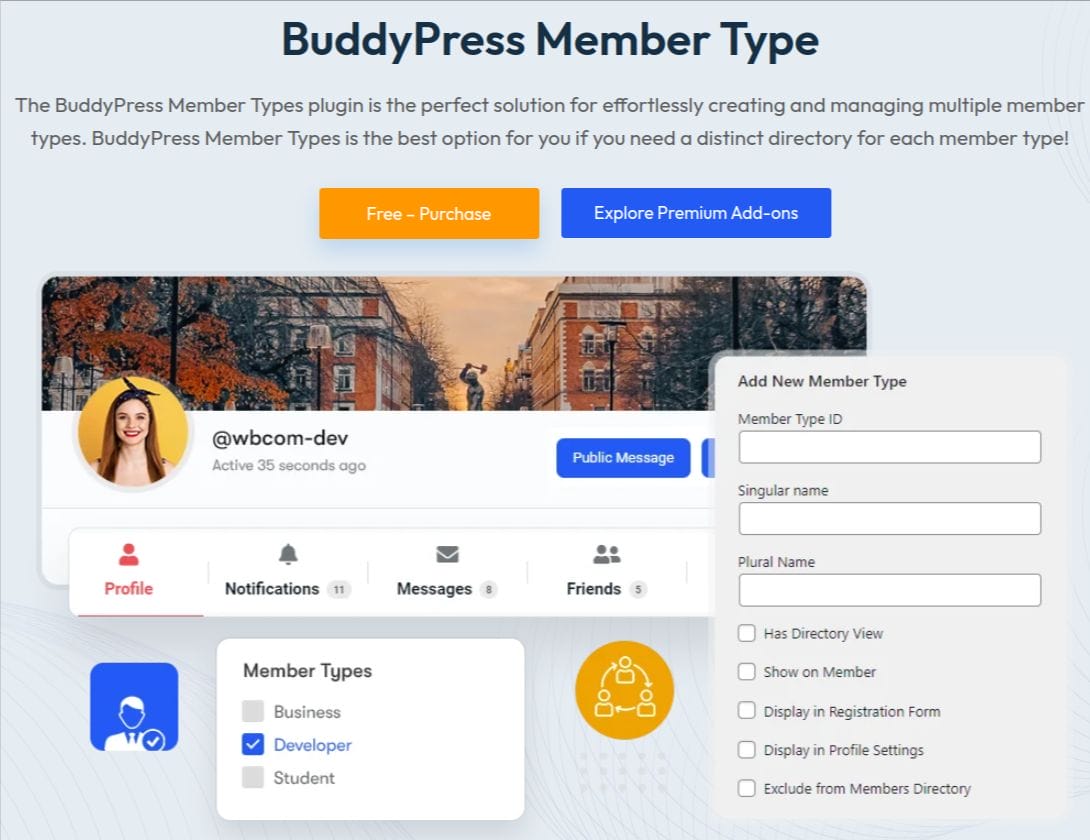
BuddyPress Member Type
The BuddyPress Member Type plugin by Wbcomdesigns is a WordPress plugin that enhances the functionality of BuddyPress, a popular WordPress plugin for building online communities. This plugin allows you to create and manage multiple member types in your BuddyPress community.
This plugin is a powerful tool for any BuddyPress community, offering a range of features that make managing member types easy and efficient. It’s definitely worth considering if you’re looking to enhance your BuddyPress community.
Key Features
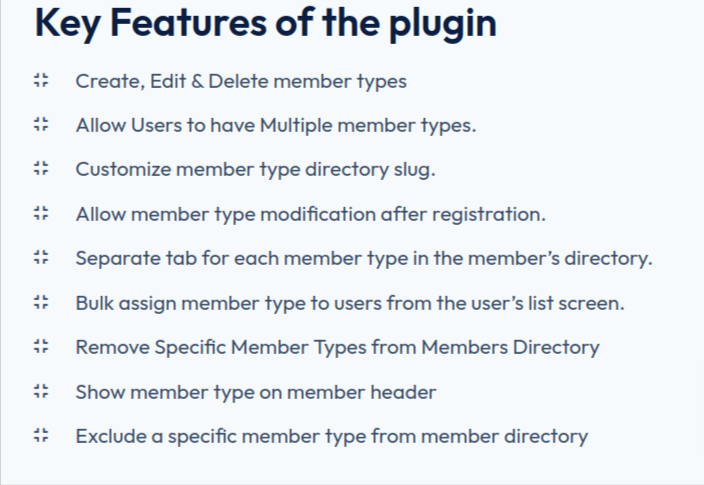
The BuddyPress Member Type plugin is an excellent choice for those who need to create and manage distinct member directories with ease. Here are the key features that make it the perfect solution:
1. Create, Edit & Delete Member Types: The plugin allows you to easily create new member types, edit existing ones, and delete those that are no longer needed, providing flexibility in managing your community’s structure.
2. Allow users to have multiple Member Types: Users can be assigned multiple member types simultaneously, enabling them to belong to different categories and participate in various aspects of the community.
3. Customize Member Type directory slug: You can customize the URL slug for each member type directory, making it easier to organize and navigate your site.
4. Allow Member Type modification after Registration: Members can modify their member type even after registration, ensuring their profile remains up-to-date with their current roles or statuses.
5. Separate tab for each Member Type in the members directory: The plugin adds a separate tab for each member type within the main member directory, allowing visitors to filter and view members by their types easily.
6. Bulk assign Member Type to users from the user’s List screen: Admins can efficiently assign member types to multiple users at once directly from the user list screen, saving time and effort.
7. Remove specific Member Types from the members directory: You can exclude specific member types from appearing in the general members’ directory, keeping certain groups private or restricted.
8. Show Member Type on Member Header: Display the member type on the user’s profile header, making it visible to others and enhancing the profile’s context.
9. Exclude a specific Member Type from the member directory: Ensure that certain member types do not appear in the member directory, which can be useful for special roles or private categories.
Previously you needed to write code to use all of the above mentioned features, but with the help of BuddyPress Member Type plugin it is one tap away.
Installation
1. You can make a free purchase of BuddyPress Member Type from wbcomdesigns.com.
2. Log in to the WordPress Dashboard.
3. On the Dashboard of your website, scroll down the left-hand sidebar and click on Plugins.
4. From the Installed Plugins page, click on Add New at the top of the page. Alternatively, click on Add New from the drop-down menu under Plugins on the sidebar.
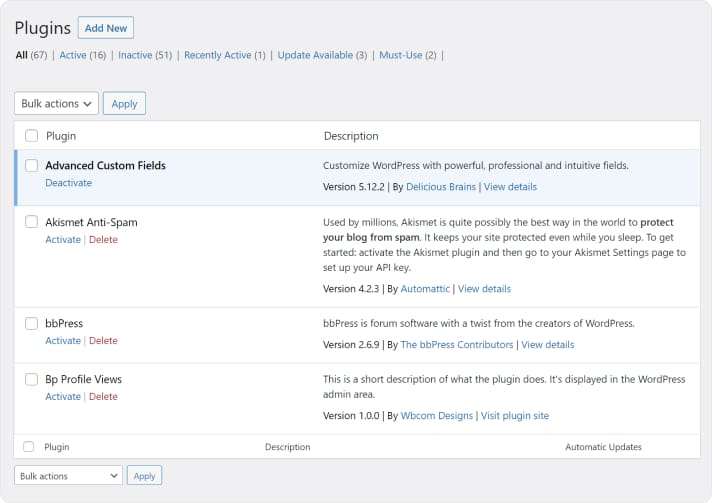
5. Upload the plugin.

6. The plugin is now installed and unpacked into your website. The last thing to do now is click to Activate the Plugin.
How to Create Member Types
1. Navigate to user > Member Type.
2. Now fill up the following information and click on add memeber types, don’t forget to choose “display in profile settings”.
3. Click on add member type to save.
4. Similarly you can create multiple member type up to your desired choice.
How to show member type field on users profile?

1. Navigate to WordPress Dashboard > Users > Profile Fields.
2. Go to the primary tab by default “Base” and click “Add New Field”.
3. Create New Field with the Type “Member Types”.
4. Set field as Required and Click “Save”.
Frotend View
You need to navigate to profile > edit > base field.
Enhance Your BuddyPress Community with Member Type Management
The BuddyPress Member Type plugin by Wbcomdesigns offers a comprehensive solution for creating and managing member types in your BuddyPress community. With its user-friendly features, you can easily categorize users, enhance their interaction experience, and maintain a well-organized community.It helps you to create, edit, or delete member types, allow users to have multiple member types, or customize the member type directory slug, this plugin simplifies the process and elevates your community management to the next level.
Interesting Reads: