

Creating and managing member types in BuddyPress involves a few different steps depending on how much control you actually need. BuddyPress ships with a basic interface for registering member types by default, but it’s genuinely limited: no bulk assignment, no directory filtering by type, no way for a member to update their own type after registering. If you want member types to actually function as a real organizational tool rather than a label nobody can see or filter by, the BuddyPress Member Type plugin by Wbcom Designs takes it considerably further.
Member types let you categorize users into different roles, students and teachers for an education community, buyers and sellers for a marketplace, or any custom classification that fits your specific community. That categorization matters more than it might seem on the surface. It lets you tailor the experience each group sees, organize interactions around the right audience, and keep user management from becoming an unstructured mess once a community grows past a few hundred members.
The distinction between a member type and a simple WordPress user role is worth clarifying up front, since the two get confused often. WordPress user roles control what a person can do on the backend, whether they can edit posts, manage plugins, or moderate content. Member types are a BuddyPress-level concept that describe who someone is within the community’s social structure, independent of their technical permissions. A “Premium Member” and a “Free Member” might have identical WordPress capabilities but very different member types, and that’s exactly the kind of distinction a role system alone can’t express.
BuddyPress Member Type
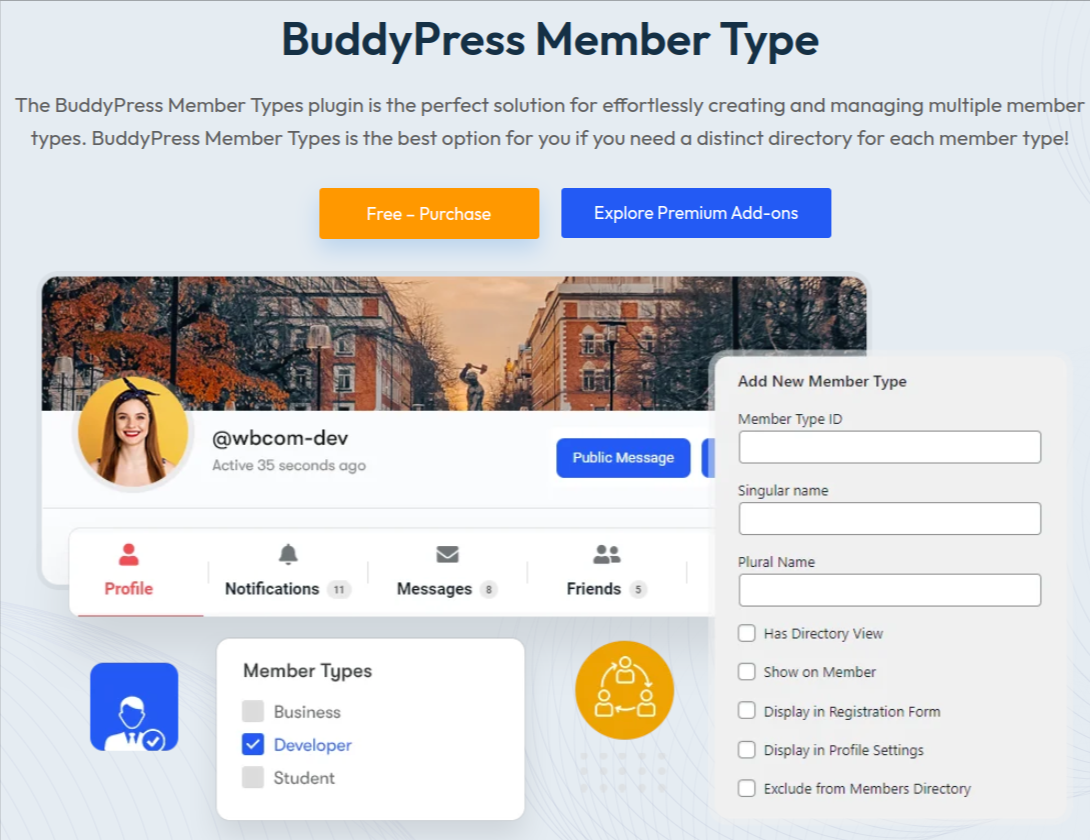
The BuddyPress Member Type plugin by Wbcom Designs extends BuddyPress with the tools needed to create and manage multiple member types across your community, entirely free. It fills the exact gap left by BuddyPress’s built-in member type system: the ability to actually use those types in a way visitors and members interact with directly, rather than a label buried in the admin dashboard that nobody outside of it ever sees.
This plugin has become a go-to for any BuddyPress community that needs more than a single undifferentiated member pool. Whether you’re running an education platform, a professional network, or a niche hobbyist community with distinct member roles, it’s worth a look if member categorization is part of how your community actually functions.
Key Features

The BuddyPress Member Type plugin is a strong choice for anyone who needs to create and manage distinct member directories without writing custom code. Here’s what it actually gives you:
1. Create, Edit & Delete Member Types: Add new member types, edit existing ones as your community’s structure evolves, and remove types that are no longer relevant, all without touching a line of code.
2. Allow Users to Have Multiple Member Types: A member isn’t always just one thing. Someone can be both a “mentor” and a “premium member” simultaneously, and the plugin supports assigning multiple types to a single user rather than forcing an artificial single-category choice.
3. Customize Member Type Directory Slug: Set a custom URL slug for each member type’s directory, which keeps your site’s URL structure clean and makes each member type directory easier to link to directly.
4. Allow Member Type Modification After Registration: Members can update their own member type after they’ve already registered, so a profile stays accurate as someone’s role or status within the community changes over time, without needing an admin to manually intervene every time.
5. Separate Tab for Each Member Type in the Members Directory: The plugin adds a dedicated tab for each member type inside the main members directory, letting visitors filter and browse members by type directly instead of scrolling through an undifferentiated list.
6. Bulk Assign Member Type to Users from the User List Screen: Admins can assign a member type to multiple users at once directly from the WordPress user list screen, which matters a lot when you’re migrating an existing community into a member-type structure for the first time.
7. Remove Specific Member Types From the Members Directory: Exclude a given member type from the general public directory entirely, useful for staff accounts, moderators, or any role that shouldn’t be publicly browsable alongside regular members.
8. Show Member Type on Member Header: Display a member’s type directly on their profile header, giving other members immediate context about who they’re interacting with without digging into a full profile.
9. Exclude a Specific Member Type From the Member Directory: A second layer of directory control, letting you keep specific categories, private groups, internal test accounts, anything sensitive, out of general browsing entirely.
Every one of these used to require custom development work to implement properly in BuddyPress. With this plugin, it’s a matter of a few clicks in the admin dashboard rather than a developer ticket.
Installation
1. Download BuddyPress Member Type for free from wbcomdesigns.com.
2. Log in to your WordPress Dashboard.
3. From the left-hand sidebar, click on Plugins.
4. From the Installed Plugins page, click Add New at the top, or use Add New from the Plugins drop-down menu in the sidebar.

5. Upload the plugin file you downloaded.

6. Once the plugin is installed and unpacked, click Activate Plugin to finish the process.
How to Create Member Types
1. Navigate to Users > Member Type in your dashboard.
2. Fill in the required information for your new member type, and be sure to check “display in profile settings” if you want the type visible on member profiles.
3. Click Add Member Type to save it.
4. Repeat the process to create as many member types as your community structure needs. There’s no hard limit built into the plugin, so a community with a dozen distinct roles can set all of them up the same way.
A practical tip here: name your member types the way you’d want them to appear to visitors, not the way you’d describe them internally in a planning document. “Certified Instructor” reads better on a public profile than an internal shorthand like “Tier 2 Educator,” even if the two mean the same thing to your team. Since the plugin displays these names directly in the directory tabs and on profile headers, the label you choose during setup is the one members and visitors will actually see everywhere the type appears.
How to Show the Member Type Field on User Profiles

1. Navigate to WordPress Dashboard > Users > Profile Fields.
2. Go to the default “Base” tab and click “Add New Field”.
3. Create a new field and set its type to “Member Types”.
4. Mark the field as Required if you want every member to have a type assigned, then click Save.
Front-End View
Once the field is set up, members can manage their own member type from the front end by navigating to Profile > Edit > Base field, where the member type selector appears alongside their other editable profile fields. This front-end access matters more than it might seem: it means a member whose role genuinely changes, a student who graduates and becomes an alumni mentor, for instance, can update their own status without filing a request and waiting on an admin to make the change manually.
What Happens if You Skip Member Types Entirely
It’s worth being honest about what a flat, undifferentiated member directory actually costs a growing community. Visitors browsing an unstructured directory of a few thousand members have no efficient way to find the specific kind of person they’re looking for, a mentor, a specific specialty, a particular membership tier, without scrolling indefinitely or relying entirely on search. That friction quietly discourages the kind of intentional connection-making that makes a community valuable in the first place, and it pushes members toward using external tools, a spreadsheet, a separate directory site, to solve a problem their own community platform should have handled natively.
There’s an admin cost too. Without member types, distinguishing between different categories of users for announcements, permissions, or reporting means either manually tracking a separate list outside BuddyPress entirely or relying on custom user meta that requires a developer to query. Member types give that distinction a native, queryable structure that both the admin dashboard and the front end can use consistently, which matters more the larger a community gets.
Common Use Cases for Member Types
Member types aren’t just a cosmetic label. They open up several practical patterns once they’re properly wired up:
- Education platforms can separate students, instructors, and teaching assistants, giving each group a distinct directory and profile presentation that matches their actual role.
- Marketplace or service communities can distinguish buyers from sellers or providers from clients, making it immediately clear who’s who when members browse the directory.
- Membership tiers like free, premium, and VIP can be represented as member types, giving each tier its own directory tab and visible badge on the profile header.
- Professional networks can separate members by industry, certification level, or job function, letting visitors filter directly to the group they’re actually looking for instead of scrolling an undifferentiated list.
- Staff and moderator roles can be set up as member types excluded from the public directory, keeping internal accounts out of general browsing while still using the same underlying system as public-facing types.
Handling Migration if You Already Have an Active Community
Adding member types to a community that’s already been running for a while, rather than one that’s brand new, comes with its own set of practical considerations. Existing members won’t automatically have a type assigned once you create your categories, so you’ll need a plan for backfilling that data. The bulk assignment feature from the user list screen becomes genuinely essential here, letting you sort existing users by whatever criteria you already have, registration date, a custom field, an existing tag, and assign types in batches rather than one member at a time.
For communities where the right member type isn’t obvious from existing data, sending a short announcement asking members to self-select their type through their profile settings, rather than guessing on their behalf, tends to get better results and avoids the awkwardness of assigning someone a category they don’t actually identify with. Combining both approaches, bulk-assigning where the data is clear and asking members to self-select where it isn’t, usually gets a full community migrated to a working member type structure within a week or two rather than dragging out indefinitely.
Planning Your Member Type Structure Before You Build It
It’s worth thinking through your member type structure before creating a dozen types on impulse. A few too many overlapping categories, “Student,” “New Student,” “Active Student,” “Graduate,” quickly becomes confusing for members trying to figure out which one applies to them, and confusing for admins trying to keep bulk assignment consistent. Starting with the smallest set of types that actually captures a meaningful distinction, then adding more only once a real need shows up, keeps the system usable as your community scales.
It also helps to decide upfront whether member types will be self-selected during registration, admin-assigned after review, or some mix of both. A community where membership tier reflects a paid subscription level generally needs admin or automated assignment tied to the payment system, while a community organized around interest areas or professional roles often works fine letting members choose their own type and update it later as it changes.
Why the Built-In BuddyPress Member Type System Falls Short
BuddyPress has technically supported member types at the code level for years, but that support was built primarily for developers, not site owners. Registering a member type out of the box requires writing PHP directly into a theme’s functions file or a custom plugin, using the bp_register_member_type() function with a specific set of arguments. There’s no admin screen for it by default, no way for a non-technical site owner to add a new type without a developer, and critically, no built-in way for the directory or profile pages to actually reflect that type visually without additional custom template work.
That gap is exactly why a dedicated plugin matters here. It’s not that BuddyPress lacks the underlying concept of member types, it’s that using that concept in any way a real site owner can manage without coding requires exactly the kind of admin interface, directory integration, and front-end self-service that a purpose-built plugin adds on top.
Keeping Member Types Consistent as Your Community Grows
A member type system that works well for two hundred members can get messy at two thousand if nobody’s keeping an eye on how it’s being used. A few habits keep things clean as a community scales. Periodically audit how many members fall into each type; a type with a single member after a year probably isn’t earning its place in the directory tabs and might be better merged into a broader category. Keep type names consistent in tone and format, since a mix of formal (“Certified Practitioner”) and casual (“Newbie”) type names looks inconsistent and can make a directory feel less polished than it should.
It’s also worth revisiting your member type structure whenever the community’s purpose shifts. A hobbyist forum that starts adding paid tiers, or an education platform that adds a new certification track, often needs new member types to reflect that change, and retrofitting a type structure after members have already been active for a while is more work than planning for likely future categories from the start, even if you don’t create them immediately.
Combining Member Types With Other BuddyPress Customization
Member types work well as one piece of a broader profile and directory customization strategy rather than an isolated feature. Pairing member type display with custom profile fields lets you show different information for different types, a “Teacher” profile might surface a bio and credentials prominently, while a “Student” profile emphasizes courses enrolled and progress instead. Combining member type filtering with search and sort options in the directory gives visitors a genuinely useful way to find exactly the kind of member they’re looking for, rather than a flat list that gets unwieldy past a few hundred entries.
For communities running a BuddyPress-focused theme, checking how member type badges and directory tabs render visually is worth a quick pass after setup. A member type badge that clashes with a theme’s color scheme or a directory tab that doesn’t match the site’s overall design can undercut an otherwise well-organized structure, so a few minutes of visual polish after the functional setup is complete pays off in how professional the finished directory actually looks to visitors.
Enhance Your BuddyPress Community With Member Type Management
The BuddyPress Member Type plugin by Wbcom Designs offers a genuinely comprehensive, free solution for creating and managing member types in your BuddyPress community. With straightforward features covering creation, bulk assignment, directory organization, and front-end self-management, it turns member types from an underused BuddyPress feature into a real organizational tool that members and admins alike can actually work with. Whether you need to separate students from teachers, buyers from sellers, or simply give your community better structure as it grows, this plugin handles the mechanics so you can focus on the community itself rather than custom development work.
Setting it up properly takes an afternoon at most for a straightforward structure, less if you already know exactly which categories your community needs. The payoff, a directory members can actually navigate, profiles with real context, and an admin dashboard that reflects how your community is actually organized, is worth that small upfront investment for almost any BuddyPress site past its earliest, smallest stage.