

Communication is the foundation of any online community, and BuddyPress gives members a place to share thoughts, activity updates, and reactions across a WordPress-powered social network. But text alone doesn’t always carry the tone or emotion behind a message. A status update that reads flat on the page can land completely differently once a mood icon or reaction is attached to it. Emojis in BuddyPress fill that gap, and this guide walks through how to actually set them up and use them well in a real community.
What Are Emojis?

Emojis are small digital icons used to express emotions, ideas, or objects in electronic communication, and they’ve become a genuine shorthand in how people communicate online. Rather than typing out “I’m really happy about this,” a single icon carries the same meaning faster and often more clearly. BuddyPress itself doesn’t include mood icons or reaction buttons in its default activity stream, but the BuddyPress Status plugin by Wbcom Designs adds exactly that layer on top, letting members set a mood, react to posts, and add visual tone to activity updates without any custom development.
How to Use Emojis in BuddyPress Activities
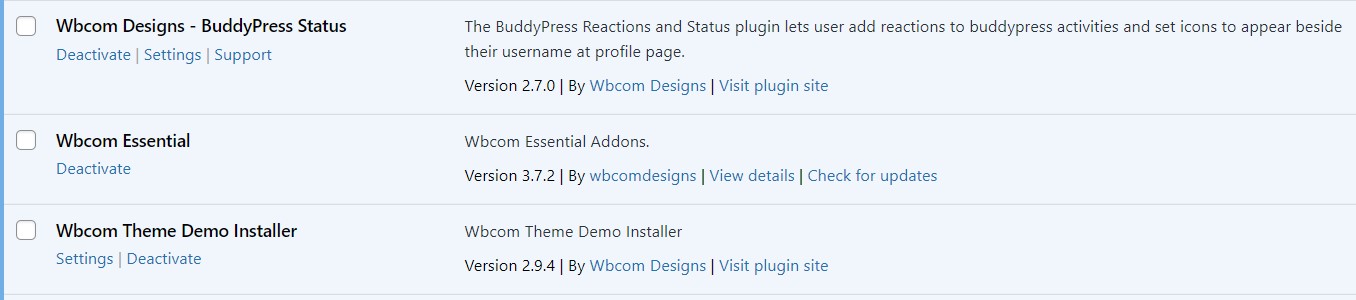
1. Install and Activate the BuddyPress Status Plugin
Get the plugin here, then head to Plugins in your WordPress Dashboard, click Add New, then Upload Plugin.
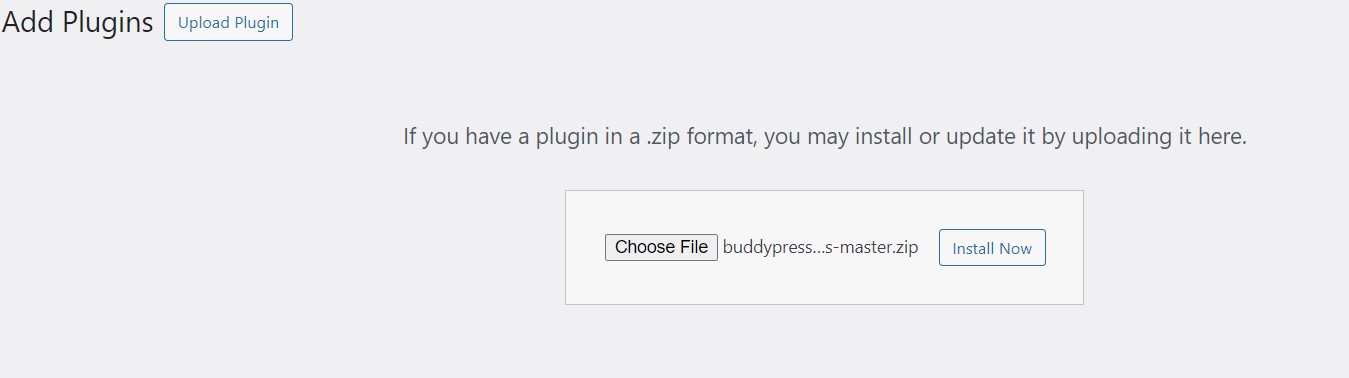
Select your ZIP file by clicking Browse or dragging and dropping it, then click Install Now. Once installation finishes, hit Activate and the plugin is ready to configure.
2. Configure Plugin Settings
Go to Dashboard > WB Plugins > BP Status > General.
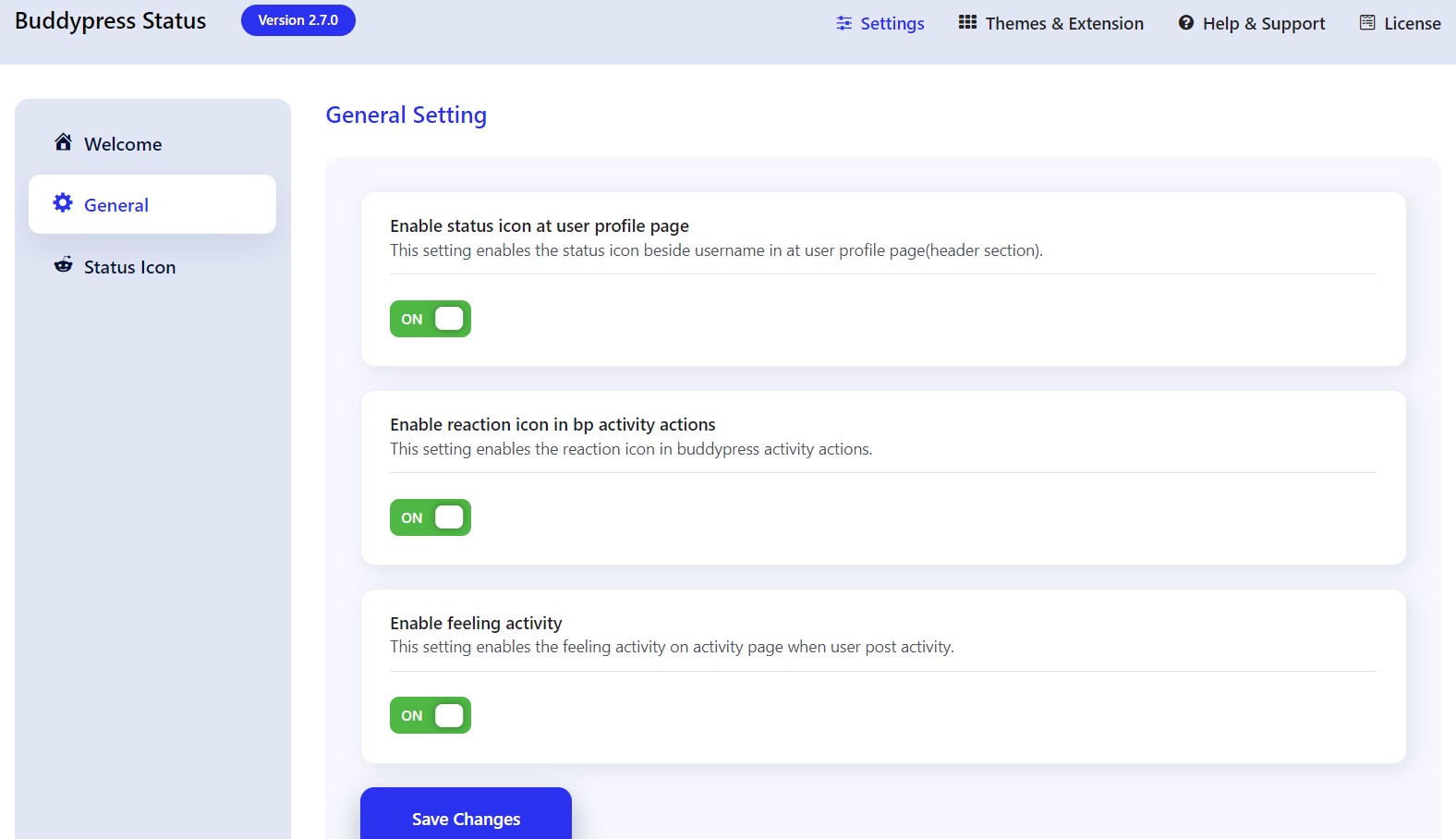
Enable status icon in activity loop: Shows the status icon beside a member’s username in the main activity feed.
Enable status icon on user profile page: Shows the status icon beside the username in the profile header.
Enable reaction icon in BP activity actions: Turns on the reaction icon within BuddyPress activity actions, so members can react directly to a post.
3. Updating Status in the Profile Tab
Members can update their status and mood directly from their own profile page. A dedicated profile status tab appears where they set what they’re currently doing or feeling.
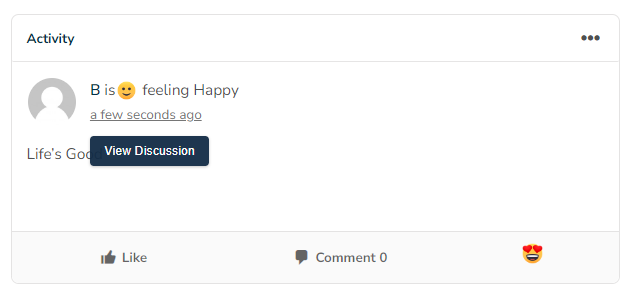
4. Setting a Mood on Activity Updates
From the activity page, members click to post an update and use the emoji icon to set a mood alongside the text, celebrating a birthday, watching a movie, having a rough day. That mood icon shows up next to the post, giving other members a quicker read on the tone before they even finish reading the text.
5. Reacting to Activity
Members can react to any activity post with a single click on the reaction icon, which appears on every post once the setting is enabled.
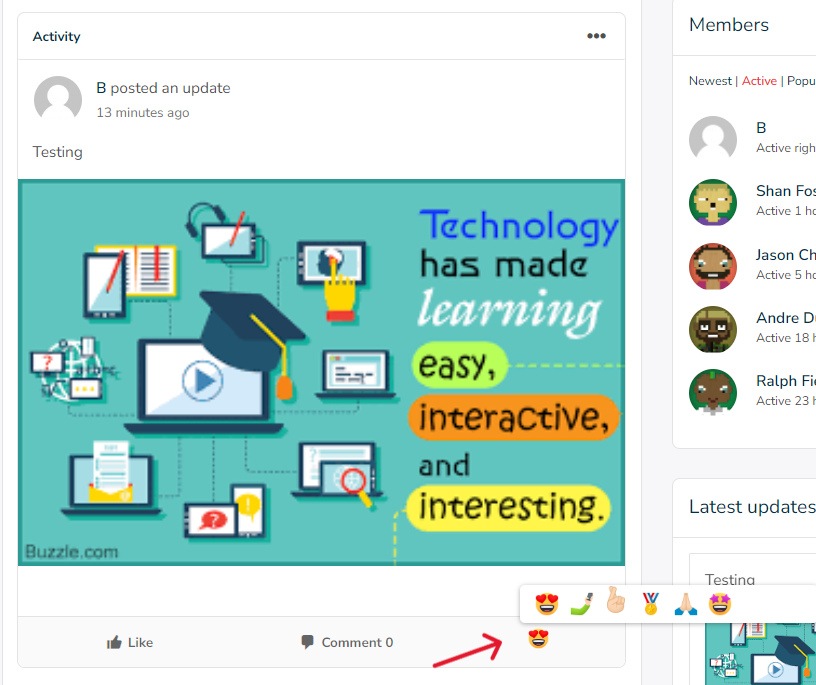
6. Admin Control Over Reactions and Statuses
Site admins keep full control over the reactions and status features from the backend. They can add, edit, delete, and manage which reactions and status icons are available to members, which matters for keeping the icon set consistent with the community’s tone rather than letting it sprawl unmanaged over time.
Benefits of Using Emojis in BuddyPress Activities
Enhanced communication. Emojis help convey emotion and tone more accurately, cutting down on the misreadings that happen when a short text update gets interpreted the wrong way. A visual cue attached to a post gives other members a faster, clearer read on how something was actually meant.
Increased engagement. A little personality in a post makes it more inviting to respond to. The playful, expressive nature of emoji reactions tends to draw people into a conversation they might have scrolled past as plain text.
Improved user experience. A feed with visual variety, mood icons, reaction counts, feels more alive than a wall of plain text updates, and that visual texture makes browsing the activity stream more enjoyable rather than repetitive.
Faster communication. A single reaction icon replaces a full sentence of acknowledgment. Members can respond to something instantly without composing a reply, which lowers the barrier to participating at all.
Broader accessibility across language differences. A well-chosen emoji often communicates the same thing regardless of what language a member reads or writes in, which helps a genuinely multilingual community stay connected without every interaction depending on a shared language.
Why Reaction Features Matter More Than They Look Like They Should
It’s easy to dismiss a reaction button as a minor cosmetic add-on, but the data from larger social platforms tells a different story. Reactions consistently lower the barrier to participation more than any other single feature, because responding to something takes one click instead of composing a reply. A member who wouldn’t take the time to write “great post” will still tap a reaction icon on their way past, and that low-effort interaction is often the first step toward becoming a more active, commenting member later.
For a community still building momentum, that matters directly. Early activity feeds can feel quiet even when members are actually reading and engaging silently. Reactions surface that silent engagement visibly, which does two things at once: it gives the original poster real feedback that their content landed, and it shows other visitors that the community is actually active rather than a ghost town with a handful of old posts.
Real Examples of How Communities Use This
A fitness or wellness community might use mood icons to let members flag a workout as tough, a milestone as a celebration, or a rest day as intentional rather than lazy, giving context that a plain status update wouldn’t carry on its own. A support-focused community, patients managing a health condition, parents in a specific stage of parenting, benefits from a gentler default reaction set that leans toward encouragement rather than the more playful options that would feel out of place on a difficult post.
A creative or hobbyist community, photography, writing, crafting, tends to get the most mileage out of the full expressive range, since reactions there double as lightweight feedback on shared work without requiring a full written critique every time. Matching the icon set to the actual emotional register of your community’s content, rather than defaulting to whatever ships out of the box, is what makes the feature feel native instead of bolted on.
Setting Up Custom Mood Icons
Beyond the default set, most reaction plugins, including BuddyPress Status, support adding custom icons that fit your community’s specific culture or inside jokes. A community built around a specific hobby, game, or shared interest often benefits from one or two custom icons that reference something specific to that group, which tends to get noticeably more use than a generic default because it signals genuine belonging rather than a stock feature.
Keep custom additions deliberate rather than unlimited, though. A reaction palette with two or three dozen options becomes harder to scan at a glance than one with six or eight well-chosen icons, and the paradox of choice applies here just like anywhere else, more options can mean less actual engagement if members spend time deciding which icon to use instead of just reacting.
Setting Sensible Defaults for Your Community
Not every icon set fits every community, and the default reaction library that ships with most plugins is a starting point, not a fixed requirement. A professional networking community probably wants a smaller, more restrained set of reactions than a hobbyist fan community where playful, expressive icons fit the tone naturally. Take a pass through the available icons after installation and trim or curate the set to match how your specific members actually talk to each other.
Keep an eye on which reactions actually get used once the feature is live. If one or two icons account for nearly all activity while a dozen others sit unused, that’s useful signal for what your members actually want to express, and it’s worth revisiting the available set periodically rather than treating the initial configuration as permanent.
Common Mistakes When Adding Reactions
The most common mistake is enabling every default option without curating anything, then wondering why engagement doesn’t move much. A generic, unreviewed icon set feels like a bolted-on feature rather than something built for the specific community using it. Spend the time to review and trim the defaults before launch rather than treating installation as the finish line.
A second mistake is announcing the feature once and assuming members will find it on their own. Reaction features benefit from a visible nudge, a pinned post modeling how to use it, a short announcement explaining what changed, since members scrolling past a new icon they don’t recognize often ignore it entirely rather than exploring what it does.
A third mistake is never revisiting the configuration after initial setup. Communities evolve, and an icon set that fit the community at launch might feel outdated or mismatched a year later as the membership and content style shift. Treat the reaction set as something to periodically review, not a one-time decision made during onboarding and never touched again.
Measuring Whether the Feature Is Actually Working
Once reactions and mood icons are live, watch a few specific signals rather than assuming the feature is automatically helping. Track how many posts get at least one reaction compared to before the feature launched, since a rise there indicates members are engaging with content they previously scrolled past silently. Watch whether posts with reactions attract more comments too, since reactions often function as a gateway that pulls members into deeper engagement rather than replacing comments outright.
If engagement doesn’t move after a reasonable rollout period, revisit the icon set and placement rather than assuming the feature itself failed. A reaction button buried below the fold on a long activity item, or an icon set that doesn’t match how your members actually talk, can suppress adoption even when the underlying feature works exactly as designed.
Moderation Considerations
Reaction and mood features are generally low-risk compared to open-ended comments, since members are selecting from a fixed set of icons rather than typing freeform text, but it’s still worth thinking through a couple of edge cases. Decide in advance whether reactions on sensitive posts, a member sharing bad news, for instance, should be limited to supportive icons rather than the full default set, since a lighthearted reaction icon can land badly on the wrong kind of post.
If your plugin setup allows custom icon uploads, review anything a moderator or admin adds to the shared set before it goes live community-wide, the same basic image moderation discipline you’d apply to any other user-facing upload on the site.
Reaction spam is a smaller but real consideration on very large or high-traffic communities. A handful of members repeatedly reacting to the same content in ways clearly meant to game a leaderboard or points system, if your community runs one, is worth watching for. Most reaction plugins limit a single member to one reaction per post by default, which handles the majority of this concern without any extra configuration needed.
Accessibility Notes
Emoji and reaction icons should include proper alt text or accessible labels so screen reader users get a meaningful description rather than silence or a raw character code. When configuring or customizing the icon set, check that each option has a clear, descriptive label attached, not just a visual icon, so the feature genuinely works for every member of the community rather than only the ones browsing visually.
Color contrast matters too, particularly for reaction counts or status indicators layered on top of profile photos or colored backgrounds. Test the feature against your theme’s color palette to confirm icons and counts stay legible rather than blending into the background at a glance.
Keyboard navigation deserves a check as well, since not every member interacts with a community site using a mouse or touchscreen. Confirm reaction and mood icons can be reached and activated via keyboard focus, not just click or tap, so members relying on assistive navigation aren’t locked out of a feature everyone else on the site takes for granted.
Frequently Asked Questions
Does BuddyPress support emojis and reactions natively without a plugin?
Not the structured version, mood icons on posts, dedicated reaction buttons on activity items. Standard emoji characters typed directly into a text field will display fine in most modern browsers, but the visual mood-setting and reaction system covered here requires a plugin like BuddyPress Status.
Can admins customize which reaction icons are available?
Yes. Admins can add, edit, and remove reaction and status icons from the backend, which lets a community curate a set that actually fits its tone rather than being stuck with generic defaults.
Will adding reactions slow down the activity feed?
A well-built reaction plugin adds negligible overhead for typical community sizes. For very high-traffic communities, it’s worth confirming the plugin caches reaction counts efficiently rather than recalculating them on every page load.
Is this feature appropriate for a professional or business-focused community?
Yes, with a curated icon set. Trimming the default reactions down to a more restrained, professional set, acknowledgment, agreement, appreciation, works well even in communities that wouldn’t want a full playful emoji library on display.
Can members remove or change their reaction after posting it?
This depends on the specific plugin configuration, but most reaction systems allow a member to change or remove their own reaction the same way social platforms do. Check your plugin’s settings to confirm this behavior matches what your community expects.
Do reactions and mood icons work the same way on mobile as on desktop?
A well-built plugin renders responsively across devices, though it’s worth testing the actual tap targets on a phone screen specifically, since a reaction icon that’s easy to click with a mouse can be frustratingly small to tap accurately on a touchscreen.
Should every activity type support reactions, or just status updates?
That depends on your community’s content mix. Some site owners enable reactions broadly across all activity types for consistency, while others limit them to specific content, like status updates or shared media, where a quick reaction genuinely adds value rather than cluttering every single system-generated activity notification.
Embrace Emojis for Enhanced Communication and Engagement
Emojis in BuddyPress genuinely improve communication, engagement, and the overall feel of an active community. They help members express tone and emotion more clearly, encourage faster and more frequent interaction, and add a layer of personality that plain text updates alone don’t carry. Set up thoughtfully, with a curated icon set and basic accessibility and moderation considerations addressed, emojis make a BuddyPress community feel more alive and more genuinely connected.
The setup itself takes minutes. What actually determines whether the feature succeeds is the follow-through: choosing icons that fit your community’s actual tone, announcing the feature so members notice it, and revisiting the configuration periodically as the community grows and changes. Get that follow-through right, and a small feature like reactions ends up doing real work toward making the community feel like a place people want to keep coming back to.
Interesting Reads
How to Create a Facebook-like Page in BuddyPress