

Customer expectations are higher than ever, and convenience isn’t the only thing shoppers value — personalization is just as important. According to Epsilon research, 80% of customers are more likely to purchase from a brand that offers a personalized experience. For WooCommerce store owners, this means going beyond the default checkout form and tailoring it to capture the exact information your business needs.
That’s where the ability to Add Custom Fields to WooCommerce Checkout comes in. Whether it’s asking customers for delivery instructions, gift messages, special customization requests, or preferences for subscription renewals, custom checkout fields allow you to create a frictionless, brand-aligned buying process.
In this guide, you’ll learn what custom checkout fields are, why they matter for your store’s growth, and exactly how to set them up using the official WooCommerce Checkout Add-Ons plugin. Plus, we’ll cover some pro tips to ensure your checkout customization improves user experience and boosts conversions.

What You Can Achieve by Adding Custom Fields to Checkout
WooCommerce’s default checkout form covers the basics—name, address, email—but it often falls short when your store needs something more specific. Adding custom checkout fields lets you tailor the buying experience to your products, customers, and workflow.
With custom fields, you can:
- Capture delivery instructions such as gate codes, apartment numbers, or safe-drop preferences.
- Offer value-added services like gift wrapping, personalized messages, or engraved text.
- Collect business-specific details such as PO numbers, tax IDs, or internal customer codes for B2B orders.
- Include compliance confirmations for age-restricted or regulated products.
- Add marketing opt-ins for newsletters, loyalty programs, or SMS updates.
The result? Smoother deliveries, fewer post-order clarifications, and a more personalized shopping experience that makes customers feel valued instead of limited by a one-size-fits-all form.
Why Add Custom Fields to WooCommerce Checkout?
Adding extra fields isn’t about making checkout longer — it’s about making it more relevant. Done right, it improves efficiency for both you and your customers.
1. Enhance the Customer Experience
When customers can provide exactly what you need upfront — like a preferred delivery slot or product customization — they feel more in control of their purchase. This reduces post-purchase communication and speeds up order fulfillment.
2. Reduce Follow-Up Emails
Without the right information at checkout, you might need to chase customers for details after they’ve placed an order. That’s extra time and effort for your team, and it can delay delivery.
3. Boost Conversions
According to the Baymard Institute, 69.99% of online shopping carts are abandoned. By tailoring your checkout form to your product and customer type, you can remove unnecessary steps and add only relevant questions — keeping the process smooth and quick.
4. Improve Order Accuracy
Custom fields ensure that orders arrive exactly as the customer intended, whether that’s a personalized engraving or dietary restriction. This reduces returns and increases satisfaction.
5. Create Marketing Opportunities
With consent, you can use custom fields to capture marketing preferences, event attendance confirmations, or survey responses, helping you segment customers for future campaigns.
How to Add Custom Fields to WooCommerce Checkout (Step-by-Step)
There are multiple ways to add custom fields, including code snippets, but the easiest, most reliable option — especially for non-developers — is to use the official WooCommerce Checkout Add-Ons plugin.
This plugin lets you add, edit, and manage custom fields without touching code, and it integrates seamlessly with your checkout flow.
Step 1: Install and Activate WooCommerce Checkout Add-Ons
-
Purchase the plugin from the WooCommerce Marketplace.
-
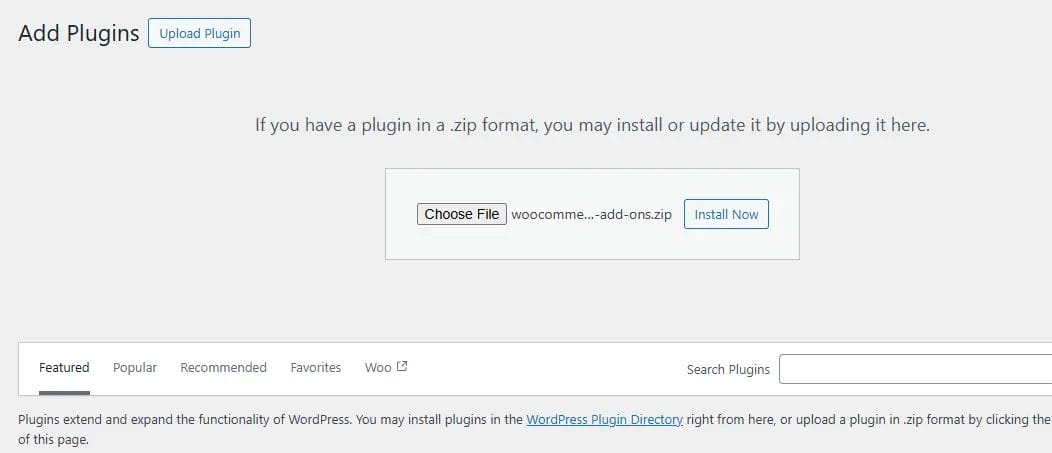
Download the
.zipfile and upload it to your WordPress dashboard under Plugins → Add New → Upload Plugin.

-
Activate the plugin once installed.
Step 2: Navigate to Checkout Add-Ons Settings
-
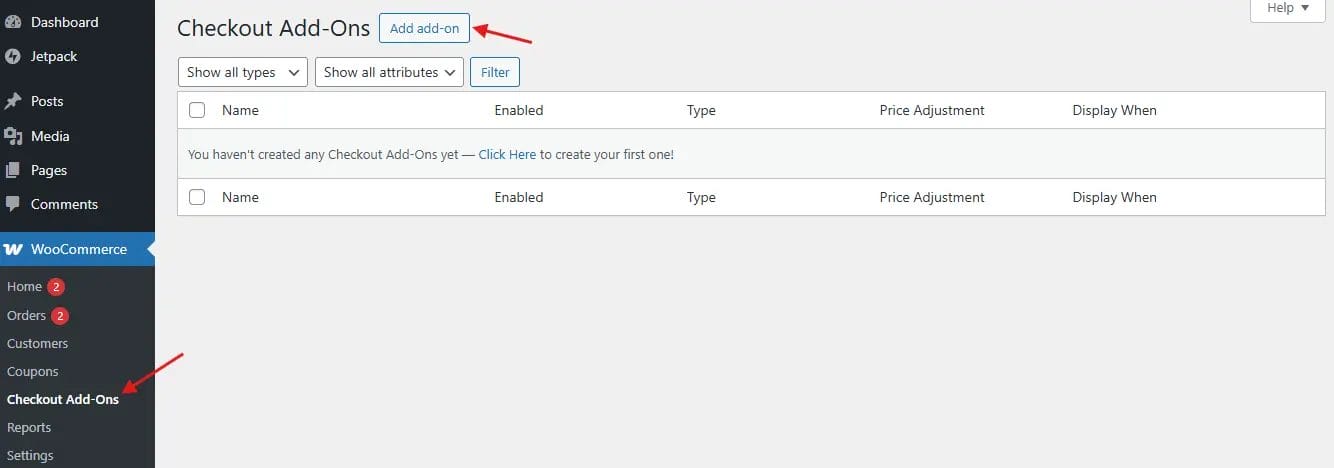
Go to WooCommerce → Checkout Add-Ons in your WordPress admin panel.

-
You’ll see a list of existing checkout fields (if any) and an option to create new ones.
Step 3: Add a New Custom Field
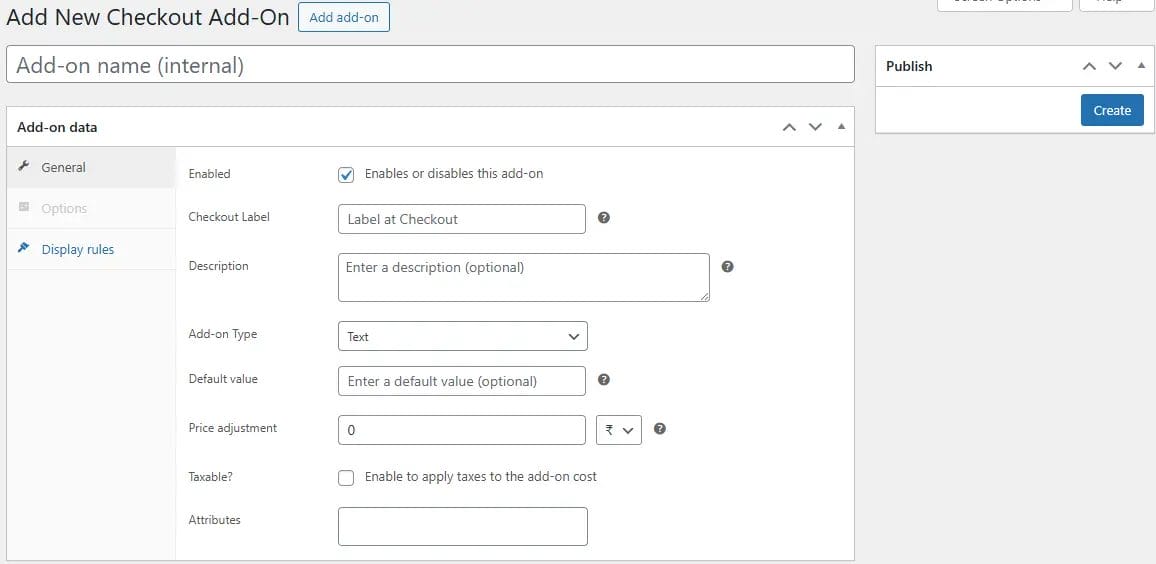
Click Add Field and choose the type of field you want to add:
-
Text — for short input (e.g., “Enter your preferred delivery time”).
-
Textarea — for detailed input (e.g., “Add gift message”).
-
Select — for dropdown menus (e.g., “Choose delivery method”).
-
Checkbox — for agreements or optional extras.
-
File Upload — for allowing customers to attach files.
Step 4: Configure Field Settings
When adding a new field, you can:
-
Label the field clearly (this will appear on the checkout page).
-
Set field position (above payment, after billing, etc.).
-
Mark as required or optional, depending on necessity.
-
Add a price if it’s an upsell (e.g., gift wrapping for $5).
-
Control visibility for certain products, categories, or user roles.
Step 5: Test the Checkout Flow
Always place a test order to make sure:
-
The field displays where you expect it.
-
It collects data correctly.
-
Information appears in the order details on the backend and in customer emails.
Best Practices for Adding Custom Fields to WooCommerce Checkout
Custom fields can elevate the shopping experience, but too many can clutter your checkout and hurt conversions. To get the best results, follow these proven tips:
1. Only Request Essential Information: Focus on collecting details that directly support order fulfillment or enhance the customer experience. Unnecessary questions slow down the process and risk cart abandonment.
2. Apply Conditional Logic: Make your checkout smarter by showing fields only when they’re relevant. For example, display a “Preferred Delivery Time” option only for products that require scheduling.
3. Write Clear, Customer-Friendly Labels: Avoid technical jargon. Instead of “Delivery Preferences,” use “Choose Your Delivery Day and Time” for better clarity.
4. Optimize for Mobile Shoppers: A large portion of customers check out on mobile. Use easy-to-tap field types like dropdowns and checkboxes instead of long text fields.
5. Add Value with Optional Extras: Offer upsell opportunities — such as gift wrapping, priority shipping, or extended warranties — as optional fields with clear pricing so customers can choose to enhance their order.
Examples of Custom Checkout Fields You Can Add
The right custom fields depend on your products, customers, and business needs. Here are some practical ideas by store type:
Gift Stores
- Gift message box for personal notes
- Gift wrapping selection with pricing options
Food & Beverage
- Dietary preference dropdown (e.g., vegetarian, vegan, gluten-free)
- Spice level selector
- Delivery date and time slot picker
B2B Supplies
- Purchase order number field
- Department or cost center name
Custom Products
- File upload for design references
- Engraving or personalization text field
- Special instructions box
Event Bookings
- Attendee name list
- Meal choice selector
- Seating or table preference field

Turn Your Checkout Into a Conversion Booster
Adding custom fields to your WooCommerce checkout isn’t just about collecting extra information — it’s about creating a smoother, more personalized shopping experience. When customers can share their preferences upfront, you reduce order errors, speed up fulfillment, and strengthen brand loyalty.
With the WooCommerce Checkout Add-Ons plugin, you can set up these fields in minutes without touching code. The payoff? A checkout process that works harder for your business and delights your customers.
Need expert help to tailor your WooCommerce checkout to your exact requirements?
Explore our Custom WooCommerce Development Services
Interesting Reads:
How to Enable One-Click Product Reorders in WooCommerce
How to Add Product Brands to Your WooCommerce Store In 2025
10 Best WooCommerce Reporting and Analytics Plugins for 2025

