

Have you recently opened your website only to be greeted by a disconcerting “Not Secure” warning in the browser’s address bar? If so, you’re not alone. Many website owners encounter this exact message and feel unsure about what steps to take next. The good news is that you can fix the ‘Not Secure’ website warning by following a few structured steps, which are both effective and straightforward.
When browsers like Google Chrome or Mozilla Firefox display a ‘Not Secure’ label, they are alerting users that the site is not using HTTPS, a secure communication protocol that encrypts data exchanged between your website and its visitors. In other words, the information transmitted—like passwords, email addresses, or payment details—is vulnerable to interception. This can lead to a significant trust deficit, lower conversion rates, and even reduced search engine visibility.
So, what’s causing this issue? The primary culprit is the absence of a valid SSL certificate. SSL (Secure Sockets Layer) certificates are essential for creating a secure HTTPS connection. Without it, browsers fall back to HTTP, which lacks encryption and security.
Before diving into the steps, it’s important to understand the urgency. Fixing the ‘Not Secure’ website warning isn’t just about aesthetics or scaring away visitors. It’s about safeguarding user data, improving SEO rankings, and complying with industry best practices.

Quick Links
Understanding SSL and HTTPS: The Backbone of Website Security
To fix the ‘Not Secure’ website warning effectively, you first need to understand what SSL and HTTPS are. SSL, or more accurately TLS (its modern version), is a protocol that encrypts data transferred over the internet. When implemented correctly, it transforms HTTP into HTTPS—an encrypted and secure version of the protocol.
HTTPS offers several advantages beyond security. It builds trust with users, improves your website’s credibility, and is even considered a ranking factor by Google. This means that fixing the warning doesn’t just protect your visitors; it also boosts your online visibility.
Understanding the ‘Not Secure’ Warning
The “Not Secure” warning appears when a website uses HTTP instead of HTTPS. HTTP, or HyperText Transfer Protocol, transmits data in plain text, making it vulnerable to interception by malicious actors. HTTPS, on the other hand, adds a layer of encryption through SSL/TLS (Secure Sockets Layer/Transport Layer Security), ensuring data privacy and integrity.
Browsers like Google Chrome, Firefox, and Safari flag HTTP sites as “Not Secure” to alert users about potential risks, especially on pages collecting sensitive information like passwords or credit card details.
This warning can deter visitors, harm your brand’s reputation, and negatively impact your search engine rankings, as Google prioritizes HTTPS-enabled sites. Understanding why this warning appears is the first step toward fixing it and enhancing your website’s trustworthiness.
Why HTTPS Matters for Your Website
HTTPS is more than a technical requirement; it’s a cornerstone of user trust and website performance.
- Enhances User Trust: HTTPS encrypts data between the user’s browser and your server, safeguarding sensitive information from eavesdroppers.
- Protects Sensitive Data: Without HTTPS, sites—especially e-commerce platforms—risk exposing customer payment details, leading to potential data breaches and a loss of trust.
- Improves SEO Rankings: Google has considered HTTPS a ranking factor since 2014, meaning secure sites are more likely to appear higher in search results.
- Ensures Data Integrity: HTTPS prevents attackers from tampering with the data or content that users see on your site.
- Enables Full Browser Functionality: Modern browsers restrict features like geolocation, push notifications, and service workers on non-HTTPS sites.
- Delivers a Safer Experience: HTTPS creates a secure, trustworthy, and more reliable environment for all users.
Step-by-Step Guide to Fix the ‘Not Secure’ Website Warning
The process of resolving this issue involves several crucial steps. Each one plays an integral role in transitioning your site from HTTP to HTTPS and ensuring everything functions smoothly.
1. Purchase or Obtain an SSL Certificate
Your first step is acquiring an SSL certificate. There are both free and paid options available. Let’s Encrypt is a popular free provider, suitable for personal blogs and small businesses. For e-commerce sites or platforms handling sensitive data, a paid SSL certificate from providers like DigiCert, Comodo, or GlobalSign may offer enhanced validation and warranty.
Once you’ve chosen a certificate provider, follow their installation instructions. Many hosting providers offer one-click SSL activation, which makes the process simple and fast. If you’re unsure, reach out to your hosting support for assistance.
2. Install the SSL Certificate on Your Web Server
After obtaining the certificate, it must be installed on your web server. If you’re using cPanel, Plesk, or a similar control panel, installation is usually straightforward. In most cases, you’ll upload the certificate files, assign them to your domain, and restart your server.
For managed hosting platforms like Bluehost, SiteGround, or WP Engine, SSL activation can often be done with a toggle or auto-installer. Remember, your goal is to secure all versions of your domain (e.g., www and non-www) under HTTPS.
3. Update All Website URLs to HTTPS
Once the SSL certificate is installed, you must redirect all HTTP traffic to HTTPS to ensure users access the secure version of your site. Without this step, some visitors may still encounter the “Not Secure” warning when accessing HTTP URLs. Redirection can be configured through your web server or a content management system (CMS) like WordPress.
For Apache servers, add a redirect rule to the .htaccess file. For Nginx, include a rewrite rule in the server block. If you’re using a CMS, plugins like Really Simple SSL for WordPress can automate this process, updating URLs and enforcing HTTPS.
Additionally, update your website’s internal links to use HTTPS. This includes links in your navigation menus, images, scripts, and CSS files. Mixed content—when an HTTPS page loads resources over HTTP—can trigger browser warnings, undermining your efforts. Use tools like Why No Padlock or SSL Check to scan your site for mixed content issues. Fixing these ensures a fully secure experience, eliminating the “Not Secure” warning across all pages..
4. Set Up 301 Redirects from HTTP to HTTPS
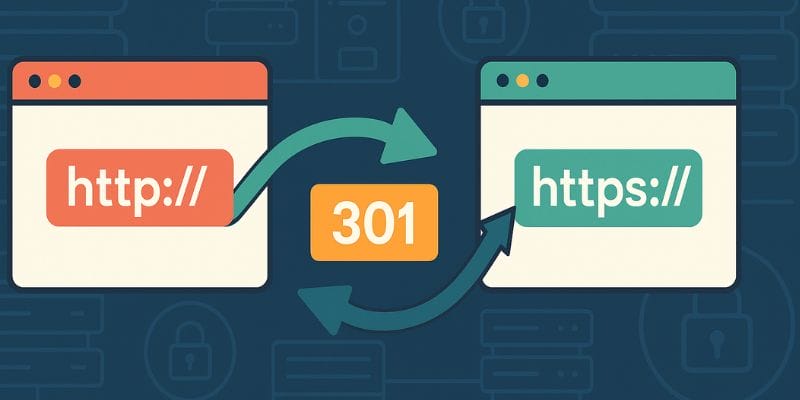
A crucial step to fix the ‘Not Secure’ website warning is setting up 301 redirects from the HTTP version of your site to HTTPS. This ensures that anyone visiting the old, unsecured URL is automatically sent to the new, secure version.
This can typically be done via your .htaccess file (for Apache servers) or the server configuration file (for Nginx or others). Proper redirects not only secure your visitors but also help preserve your SEO rankings by passing on link equity.
5. Update Your Sitemap and Robots.txt File
Your sitemap should reflect the new HTTPS URLs so that search engines index the correct versions. You should also check your robots.txt file to ensure it doesn’t block search bots from accessing the secure sections of your site.
Resubmit your updated sitemap to Google Search Console and Bing Webmaster Tools. This will expedite the reindexing process and reinforce your site’s secure status in search engines.
6. Fix Mixed Content Issues
Mixed content refers to when a secure HTTPS page loads resources like images, scripts, or stylesheets over an insecure HTTP connection. These inconsistencies can trigger warnings despite having SSL installed.
Use your browser’s developer tools or an online tool like Why No Padlock to identify and resolve these issues. Typically, it’s a matter of updating resource URLs to HTTPS or hosting them securely.
7. Test Your Website’s SSL Configuration
Before considering the issue resolved, you need to test your SSL implementation. Tools like SSL Labs’ SSL Test will analyze your site and offer a grade based on encryption strength, certificate validity, and proper configuration.
An A+ rating confirms that your SSL certificate is correctly installed and your site is well-protected. If you receive a lower score, follow the tool’s suggestions to improve your configuration.
8. Monitor Website Performance and SEO Impact

Once you’ve enabled HTTPS and resolved all associated issues, monitor your website’s performance. Keep an eye on traffic, search rankings, and crawl errors using tools like Google Analytics and Search Console. It’s common to see a short-term fluctuation in search engine performance, but rankings usually recover and improve over time due to the added security.
By continuously monitoring and maintaining your HTTPS setup, you ensure that your website remains compliant with evolving security standards and user expectations.
Why HTTPS Matters More Than Ever
The internet is rapidly shifting toward a security-first environment. Modern users are more privacy-conscious, and search engines are favouring secure sites. Ignoring the ‘Not Secure’ website warning not only compromises your site’s reputation but also puts your visitors at risk.
With the increasing integration of online payment systems, contact forms, and user logins, secure data transmission is now non-negotiable. HTTPS provides a foundational layer of trust, and without it, you’re likely to lose both users and visibility.

Secure Your Site and Stay Ahead
Fixing the ‘Not Secure’ website warning is not just a technical fix—it’s a strategic move that enhances your brand’s credibility, strengthens user trust, and boosts search engine rankings. By enabling HTTPS, you protect your website’s visitors and demonstrate that you value their privacy and data.
Don’t wait for the warning to scare off potential users or clients. Take proactive steps today to install an SSL certificate, configure your site for HTTPS, and maintain a secure, professional web presence.
Remember, the internet rewards those who stay current, secure, and user-focused. By following this guide, you’ve taken a big step toward aligning your site with best practices in web security and SEO.
Interesting Reads
10 Best Online Course Creation Platforms for Educators & Entrepreneurs

