
BuddyPress is a powerful plugin for WordPress that allows you to build a social network or community website with ease. One of its standout features is the user profile navigation menu, which provides seamless access to various sections of a user’s profile, such as activity streams, personal messages, and group memberships. Sometimes the default labels of these navigation items don’t fit the context of your website or the preferences of your users. Renaming the BuddyPress profile navigation is a small change with an outsized effect on how the whole community feels to a first-time visitor.
Personalization matters more than it looks like it should. By tailoring the language on your BuddyPress site, you can improve user satisfaction and encourage more active participation. Here’s how to rename BuddyPress profile nav items across every layer where they show up, from the customizer to the URL slugs to the deepest subheadings.
How to Rename BuddyPress Profile URLs
1. Open your WordPress Dashboard.
2. Navigate to Settings >> BuddyPress.
3. In BuddyPress, click on URLs and change the URL and slug of the profile you want to modify.

A quick word of caution before changing URL slugs on a live site: if the community has been running for a while and pages are already indexed by search engines, changing a slug like /members/ to something custom will break every existing link and bookmark pointing to that structure unless you set up redirects. Test slug changes on a staging copy first if the site has any real traffic history.
This distinction between a URL slug and a display label trips up a lot of site owners early on. The URL slug is what appears in the browser address bar and in any links pointing to that section, while the nav label is purely the text shown in the menu. You can change one without touching the other, a nav item can display as “Updates” while its URL still reads /activity/ underneath, which is often the safer choice if the site already has search rankings or external links tied to the original URL structure.
How to Rename BuddyPress Profile Menu Items
If you are using BuddyX Pro like us then, you can easily rename your menu items. Follow the below steps to rename your BuddyPress profile menu items.
1. Open your site, click on customize.
2. Navigate to Menus.
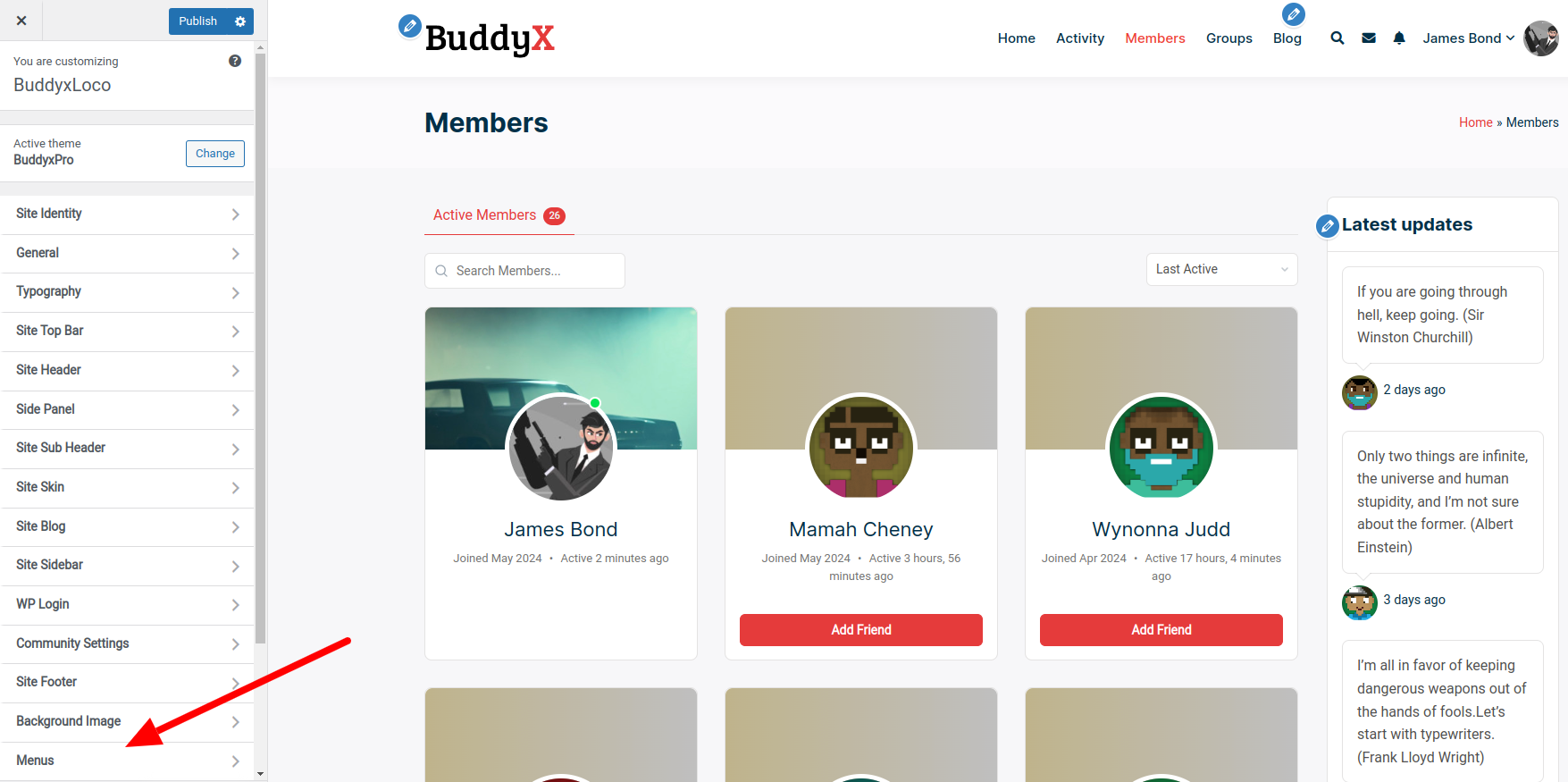
3. Select from the Primary Menu, User Menu, or Side Menu options.
4. Rename the menu item you want to change.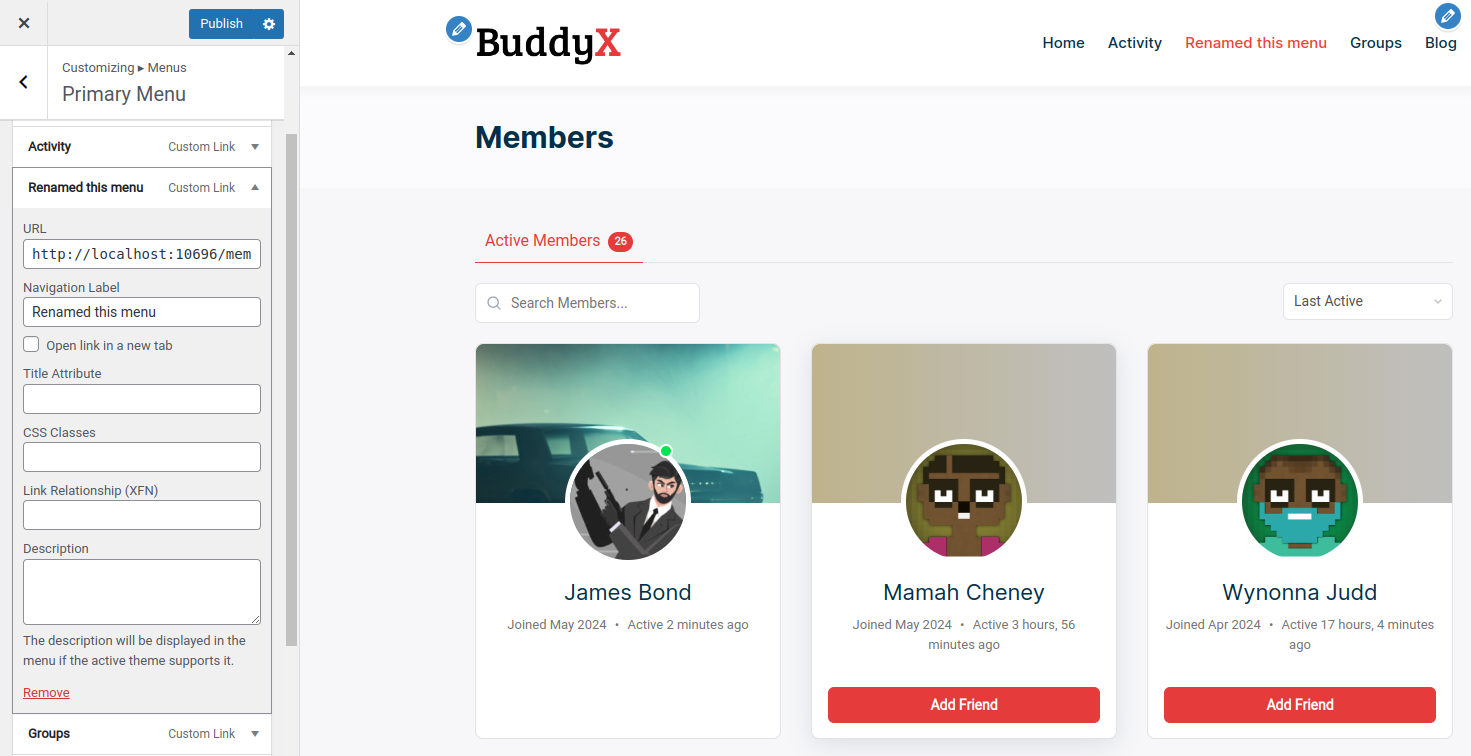
This customizer method covers the visible menu label, which is usually enough for most sites. It won’t touch anything referenced elsewhere in the code, alt text, page titles built from the original nav slug, or third-party plugins that hook into the original nav item name rather than its display label. Keep that distinction in mind before assuming a customizer rename is a complete, site-wide change.
How to Rename BuddyPress Profile Nav Items With Code
For sites not running BuddyX Pro, or for anyone who wants a rename that survives theme switches and doesn’t depend on a customizer setting, BuddyPress exposes its navigation items through a documented API you can hook into from a child theme’s functions.php or a small site-specific plugin.
BuddyPress lets you edit an existing nav item’s label after it’s been registered, using edit_nav_item() on the member’s primary navigation object, hooked late enough that the original nav items already exist:
function buddyx_rename_profile_nav_items() {
    if ( ! function_exists( 'buddypress' ) ) {
        return;
    }
    buddypress()->members->nav->edit_nav_item( 'activity', array( 'name' => __( 'Updates', 'your-textdomain' ) ) );
    buddypress()->members->nav->edit_nav_item( 'groups', array( 'name' => __( 'Communities', 'your-textdomain' ) ) );
}
add_action( 'bp_actions', 'buddyx_rename_profile_nav_items', 999 );
This approach renames the item wherever BuddyPress renders it, the profile tabs, the admin bar dropdown, and anywhere a theme pulls the nav label programmatically, without needing a translation plugin at all. It’s the more durable option for a permanent rename you don’t want tied to a specific theme’s customizer settings.
How to Rename BuddyPress Profile Nav Items and Subheadings via Translation
To modify the names of BuddyPress profile items including their subheadings, without touching code, you can use a translation plugin. We’ll use Loco Translate for this. Before proceeding, back up your website to avoid any potential data loss.
1. Back up your website.
2. Download, install, and activate Loco Translate.
3. Click on Loco Translate, select Plugins >> BuddyPress. Select a new language.
4. Under “choose a language,” select your preferred language and click Start Translating.
5. Under Editor, use Filter Translation to find the word you want to change. Here we’re changing “Groups” to “Towns.”
6. From the source text, select the word you want to rename and rename it in the English translation field.
7. Once you’ve renamed all the required fields, click Save.
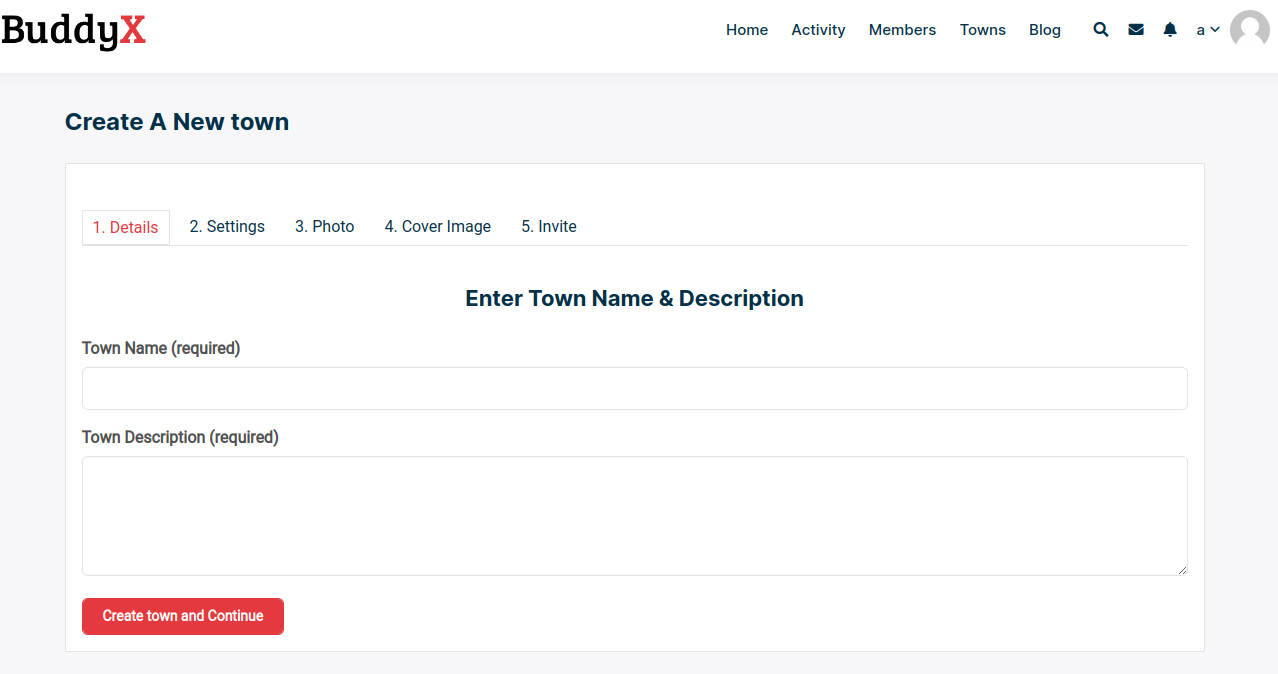
8. This is how your website will look now.
One gotcha worth flagging: Loco Translate’s approach technically creates a custom translation file mapped to your site’s active language. If the site already runs in a non-English locale, or if you switch languages later, that custom translation may not apply the way you expect. It works best on a standard English-language install where you’re overriding specific strings rather than translating the whole site into a different language.
Why Rename BuddyPress Profile Nav Items?
While learning how to rename BuddyPress profile items, it’s worth remembering why the rename matters in the first place.
1. Improved User Experience
i) Clarity and Intuition: Renaming nav items to terms that are more intuitive for your users can make it easier for them to navigate your site. For example, changing “Activity” to “Updates” might be more understandable for users who are accustomed to social media platforms.
ii) Consistency with Site Branding: Customizing nav items to match your site’s branding and terminology ensures a consistent experience. This can make your site feel more professional and cohesive, improving user trust and engagement.
Also Read: Best Business Automation Software
2. Enhanced Functionality
i) Tailored Navigation: Depending on your community’s needs, certain default BuddyPress nav items might not be relevant. Customizing these items allows you to tailor the navigation to what is most useful for your users, potentially adding or renaming items to fit specific community features or activities.
ii) Simplified Interface: By removing or renaming less useful nav items, you can streamline the user interface. A simplified navigation menu can reduce cognitive load and make it easier for users to find what they need quickly.
3. Increased Engagement
i) Highlighting Key Features: If your community has unique or standout features, renaming nav items to draw attention to these can encourage more user interaction. For instance, renaming “Groups” to “Communities” might encourage users to explore and participate more actively.
ii) Personalization: Personalized navigation can make users feel more at home. By customizing nav items based on user roles or preferences, you can create a more engaging and personalized experience.
Also Read: Best AI Tools for Stock Market Analysis
4. SEO Benefits
i) Keyword Optimization: Renaming nav items with SEO-friendly terms can help improve your site’s search engine rankings. This is particularly useful if your nav items are indexed by search engines and can contribute to your overall SEO strategy.
5. Adaptation to Community Growth
i) Scalability: As your community grows, its needs might change. Customizing nav items allows you to adapt the site structure accordingly, ensuring that the navigation remains relevant and useful as new features and sections are added.
Renaming Secondary Nav Items and Subnav Tabs
Most tutorials on this topic stop at the top-level tabs, Activity, Profile, Groups, Messages, but BuddyPress profiles also carry a second layer of subnav tabs inside each section. Profile has “View,” “Edit,” “Change Cover Image,” and more, depending on which BuddyPress components are active. These follow the same underlying API as the top-level items, just registered as subnav items rather than primary nav items.
The code-based method extends naturally to this layer using edit_nav_item() with the parent slug specified, or by targeting the subnav array directly if you need finer control. If you’re only renaming a handful of items, the customizer approach in BuddyX Pro usually exposes these subnav labels too, check the Menus panel for a nested list under each primary item before assuming you need to write code for a subnav rename.
Multilingual Sites: WPML and Polylang Considerations
If your community runs on WPML or Polylang rather than a single-language install with Loco Translate overrides, the rename process needs an extra step. Both plugins maintain their own string translation tables, and BuddyPress nav labels registered dynamically (rather than as static theme strings) don’t always get picked up automatically by the plugin’s string scanner.
For WPML specifically, navigate to WPML >> String Translation and search for the BuddyPress nav label you want to change. If it doesn’t appear in the list, the string may need to be registered manually, or you can fall back to the code-based edit_nav_item() method wrapped in a language-conditional check using WPML’s ICL_LANGUAGE_CODE constant, so the rename applies differently per language rather than site-wide. Polylang handles this similarly through its own string translation interface under Languages >> Translations.
BuddyPress vs. BuddyBoss: Does the Rename Process Differ?
Sites running BuddyBoss Platform instead of core BuddyPress can use the same edit_nav_item() approach described above, since BuddyBoss Platform is built as a fork that maintains compatibility with BuddyPress’s core navigation API. The main practical difference is that BuddyBoss ships its own theme-level customizer options for renaming nav items, similar in spirit to what BuddyX Pro offers, so BuddyBoss users often don’t need to touch code at all for a simple label change.
Where the two diverge is in some of the newer, BuddyBoss-specific components (their custom profile types system, for instance), which register navigation slightly differently than stock BuddyPress. If a code-based rename doesn’t take effect on a BuddyBoss site, check whether the nav item in question belongs to a BuddyBoss-specific component before assuming the standard BuddyPress method should have worked.
Accessibility: What a Rename Changes for Screen Reader Users
A renamed nav label isn’t purely cosmetic. Screen readers announce the visible label text, so a rename that makes sense visually needs to make just as much sense read aloud, out of context, to someone who can’t see the surrounding page layout. “Updates” read alone by a screen reader is reasonably clear. An overly clever or brand-specific rename, inside jokes, invented terminology, internal codenames, can leave assistive technology users guessing what a tab actually does in a way sighted users navigating visually might not immediately notice.
A simple test: read your renamed nav items out loud, in order, with no other context. If any of them wouldn’t make sense to someone hearing just that word or phrase, it’s worth reconsidering before publishing the change to the live site.
Common Mistakes to Avoid
- Renaming without checking downstream references. Some plugins hook into a nav item’s original slug, not its display name. A rename that looks fine in the menu can still break a plugin that’s checking for the literal string “Activity” somewhere in its own code.
- Skipping the backup step. Both the code-based and translation-based methods are low-risk on their own, but skipping a backup before making any structural change to a live community site is a habit worth breaking, even for changes that feel minor.
- Renaming inconsistently across methods. If you use the customizer for some items and Loco Translate for others, it’s easy to end up with mismatched terminology, “Updates” in one place and “Activity” in another. Pick one method as the source of truth for a given rename and stick with it.
- Forgetting cache invalidation. If the site runs a page cache or object cache, a nav rename sometimes doesn’t show up immediately for visitors seeing a cached version of the page. Clear relevant caches after making the change and verify in an incognito window.
- Renaming to something that no longer matches user expectations. A rename that’s clever internally but confusing externally defeats the purpose. If usability testing or member feedback isn’t available, ask a few actual community members what they’d expect a given tab to be called before finalizing an unusual choice.
Frequently Asked Questions
Will renaming a nav item break any BuddyPress functionality? No, as long as you’re changing the display label rather than the underlying slug or component ID. The code-based edit_nav_item() method specifically targets the display name and leaves the functional slug intact, which is why it’s the safer option compared to directly editing BuddyPress core files (something you should never do, since core edits get wiped on the next update).
Can I rename nav items differently for different member types? Not through the standard customizer or Loco Translate methods, both apply site-wide. Conditional renaming by member type requires the code-based approach, checking the current user’s member type inside the function before calling edit_nav_item(), so different labels can show for different roles.
Do I need to redo this after every BuddyPress update? No, provided you used the code-based method in a child theme or site-specific plugin rather than editing BuddyPress core files directly. The edit_nav_item() approach hooks into the public API, which is designed to remain stable across updates. Customizer-based renames in BuddyX Pro also persist through theme updates since they’re stored as customizer settings, not template edits.
What’s the fastest method if I just need to rename one or two items? The BuddyX Pro customizer method if you’re on that theme, since it takes under a minute with no code or plugin installation. For sites without BuddyX Pro, the code snippet is nearly as fast for a developer comfortable editing functions.php, while Loco Translate is the better choice for a non-technical site owner making a one-time change.
Customizing Profiles for User-Friendly Navigation
Customizing BuddyPress profile navigation items and URLs plays a pivotal role in creating a user-friendly and personalized community website. By renaming navigation items, modifying URLs, and using either the BuddyPress nav API directly or a translation plugin like Loco Translate, you can tailor your site to better suit your community’s needs and improve overall user satisfaction.
Customization options not only improve navigation clarity but also ensure consistency with your site’s branding, potentially boosting user engagement and optimizing your site for search engines. Renaming BuddyPress profile nav items is a small, low-risk change with a genuinely outsized effect on how new members read the site.
Whether you’re simplifying navigation, emphasizing key features, or adapting to community growth, the flexibility to rename BuddyPress profile items helps you build a more intuitive and compelling social networking experience. Always remember to back up your website before making significant changes and test thoroughly to make sure everything still works as expected.
Start with the smallest change that solves the actual problem. If one tab’s label is genuinely confusing, fix that one label through whichever method fits your setup, rather than rewriting the entire navigation system in one pass. Small, tested changes are easier to reverse if a rename turns out to confuse users more than the original label did.
Interesting Reads:
How to Automatically Move Posts with New Comments and Likes