How to Create and Send PDF Invoices & Packing Slips in WooCommerce


Running an online store with WooCommerce means handling hundreds—or even thousands—of orders each month. While the platform manages sales, inventory, and customer notifications well, it doesn’t provide a built-in way to automatically generate PDF Invoices & Packing Slips in WooCommerce.
And that’s a problem. Why? Both invoices and packing slips are essential documents that improve professionalism, streamline shipping, and help customers trust your brand. Not to mention, many countries require proper invoices for accounting and tax compliance.
This is where the PDF Invoices & Packing Slips for WooCommerce plugin comes in. It allows you to automatically generate, customize, and send professional PDF invoices and packing slips directly from your WooCommerce store—saving you hours of manual work.
Why Do You Need PDF Invoices and Packing Slips in WooCommerce?
A branded invoice makes your business look credible and trustworthy, while compliance with legal requirements ensures your store remains tax-friendly. Packing slips are vital for shipping accuracy, helping warehouse teams pick and deliver the right products.
Customers benefit from a clear, downloadable record of their purchase, and automation saves you the hassle of manually creating invoices in Word or Excel, converting them to PDFs, and emailing them. Without automation, scaling your store would become highly inefficient.
The Best Plugin: PDF Invoices & Packing Slips for WooCommerce
The plugin we’ll use is PDF Invoices & Packing Slips for WooCommerce, one of the most popular tools with over 300,000 active installations. This plugin allows you to automatically attach PDF invoices to order confirmation emails and generate packing slips for every order.
You can customize the design using the built-in PDF customizer and support multilingual stores with tools like WPML, Polylang, TranslatePress, Weglot, GTranslate, and Loco Translate.
Additionally, the plugin lets you add payment links, watermarks, and custom styles while ensuring compatibility with product bundles, refunds, UBL documents, and custom order types. The best part? It works right out of the box, yet still provides deep customization options for advanced needs.
Step-by-Step Guide: How to Create and Send PDF Invoices & Packing Slips in WooCommerce
Automating invoices and packing slips helps your store save time and ensures consistency across all orders. By following this step-by-step guide, even beginners can set up professional PDF documents without touching any code.
This process not only streamlines your workflow but also enhances customer satisfaction by providing clear and professional order records.
Step 1: Install and Activate the Plugin
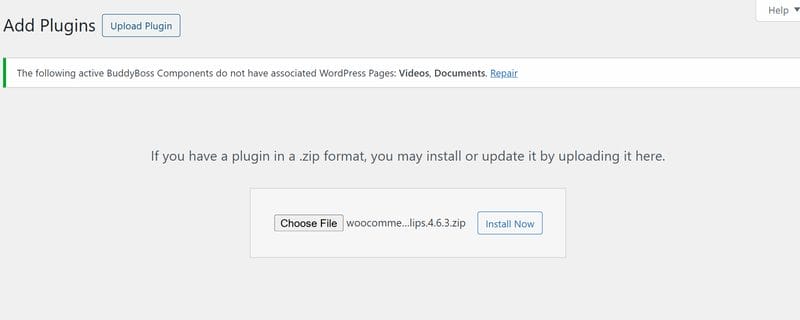
- Go to your WordPress Dashboard.
- Navigate to Plugins → Add New.
- Search for PDF Invoices & Packing Slips for WooCommerce.
- Click Install Now → Activate.
- Once activated, you’ll find new settings under WooCommerce → PDF Invoices.
Step 2: Configure General Settings
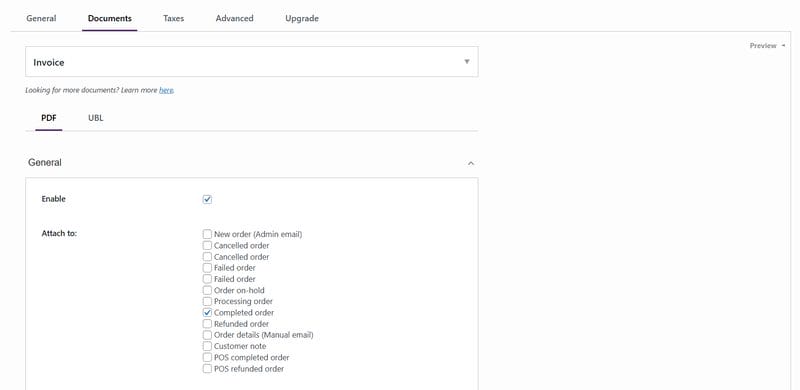
- Enable Automatic Attachments so invoices are automatically sent with customer emails.
- Select the order statuses where invoices should be created (e.g., Processing, Completed).
- Decide whether to include packing slips with every order.
Pro Tip: You can also enable “Receive a Copy of Each Invoice Sent by Email” for your internal records.
Step 3: Customize Your PDF Invoices
The plugin includes a PDF Customizer that allows you to edit templates without coding. You can:
- Add your logo (and fix any logo issues with the troubleshooting tips provided).
- Change the layout, fonts, and colors.
- Use custom blocks and placeholders to display customer data, order notes, or custom fields.
- Insert a payment link directly on invoices for pending orders.
- Add a watermark for draft or proforma invoices.
Advanced CSS tips are available in the documentation to help refine the look further.
Step 4: Create and Print Packing Slips
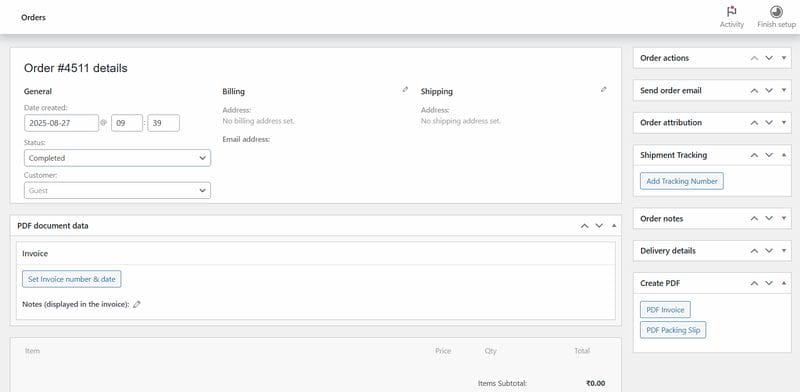
Packing slips can be generated from:
- The Order Overview screen (bulk actions).
- The Order Edit screen (single order).
You can even swap the positions of Billing Address, Shipping Address, and Order Data to match your preferred workflow.
Step 5: Add Multilingual Support
- WPML – Generate invoices in multiple languages.
- Polylang – Easily switch invoice languages.
- TranslatePress – Customize translation directly from the front end.
- Weglot & GTranslate – Automatic translations for global customers.
- Loco Translate – Manually adjust translations.
With RTL support via the mPDF extension, invoices are also fully compatible with Arabic and Hebrew languages.
Also Read: How to Edit WooCommerce Emails with MailPoet
Step 6: Explore Advanced Features
- UBL Tax Classification & UBL Document Creation – For stores needing EU tax compliance.
- Product Bundle Compatibility – Perfect if you sell grouped products.
- Bulk Export Tool – Generate multiple invoices at once.
- REST API Support – Automate invoice generation through custom workflows.
- Custom Fonts Extension – For branded documents.
- Dropbox/Google Drive Authorization – (coming soon) to store invoices securely in the cloud.
- Receipts, Credit Notes, and Refunds – Create different document types.
- Renumbering & Deleting Document Numbers – Maintain clean invoice numbering.
- Number Format Explained – Control how invoice numbers are generated.
- Shortcodes – Add “Download Invoice” links on emails or Thank You pages.
- Error Logs & Troubleshooting – Quickly solve issues like memory errors or font problems.
Step 7: Test and Send to Customers
- Place a test order in your WooCommerce store.
- Check the order confirmation email to ensure the invoice is attached.
- Generate a packing slip for your fulfillment team.
If everything works, you’re ready to start sending invoices and packing slips automatically.
Best Practices for Using PDF Invoices and Packing Slips in WooCommerce
- Use Custom Branding – Upload your logo and brand colors.
- Ensure Legal Compliance – Add tax ID, VAT number, and invoice numbering as per your country.
- Keep It Simple – Avoid clutter in invoices; keep them professional and readable.
- Store Backups – Sync invoices with Dropbox or Google Drive (when available).
- Track Errors – Regularly check logs to catch font or memory issues early.
Why This Plugin Stands Out
Compared to other invoicing plugins, PDF Invoices & Packing Slips for WooCommerce stands out because it integrates seamlessly with WooCommerce emails, provides full multilingual support, and offers customizable PDF templates and styles.
It also supports advanced document types like UBL, receipts, and credit notes, along with bulk exports and REST API features for developers. On top of that, the plugin comes with strong troubleshooting documentation. This powerful combination has earned the trust of hundreds of thousands of store owners worldwide.
Streamline Your WooCommerce Orders
Creating and sending PDF invoices and packing slips in WooCommerce doesn’t have to be a headache. With the PDF Invoices & Packing Slips for WooCommerce plugin, you can automate the process, customize documents to match your branding, and ensure compliance with tax and shipping regulations.
Whether you’re running a small online store or managing thousands of monthly orders, this plugin saves time, reduces errors, and improves your customers’ shopping experience.
Ready to streamline your order management? Install the PDF Invoices & Packing Slips for WooCommerce plugin today and start sending professional invoices and packing slips automatically! Get Custom WooCommerce Solutions for Your Store
Interesting Reads
How to Build a Dropshipping Store with WooCommerce
10 Best Lightroom Alternatives and Competitors to Try in 2025

Shashank is a seasoned digital marketing and WordPress expert who specializes in SEO, software tools reviews, and cutting-edge strategies for boosting online presence. With a passion for simplifying complex topics, Goutham crafts engaging blog posts that help readers optimize their websites, improve search engine rankings, and stay ahead in the ever-evolving digital landscape.