
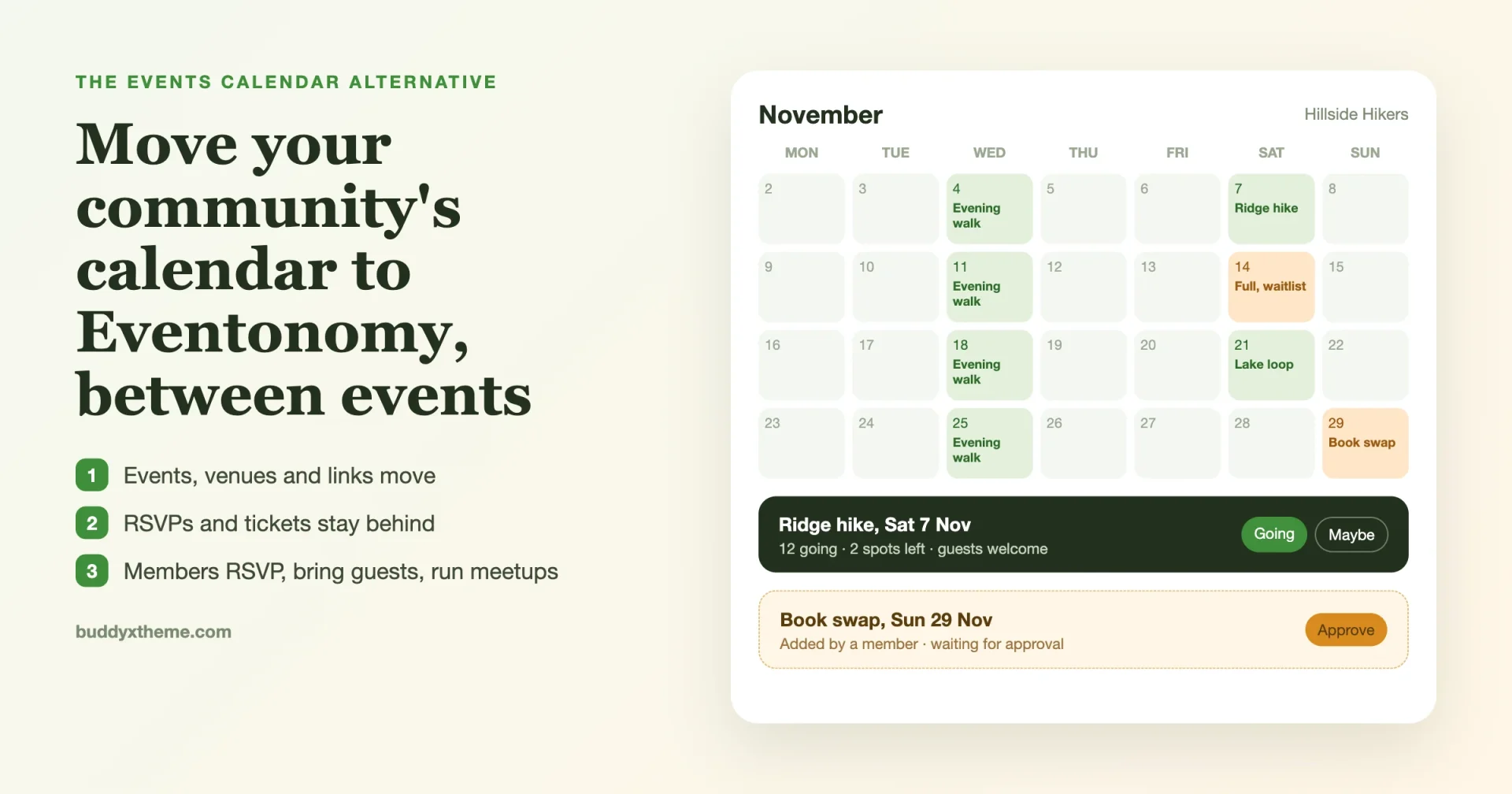
Events are often the heartbeat of a community site. The monthly meetup, the Tuesday beginners’ class, the volunteer day, the annual picnic. Members check the calendar, say they are coming, bring a friend, and turn up. If your community site runs The Events Calendar, that plugin has been doing this job for you, and it may have done it well.
But a lot of community owners are taking a second look this year. The Events Calendar is now one of four products Liquid Web sells, its Pro plan was listed at $399 a year on 18 October 2026, and the things a community needs most (members adding their own events, RSVPs with a waitlist, reminders) are spread across add-ons and tiers. This guide walks through replacing it with Eventonomy on a community site running BuddyX: what your members will do on the new calendar, what moves across, what does not, and the order to do it in. We make Eventonomy and BuddyX at Wbcom Designs, so try it on a staging copy and judge it for yourself.
Is Eventonomy the right Events Calendar alternative for you?
Not every site that runs The Events Calendar should leave it. A fair way to decide is to look at what your events are for.
| Your situation | Our suggestion |
|---|---|
| A community or membership site where members RSVP, bring friends and run their own meetups | Eventonomy fits well. This guide is for you. |
| Mostly free events, renewal coming up, and you rarely use the paid add-ons | A strong case to switch before the renewal date. |
| A ticketed event business with seating charts and an event always on sale | Plan carefully, or stay. Moving sold tickets is not possible, and you may not find a gap. |
| You rely on a The Events Calendar add-on with no equivalent and it works well | Stay for now and look again next year. |
If you are in the first two rows, The Events Calendar alternative worth testing is the one that matches how your members behave, not the one with the longest feature list. Read on with your own events in mind.
Start with what your members actually do
Before comparing plugins, write down what happens around events on your site. For most communities it is some version of this:
- Find an event. A member opens the calendar or a list of what is coming up, usually on a phone.
- Say they are coming. One tap: going, maybe, or no.
- Bring someone. “Can I bring my partner?” is the most common question any organiser gets.
- Join a waitlist when the event is full, and get a spot automatically if someone drops out.
- Add it to their own calendar, so they actually remember.
- Get a reminder the day before.
- Run their own event. In a healthy community, members organise things too: a study group, a weekend ride, a book swap.
- Pay for a ticket, for the events that cost money.
Keep this list. It is how you will judge the new setup, and it is the checklist you will walk on a phone before going live.
How Eventonomy covers that list
| What members do | In Eventonomy | Free or Pro |
|---|---|---|
| Find an event | Month, list, grid and upcoming views, plus a calendar and events list block for any page | Free |
| RSVP | Going, maybe or no, with your own RSVP questions | Free |
| Bring guests | A guest count per RSVP, with a limit you set, counted against capacity | Free |
| Waitlist | Automatic waitlist once an event is full | Free |
| RSVP without an account | Guests give a name and email and get a magic link to change or cancel | Free (or require login) |
| Add to calendar | Add-to-calendar links and an ICS feed | Free |
| Reminders | Emails a day and an hour before; custom timing in Pro | Free, more in Pro |
| Members run their own events | A My Events dashboard and a submission form, with optional approval | Free |
| Recurring events | Daily, weekly and monthly series; yearly and “second Saturday” rules in Pro | Free, more in Pro |
| Paid tickets | Stripe, PayPal or WooCommerce checkout, with tax, fees and coupons | Pro |
| Door check-in, maps, SMS, reports | Secure ticket check-in, map views, SMS through Twilio, organiser reports | Pro |
The full split is on the Eventonomy free vs Pro page. The short version for a community site: if your events are free, the free plugin probably covers everything. Pro is for the day you start charging for tickets.
What it costs
| Option | Price |
|---|---|
| The Events Calendar Pro | $399 a year (Elite $599) |
| Eventonomy | Free |
| Eventonomy Pro, 1 site | $99 a year, or $249 once |
| Eventonomy Pro, 5 sites | $199 a year, or $499 once |
| Eventonomy Pro, unlimited sites | $249 a year, or $629 once |
Prices are from The Events Calendar’s pricing and the Eventonomy download page on 18 October 2026. Check both on the day you decide, and check what your current licence actually includes.
What moves across, and what stays behind
This is the part to read twice. Eventonomy’s free plugin includes an importer for The Events Calendar (and EventON, Events Manager, WP Event Manager and Sugar Calendar). The migration guide spells out exactly what it brings:
| From The Events Calendar | Moves across? |
|---|---|
| Events: title, description, dates, timezone, status, cover image | Yes |
| Venues and organisers | Yes, matched up so you do not get duplicates |
| Categories and tags | Yes |
| Recurring rules | Yes, where they translate; the preview flags the ones that do not |
| Online event join links | Yes, where the old plugin stored them |
| Old event addresses | Redirected to the new event pages, so shared links keep working |
| Orders, payments, sold tickets, check-ins | No. That history stays with the old system |
| RSVPs and bookings | No |
Those last two rows shape your whole plan. Your events move. The list of who said they are coming does not. So the trick is timing: move between events, not in the middle of an RSVP drive.
Three promises from the importer make it safe to try. It reads The Events Calendar’s data without changing it, so the old plugin can stay installed while you check. Re-running it never creates duplicates, because every imported event remembers where it came from. And an import can be undone completely.
The move, step by step
Step 1: inventory and backup
Write down your upcoming events, which ones already have RSVPs or tickets sold, your recurring series, and any page that shows a calendar or event list. Note any The Events Calendar add-ons you use, such as ticketing or community submissions. Then take a full backup and confirm it restores.
Step 2: pick your moment
Look at the calendar for a gap: a week or two where no event has RSVPs building up and no tickets are on sale. For a monthly meetup group that is usually the few days right after the meetup. For a busier community, it might mean letting one big event finish on the old system first.
Step 3: staging copy and install
Make a staging copy of your site, with outgoing email turned off so no member gets a test reminder. Install Eventonomy from the free download. It shows a notice when it finds The Events Calendar’s data on your site, pointing you to the importer.
Step 4: scan and preview
Go to Eventonomy, Setup and Health, Importer. Your old plugin shows up with the number of events found. Click Scan and preview. Nothing is created yet. The report tells you how many events will be created, how many venues and organisers are new or matched, how many old addresses get redirects, and which recurring rules need a look. Read the flags. They are the tool being honest with you, not errors.
Step 5: import and check
Run the import. Small calendars import while you wait; bigger ones run in the background, and a single bad event is logged and skipped rather than stopping everything. Then open five events on the front end: a one-off, a recurring one, one with a venue, an online one and a past one. Check dates, times and timezones. Click an old event link and confirm it lands on the new page.
Step 6: rebuild the calendar pages
Add the calendar or events list block to your events page and anywhere else members look for what is on. Set the RSVP options you want: capacity, guest limits, the waitlist, and whether people must log in to RSVP. The RSVP and waitlist guide covers each setting.
Step 7: let members run events
If members organise their own meetups, add the My Events dashboard to a page and decide whether their events need your approval first. You can limit who can submit by role and cap how many events one member can create. The member events guide walks through it. Turning on approval is a good idea for the first month, while you see how members use it.
Step 8: walk the member journey on a phone
Go back to the list from the start of this guide and do every step on your phone, as a logged-in member and as a visitor. Find the next event. RSVP. Add a guest. Fill an event to capacity with test accounts and check that the next person lands on the waitlist. Add the event to your phone’s calendar. Submit an event as a member and approve it as an admin. If anything feels slow, fix it on staging.
Step 9: go live and tell members
Repeat the import on the live site in your gap, re-add the blocks, and walk the journey once more. Post a short note to members: the calendar has a new look, every upcoming event is there, old links still work, and if they had said they were coming to something, please RSVP again. That last line matters, because RSVPs do not move.
Keep The Events Calendar installed but inactive for a few weeks, then remove it once you are sure you do not need its old ticket or attendee records. Export any attendee lists you want to keep before you remove it.
Where BuddyX and BuddyNext fit
On a community site, events are not a separate island. They are something members do together. BuddyX is the theme that makes the calendar, the member pages and the community screens look like one site, with your colours, dark mode and a layout built for phones. Eventonomy’s documentation notes it is tested with BuddyX, so the event pages fit the rest of the site without extra styling work.
If your community runs on BuddyNext, the free community engine behind BuddyX, events can show up where members already spend their time. With BuddyNext Pro active, Eventonomy activity surfaces in the community feed, search and member profiles, and event notifications, such as reminders, land in the same notification bell as everything else. Members do not have to check a second inbox for event news.
If your community still runs on BuddyPress, Eventonomy Pro adds an Events tab to every BuddyPress group, with a list or calendar view and the option to link one event to several groups. The BuddyPress community guide covers how that works.
Not sure which community engine fits you? Our guide to building an online community walks through the bigger decisions, and if you are also moving off Kadence, read our Kadence alternative guide first, since the theme is the easier change to make before the events.
Running events as a community, not just a calendar
Switching plugins is a good moment to fix the habits around events too. A few that make the biggest difference on community sites:
- Name events the way members search. “Saturday 10k, Riverside loop” beats “Group Run #47”. People scan a list on a phone; the title has to do the work.
- Put the practical answer in the first line. Where to meet, what to bring, whether guests are welcome. These are the questions you otherwise answer one message at a time.
- Use capacity even for free events. A cap with a waitlist tells members the event is real and gets more honest RSVPs than an open-ended list.
- Let a few trusted members organise. Start with approval on, approve the first few events from each new organiser, and relax it once you trust them.
- Close the loop after the event. Ask the organiser to post a photo or a short recap in the community the next day. It is what makes the next event fill faster.
- Keep reminders gentle. The default day-before and hour-before emails are plenty. More than that and people start ignoring all of them.
Your first month after the switch
| When | What to do |
|---|---|
| Day 1 | Post the note to members; ask them to re-RSVP to upcoming events |
| Week 1 | Watch RSVPs on the next two events; answer any “I can’t find it” messages quickly |
| Week 2 | Invite two or three regular organisers to submit events from their dashboard |
| Week 3 | Check that reminders arrived (ask a few members) and that old links from newsletters redirect |
| Week 4 | Export any attendee records you need from the old plugin, then remove it |
By the end of the month, the new calendar should feel like it was always there. If members are RSVPing, bringing guests and posting their own events, the move worked.
Three communities, three setups
These are example setups rather than customer stories, but they are the shapes we see most often.
A neighbourhood association
Monthly meetings, a spring clean-up, a summer fair. All free, with RSVPs mainly to plan the coffee. Eventonomy’s free plugin covers it: a calendar on the home page, RSVPs with guest counts, reminders the day before. Neighbours who do not want an account RSVP as guests with their email. Cost: nothing.
A hiking club
Weekend hikes led by volunteers, with a cap on group size for safety. Members propose hikes from their own dashboard, the committee approves them, and each hike has capacity and a waitlist so nobody turns up to a full group. The recurring Wednesday evening walk is a weekly series. Still free, unless the club starts charging for the minibus.
A professional association
Free member meetups plus two paid conferences a year. The meetups run on the free plugin. The conferences need paid tickets, tax, early-bird pricing and door check-in, so the association adds Eventonomy Pro at $99 a year. Moving off The Events Calendar happens in the quiet month after the autumn conference, when no tickets are on sale.
What to tell your volunteer organisers
If members already run events on your site, they will notice the change before anyone else. Give them a short note of their own, a few days before the switch:
- Where their new dashboard lives, and that they can see their events, drafts and who is coming in one place.
- Whether their events need approval, and roughly how fast you approve them.
- That attendees can bring guests, and how many you allow per RSVP.
- That anyone who RSVPd to their next event on the old calendar should be asked to RSVP again.
- Who to ask if something looks wrong.
Then ask one experienced organiser to create a real event on staging before you go live. They will find the confusing bits faster than you will, because they use the calendar every week and you mostly look at it from the admin side.
Organisers are also your best early warning. If two of them say the same thing in the first week, fix it before the next event goes up.
Common mistakes
- Moving during an RSVP drive. RSVPs do not carry over. Move in a gap.
- Skipping the preview. It costs nothing and shows you every recurring rule that needs attention.
- Removing the old plugin too soon. Keep it inactive until you have exported any ticket or attendee records you need.
- Forgetting old links. They redirect automatically, but click a few from your newsletter archive to be sure.
- Turning on every Pro feature. Start with the free plugin. Add Pro when you charge for tickets or need check-in.
- Testing only on a laptop. Members RSVP on phones, often on the way somewhere.
Questions community owners ask
Can Eventonomy import from The Events Calendar?
Yes. The importer is in the free plugin. It reads events, venues, organisers, categories, tags and recurring rules, previews everything first, redirects old event addresses, and can be undone.
Will my members’ RSVPs move?
No. RSVPs, bookings, orders, sold tickets and check-ins stay with the old system. Move between events and ask members to RSVP again on the new calendar.
Do I need Eventonomy Pro?
Only for paid tickets, check-in, maps, SMS, organiser reports and a few advanced options. Free events, RSVPs, waitlists, reminders and member-submitted events are all in the free plugin.
Can members add their own events?
Yes, in the free plugin, with optional approval, role limits and a cap per member.
Do people need an account to RSVP?
Not unless you want them to. Guests can RSVP with a name and email and get a link to change or cancel. You can switch that off and require login.
Does it work with BuddyX?
Yes. Eventonomy is tested with BuddyX, and its event pages follow your theme.
What happens to my recurring events?
Recurring rules move across where they translate, and Eventonomy rebuilds the future dates from the rule. The preview lists any series whose rule does not fully translate, so you can fix those few by hand. Daily, weekly and monthly series are in the free plugin; yearly and “second Saturday” style rules need Pro.
Can I try it first?
Yes. Open the Eventonomy sandbox, or install the free plugin on a staging copy and run the importer’s preview, which writes nothing.
Where to start
Look at your calendar and find the next gap. Write down what your members do around events. Make a staging copy, install Eventonomy, and run the preview against your real events. Within an hour you will know how much moves cleanly and what needs your attention, without touching the live site.
When you are ready, the Eventonomy site has the full documentation, and BuddyX keeps the calendar, the member pages and the rest of your community looking like one place. If you would like our team to plan and run the move with you, we rehearse it on staging and check it on real phones before anything goes live.