
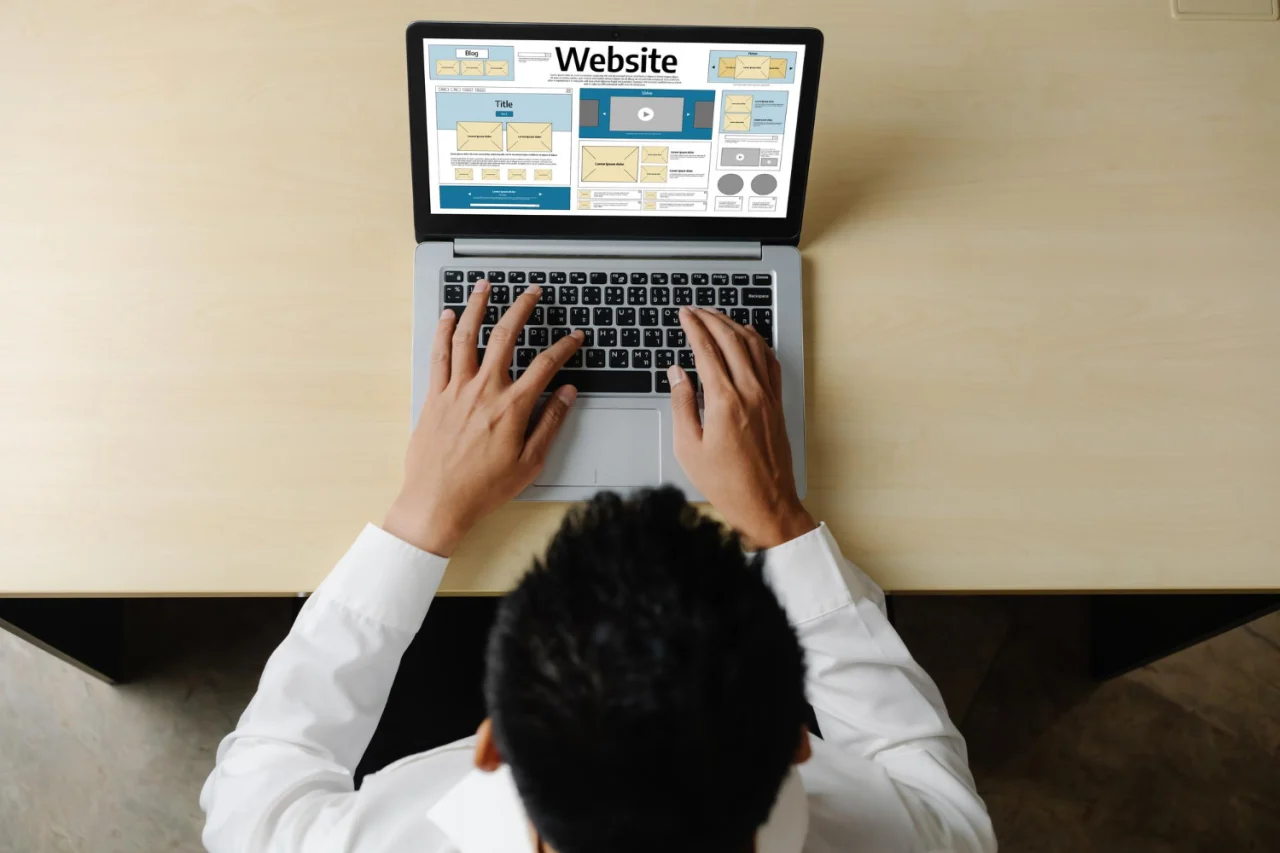
To set up a WordPress website in 2026: buy a domain and hosting, install WordPress (one-click from most hosts), choose a theme like BuddyX Pro for community sites, install essential plugins (Rank Math for SEO, WooCommerce for eCommerce, a caching plugin for speed), configure your settings, and publish. The entire process takes 2-4 hours for a basic site. Here’s a full walkthrough of each step.
WordPress powers over 40% of all websites on the internet. Its combination of flexibility, plugin ecosystem, and ease of use makes it the go-to platform for blogs, business sites, online stores, and community platforms. You don’t need to know how to code to build a professional WordPress site, but understanding the process end-to-end helps you avoid common mistakes that slow things down later.
What Is WordPress and Why Use It?
WordPress is an open-source content management system (CMS) that lets you create and manage websites without technical expertise. Its core strengths:
- Ease of use, the dashboard is accessible to non-technical users from day one
- Extensibility, over 60,000 plugins cover nearly any feature you could need
- SEO-friendly architecture, clean URLs, fast themes, and SEO plugins make search optimization straightforward
- Strong community, extensive documentation, tutorials, and support forums for any issue you encounter
- Scalability, the same platform runs personal blogs and enterprise sites with millions of monthly visitors
WordPress.com vs. WordPress.org: this guide means the second one
One distinction trips up a lot of first-time builders before they even reach the domain-buying step: WordPress.com and WordPress.org are not the same thing, despite the shared name. WordPress.com is a hosted service, sign up, pick a plan, and the platform handles hosting for you, with real limits on plugin installation, theme customization, and monetization unless you’re on a higher-tier paid plan. WordPress.org is the free, open-source software itself, the software this guide walks through installing on hosting you choose and control directly. Nearly every serious business, community, or membership site runs the self-hosted WordPress.org version specifically because it allows unrestricted plugin and theme access, which is what makes a stack like BuddyX Pro plus BuddyPress possible in the first place.
How to Set Up a WordPress Website: Step-by-Step
Step 1: Choose a Domain Name and Hosting
Your domain name is your website’s address. It should be easy to remember, relevant to your niche, and end in .com for broad appeal. Keep it short, under 15 characters is ideal.
For hosting, prioritize providers with strong WordPress support, fast servers, and one-click WordPress installation. Reliable options include Bluehost, SiteGround, and WP Engine. Match your hosting plan to your expected traffic and storage requirements, a shared plan works fine to start.
Shared hosting, where your site sits on a server alongside potentially hundreds of other sites splitting the same resources, is the cheapest entry point and fine for a new site with modest traffic. The tradeoff shows up as traffic grows: a resource spike on another site sharing your server can slow yours down, and shared plans generally cap the resources any single site can use even when nothing else is happening.
Managed WordPress hosting, WP Engine and similar providers, handles updates, backups, and security specifically optimized for WordPress rather than general-purpose hosting, at a higher price point that buys back the time you’d otherwise spend on server maintenance. VPS or dedicated hosting makes sense once traffic or complexity outgrows shared hosting’s limits, a community site with thousands of active members generating constant database activity is a common case where the jump becomes worth it. Starting on shared or entry-level managed hosting and upgrading later as traffic actually demands it is more sensible than over-provisioning for traffic that may never arrive.
Step 2: Install WordPress
Most major hosts offer one-click WordPress installation through their control panel. Log in, find the WordPress installer, and follow the steps, it typically takes under 5 minutes. The installer configures the database and creates your admin account automatically.
If your host doesn’t offer one-click installation, you can manually install WordPress by downloading from wordpress.org, uploading files via FTP, creating a MySQL database, and configuring wp-config.php. This requires more technical steps but gives you full control over the configuration.
Also Read: Best AI Writing & SEO Co-Pilot Tools
Step 3: Choose the Right Theme
Your theme controls your site’s visual design and layout. The right choice depends on what you’re building:
- Community and social network sites: BuddyX Pro, built for BuddyPress-powered communities with member profiles, groups, forums, and activity streams. The best choice if you’re building a membership or community site.
- Blog or content sites: Astra, GeneratePress, or Kadence, lightweight, fast, and highly customizable.
- eCommerce sites: Storefront (WooCommerce’s own theme) or Flatsome for more design flexibility.
Install your chosen theme from Appearance > Themes in your WordPress dashboard. Free themes are available in the official directory; premium themes from marketplaces like ThemeForest or Elegant Themes offer more features and dedicated support.
WordPress ships with the block editor (Gutenberg) built in, which handles most layout needs directly, columns, media, buttons, embeds, without an additional plugin. A dedicated page builder, Elementor or a similar visual editor, adds more granular design control, custom spacing down to the pixel, more complex layouts, animation effects, at the cost of an additional plugin dependency and sometimes a steeper learning curve for a first-time site owner.
For a straightforward business or blog site, the block editor alone usually covers what’s needed without adding another plugin to keep updated. A page builder earns its place when the design requirements genuinely exceed what blocks handle well, a highly custom landing page, or a design team accustomed to a specific builder’s workflow already. Starting with the built-in editor and adding a page builder only if a real limitation shows up avoids installing complexity that never gets used.
Also Read: Best WordPress Plugins for Minification
Step 4: Install Essential Plugins
Plugins extend WordPress beyond its core functionality. The essentials:
- Rank Math SEO, comprehensive SEO optimization, schema markup, and analytics integration
- WPForms, drag-and-drop contact and lead forms
- WooCommerce, full eCommerce functionality if you plan to sell products or services
- W3 Total Cache, page caching for faster load times
- Jetpack, security monitoring, backup, and performance tools
For community sites, also add BuddyPress (member profiles and social features) and WordPress Polls to run community engagement polls and surveys directly on your site. Weigh each plugin against what the site genuinely needs on day one rather than installing every option that looks potentially useful, a smaller, deliberate plugin list is easier to keep updated and troubleshoot than a large one accumulated out of habit.
Step 5: Customize Your Site Structure
Create your core pages first: Home, About, Contact, and any service or product pages your site needs. Go to Pages > Add New to create each one.
Set up navigation under Appearance > Menus. A clear menu structure helps visitors find what they need without hunting. Widgets in your sidebar and footer add additional navigation elements, recent posts, and social links.
Building the site before deciding what content it needs to hold is a common ordering mistake that leads to awkward retrofitting later. A rough content plan, which core pages, what the blog or resource section will cover, whether the site needs a member directory or a course catalog, drives decisions about theme and plugin choice more directly than picking those first and figuring out content to fit. A community site built around BuddyX Pro, for instance, benefits from deciding upfront which member profile fields actually matter for the specific community rather than accepting generic defaults and reworking them after members have already registered.
Placeholder content, “lorem ipsum” text or stock imagery left in place at launch, undercuts trust immediately for anyone who lands on the site in its first days. Even a smaller set of genuinely finished core pages, About, Contact, and a handful of real posts or listings, gives a stronger first impression than a larger site full of unfinished placeholder sections. Launching narrower but complete, then expanding, generally serves visitors better than launching broad but half-built.
Step 6: Configure WordPress Settings
Before you launch, work through these key settings:
- Settings > General: Set your site title, tagline, and admin email
- Settings > Permalinks: Choose “Post Name” for clean, SEO-friendly URLs
- Settings > Reading: Set your homepage display preference (static page or blog feed)
- Security: Update your admin password to something strong and enable two-factor authentication
Keep WordPress core, themes, and plugins updated regularly. Outdated software is the most common source of security vulnerabilities.
Every WordPress site needs SSL (the padlock and https:// in the browser address bar) active from day one, not added later. Beyond the security benefit, encrypting data between your site and its visitors, browsers actively flag non-HTTPS sites as “not secure,” which erodes visitor trust immediately, and Google factors HTTPS into search rankings. Most hosts now include a free SSL certificate (commonly through Let’s Encrypt) as part of any plan, activating it is usually a single toggle in the hosting control panel rather than a manual certificate purchase and install.
Step 7: Launch and Maintain Your Site
Before going live, test everything: all pages load correctly, contact forms work, mobile responsiveness looks good, and images are optimized for fast loading. Run a speed test (Google PageSpeed Insights) and fix any obvious performance issues.
At launch, announce through your social channels and email list. After launch, maintain the site through regular content updates, plugin and theme updates, and performance monitoring through Google Analytics or similar tools. A well-maintained WordPress site improves in search rankings and user experience over time.
More than half of typical web traffic arrives on a phone, which makes mobile responsiveness a launch requirement rather than a nice-to-have polish item. Most current themes, including BuddyX Pro, are responsive by default, but that default doesn’t guarantee every custom page or embedded element renders cleanly on a small screen. Checking every core page, not just the homepage, on an actual phone rather than just a browser’s device emulator catches spacing and tap-target issues an emulator sometimes misses.
Image sizing deserves specific attention here, a full-resolution image uploaded straight from a camera or a stock photo site, displayed at a small size but never actually compressed, slows down mobile load times disproportionately since mobile connections are more often bandwidth-constrained than desktop. Compressing images before upload, or through a plugin that handles it automatically, is a small step with an outsized effect on how the site actually feels to a visitor on a slower connection.
Setting up analytics before launch, rather than after noticing there’s no visitor data to look at, means there’s a usable baseline from day one instead of a gap in the historical record. Google Analytics or a privacy-focused alternative like Plausible or Fathom, connected through a plugin or a manual tracking code, takes a few minutes to configure and gives an actual read on which pages get traffic, where visitors come from, and where they drop off.
Search Console, Google’s free tool for monitoring how a site appears in search results, is worth setting up alongside analytics, it’s the direct source for whether pages are actually being indexed, what search queries bring in traffic, and any crawl errors Google’s bots encounter. Neither tool costs anything, and both are more useful set up from launch day than added six months in once there’s already a gap in the data.
Mistakes worth avoiding
Skipping a staging environment is one of the more common costly mistakes. Testing a new plugin, a theme update, or a design change directly on the live site risks breaking something visitors see in real time. Most managed hosts include staging as a built-in feature, cloning the live site to a private testing copy, worth using for any change beyond a minor text edit.
Installing too many plugins too early is the second common mistake, each additional plugin is one more thing that can conflict with another, one more thing needing updates, and one more potential performance cost. Installing plugins as specific needs arise, rather than front-loading a dozen plugins for features the site might eventually want, keeps the stack leaner and easier to troubleshoot when something does go wrong.
Choosing a domain name or hosting plan based purely on price, without checking uptime guarantees, support responsiveness, or whether the plan can actually handle expected traffic, is a mistake that surfaces months later rather than immediately. Reading recent reviews of a specific host’s actual support quality, not just its advertised specs, catches this before it becomes a real problem during a traffic spike or an outage.
Neglecting backups until after something goes wrong is the most avoidable mistake on this list. A backup plugin, or a host-level automated backup feature, configured and verified working from day one costs almost nothing in setup time and prevents a catastrophic loss if a plugin update breaks the site or a hack occurs later.
Frequently asked questions
Do I need coding skills to build a WordPress site in 2026?
No, for the vast majority of sites. Themes handle visual design, plugins add functionality, and the block editor handles page layout, all without touching code. Basic HTML or CSS knowledge helps for small customizations, a specific color tweak, adjusting spacing, but isn’t required to launch a fully functional site.
How much does it actually cost to launch a WordPress site?
A domain runs roughly $10 to $20 a year, shared hosting starts around $3 to $10 a month depending on the provider and plan, and WordPress itself is free. A premium theme, if the free options don’t fit, typically runs $50 to $100 as a one-time cost, and premium plugin features, if needed beyond what free tiers cover, add ongoing costs on top. A basic site can realistically launch for under $150 for the first year.
Can I switch hosting providers after I’ve already launched?
Yes, and it’s a fairly common move as a site grows past what its original hosting plan can handle. Most hosts, and most migration plugins, support moving a full WordPress site, files and database, to a new host without rebuilding from scratch, though it’s worth backing up thoroughly before migrating and testing the new environment before pointing the domain at it.
How long does WordPress site maintenance take once it’s live?
For a straightforward site, expect an hour or two a month for routine plugin and theme updates, checking backup integrity, and reviewing analytics. Sites with more active development, frequent content publishing, ongoing design changes, ecommerce inventory management, naturally require more regular attention than a mostly-static brochure site.
Is it better to use a free or premium theme?
Free themes from the WordPress.org directory are vetted for security and code quality and work fine for many straightforward sites. Premium themes generally add more built-in customization options, dedicated support, and regular updates from a company with an ongoing incentive to maintain the product, worth the cost once a site’s design needs go beyond what a free theme’s options cover.
What’s the single most common reason a new WordPress site fails to gain traction?
More often than a technical problem, it’s an unclear sense of who the site is for and what specific need it serves. A technically solid site with vague positioning, trying to be everything to everyone rather than serving one clear audience well, struggles to gain traction regardless of how well the WordPress setup itself was executed. Getting the platform right matters, but it’s the easier half of building something people actually return to.
Getting started
Setting up a WordPress website in 2026 is more accessible than it’s ever been, but accessible doesn’t mean the sequence stops mattering. Getting hosting and SSL right at the start, picking a theme that actually fits the site’s purpose rather than whichever one looks good in a demo, and installing plugins deliberately rather than all at once, saves real troubleshooting time later compared to rushing through setup and fixing gaps after launch.
The platform handles the technical heavy lifting, the database, the templating system, the update mechanism, your job is choosing the right theme and plugins for your specific use case and creating content that actually serves your audience. Follow the sequence above, test thoroughly before announcing the launch, and treat the first few weeks after going live as an ongoing setup phase rather than a finish line, since real usage always surfaces a few adjustments a pre-launch checklist can’t fully anticipate.
Interesting Reads:
How to Install WordPress on AWS