How to Build a Shopify-Like Multi-Step Checkout in WooCommerce


When running an online store, checkout is where everything comes together. A smooth, modern, and easy-to-use checkout can make the difference between a completed order and an abandoned cart. Shopify is well-known for its sleek, step-by-step checkout experience, which has set a high standard in the eCommerce industry. Customers love this approach because it feels guided, organized, and far less overwhelming compared to a single long form.
The good news? You can recreate a Shopify-like multi-step checkout in WooCommerce using the Fluid Checkout plugin, providing your customers with a familiar and streamlined shopping experience that encourages them to complete their purchase.
Why Upgrade WooCommerce Checkout to a Shopify-Like Flow?
WooCommerce’s default one-page checkout is functional, but it often feels cluttered and overwhelming. Customers are greeted with too many fields at once, which can lead to hesitation and drop-offs. A Shopify-style multi-step checkout solves this by breaking the process into logical stages, making it easier for customers to focus on one task at a time.
Here are some reasons why multi-step checkout is worth implementing:
- Higher Conversion Rates – Studies show up to a 36% increase in conversions when checkout friction is reduced.
- Better User Experience – Asking for information step by step mirrors customer expectations and reduces confusion.
- Mobile Optimization – Multi-step layouts are cleaner on small screens, keeping users engaged.
- Customer Trust & Confidence – Adding security badges, trust symbols, and a clear progress bar creates a sense of reliability.
- Returning Customer Convenience – Features like auto-saved fields and direct login at checkout speed up the repeat purchase process.
With Fluid Checkout, you can achieve all of this seamlessly.
Introducing Fluid Checkout for WooCommerce

Fluid Checkout is a powerful plugin designed specifically to modernize WooCommerce checkout. It eliminates unnecessary friction by simplifying fields, enabling step-by-step checkout, and offering features that mimic Shopify’s sleek design.
Key Features of Fluid Checkout
- Multi-Step or One-Step Layout – Choose between a traditional single-page or Shopify-like step-by-step flow.
- Mobile-First Design – Optimized for small screens, with smart keyboard input for phone numbers and emails.
- Shipping Before Billing – Matches customer expectations by requesting shipping details first.
- Hidden Optional Fields – Keeps the form clean by hiding non-mandatory fields behind clickable links.
- Instant Field Validation – Avoids checkout errors by validating details in real-time.
- Smart Coupon Handling – Places coupon entry in a collapsible section, preventing users from leaving to search for discount codes.
- Customer Data Persistence – Saves entered information even if the page refreshes.
- Login Without Redirects – Returning customers can log in directly at checkout.
Step-by-Step Guide: How to Create a Shopify-Like Multi-Step Checkout in WooCommerce
The Fluid Checkout plugin makes it simple to replace WooCommerce’s default one-page checkout with a modern, Shopify-like multi-step flow. Here’s how to set it up:
Step 1: Install and Activate the Plugin

- Go to your WordPress dashboard → Plugins → Add New.
- Search for Fluid Checkout for WooCommerce.
- Click Install Now, then Activate.
Step 2: Access Checkout Settings
Once activated, navigate to WooCommerce → Settings → Checkout. This is where you’ll find all customization options for enabling and configuring the multi-step checkout layout.
Step 3: Enable Multi-Step Layout
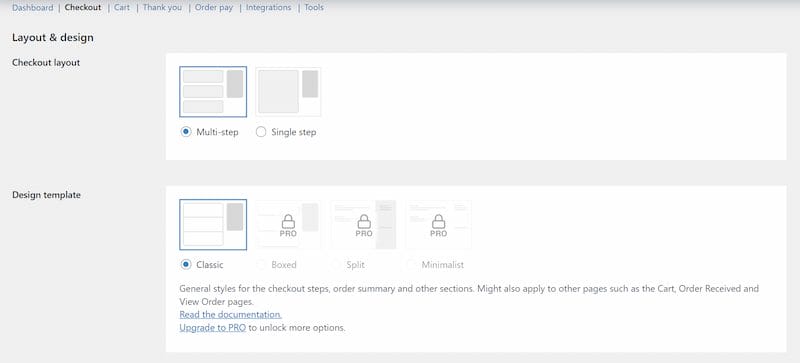
Within the settings, select Multi-Step Checkout Layout. Fluid Checkout gives you the flexibility to display progress as either:
- A horizontal progress bar across the top.
- A vertical step list on the side.
Select the layout that best matches your store’s design.
Step 4: Customize Checkout Steps
Fluid Checkout divides checkout into easy-to-follow stages:
- Customer Information – Collect name, email, and phone.
- Shipping Details – Gather the delivery address and method.
- Payment Information – Display available payment gateways.
- Review & Confirm – Show order summary before completion.
You can reorder, rename, or hide steps to make the process as streamlined as possible.
Step 5: Adjust Field Settings
Improve clarity and reduce clutter by:
- Hiding optional fields (like company name or order notes).
- Deciding whether billing and shipping addresses are shown together or separately.
- Adding placeholder text or tooltips for better guidance.
Step 6: Style the Checkout
To maintain brand consistency, customize the look and feel:
- Change button colors, fonts, and spacing.
- Enable the progress bar so users can track their steps.
- Add trust signals like SSL badges, secure payment icons, or testimonials.
Step 7: Test the New Checkout Flow
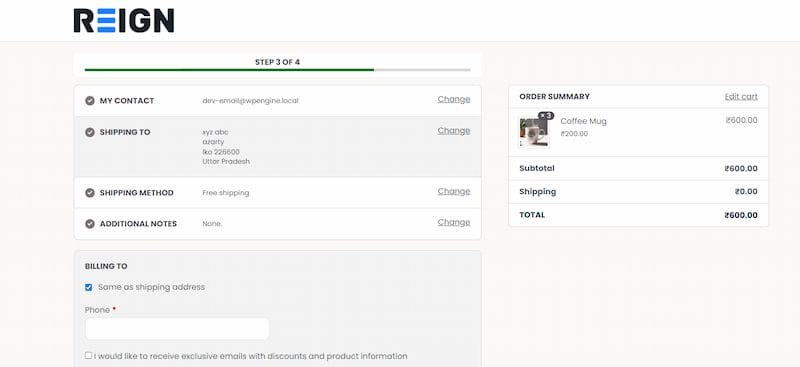
Before rolling it out, always test:
- Place a test order from start to finish.
- Check responsiveness on desktop, tablet, and mobile.
- Verify integrations like payment gateways, shipping methods, and email confirmations.
Once tested, your Shopify-like checkout is ready to delight customers.
Best Practices for a High-Converting Checkout
Even after setting up Fluid Checkout, there are still extra strategies you can apply to maximize results. Keeping the checkout flow clean and straightforward is key, so avoid overwhelming customers with unnecessary form fields. Use clear, descriptive labels to guide shoppers smoothly through each step. Reinforce trust by adding recognizable security icons, payment method badges, or testimonials that reassure buyers their information is safe.
Offering multiple payment methods such as PayPal, Stripe, and local gateways ensures flexibility for all customer types. Always enable guest checkout, since forcing account creation often drives visitors away.
For an even faster experience, enable express checkout options like Apple Pay or Google Pay. Finally, track performance through Google Analytics or WooCommerce reports so you can identify bottlenecks and continually improve the checkout process.
Also Read: How to Limit Shipping and Payment Methods in WooCommerce
Why Fluid Checkout is the Best Choice
There are other checkout plugins available for WooCommerce, but few match the balance of design, usability, and compatibility that Fluid Checkout provides. It integrates seamlessly with popular themes, supports accessibility tools like screen readers, and offers multilingual support across more than 80 languages.
Whether you stick to the free version or upgrade to Pro, you’ll be creating a checkout experience that not only feels modern but also helps maximize conversions.
Streamline Your Checkout for More Sales
Upgrading to a Shopify-like multi-step checkout in WooCommerce is one of the most impactful ways to reduce cart abandonment and boost customer satisfaction. With the Fluid Checkout plugin, you can replicate Shopify’s streamlined checkout design while tailoring it to fit your brand and customer needs. It also future-proofs your store, since the plugin is consistently updated to align with WooCommerce standards and evolving customer expectations. By giving your buyers a checkout flow they already recognize and trust, you can lower resistance at the final step of purchase.
A smoother checkout means happier customers—and happier customers mean more sales. Over time, this translates into stronger loyalty, repeat purchases, and an improved reputation for your online store.
👉 Ready to take your WooCommerce checkout to the next level? Get expert custom WooCommerce development services here.
Interesting Reads
How to Change Coupon Display and Design with Smart Coupons for WooCommerce

Shashank is a seasoned digital marketing and WordPress expert who specializes in SEO, software tools reviews, and cutting-edge strategies for boosting online presence. With a passion for simplifying complex topics, Goutham crafts engaging blog posts that help readers optimize their websites, improve search engine rankings, and stay ahead in the ever-evolving digital landscape.