

Every extra step between “add to cart” and “order confirmed” costs you sales. Making a customer create a new account with a new password is one of the biggest of those steps, social login skips it by letting them sign in with an account they already have. Picking the right plugin, and setting it up correctly, matters more than it might first appear, a rushed setup can trade one kind of friction (a password field) for a different kind (a locked-out customer months later), covered further down.

What these plugins actually do
A social login plugin adds a “Sign in with Facebook / Google / X” option next to your normal login and registration forms. Instead of a new password to remember, the customer authenticates through an account they’re already logged into. Less friction at checkout tends to mean fewer abandoned carts, and you often pick up basic profile data from the social account as a side benefit, useful for personalizing future marketing, though worth being upfront with customers about what you’re collecting.
How This Actually Works Under the Hood
All five plugins below run on OAuth (or the closely related OpenID Connect), the same authentication protocol behind “Sign in with Google” buttons across the web generally, not something unique to any single plugin, which is worth knowing since it means the underlying security model is essentially the same across all of them, the real differences between plugins are in setup experience, provider selection, and how they integrate with WooCommerce specifically, not in the fundamental security approach. Your site never sees or stores the customer’s Facebook or Google password, the social platform authenticates the customer directly and hands your site a token confirming who they are, along with whatever profile fields you’ve requested access to (typically name and email at minimum). That’s a genuine security advantage over a traditional password field, one fewer password for your database to protect, and reputable OAuth implementations have solid security track records. It’s not without its own risks, though: OAuth implementations across the industry have had real vulnerabilities discovered over the years, including open-redirect exploits that let an attacker hijack the authentication flow and, in documented cases, take over accounts on major consumer platforms, so keeping whichever plugin you choose updated matters as much as it does for any other security-sensitive plugin on your site, this isn’t a set-and-forget category any more than payment processing is.
The plugins
1. Nextend Social Login (replacing YITH WooCommerce Social Login)
YITH WooCommerce Social Login, previously the top pick here, was closed on WordPress.org back in February 2021 over a trademark dispute and hasn’t been available since, if you’ve seen it recommended elsewhere, that’s outdated advice. Nextend Social Login is the free plugin that’s actually taken over this space, with 200,000+ active installs. It’s not WooCommerce-specific, but it works on any login or registration form including WooCommerce’s, covering Facebook, Google, and X out of the box. Its free tier is genuinely capable enough that a lot of stores never need to upgrade, the paid add-ons mainly extend the provider list (LinkedIn, Apple, and a handful of others) rather than gating core functionality behind a paywall.
Cost: Free core plugin, with paid extensions for additional providers.
2. WooCommerce Social Login (by SkyVerge, sold via Woo.com)
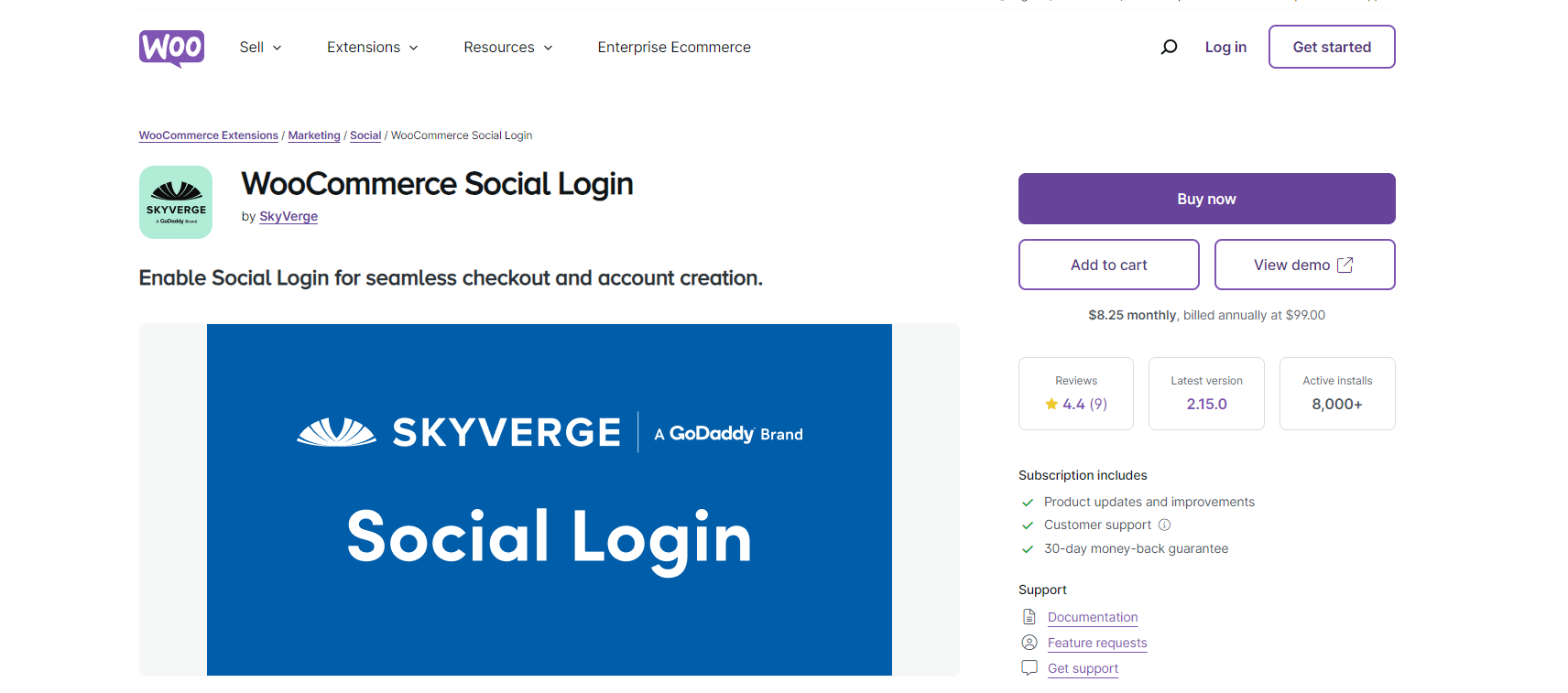
This one is actually built specifically for WooCommerce rather than adapted to it, which shows in how cleanly it sits inside checkout and account pages. It covers Facebook, Twitter, Google, Amazon, LinkedIn, PayPal, and Disqus logins, and is still actively sold and maintained (v2.18.1). Its Amazon and PayPal login options are genuinely uncommon among the plugins on this list, worth a look specifically if your customer base skews toward frequent Amazon or PayPal use, both platforms carry real trust and convenience for a checkout-adjacent login option.
Cost: Paid, roughly $99/year (varies by region), 30-day money-back guarantee.
3. WP Social by wpmet

Bundles social login with social sharing (15 platforms, 50+ layouts) and social counters in one plugin, rather than making you run three separate tools. Actively maintained with 20,000+ installs and a free tier on WordPress.org.
Cost: Free version available; Pro pricing shown at checkout.
4. ProfilePress
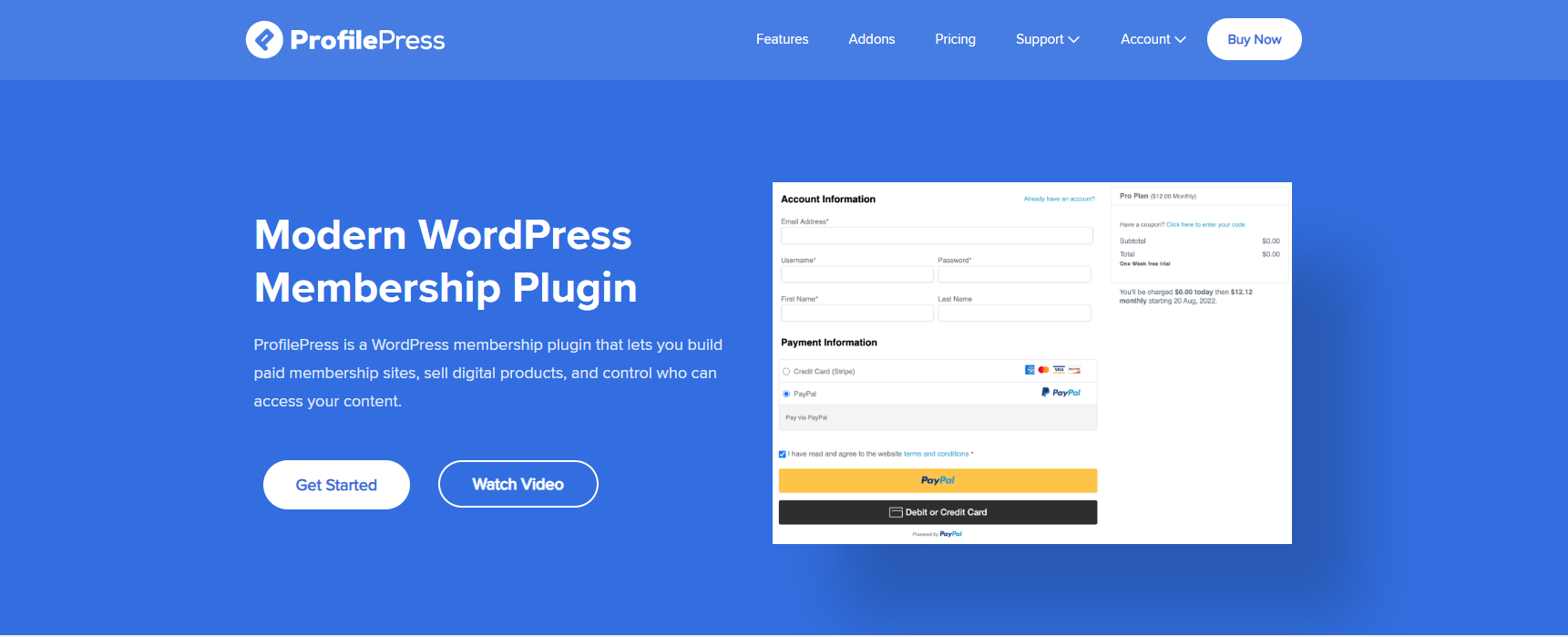
More of a full membership and user-management plugin than a dedicated social login tool, but its social login add-on covers Facebook, Twitter, Google, LinkedIn, GitHub, and more, with custom registration and login forms built around it. Worth considering if you want membership features alongside login, not just login on its own. Actively maintained, 100,000+ sites.
Cost: Paid, pricing on request via their site.
5. WordPress Social Login by miniOrange
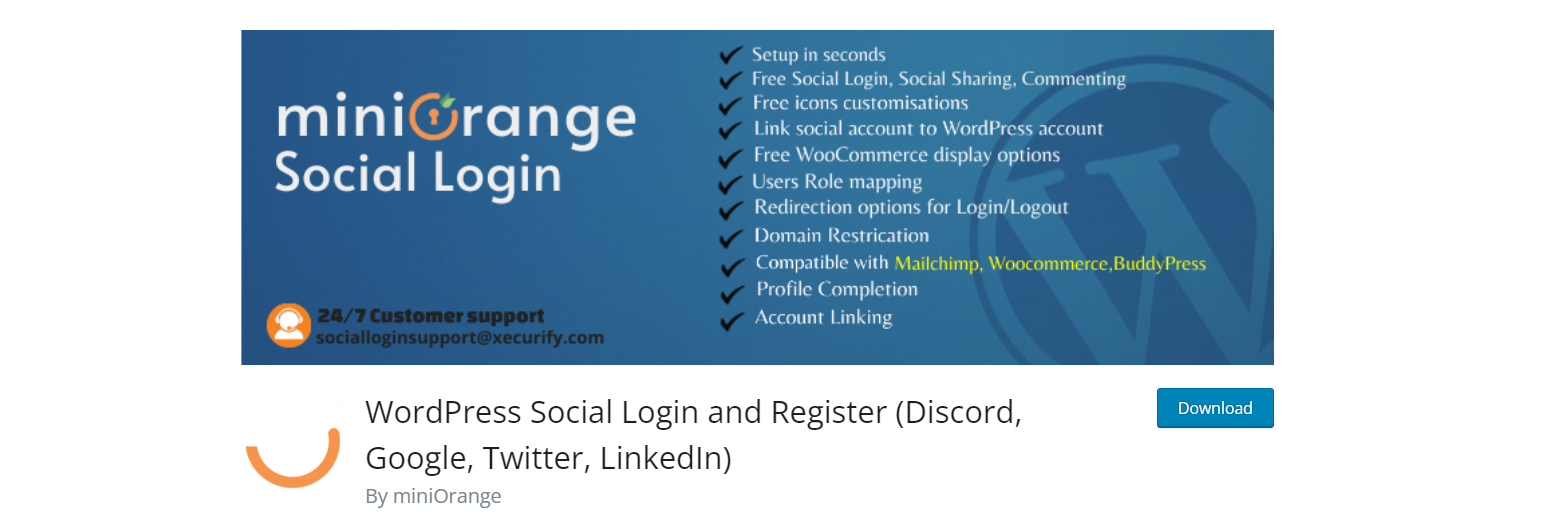
Covers social login, sharing, and commenting across a wide set of platforms including Facebook, Twitter, Apple, and PayPal, with customizable icons and redirect URLs. The premium tier adds the login button on WooCommerce’s checkout, registration, and login pages specifically. Actively maintained (updated within days of this writing), 10,000+ installs.
Cost: Free core plugin; premium pricing on request.
Mobile Considerations: A Popup Isn’t the Same Experience on Every Device
Social login flows typically work through a popup window (opening the provider’s login screen in a small overlay) or a full-page redirect (sending the customer away from your site briefly, then back). The popup approach feels more seamless on desktop but can behave inconsistently on mobile browsers, some mobile browsers block popups by default, or the popup opens correctly but is sized poorly for a small screen, forcing awkward scrolling to reach the login button. Given that a meaningful share of WooCommerce traffic for most stores is mobile, testing each plugin’s actual mobile behavior (not just assuming desktop behavior translates directly) before committing to one is worth the extra half hour, a social login button that technically works but frustrates mobile customers isn’t actually removing the friction it’s meant to remove.
The “Sign in with Apple” Complication Worth Knowing About
If Apple is one of the providers you want to offer, and it’s an increasingly common ask given how many customers now browse and shop on iPhone, know going in that it’s more involved to set up than Facebook or Google. Enabling Sign in with Apple requires an active Apple Developer Program subscription, currently $99/year, and technically requires an App ID tied to an Apple ecosystem app, even for a pure web login button with no actual iOS or Mac app behind it, a requirement that catches a lot of site owners off guard the first time they try to set it up expecting it to work the same way Facebook or Google’s simpler developer console does. Several of the plugins above (miniOrange, Nextend’s paid extension) support Apple as a provider, but the $99/year developer account cost and setup complexity sit outside the plugin itself, worth factoring into your decision on whether Apple login is worth offering for your specific customer base, it makes the most sense for a site whose traffic skews heavily toward Apple device users specifically, less so for a general-audience store where Google and Facebook already cover most of the demand.
Data You’re Actually Collecting, and What to Disclose
Social login typically hands your site more than just a login confirmation, depending on what scopes (permissions) the plugin requests, you may receive the customer’s name, email, profile photo, and sometimes their public friend or connection list, worth reviewing exactly which scopes your chosen plugin requests by default rather than assuming it only asks for the bare minimum. That’s genuinely useful for personalizing the experience, but it’s also personal data subject to privacy regulation (GDPR in the EU, CCPA in California, and similar laws elsewhere), meaning your privacy policy needs to actually disclose that you collect this data via social login and what you do with it, not just cover data from a traditional signup form. It’s worth a specific review of your privacy policy after adding social login rather than assuming your existing policy already covers it, a policy written before social login was added often simply doesn’t mention this data source at all.
What Happens if You Disable a Provider Later
A detail worth planning for before you launch, not after a support ticket forces the issue: if a customer’s account was created purely through a social login (no separate WordPress password ever set) and you later disable that provider, remove the plugin, or the customer’s social account gets suspended or deleted, that customer can be locked out of their WooCommerce account entirely, with no password to fall back on. This scenario is more common than it might sound, provider policies change, social accounts get suspended for reasons unrelated to your store, and a customer occasionally just forgets which provider they used months earlier when returning to place a repeat order. A few of the plugins above (WooCommerce Social Login by SkyVerge, in particular) prompt the customer to optionally set a WordPress password alongside their first social login specifically to prevent this scenario. Whichever plugin you choose, check whether it offers this fallback option and consider enabling it, or at minimum have a manual account-recovery process ready (an admin can reset a user’s password directly from the WordPress dashboard) for when a locked-out customer reaches out.
A Setup Checklist Worth Running Before Launch
A handful of steps are worth confirming regardless of which plugin you land on, since a rushed installation is where most of the problems covered above (lockout risk, undisclosed data collection, mobile popup issues) actually originate. First, test the full flow as a genuinely new customer, not an existing admin account, on both desktop and mobile, since social login popups and redirects sometimes behave differently on mobile browsers than desktop. Second, confirm what happens on a returning customer whose email already exists in your WooCommerce customer list but who’s logging in via a social provider for the first time, most plugins will link the accounts automatically by matching email, but it’s worth confirming that behaves as expected rather than creating a duplicate account. Third, update your privacy policy as covered above before launch, not as an afterthought once customers start asking. Fourth, decide whether social login replaces or supplements your existing email/password login, most stores keep both rather than forcing social login exclusively, some customers will always prefer a traditional account regardless of how much friction social login removes for everyone else.
Common Questions
Does adding social login actually reduce cart abandonment, or is that just marketing claims from the plugin vendors? The underlying logic is sound, and it’s consistent with broader ecommerce research on checkout friction generally: any step that requires a new password to create and remember increases abandonment, and social login removes that step for customers who choose it. The actual lift varies by audience and how prominently the option is presented, worth measuring your own before/after conversion rate rather than assuming a vendor’s general marketing statistic applies exactly to your store.
Which social providers should I actually offer, given diminishing returns on offering too many? Google and Facebook cover the large majority of social login usage on most general-audience WooCommerce stores, and offering more than three or four options tends to add visual clutter to your login form without meaningfully increasing conversions, most customers pick whichever provider they’re already logged into on their device rather than genuinely comparing options. Check your actual customer demographics (B2B stores skew toward LinkedIn or Microsoft, for instance) before assuming the general Google-plus-Facebook default is automatically right for your specific audience.
Is social login actually more secure than a traditional password, or just more convenient? Both, generally, assuming the underlying OAuth implementation is sound and kept updated. Your site never stores a password to be breached in the first place, and major providers (Google, Facebook, Apple) invest heavily in their own account security, including multi-factor authentication most customers already have enabled. The tradeoff is that your site’s login security becomes partially dependent on a third party’s security, worth being aware of rather than treating social login as a security feature that requires zero further thought once installed.
Social Login vs. Guest Checkout: Different Problems, Sometimes Confused
It’s worth being clear about a distinction that gets blurred in a lot of checkout-optimization advice, since the two are often recommended interchangeably as though either one alone solves the friction problem: guest checkout (letting a customer buy without creating any account at all) and social login (letting a customer create an account quickly through an existing provider) solve overlapping but different problems. Guest checkout removes friction entirely for a one-time or first-time buyer who has no interest in an ongoing relationship with your store. Social login removes friction while still capturing a real, persistent account, useful for order history, faster repeat purchases, and any loyalty or membership features you’re running. A mature WooCommerce store generally offers both, guest checkout for the customer who just wants to buy and leave, social login as the low-friction path for anyone willing to create an account, rather than treating either as a full substitute for the other.
Testing the Actual Impact, Not Just Assuming It
Because the conversion benefit of social login varies by audience, and vendor case studies naturally showcase their best results rather than the typical one, it’s worth actually measuring rather than installing a plugin and assuming the marketing claims apply directly to your store. WooCommerce’s own analytics, or a connected Google Analytics account, can track checkout completion rate before and after adding social login, ideally isolating the change from other simultaneous checkout changes so you can attribute the difference correctly. If you have the traffic volume for it, an A/B test (social login prominently displayed vs. a control group without it) gives a cleaner read than a simple before/after comparison, which can be confounded by seasonal traffic shifts or other unrelated changes happening around the same time. Even without formal A/B testing, checking which login method returning customers actually use over the following months tells you whether the feature is earning its keep or sitting unused, a plugin that’s technically installed but barely touched isn’t delivering the value its setup time cost you.
Which one to pick
If you want a free option built for WordPress broadly rather than WooCommerce specifically, Nextend Social Login has the largest install base by far, and it’s a reasonable default to start with even if you later decide you need something more WooCommerce-specific. If you want something purpose-built for WooCommerce checkout flows, don’t mind paying for it, and want the password-fallback protection covered above, WooCommerce Social Login (SkyVerge) is the more integrated choice. The others are worth a look if you also need social sharing or a fuller membership system alongside login, or if Apple sign-in specifically is a requirement your audience justifies the extra setup cost for.
Also read: