

Shipping incentives can make or break your online store’s conversion rates. For many customers, the promise of free shipping is the tipping point that moves them from browsing to buying. But if you offer free shipping without a plan, it can eat into your profits. That’s where setting a free shipping limit comes in—and WooCommerce gives you all the tools you need to make it happen without plugins or coding.
We’ll explore exactly how to add a free shipping limit in WooCommerce, why it’s a game-changer for your store, and step-by-step instructions to configure it directly from your WordPress dashboard. By the end, you’ll have a professional setup that maximizes sales and protects your margins.

Quick Links
The Big Picture: What Is a Free Shipping Limit in WooCommerce?
A free shipping limit is a minimum purchase amount that customers must reach to unlock free shipping. For example, you might decide that orders over $50 qualify for free shipping. This motivates shoppers to add more items to their cart, often boosting your average order value.
When you add a free shipping limit in WooCommerce, you’re essentially telling the system, “Offer free shipping only when the cart total is at least this amount.” This limit helps balance customer incentives with your business costs.
WooCommerce’s built-in shipping settings make this process straightforward. You don’t need custom code or paid extensions—you can configure everything in minutes. It’s a simple change with a big payoff, especially if you run a store where shipping costs are significant.
Why Setting a Free Shipping Limit Makes Sense
Free shipping is one of the most powerful tools in eCommerce psychology. According to multiple studies, customers are more likely to complete a purchase when they see a free shipping offer, even if it means adding extra items to qualify.
Here’s why you should add a free shipping limit in WooCommerce instead of offering blanket free shipping:
- Protect Profit Margins: Shipping costs can quickly add up, especially for heavier or oversized products. A threshold ensures you don’t lose money on small orders.
- Encourage Higher Spending: Shoppers often add extra items just to hit the free shipping mark.
- Many customers abandon their carts when they see high shipping fees at checkout. A clear path to free shipping keeps them engaged.
By setting a smart limit, you create a win-win scenario: customers feel like they’re getting a deal, and you maintain a healthy profit margin.
Preparing Your WooCommerce Store for the Change
Before you add a free shipping limit in WooCommerce, take a moment to decide on your threshold. This is not a number to pull out of thin air—it should be calculated based on your product prices, average order value, and shipping costs.
Here’s how to prepare:
- Check Your Average Order Value (AOV): If your AOV is $40, set your free shipping limit slightly higher, such as $50 or $55.
- Factor in Shipping Costs: If shipping costs average $7 per order, your limit should account for that without eroding your profits.
- Analyze Competitors: Look at what similar online stores offer. Matching or slightly undercutting their threshold can attract customers.
Once you’ve decided on the number, you’re ready to configure the setting inside WooCommerce.
Step-by-Step: How to Add a Free Shipping Limit in WooCommerce
Now let’s dive into the exact process using WooCommerce’s built-in tools.
Step 1: Access the Shipping Settings
- Log into your WordPress dashboard.
- In the left-hand menu, go to WooCommerce → Settings.
- Click on the Shipping tab.
This is your command center for all things shipping-related in WooCommerce.
Step 2: Create or Edit a Shipping Zone
- Under the Shipping tab, select Shipping Zones.
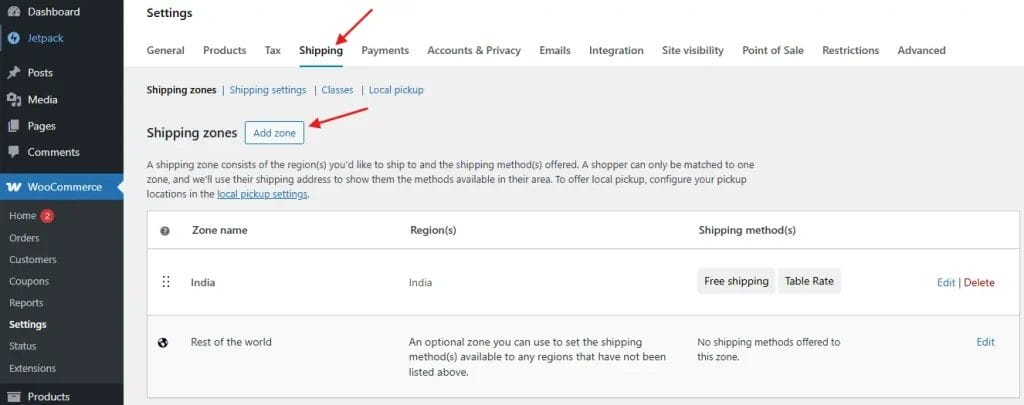
2. Either create a new shipping zone or edit an existing one that applies to your target customers.
3. Click Add Shipping Method within the chosen zone.
Shipping zones let you control rates for specific regions, countries, or even postal codes, so you can apply different free shipping limits depending on location.
Step 3: Add Free Shipping Method
- When prompted to add a shipping method, choose Free Shipping from the dropdown.
- Click Add Shipping Method.
- You will now see “Free Shipping” listed under your shipping zone. Click Edit to configure it.
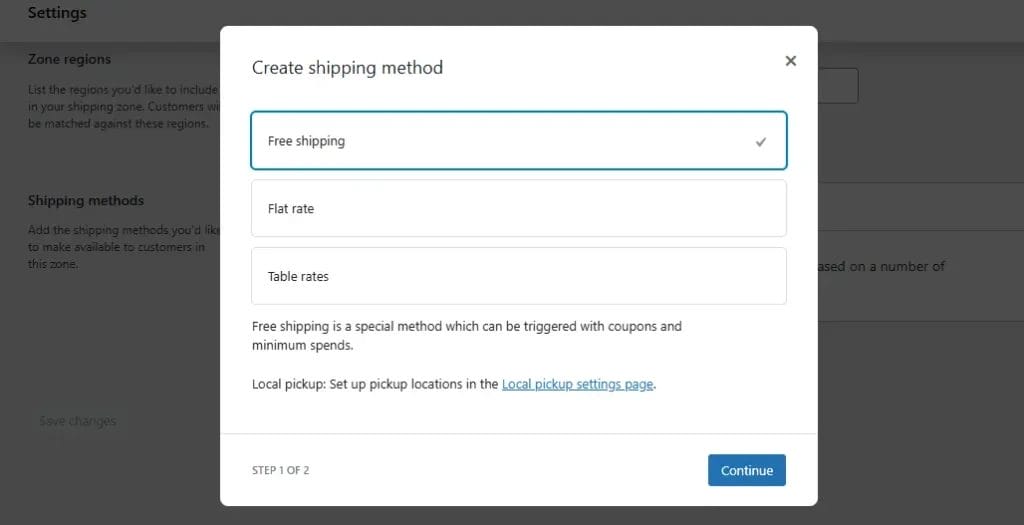
This is where the magic happens.
Step 4: Set the Free Shipping Condition
In the Free Shipping Requires… dropdown, select A minimum order amount.
- Enter the threshold amount you calculated earlier.
- Example: If you decided that customers need to spend $50 for free shipping, type 50.
Click Save Changes.
Congratulations—you’ve officially configured your store to add a free shipping limit in WooCommerce.
Step 5: Test Your Setup
Don’t skip this step. Add products to your cart and adjust quantities to see if free shipping appears only after reaching your set limit. This ensures there are no conflicts with other shipping methods.
Going Beyond the Basics
While the built-in feature is robust, you can extend its functionality with plugins if you need more flexibility. For example:
- WooCommerce Advanced Free Shipping: Lets you create multiple rules based on cart weight, user role, or product category.
- Conditional Shipping and Payments: Adds complex conditions for payment gateways and shipping options.
However, for most stores, WooCommerce’s default settings are more than enough to add a free shipping limit in WooCommerce effectively.
Common Mistakes to Avoid When Adding a Free Shipping Limit
Even though the setup is simple, there are a few pitfalls to watch out for:
- Setting the Limit Too Low: This can hurt profitability.
- Setting the Limit Too High: This can frustrate customers who feel the goal is unattainable.
- Forgetting to Update for Sales or Seasonal Changes: If your pricing changes, your free shipping limit might need adjustment.
A smart strategy is to review your limit quarterly to ensure it’s still aligned with your business goals.
Communicating Your Free Shipping Offer to Customers
Setting the limit is only half the job—you must make sure customers know about it.
Here are some creative ways to promote your free shipping threshold:
- Add a banner to your store header announcing “Free Shipping Over $50!”
- Display a cart progress bar showing how much more the customer needs to spend to qualify.
- Include the offer in your email marketing campaigns.
The more visible your offer, the more likely customers will adjust their purchases to take advantage of it.
Tracking the Impact of Your Free Shipping Limit
Once you add a free shipping limit in WooCommerce, measure its effectiveness. Use WooCommerce reports or Google Analytics to track:
- Changes in average order value.
- Reduction in abandoned carts.
- Increase in completed orders.
If you notice positive trends, you’ve found a sweet spot. If not, tweak the threshold and try again.

Final Thoughts
Adding a free shipping limit in WooCommerce is more than just a technical tweak—it’s a strategic move that can boost revenue, improve customer satisfaction, and keep your business profitable. With WooCommerce’s built-in settings, you can set it up in just a few minutes and start reaping the benefits immediately.
Remember, the key is to choose a threshold that motivates customers without hurting your bottom line. Monitor your results, adjust when necessary, and keep communicating your offer clearly across your store.
Interesting Reads:
WooCommerce 10.0 Release: What’s New, What Matters, and What’s Next for Your Store
How to Limit Shipping and Payment Methods in WooCommerce
How to Set Up Shipping Rates Based on Product Dimensions in WooCommerce

