
Free shipping is one of the strongest conversion levers in ecommerce, but offering it unconditionally on every order eats straight into margin. A minimum-order threshold gets you both: the incentive stays, and small orders don’t quietly lose money on shipping. WooCommerce handles this natively, no plugin or code required.
What This Actually Is
A minimum purchase amount customers need to hit before free shipping applies, say, orders over $50. It tells WooCommerce: offer free shipping only once the cart total clears this line. Simple to configure, and it directly nudges average order value upward since people often add one more item just to qualify. The mechanism itself is old, retailers have run some version of this since long before ecommerce existed, department stores did the same thing with in-store delivery decades ago. WooCommerce just makes it a checkbox instead of a policy memo.
Why Set a Threshold Instead of Blanket Free Shipping
Shipping costs on heavier or bulkier items add up fast, and a threshold keeps you from losing money on small orders specifically, the kind where a single low-price item would otherwise ship at a loss once box, packaging, and carrier cost are counted. Shoppers frequently add items just to cross the line into free shipping, which is the mechanism doing the actual heavy lifting for average order value. And surprise shipping fees at checkout are one of the most common reasons carts get abandoned; a clear, visible path to free shipping keeps people moving forward instead of bailing at the last screen once they see a number they didn’t expect.
Picking the Right Number
Don’t pick a threshold arbitrarily. Check your average order value first: if it’s $40, a $50 to $55 threshold is a realistic stretch, not an impossible one, close enough that a customer can genuinely see the gap and decide to close it. Factor in your real shipping costs too. If shipping averages $7 per order, your threshold needs to actually cover that gap on the orders sitting just below it, not just look good on a marketing banner. And check what comparable stores in your niche are doing, matching or slightly undercutting a competitor’s threshold is a real, measurable competitive lever, particularly for a shopper comparing two similar products in two open browser tabs.
There’s a math check worth running before you commit to a number. Take your average shipping cost, divide it by your typical margin percentage, and that tells you roughly how much additional cart value you need per order to make the free-shipping offer margin-neutral rather than a straight cost. A store running on thin margins needs a threshold meaningfully above its shipping cost; a store with healthy margins on each item has more room to set an aggressive, low threshold purely as a conversion tool. Neither approach is wrong, but guessing at a round number without doing this check once is how stores end up quietly subsidizing shipping on their smallest orders indefinitely.
Setting It Up
Step 1: Shipping Settings
WordPress dashboard > WooCommerce > Settings > Shipping tab.
Step 2: Create or Edit a Shipping Zone
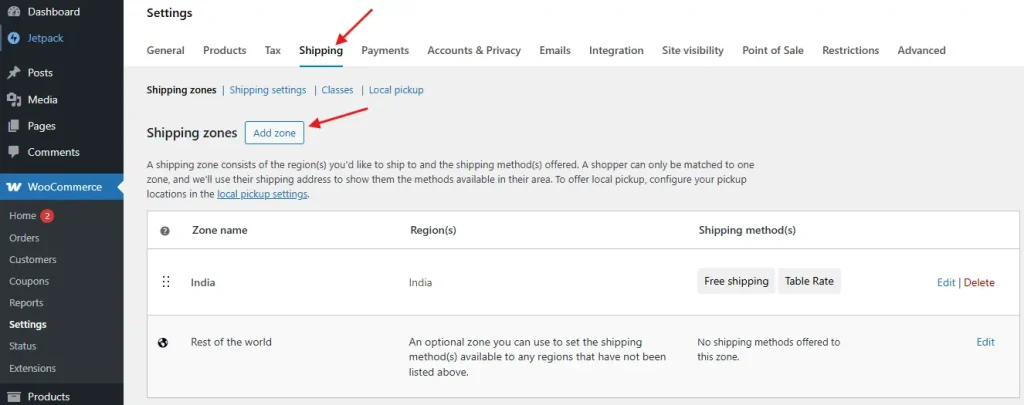
Under Shipping Zones, create a new zone or edit an existing one for the region you’re targeting, then click Add Shipping Method. Zones let you apply different thresholds by region if that’s relevant to your store, a domestic threshold that makes sense given your local carrier rates may be unrealistic once you factor in the cost of shipping the same order internationally.
Step 3: Add the Free Shipping Method

Choose Free Shipping from the method dropdown, add it, then click Edit on the new “Free Shipping” line under your zone.
Step 4: Set the Condition
In the “Free Shipping Requires…” dropdown, choose “A minimum order amount,” then enter your calculated threshold, for example 50. Save changes. If you also run coupon codes regularly, note that WooCommerce’s dropdown offers a second option combining the minimum amount with a coupon requirement; skip that unless you specifically want free shipping gated behind both conditions at once, which is a narrower use case than most stores actually need.
Step 5: Test It
Add products to a cart and adjust quantities to confirm free shipping only appears once you’ve actually crossed the threshold, and that it doesn’t conflict with other shipping methods in the same zone. Test from a logged-out session too, not just as an admin, since some caching setups serve a stale shipping calculation to visitors who aren’t logged in until the cache clears.
Beyond the Built-In Feature
For most stores, WooCommerce’s native setting is enough. If you need more nuance, Advanced Free Shipping for WooCommerce (Jeroen Sormani, 40,000+ active installs) adds conditions based on cart weight, user role, or product category, useful if certain categories should never qualify for free shipping regardless of cart total, oversized furniture is the classic example. Conditional Shipping and Payments (confirmed active, 10,000+ installs, cached from an earlier post) handles more complex payment and shipping condition combinations, worth it once your rules genuinely need more than a single flat threshold to express.
Common Mistakes
A threshold set too low hurts profitability without meaningfully changing customer behavior, since most carts were already going to clear it without any nudge at all. One set too high feels unreachable, which discourages rather than motivates; a customer who’s $40 short of a $100 threshold is more likely to give up than add a single item to close a $10 gap. And never revisiting the number is its own quiet mistake. If prices change seasonally, during a sale, or as your catalog’s average price point drifts over time, the threshold needs to move with it. A threshold calculated correctly two years ago against that year’s average order value can be badly miscalibrated today if nobody’s checked it since.
Making Sure Customers Actually Know About It
A header banner announcing “Free Shipping Over $50” is the simplest, highest-visibility option, and it should say the actual number, not a vague “free shipping available” that leaves a shopper guessing whether they’ve already qualified. A cart progress bar showing exactly how much more to add is genuinely effective at nudging additional purchases, since it turns an abstract threshold into a concrete, visible number that updates as items get added. And it’s worth mentioning the threshold in email campaigns too, not just on-site, particularly in an abandoned-cart email where a shopper who was close to the free-shipping line might come back specifically to cross it.
Regional and Multi-Currency Considerations
A store selling internationally runs into a wrinkle a single-currency, single-country store never has to think about: a threshold set in one currency doesn’t automatically make sense once converted into another, both because of exchange-rate drift and because shipping costs to different regions vary wildly. A $50 domestic threshold might genuinely cover the shipping cost on a nearby delivery but fall well short of covering the cost of shipping the same order overseas. If you’re running WooCommerce’s multi-currency setup or a currency-switcher plugin, check whether your threshold is being converted sensibly at each currency, or whether it’s producing an oddly specific number, the kind that clearly wasn’t set on purpose, in a shopper’s local currency. Setting region-specific zones with their own thresholds, rather than one global number converted automatically, is usually the more defensible approach once your shipping costs genuinely diverge by region.
Measuring Whether It’s Working
Use WooCommerce’s own reports or Google Analytics to track average order value, cart abandonment rate, and completed order volume before and after you set the threshold. If those move in the right direction, you’ve found a reasonable number. If not, adjust and retest rather than assuming the strategy itself failed, the mechanism works broadly across ecommerce, a specific badly-calibrated threshold is usually the actual problem rather than the concept of a threshold at all. Give any change at least a couple of weeks of real traffic before judging it; a threshold adjustment tested against three days of data, especially if those days include a weekend traffic dip, will mislead you more often than it helps. Keep a simple running log of when you changed the number and what it was before, a spreadsheet row is enough, so six months from now you can actually trace which change produced which result instead of trying to reconstruct the timeline from memory.
Testing Different Thresholds Properly
Changing a number in a settings page is easy; knowing whether the new number actually helped is the harder part. Resist the urge to change the threshold and immediately compare the next few days against the previous few. Ecommerce traffic swings by day of week, by whether you’re mid-promotion, by seasonality that has nothing to do with your shipping settings. A cleaner approach, where your traffic volume supports it, is running two thresholds simultaneously across different segments, half your email list sees one banner number, half sees another, and comparing average order value between the two groups over the same time window. Where that’s not practical, at minimum compare full weeks against full weeks, and note anything unusual happening in either period, a holiday, a competitor’s sale, a site outage, that could skew the numbers independent of the threshold itself.
Watch more than just average order value while you’re at it. A threshold that lifts AOV but also meaningfully increases return rates isn’t the win it looks like on the surface, customers padding a cart purely to hit a number sometimes return the padding item once the order arrives. Cross-reference AOV against your return rate for a full sales cycle before declaring a new threshold a clear improvement.
How This Interacts With Coupons and Other Promotions
A free-shipping threshold doesn’t exist in isolation from the rest of your promotions calendar, and it’s worth thinking through how the two interact rather than discovering a conflict live. A sitewide percentage-off coupon effectively lowers the real price a customer needs to reach the threshold in pre-discount terms, which can make the free-shipping offer feel more generous than intended during a sale, or, depending on how your margins shake out, actively unprofitable on borderline orders. If you also run a coupon code that offers free shipping outright regardless of cart size, double-check it isn’t quietly undermining the threshold you’ve set as the default, a customer who’s found a stray old coupon code online shouldn’t be getting free shipping on a $15 order if the intent was to reserve that for $50-plus carts.
Bundle deals deserve the same scrutiny. If a bundle is priced to look like a bargain but actually falls just under your free-shipping threshold on its own, you may be inadvertently steering bundle buyers away from the free-shipping incentive rather than toward it, the opposite of what you’d usually want a promotion to do. A quick manual check, add the actual bundle to a test cart and see where it lands relative to the threshold, catches this before a customer does.
When a Flat Threshold Isn’t the Right Tool
Not every store benefits from this approach in its default form. A store selling a small number of expensive items, where nearly every order already clears a reasonable threshold without any behavioral nudge at all, gets little practical lift from the mechanism, the threshold ends up functioning as blanket free shipping in practice, just with extra configuration overhead. On the other end, a store with an extremely wide price range, a few dollars for an accessory up to several hundred for a flagship item, may find one flat number either irrelevant to its highest-value customers or unreachable for its lowest-value ones. In either case, it’s worth checking your actual order-value distribution, not just the average, before assuming a single threshold is the right lever to pull. A median and a spread tell you more than an average alone about whether this feature will move behavior or just sit quietly in the background doing nothing.
Frequently Asked Questions
Can I set a different free shipping threshold for different product categories?
Not with WooCommerce’s native Free Shipping method alone, that applies at the shipping-zone level rather than per category. Advanced Free Shipping for WooCommerce, mentioned above, adds category-level conditions if you need that granularity, for example excluding oversized or heavy items from qualifying regardless of cart total.
Does the threshold apply to the subtotal or the total including tax?
WooCommerce’s native setting evaluates against the cart subtotal by default, before tax is applied, though this can be affected by how your specific tax settings and any active coupons interact with the calculation. Test a real cart at exactly your threshold amount to confirm the behavior matches what you expect for your specific setup, rather than assuming.
Should the threshold change during a sitewide sale?
Often yes. If prices are discounted 20% storewide and the free-shipping threshold stays fixed, effective cart values needed to qualify shift too, and a threshold that felt reachable at full price can feel meaningfully harder to hit once prices drop. Some stores intentionally lower the threshold during a sale to keep the incentive proportionally consistent; others leave it fixed on purpose to protect margin during a period when per-item profit is already reduced. Either is defensible, but it should be a deliberate choice rather than an oversight.
Is a percentage-based threshold ever better than a flat dollar amount?
For most stores, a flat number is easier for a customer to reason about at a glance, “spend $12 more” is instantly clear in a way a percentage discount framing usually isn’t. WooCommerce’s native tool only supports a flat minimum-amount threshold; a percentage-based or dynamically calculated approach would need one of the more advanced plugins mentioned above, and is rarely worth the added complexity unless your catalog has an unusually wide price spread that a single flat number can’t reasonably serve.
What if I want to offer free shipping only to logged-in or wholesale customers?
WooCommerce’s built-in Free Shipping method doesn’t distinguish by user role on its own. Advanced Free Shipping for WooCommerce adds role-based conditions, useful if you want, for example, wholesale accounts to get free shipping at a lower threshold than retail customers, reflecting the fact that wholesale orders are typically larger and more predictable to ship. Setting this up correctly usually means running two shipping zones or rule sets in parallel rather than trying to force one rule to cover both customer types.
Does a free shipping threshold work the same way for digital and physical products mixed in one cart?
A cart mixing a digital download with a physical product still evaluates the threshold against the full cart subtotal by default, including the digital item’s price, even though the digital item itself has no shipping cost. If digital products make up a meaningful share of your catalog, it’s worth checking whether that inflates your effective free-shipping qualification rate in a way your original threshold math didn’t account for, since a customer could reach the threshold mostly on digital spend while the store still absorbs the same physical shipping cost on a smaller physical order than intended.
Interesting Reads:
How to Limit Shipping and Payment Methods in WooCommerce
How to Set Up Shipping Rates Based on Product Dimensions in WooCommerce