

Adding a tip option to your WooCommerce checkout page can make a big difference for your business. Whether you run a restaurant, café, salon, or service-based store, giving customers the ability to show appreciation directly through tips not only boosts revenue but also enhances the overall shopping experience. In fact, studies show that businesses offering digital tipping options see an average increase of 10–15% in order value, while nearly 70% of customers prefer having the option to leave a tip online when it is presented in a clear and simple way.
When you add tips in WooCommerce, you create an opportunity to capture additional income without raising product prices, while also giving your customers a sense of contribution and support. For service-driven businesses, this can lead to higher employee satisfaction, as staff feel more valued when tips are consistently included. Over time, this small feature can significantly improve both customer loyalty and your bottom line.

Quick Links
Benefits of Adding Tips in WooCommerce
When you add tips in WooCommerce, you do more than just increase revenue—you create a better experience for your customers. Customers often like to show gratitude when they’ve had a good experience, and offering a tipping option provides them with an easy way to do so.
This added flexibility can result in a higher average order value and greater customer satisfaction. Moreover, it creates a win-win scenario: customers feel good about supporting your team, and your staff or service providers benefit directly from the additional income.
The Best Way to Add Tips in WooCommerce
The easiest and most reliable way to add tipping functionality is with the Tipping for WooCommerce plugin. This extension allows you to display a tip box at checkout, add predefined tip buttons, or let customers enter a custom tip amount.
How to Install Tipping for WooCommerce
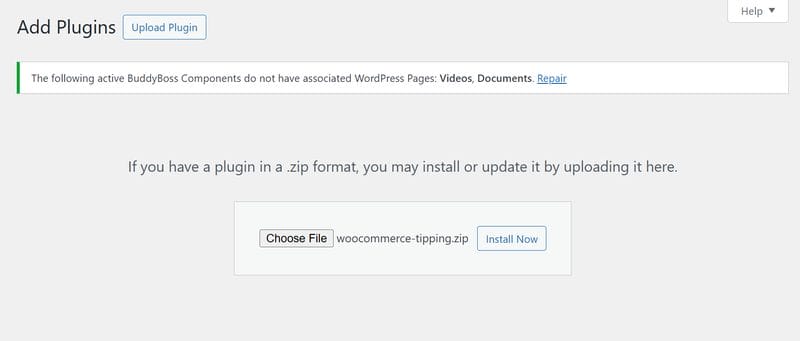
- Download the .zip file from your WooCommerce account.
- Log in to your WordPress Admin Dashboard.
- Navigate to Plugins > Add New > Upload Plugin.
- Click Choose File, upload the .zip file, and select Install Now.
- Activate the plugin.
Once installed, you’re ready to configure your tip settings.
How to Configure Tipping for WooCommerce
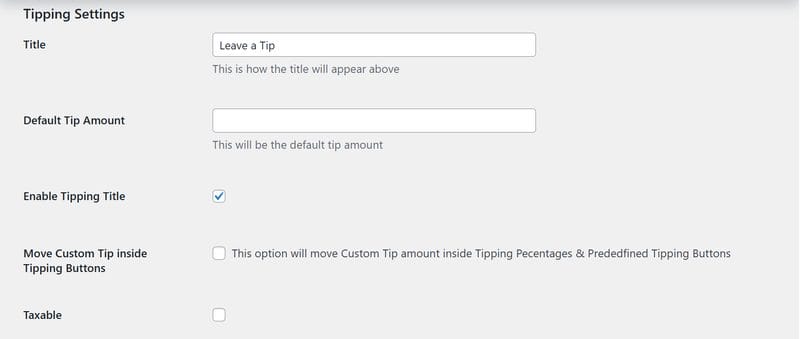
- Go to Settings — From your dashboard, navigate to WooCommerce > Settings > Tipping.
- Set the Title — Add a title like “Leave a Tip” to display at checkout. Check the Enable Tipping Title box if you want it visible.
- Enable Tipping Options — Check Enable Tipping Feature to activate tips on checkout.
- Add Predefined Tip Buttons — Enable Tipping Percentage Buttons (e.g., 10%, 20%, 30%) and enter values as 10,20,30.
- Choose Display Style — Decide how to show tips: Percentage, Fixed Amount, or Both.
- Customize Styling — Use styling options to match the tipping box with your store’s design.
- Save Changes — Click Save to apply your setup.
How Customers Use the Tip Feature
When customers proceed to checkout, they will see a new tipping option displayed under the Order Review section. This feature allows them to either select from predefined tip amounts or enter a custom tip value based on their preference. Once added, the tip is automatically applied as a fee on the order, ensuring a seamless process without any extra steps.
What makes this plugin even more flexible is its compatibility with WooCommerce Cart and Checkout Blocks, allowing store owners to insert the tipping feature directly into the order summary section for a modern, user-friendly experience.
Also Read: How to Add Product Brands to Your WooCommerce Store In 2025
Tracking Tips with WooCommerce Reports
- Go to WooCommerce > Reports > Tips to view total tips received.
- Track the number of orders that included a tip.
- Access detailed analytics under Analytics > Tips for data-driven insights.
Pro Tips for Using Tipping in WooCommerce
- Test on multiple devices to ensure the tipping feature displays correctly.
- Keep tipping optional to avoid checkout friction.
- Offer multiple tip levels to encourage higher contributions.
- Track analytics regularly to understand customer behavior.
Real-World Use Cases for WooCommerce Tipping
Tipping isn’t limited to restaurants and cafés. Businesses across industries can benefit when they add tips in WooCommerce. For example, salons and spas can use tips to reward stylists or therapists for exceptional service. Online tutors can provide students with the chance to show appreciation after a session.
Delivery-based businesses can build stronger customer relationships by allowing tips for drivers. Even non-profits or fundraising stores can adapt the tipping feature to collect small donations at checkout.
Best Practices to Encourage Customers to Leave Tips
To maximize the effectiveness of this feature, it’s important to present tipping in a way that feels natural and customer-friendly. Always keep tipping optional to avoid creating friction at checkout. Use clear and friendly language, such as “Would you like to leave a tip?” instead of aggressive prompts.
Provide multiple tipping options (for example, 10%, 20%, or a custom amount), as studies show customers are more likely to choose a percentage when presented with clear choices. Finally, make sure your tip box matches your store’s branding and design so it feels like a seamless part of the checkout experience.

Enhance Your WooCommerce Store with Tipping
Adding a tip option is one of the simplest yet most effective ways to increase revenue and improve customer satisfaction. With the Tipping for WooCommerce plugin, you can easily configure percentage-based tips, fixed amounts, or even allow customers to enter their own custom values. This flexibility not only gives customers more control but also encourages them to contribute in a way that feels comfortable.
Beyond boosting earnings, tipping also helps build stronger relationships with your customers by showing them that their contributions directly support your team or service. Whether you’re running a food delivery store, a salon booking site, or an online tutoring platform, enabling tips at checkout creates a more engaging and rewarding shopping experience.
If you’re looking to take your WooCommerce store to the next level, combining tipping with other custom features like tailored checkout designs, upsell options, and personalized user journeys can significantly increase both sales and customer loyalty. These enhancements not only improve the shopping experience but also create more opportunities for long-term growth.
Ready to optimize your store with advanced features? Explore our Custom WooCommerce Development Services and let our experts help you build a WooCommerce store that drives results.
Interesting Reads
How to Improve Customer Experience with WooCommerce Order Tracking

