

Posting when your audience is actually online beats posting whenever you happen to be sitting at your desk. BuddyPress’s activity stream moves fast. An update posted at the wrong hour is several screens down by the time anyone would have seen it. This post covers what “optimal timing” actually means for a community, how to schedule posts around it using a real plugin instead of manually timing every single update, and how to tell later whether any of it actually worked.
What “optimal timing” means here
There’s no universal rule buried in this. It’s understanding when your specific audience is actually online, which varies more between communities than most generic advice accounts for. A student community skews toward evenings, once classes and homework are done. A professional audience checks in during mornings and lunch breaks, then again briefly after work. The goal is publishing when people are already there to see it, not chasing a generic “best time to post” list built for nobody in particular.
Why it matters for an activity stream specifically
BuddyPress’s activity stream is real-time and fast-moving, unlike a blog post that sits at a stable URL waiting to be found. Post at a dead hour and your update sinks several screens down before anyone’s actually looking. Post right before a known peak and it stays fresh and visible for the exact window when the most eyes are on the stream. Same content, same effort to write it, meaningfully different outcome, purely from timing.
That’s a frustrating thing to accept if you’ve spent real time writing a good update, but it’s the nature of a live feed. Content that would perform fine on a static page can vanish entirely on an activity stream if it lands at the wrong moment.
Manual posting doesn’t scale
Trying to hit the right moment manually falls apart fast, especially once a community spans multiple time zones. It also tends to produce inconsistent posting, bursts of activity on days you remember, silence on days you don’t, and that unevenness hurts engagement more than mediocre timing ever does. A community that hears from its manager unpredictably trains itself to stop checking as often. Scheduling solves this directly by decoupling when you write something from when it actually goes live.
BuddyPress Schedule Activity (Wbcom Designs)
BuddyPress Schedule Activity (confirmed active, v1.5.0, $39-99/yr or $129-299 lifetime) lets you compose an activity post now and schedule it to publish automatically up to 90 days out, running on a per-minute cron so the timing is genuinely precise rather than approximate. Worth being clear about what it actually does versus what it doesn’t: it’s a scheduling tool, not an analytics engine. It won’t tell you when your audience is online. It reliably publishes at whatever time you specify, and you still need to figure out the right time yourself, which the section further down covers.
It covers personal updates and group posts, and works across both BuddyPress and BuddyBoss, so switching platforms later doesn’t mean losing the scheduling workflow you’ve already built.
Key features
- Schedule up to 90 days in advance
- Personal and group activity support
- Time zone selection
- Edit or cancel scheduled posts before they go live
Setting it up
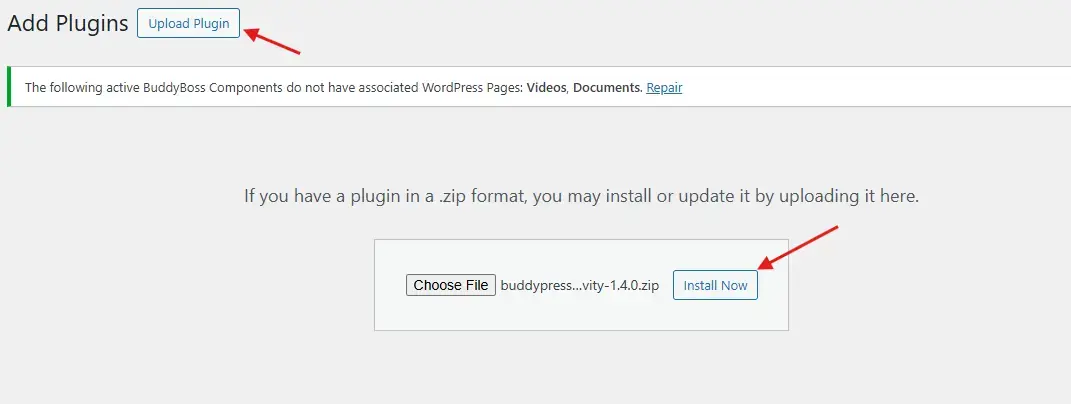
- Purchase and download the plugin from Wbcom Designs, then go to WordPress Dashboard > Plugins > Add New > Upload Plugin, select the ZIP, and Install Now.
- Activate it.
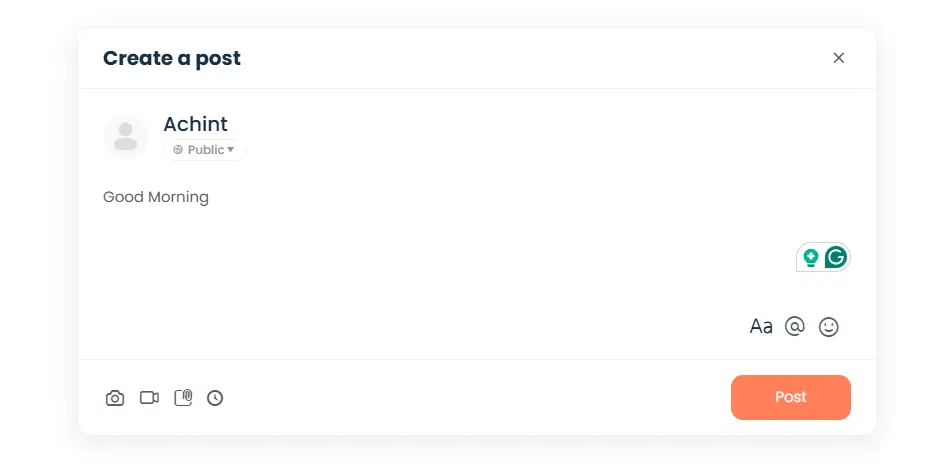
From the admin menu, go to Users > Schedule Activity. Pick the posting user, write the message, choose a group if relevant, and set the date, time, and activity type. The interface stays close to what you’d expect from posting a normal activity update, with the scheduling controls layered on top rather than hidden behind a separate workflow.
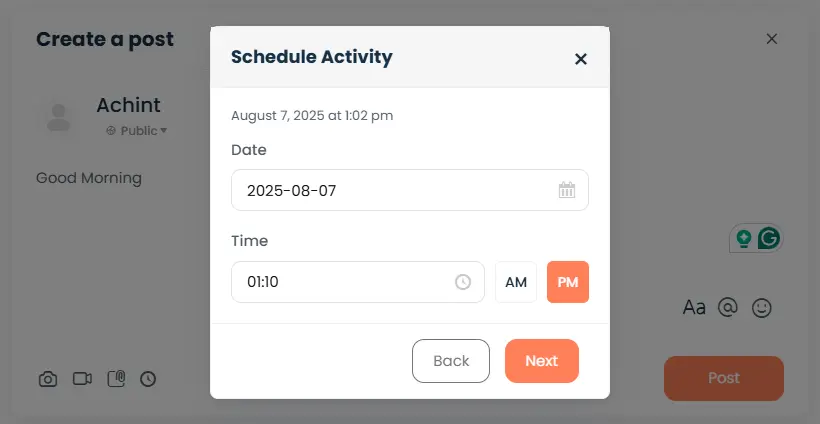
Select your timezone, use the calendar or time picker for when it should go live, and choose whether it posts to the main activity stream or a specific group. Getting the timezone setting right matters more than it might seem, since a mismatch here is the single most common reason a scheduled post lands at an unexpected hour.
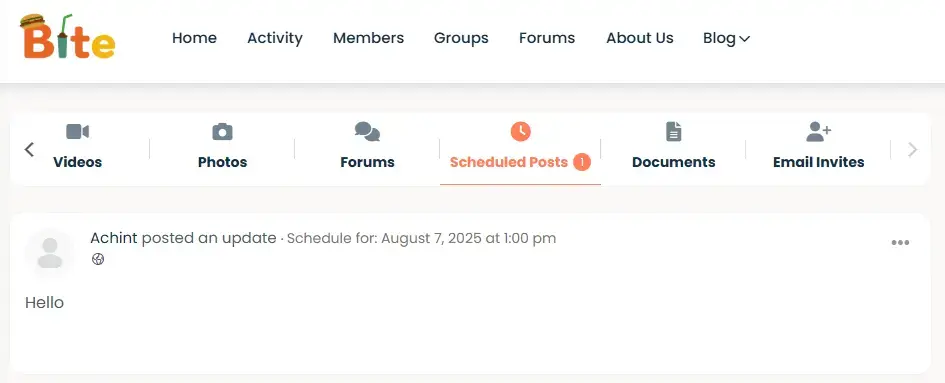
All scheduled posts appear in the Schedule Activity panel, where you can review, edit, or cancel them anytime before publication. That review screen doubles as a quick sanity check before something goes live, worth a glance at the start of each week to catch anything that got the wrong date attached.
Finding your actual best times
General starting points: 8-10 AM covers the morning check-in crowd, 12-2 PM catches lunch browsing, and 6-9 PM lines up with the evening wind-down most people go through after work or classes end. Weekends tend to work well for casual, community-based networks specifically, less so for anything professional-leaning. Treat these as a starting hypothesis, not a rule carved into anything permanent, then check your own data. Jetpack, Google Analytics, or Koko Analytics (free, WordPress.org) can all show login times and engagement windows specific to your actual community rather than a generic average pulled from unrelated sites.
Give it a few weeks of consistent posting at your hypothesis times before drawing conclusions. A single low-engagement post at 9 AM doesn’t mean mornings don’t work, it might mean that particular update wasn’t compelling regardless of when it landed. Patterns over several weeks tell you more than any single data point.
Handling multiple time zones honestly
A community spread across three or four time zones doesn’t have one single optimal hour, no matter how much a tidy blog post might wish it did. The practical fix is picking a primary time zone where the bulk of your active members live, and accepting that other zones will catch content slightly off-peak. Rotating which time zone gets the “prime” slot on different days is another option for communities without one dominant region, though it adds complexity that’s only worth the effort once you’ve confirmed the audience split is genuinely close to even rather than assumed.
A membership plugin or a simple profile field asking members their general region during signup can turn this from a guess into an actual number worth acting on. Even a rough split, sixty percent one region, forty percent another, is enough to make an informed call rather than picking a primary time zone arbitrarily.
Measuring whether the timing change actually worked
Switching to scheduled posting at hypothesized peak times feels productive on its own, but it’s worth confirming it actually moved the needle rather than just assuming it did. Track comment counts, reaction counts, and how quickly a post gets its first response after going live, that last one especially, since a fast first reply is a strong signal the post landed while people were actually present to see it.
Compare a few weeks of scheduled posting against your prior manual, whenever-you-remember posting habit. If engagement genuinely improved, the timing change earns its keep. If it didn’t move much, the content itself is probably the bigger lever to pull next, not the clock. Keep a simple running note of what changed and when, so a few months from now you can actually trace which specific adjustment moved the numbers rather than relying on memory.
Choosing activity type alongside timing
Timing and content type work together more than most guides admit. A question or poll scheduled for a peak hour benefits from that timing far more than a passive announcement does, since the whole point of a question is getting immediate responses while people are actually there to answer it. A simple status update or announcement is more forgiving of imperfect timing, since it doesn’t need immediate interaction to still deliver its message.
If you’re only going to be strict about timing for one type of post, make it the interactive ones. That’s where a well-chosen hour compounds into real engagement, rather than just visibility for its own sake.
A few common questions
What happens if the scheduled time passes while the site is down or under maintenance?
The plugin’s per-minute cron catches up once the site is back, publishing the post shortly after rather than skipping it entirely. There may be a short delay depending on how long the outage lasted, but scheduled content doesn’t simply vanish.
Can different community managers schedule posts independently without conflicts?
Yes, since each scheduled post is tied to the user who created it and the specific date and time chosen. Multiple people scheduling content for the same community works fine as long as there’s a shared view of what’s already queued, which the Schedule Activity panel provides.
Does scheduling activity posts affect email notifications members receive?
Notifications fire the same way they would for a live-posted update, triggered at the moment the scheduled post actually publishes rather than when it was originally written. Members see the same notification behavior either way.
Is there a limit to how many posts can be queued at once?
The plugin doesn’t impose an artificial cap beyond the 90-day scheduling window. Practically, a queue that’s too dense tends to hurt engagement anyway, as covered in the over-scheduling mistake above, so self-imposed moderation matters more than any technical limit.
Where this helps most
Community managers keeping a steady stream of updates, invites, and event reminders without needing to be online constantly to hit the right moment. Educators scheduling assignments and discussion prompts so they land when students are actually checking in, including around school breaks when normal patterns shift. Marketers timing campaign launches and offers to when the audience is most likely to actually act on them, rather than see them buried under newer posts an hour later.
Seasonal shifts nobody accounts for
A community’s online habits aren’t fixed year-round, and treating one set of “optimal times” as permanent misses real shifts. A student community goes quiet during exam weeks and semester breaks, then comes roaring back once classes resume. A professional network slows noticeably in the last two weeks of December and picks back up in January. Holidays, daylight saving changes, even a major news cycle unrelated to your community can all shift when people are actually checking their phone versus focused on something else entirely.
Revisiting your assumed peak times every few months, rather than setting them once and forgetting them, keeps the schedule honest as these shifts happen. A quarterly check against fresh analytics data is a reasonable cadence for most communities, more often if your audience is unusually seasonal, and worth putting an actual recurring reminder on your own calendar for rather than trusting yourself to remember.
Reading engagement data without overreacting to noise
Analytics tools will hand you a chart, but interpreting it correctly takes some judgment. A single unusually high or low engagement day is often noise, a member’s post going viral within the community for unrelated reasons, or a slow news day pulling more people online than usual. Look for patterns that hold across several weeks rather than reacting to any single data point, and resist the urge to overhaul the whole schedule after one unusually quiet or unusually loud day.
It also helps to separate login activity from engagement activity. A member who logs in during their lunch break to quickly check notifications isn’t necessarily primed to read and react to a long post the way someone browsing more leisurely in the evening might be. Login timestamps are a useful starting signal, but comment and reaction timestamps tell you more about when people are actually receptive to content, not just present on the site.
A simple weekly rhythm
- Monday: community goals or announcements
- Wednesday: an interactive post (poll, question, challenge)
- Friday: a recap or member highlight
- Sunday: a preview of the week ahead
Scheduled in one sitting, this takes well under 30 minutes a week rather than four separate interruptions pulling your attention away from everything else on your plate.
Batching content creation versus batching scheduling
It’s worth separating two different habits that get conflated: writing content in a batch and scheduling it in a batch. Writing four or five updates in one focused sitting, when you’re already in the right headspace for that community’s voice, tends to produce more consistent quality than writing one update every day under time pressure.
Scheduling those updates across the coming week, spaced at the times your own data supports, is the second, separate step. Doing both together in one sitting, write everything, then schedule everything, is usually the most efficient use of a community manager’s time, and it’s exactly the workflow BuddyPress Schedule Activity is built to support without requiring a separate tool for either half of the process.
What good timing can’t fix
It’s worth being honest about the limits here. Perfect timing on a genuinely uninteresting update still produces a genuinely uninteresting update, just one that more people happened to see. Timing amplifies whatever you’re already publishing. It doesn’t manufacture engagement out of nothing, and treating it as a substitute for actually worthwhile content is a common way community managers end up disappointed with results despite doing the scheduling homework correctly.
The two work together: solid content that would perform reasonably well regardless, published at a time when more people are around to see it, outperforms either one alone. Neither timing nor content quality carries the whole job by itself, and treating them as two separate levers rather than one combined effort is the more useful way to think about a community’s overall activity strategy.
Mistakes worth avoiding
Scheduling everything weeks in advance and never revisiting it is a common one. Community moods shift, current events happen, and a scheduled post that felt right two weeks ago can land oddly against something that happened yesterday. A quick weekly review of what’s queued up catches this before it becomes a visible misstep.
Over-scheduling is another trap. Filling every available slot just because the tool makes it easy dilutes the value of each individual post. A steady, moderate rhythm holds attention better than a dense stream of updates competing with each other for the same eyeballs.
A third, quieter mistake: scheduling content and then never engaging with the responses it generates. A post that lands at the perfect hour and pulls in comments still needs someone to actually reply to those comments while the conversation is warm. Scheduling the post is half the job. Showing up to participate once it’s live is the other half, and it’s the half that’s easy to forget when the whole point of scheduling was freeing yourself from being online constantly.
Final thoughts
Timing is a small, repeatable decision that compounds over time. BuddyPress Schedule Activity handles the mechanical part reliably, but the actual “optimal time” still comes from watching your own community’s real behavior, not a generic list borrowed from somewhere else. Combine the two and you get consistent visibility without needing to be logged in around the clock chasing the right moment yourself.
One last practical note: revisit this whole setup after the first month of real use rather than assuming the initial configuration is correct forever. Communities change, and the schedule that fit on day one rarely stays perfect without at least one deliberate check-in.