

An AI Halloween face changer is a photo or video tool that uses machine learning to turn an ordinary selfie into a zombie, vampire, ghost, or monster in seconds. Instead of spending an evening with liquid latex and stage makeup, you upload a photo or open a live camera filter, and the app maps eerie textures, colors, and shapes onto your face automatically. The results range from a quick Snapchat filter you use for five minutes to a polished, sharable image you post across every platform you have.
These tools got noticeably better over the past two years because the underlying face-tracking models improved. Early face-swap apps struggled with lighting, angles, and glasses. Current tools handle all three reasonably well, which is why Halloween-specific filters now show up inside mainstream camera apps rather than as standalone novelty downloads only.
Below are ten tools worth trying this Halloween season, what each one actually does well, and a few practical notes on privacy and image rights that most listicles skip.
How AI face changers actually work
Most of these apps rely on a pipeline that starts with face landmark detection: the software identifies dozens of reference points across your eyes, nose, jaw, and mouth, usually somewhere between 60 and 468 points depending on the model. Once it has that map, it can warp, recolor, or overlay elements so they track your movement instead of sitting flat on the frame.
Real-time filters like the ones inside Snapchat and TikTok run this detection continuously on every video frame, which takes meaningfully more processing power than a single-photo edit. That is why live AR filters sometimes look slightly less polished than a photo-based tool like FaceApp or Reface, which can spend a second or two per image doing heavier processing since there is no live camera feed to keep up with.
A smaller number of these tools, Reface in particular, use a face-swap model rather than an overlay model. Instead of adding vampire fangs to your existing face, it replaces the face in a template video or image with yours, blending skin tone, lighting, and angle to match the original clip. That is a meaningfully different (and more computationally demanding) task than applying a filter, which is part of why face-swap apps tend to need a data connection rather than working fully offline.
1. Snapchat Halloween Lenses

Snapchat popularized real-time AR face filters, and every October it rolls out a fresh batch of Halloween lenses: zombies, skeletons, witches, and the occasional celebrity tie-in. Because Snap built its own face-tracking engine years ago, the lenses respond to blinking, opening your mouth, or tilting your head, which is why they still feel more alive than a static photo filter.
Strengths:
- Fresh content every year: the Halloween lens library is rebuilt each season rather than reused.
- Native sharing: post directly to Snapchat, or save the clip to your camera roll for other platforms.
- Motion-reactive effects: several lenses change based on facial expression, not just a static overlay.
Try Snapchat Halloween Filters
2. FaceApp Halloween Features

FaceApp built its reputation on age-progression and gender-swap filters that look convincingly photorealistic, and that same underlying model powers its seasonal Halloween pack. Vampire fangs, ghostly pallor, and zombie decay get applied with soft shadow work instead of a flat sticker, so the output looks closer to stage makeup than a cartoon overlay.
Strengths:
- Photorealistic blending: shadows and skin texture adjust around the added effect instead of sitting on top of it.
- Several looks per theme: more than one vampire or zombie variant to choose from.
- One-tap workflow: pick a photo, tap the filter, done.
One caveat worth stating plainly: FaceApp has faced repeated scrutiny over its data-handling practices and its Russia-based development team, including a 2019 FTC complaint and ongoing privacy debate. If you use it, read the current privacy policy before uploading a photo you would not want stored on a third-party server.
3. PhotoFunia

PhotoFunia is a browser-based photo effects tool that has been running for well over a decade, well before “AI photo editor” became a marketing category. Its Halloween set includes vampire looks, pumpkin-head composites, and ghostly overlays that you apply straight from a browser tab, with no app install required.
Strengths:
- No install needed: works entirely in the browser on desktop or mobile.
- Free tier covers most effects: only a handful of premium templates sit behind a paywall.
- Broad template library: Halloween is one category among dozens the site maintains year-round.
4. YouCam Makeup Halloween Edition
YouCam Makeup, built by Perfect Corp, is primarily a virtual try-on app for cosmetics brands, which is exactly why its Halloween makeup simulations look sharper than most novelty apps. The same augmented-reality engine that maps foundation and eyeshadow onto a live face feed handles vampire fangs, cracked-skin effects, and colored contacts with similar precision.
Strengths:
- AR makeup precision: effects track lips, eyes, and cheekbones individually rather than as one flat layer.
- Real-time preview: see the look on a live camera feed before you commit to a photo.
- Cross-platform: available on iOS, Android, and through a web try-on tool.
5. Zombify
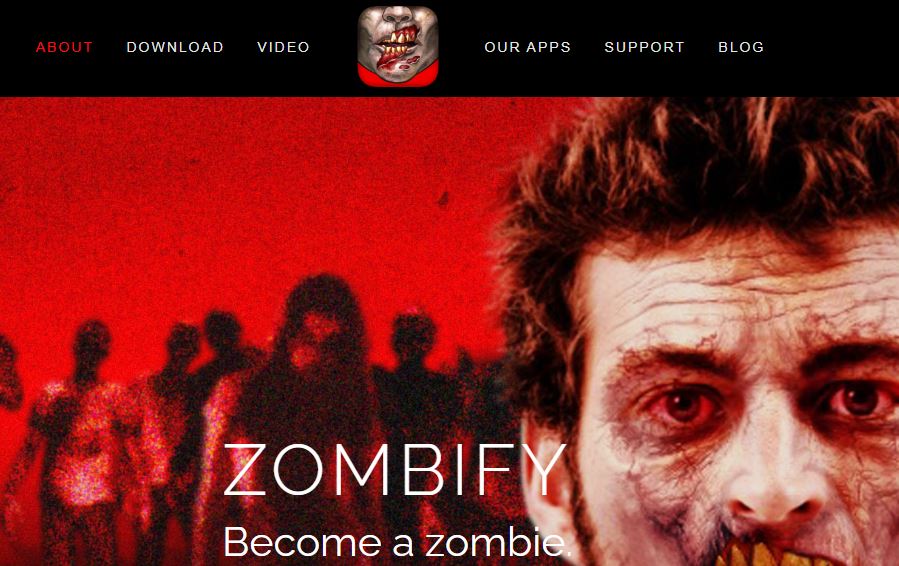
Zombify is a dedicated single-purpose app: it turns a face into a zombie and nothing else, which means the developers spent their effort refining one effect instead of spreading it across dozens of filters. It comes from the same studio behind Vampify and Wolfify, so if the zombie look does not land for you, the same team has vampire and werewolf equivalents.
Strengths:
- Depth of one effect: multiple zombie intensity levels rather than a single fixed look.
- Photo and video support: apply the effect to stills or short clips.
- Companion apps: Vampify and Wolfify cover the other classic monster archetypes.
6. TikTok Halloween Effects
TikTok’s in-app effects library gets a seasonal refresh every October, and because TikTok owns one of the largest AR effects platforms in the world (built on the same underlying technology stack as CapCut), the Halloween filters tend to be some of the most technically polished available for free. Open the camera, swipe through the Effects tray, and search “Halloween” to see the current rotation, which typically includes face-morphing filters, glowing-eye overlays, and full-scene horror backgrounds.
Strengths:
- Constantly refreshed: new effects appear through the month rather than a single static set.
- Built-in editing: trim, caption, and post without leaving the app.
- No separate download: if you already use TikTok, there is nothing new to install.
7. Make Me A Zombie
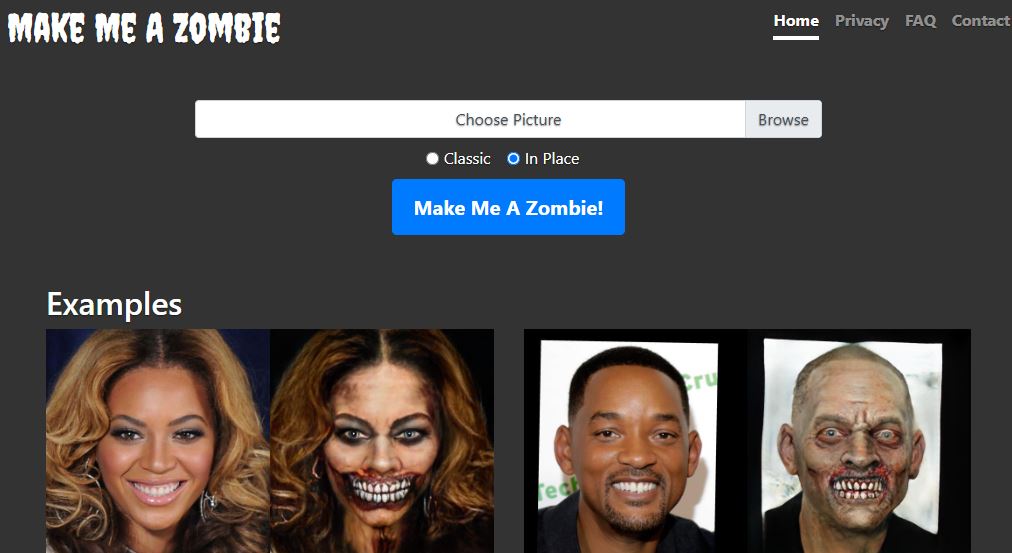
Make Me A Zombie is a free web tool with a narrow job: upload a photo, pick “Classic” or “In Place” style, and get a zombified version back with no account, no app store listing, and no subscription. It has stayed online for years by keeping the tool small, which is part of why it still works reliably when flashier apps come and go.
Strengths:
- Zero friction: no signup, no app download, works from any browser.
- Free: the core tool has no paywall.
- Two style modes: Classic reshapes the face, In Place keeps your original framing.
8. PicsArt Halloween Filters

PicsArt is a full photo and video editor with hundreds of millions of downloads, and its seasonal sticker and filter packs are just one small slice of what the app does. That breadth is the advantage here: after applying a Halloween face filter, you can immediately layer in text, stickers, background removal, or collage tools without switching apps.
Strengths:
- Full editing suite: Halloween effects sit alongside a complete photo editor.
- Large sticker library: pumpkins, bats, and spooky text overlays beyond just face filters.
- Direct social export: share to Instagram, TikTok, or Facebook from inside the app.
9. Reface
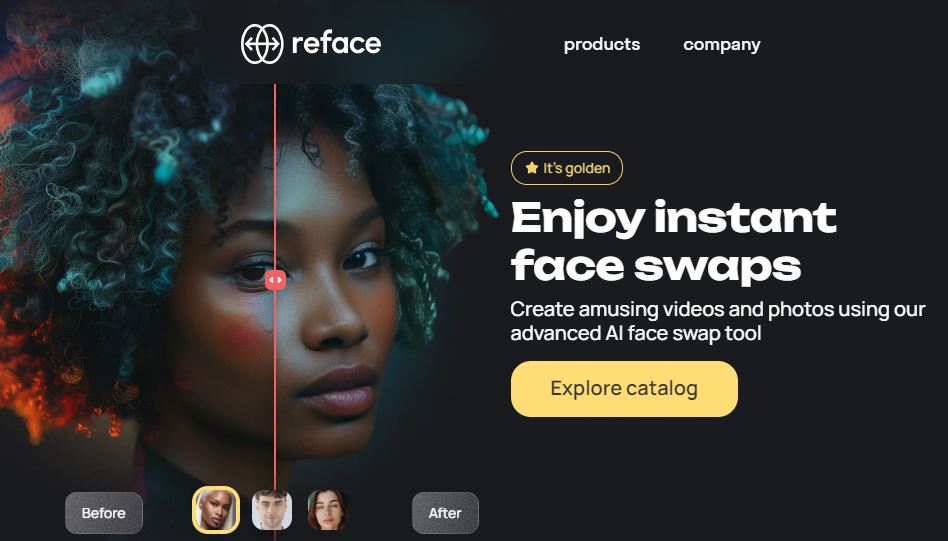
Reface built its name on video face-swapping, dropping your face into movie clips and GIFs with surprisingly convincing results for a mobile app. During October it adds horror-themed templates, letting you swap into classic monster scenes rather than applying a filter on top of your own face. That distinction matters if you want something that looks more like a costume than a mask.
Strengths:
- Video face-swap, not just photo overlays: drop into short horror-themed clips.
- Large template library: new horror and monster content added seasonally.
- Fast processing: most swaps render in under a minute on a modern phone.
10. Fotor Halloween Effects

Fotor is a browser and desktop photo editor aimed at people who want Photoshop-style control without the learning curve. Its Halloween pack layers stickers, overlays, and color grading on top of a face-detection tool that can automatically position ghostly eyes or vampire fangs where they belong.
Strengths:
- Full editing toolkit: beyond Halloween effects, Fotor covers cropping, retouching, and batch editing.
- Auto face-detection placement: stickers snap to eyes and mouth automatically.
- Free tier: most Halloween effects are available without a paid plan.
How to pick the right one for your photo
Not every tool suits every situation. A few practical filters to apply before you pick one:
- Live party vs. static photo: Snapchat, TikTok, and YouCam are built for real-time use on a phone camera. PhotoFunia, Fotor, and Make Me A Zombie work better for a single photo you already have saved.
- Realism vs. cartoon: FaceApp and Reface lean photorealistic. PicsArt and PhotoFunia lean toward stylized overlays that read as clearly digital.
- Group photos: most of these tools are built around a single dominant face in frame. If you are editing a group shot, test on a cropped single-face version first, since multi-face detection quality varies a lot between apps.
- Kids’ photos: if you are making Halloween images of children, prefer tools that process on-device or state clearly that uploaded photos are deleted after processing, and avoid apps that require a permanent account tied to a face upload.
Getting a source photo that actually works well
The single biggest factor in how convincing the final result looks has nothing to do with which app you pick. It is the quality of the photo you feed into it. Face-detection models need enough contrast and light to find your landmarks accurately, and most of the “why does this look weird” complaints trace back to the source image rather than the software.
- Face the light, not away from it: a photo where the light source is behind you (a window, a lamp) throws your face into shadow, which makes it harder for the model to place effects like fangs or eye color accurately.
- Look straight at the camera when possible: a slight angle is fine, but a strong three-quarter or profile angle confuses face-landmark detection more than most apps can compensate for, since the models are trained mostly on front-facing data.
- Skip the sunglasses and heavy fringe: anything covering your eyes or forehead removes reference points the model relies on, which tends to produce warped or misplaced effects around those areas specifically.
- Use the highest resolution available: a compressed, low-resolution photo (screenshots of screenshots, heavily compressed messaging-app downloads) gives the model less detail to work with, and the effect will look softer or blockier as a result.
None of this is unique to Halloween filters. It is the same guidance that applies to any consumer computer-vision tool, from virtual try-on makeup apps to ID photo verification. Good input produces good output far more reliably than picking a “better” app does.
A note on privacy before you upload a face photo
Any tool that processes your face is, technically, a facial recognition or facial mapping system, even when the stated purpose is a Halloween filter. Before uploading a clear photo of your face to any of these services, it is worth checking three things: whether the app deletes uploaded photos after processing, whether the terms of service grant the company a license to reuse your image, and whether the app has had any past data breaches or FTC complaints, as FaceApp has. None of this means you should avoid these tools. It means a five-minute filter is not worth handing over rights to your face indefinitely, so read the permission prompt before you tap “Allow.”
Cost, platform, and account requirements at a glance
Pricing and access vary more between these tools than most listicles let on, and it affects which one is actually worth your five minutes:
- Free, no account: Make Me A Zombie and PhotoFunia both let you apply a Halloween effect without signing up for anything, though PhotoFunia gates a handful of premium templates behind a subscription.
- Free with in-app purchases: Snapchat, TikTok, PicsArt, and Fotor are free to download and use, with optional paid tiers that unlock extra filters, remove watermarks, or add higher export resolution.
- Subscription-based: FaceApp and Reface both use a freemium model where the core Halloween filters are usually free, but higher-resolution exports or unlimited swaps sit behind a weekly or annual subscription. Check the current price inside the app before you commit, since these tiers change often.
- Account required: YouCam Makeup and Reface generally ask for at least a guest profile to save your edits, while the browser tools (PhotoFunia, Fotor, Make Me A Zombie) let you work anonymously.
Frequently asked questions
Do I need a powerful phone to run these apps?
Most run fine on a phone from the last four or five years. The heaviest processing, real-time AR tracking in Snapchat and TikTok, is optimized to run on mid-range hardware since both companies need their filters to work for the widest possible audience. Photo-based apps like FaceApp and Fotor are even lighter, since they process one image instead of a continuous video stream.
Can I use these tools on a group photo?
Some can. PicsArt and Fotor both support multi-face detection reasonably well, letting you apply effects to more than one person in frame. Single-purpose apps like Zombify and Make Me A Zombie are built around one dominant face and tend to produce distorted results on a group shot, so test on a cropped image first if you are working with more than one person.
Will these apps store my photo permanently?
Policies differ by app and change over time, so the honest answer is to check the current privacy policy before uploading. As a general pattern, browser tools that process an image and hand back a result immediately (PhotoFunia, Make Me A Zombie) tend to retain less than apps that require an account and sync photos to the cloud. FaceApp in particular has drawn regulatory attention over data handling, so if privacy is a priority, that is one to research before installing.
What is the difference between a filter and a face swap?
A filter, like the ones in Snapchat, TikTok, or FaceApp, adds elements (fangs, scars, discoloration) on top of your existing face while keeping your actual features recognizable. A face swap, like Reface, replaces the face in a template scene with yours, so the output looks less like “you wearing makeup” and more like “you starring in a movie clip.” Both count as AI Halloween tools, they just solve different problems.
Are any of these tools completely offline?
Very few. Because most rely on cloud-based machine learning models to get realistic results, an internet connection is usually required, even for apps that feel instant. If you are planning to use one at a party with unreliable service, test it beforehand rather than assuming it will work offline.
Transform your face for Halloween
Between real-time AR filters like Snapchat and TikTok, photorealistic editors like FaceApp and Reface, and single-purpose tools like Zombify and Make Me A Zombie, there is a face changer suited to almost any Halloween plan, whether that is a quick story post or a printed costume reference photo. Pick based on how you plan to use the result, check the privacy basics above, and give one a try before the holiday arrives.
If you run a community site, membership platform, or blog and want to bring some of this seasonal energy into your own content calendar, the same face-changer trend is worth covering as a short seasonal post, a social media roundup, or even a themed contest where members submit their own transformed photos. It costs nothing to try, and it tends to generate more shares than a standard product update.
11 Best AI Avatar Video Generator Tools
Best AI Tools for Smart Contracts: Top 10 Solutions for Blockchain Efficiency
20 Best AI Animation Software for Creators, Marketers, and Storytellers