

BuddyPress is a WordPress plugin that allows you to build a community website. It includes multiple components such as groups, private messaging, and activity streams. Using these features, you can easily create your own social network.
BuddyPress pages are often generated dynamically, which makes inserting ads more difficult compared to static pages. While automatic ad injections work well on regular pages, they may not function properly on all BuddyPress-related pages. BuddyPress Ads provides dedicated ad placements specifically designed for BuddyPress pages.

Quick Links
BuddyPress Ads Plugin
To provide a seamless customer experience and increase engagement, integrate ads into your BuddyPress community. You can display ads at various BuddyPress locations such as the Activity Page, Group Page, and Member Page. The ad position can also be customized based on your requirements.
Key Features
- Compatible with both BuddyPress and BuddyBoss platforms.
- Ideal for community sites, social marketplaces, membership sites, and auction sites.
- Supports plain text, rich content, and image advertisements.
- Allows embedding PHP code directly into advertisements.
- Option to reposition content around advertisements.
- Choose activity types for advertising, including groups, members, or site-wide.
- Display advertisements in multiple positions.
- Target both logged-in and logged-out users.
- Device-based display conditions for desktop, mobile, and tablet users.
Also Read: Free Google Analytics Plugins for WordPress
BuddyPress Ads Setting
Monetizing a BuddyPress-powered community through ads is an effective way to generate revenue while keeping the platform free or affordable for users. With the right ad settings, you can display relevant ads without disturbing the user experience, ensuring a healthy balance between engagement and income.
1. Types of Ads Supported:
- Banner Ads
- Sidebar Ads
- In-content Ads
- Pop-ups or Modal Ads
2. Setting Up Ad Placement:
- Configure ad locations on BuddyPress pages such as activity streams, group pages, and member profiles.
- Place ads strategically to increase visibility while avoiding disruption to the community experience.
3. Ad Management Plugins:
- Use popular WordPress ad management plugins compatible with BuddyPress, such as Ad Inserter and WP Pro Ads.
- These plugins offer features like ad scheduling, targeting, rotation, and performance tracking.
4. Customization Options:
- Customize ad size, format, and display conditions based on your site layout.
- Enable responsive ads to ensure proper display on mobile and tablet devices.
5. Targeting and Segmentation:
- Show ads based on user roles, groups, membership status, or activity type.
- Use analytics data to track performance and optimize ad placements.
6. Compliance and Best Practices:
- Ensure ads comply with privacy regulations such as GDPR and CCPA.
- Avoid intrusive or excessive ads to maintain a positive and engaging community environment.
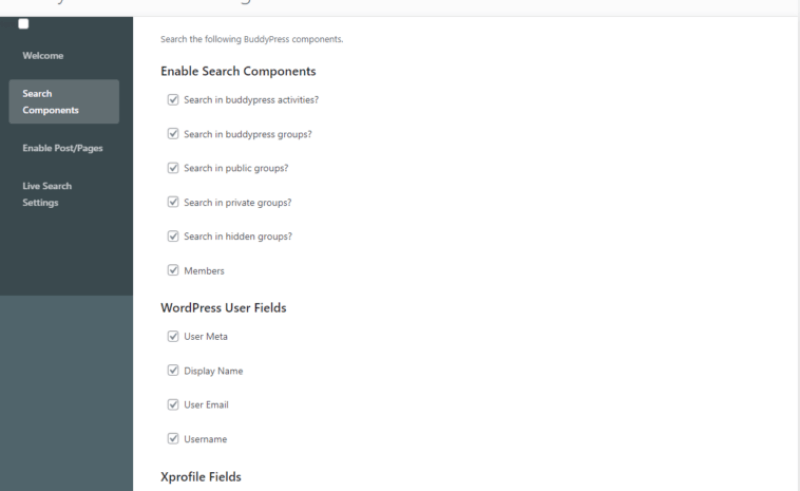
Create BuddyPress Ads
After installing the plugin, a new Custom Post Type called WB Ads will be available. Navigate to WB Ads > Add New to create your first ad. This page provides several options to create and manage advertisements.
WB Ads Type
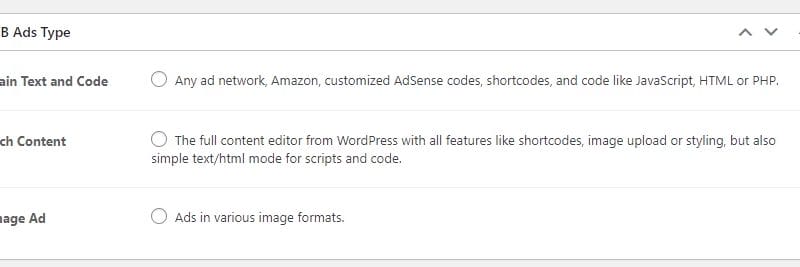
First, choose the ad type from Plain Text, Image Ads, or Rich Content.
- Plain Text and Code: Suitable for any ad network such as Amazon.
- Rich Content: Uses the full WordPress editor, allowing shortcodes, image uploads, styling, and HTML mode for scripts and custom code.
- Image Ad: Supports advertisements in various image formats.
Ads Parameter

Allow PHP: Execute PHP code (wrapped in PHP tags).
Also Read: How To Use BuddyPress To Create Social Network On WordPress
Layout / Output
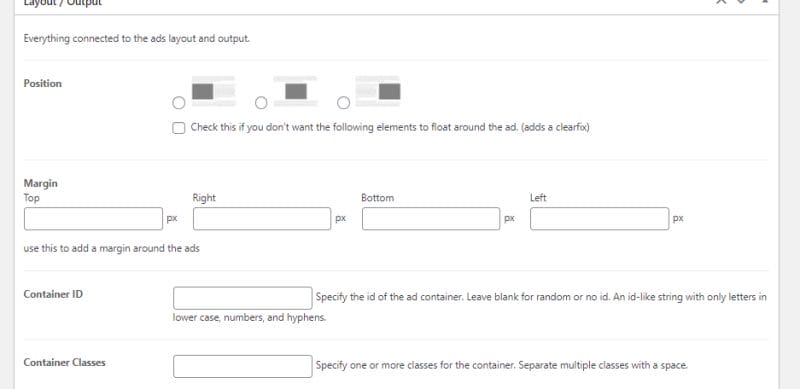
- Position: Allows you to place the ad at a specific point. This setting also adds a clearfix.
- Margin: Adjusts the spacing around the advertisement.
- Container ID: Specify a custom ID for the ad container.
- Container Classes: Define custom CSS classes for the ad container.
Display Conditions
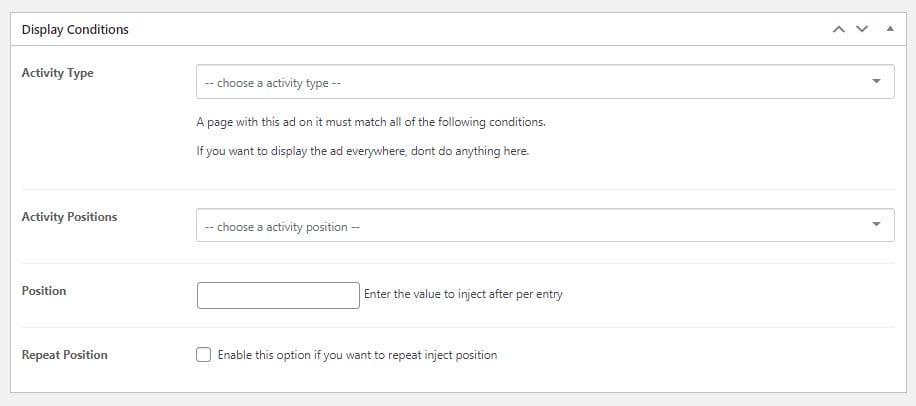
Activity Type: The ad must appear only on pages that meet all defined conditions. Ads will not be displayed unless permission is granted through these settings.
These are the available activity types:
- Sitewide Activity
- Activity of Members
- Group Activity
Activity Positions: Choose the position where you want to display advertisements.
Also Read: Essential WordPress Plugins To Use On Your Website
There are currently:
- Before Entry
- After Activity Country
- Activity Entry Content
- Before Activity Entry Comment
- Comment After the Activity
Position: Enter the numeric value for placement after each entry.
Repeat Position: Enable this option if you want the ad to be injected repeatedly.
To Whom
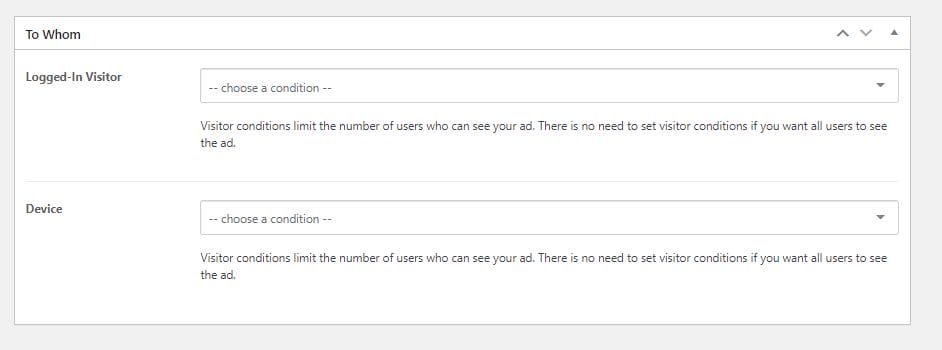
Logged-in Visitor: Visitor conditions control who can see your ads. If you want all users to see the ad, no visitor condition is required.
Device: Restrict ad visibility based on device type such as desktop, tablet, or mobile.
Hide Specific Ad
You can hide a specific ad directly from the CPT ads listing. To do this, navigate to WB Ads in your WordPress dashboard and disable the ad you want to hide.
Frontend View

Conclusion
To provide a seamless and engaging experience for your community members, it’s essential to properly integrate ad placements within your BuddyPress site. By strategically displaying ads across all relevant BuddyPress locations, such as activity streams, member profiles, groups, and forums,. you can enhance visibility without disrupting user interactions.
Careful integration ensures that advertisements complement your community content rather than overwhelm it, maintaining a professional and user-friendly environment. Leveraging responsive ad formats and targeting options can further boost engagement, ensuring that members see relevant promotions while you maximize revenue opportunities.
Interesting Reads:
Best Accounting Software Cloud Based

